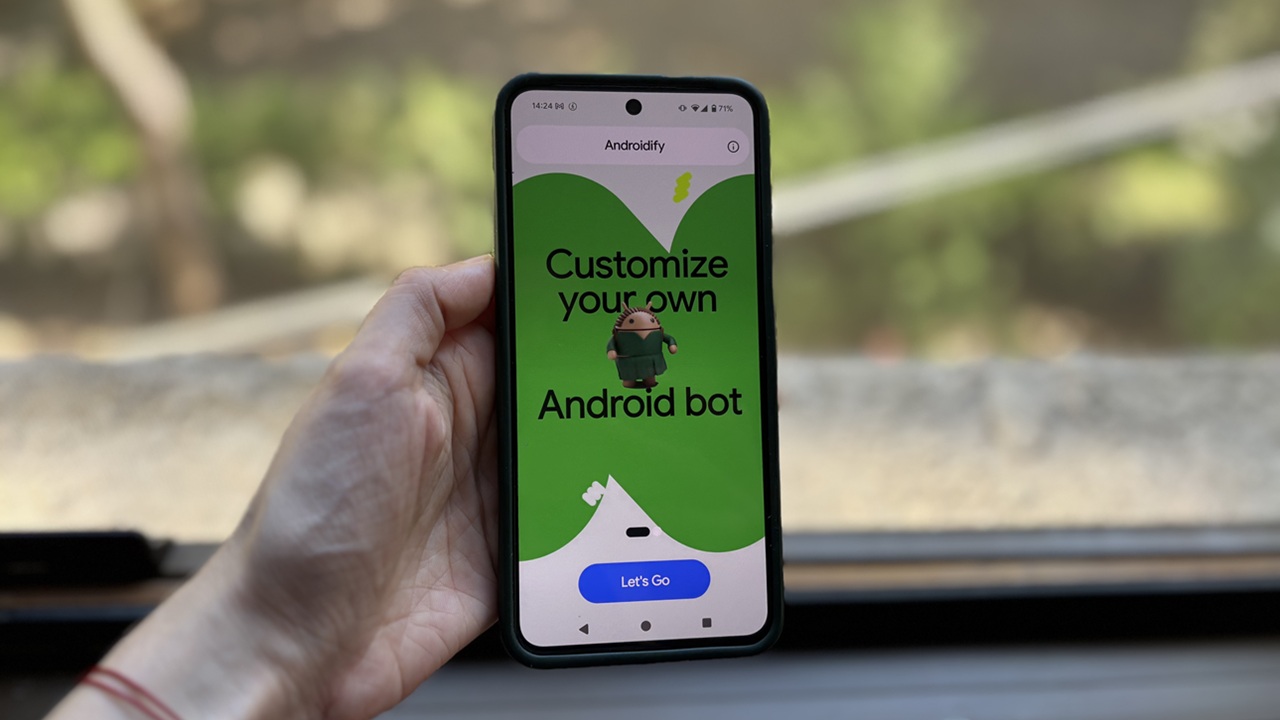
Androidify made its debut in 2011 as a fun way to create and personalize Android characters. While Google retired the app in 2020, it’s now back – this time powered by AI. Here’s how you can use the revamped version to create your own personalized Android bot.
Good to know: learn how to turn your photos into Ghibli Studio-style illustrations for free.
Google Reinvents Androidify
While the original Androidify allowed users to create a custom version of the popular Android mascot by allowing them to personalize skin tone, clothes, hairstyles, and accessories, the new version takes things to the next level. By leveraging the power of AI, it can now generate more personalized avatars that capture individual style and features.
The new Androidify app is available on the Google Play Store or on the web. For this tutorial, I’m focusing on the former option.
Creating Your Personalized Android Bot
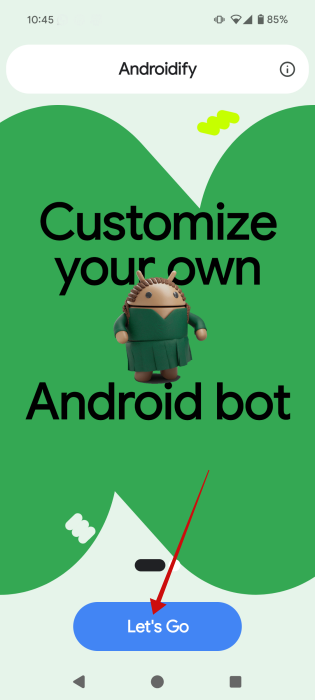
Open the app on your phone and tap the Let’s Go button to get started.
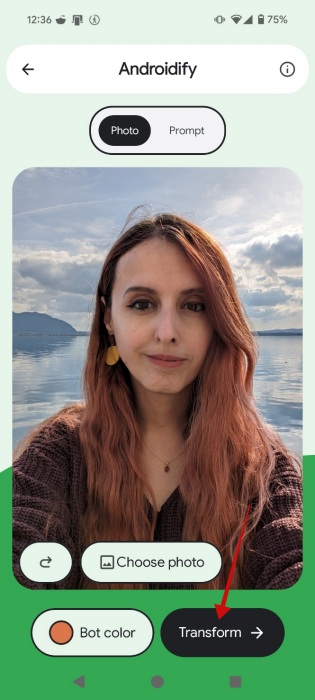
On the next page, you’ll be prompted to choose between uploading a photo or writing a prompt. I’ll start with the first option, since it’s the method that allows you to create a bot that resembles the person in the photo.
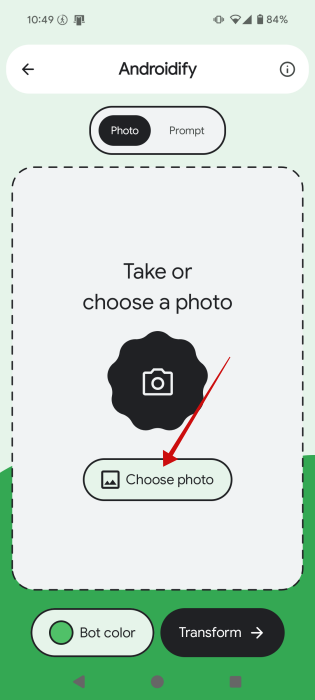
Tap Choose photo and browse your device’s gallery to find an image that you want to use.
Next up, you might want to select a Bot color for your creation by tapping the button at the bottom. The default is set to Android bot green.
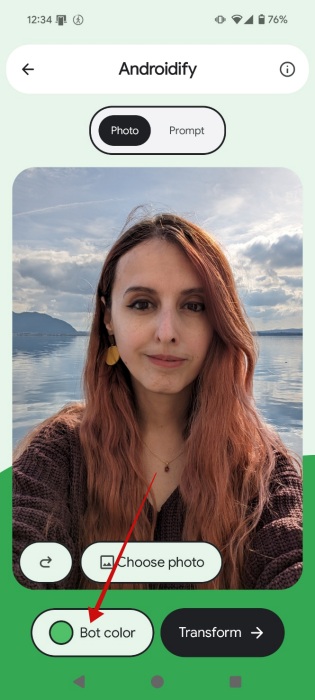
Finally, press Transform and wait a few seconds until the app generates your creation. Androidify uses Gemini 2.5 Flash to caption the photo and Imagen to generate your custom Android bot.
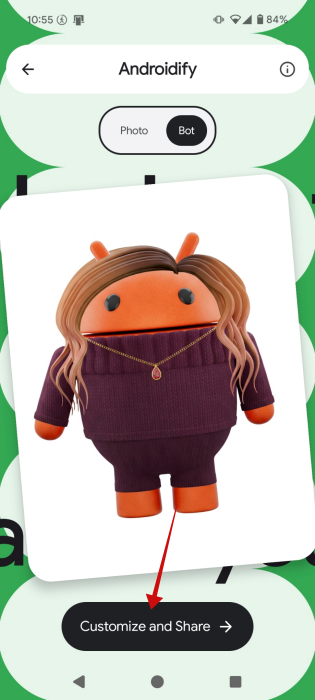
As you can see, Androidify picked up all the key details in the photo and re-created them in the Android bot rendition, including the reddish/orange hair, brown sweater, and red stone pendant. For further tweaking the avatar, tap on Customize and Share.
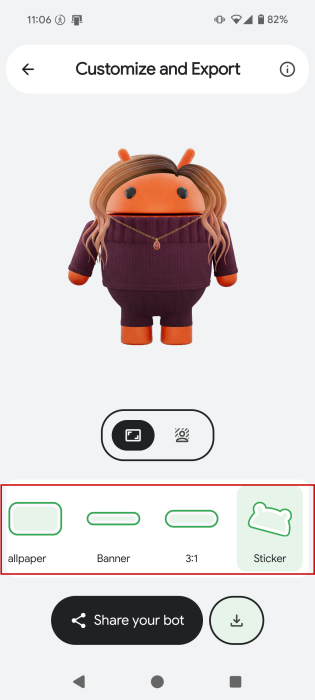
Google lets you display the bot in various formats, such as a banner or wallpaper so you can use it as background for your Android home screen. Alternatively, you can opt to have it turned into a sticker.
If you don’t like the default all-white backdrop, switch to the Background tab underneath the bot view. Google has several AI-powered options you can try. Swipe through them and tap to select one. It takes a few seconds for the app to generate the background.
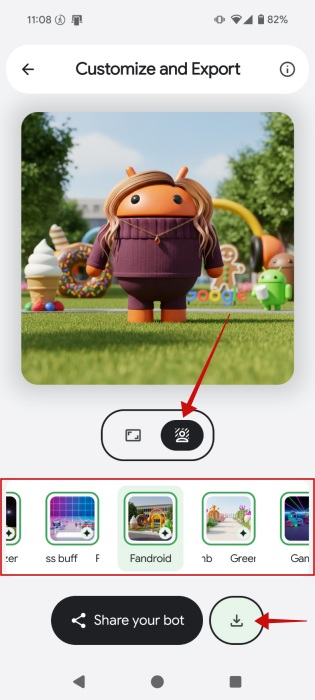
Note: if you don’t like what Google generated for you, you can tap again on the same option for a different result.
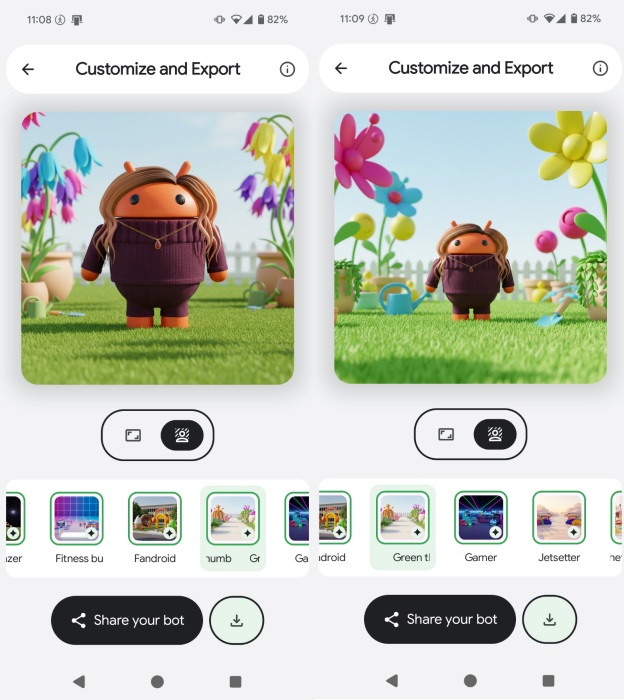
Next stop, press Share your bot to send your personalized creation on its way via social or email apps. Alternatively, you can download it on your device if that’s easier for you.
Using the prompt option
If uploading your personal photos into yet another Google app makes you uneasy, or you simply want to get creative with your bot, you can use the Prompt option instead.
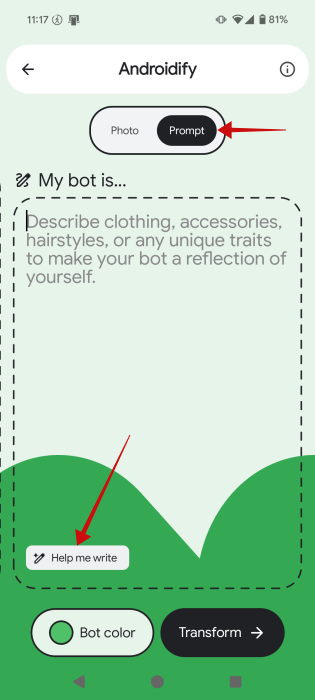
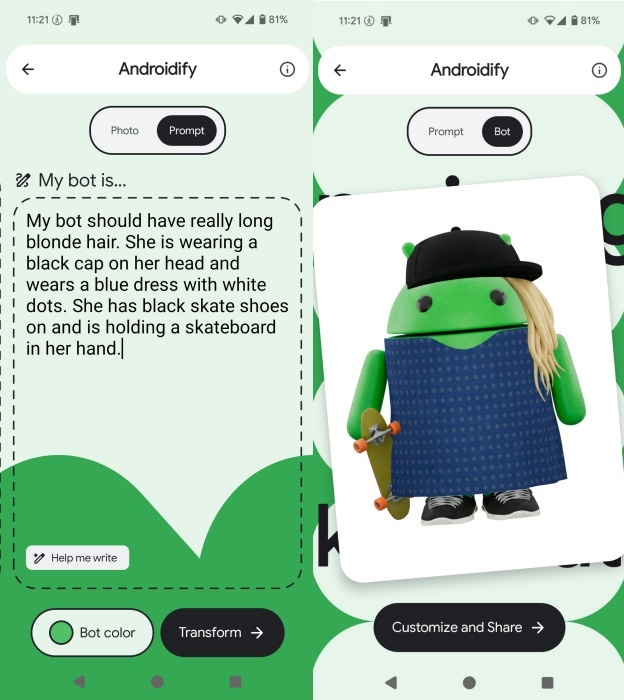
Go ahead and write a description that includes as many details as you can. The fun part here is that you don’t necessarily have to describe your own appearance. On the other hand, if you don’t feel the inspiration today, you can always use the Help me write button and have Google draft up the description for you.
I’ve written the description below, and Androidify created this avatar, which mostly matched my instructions. In my mind, I pictured the dress as having large polka white dots, but I didn’t mention this detail in the description, so the more details you include, the better.
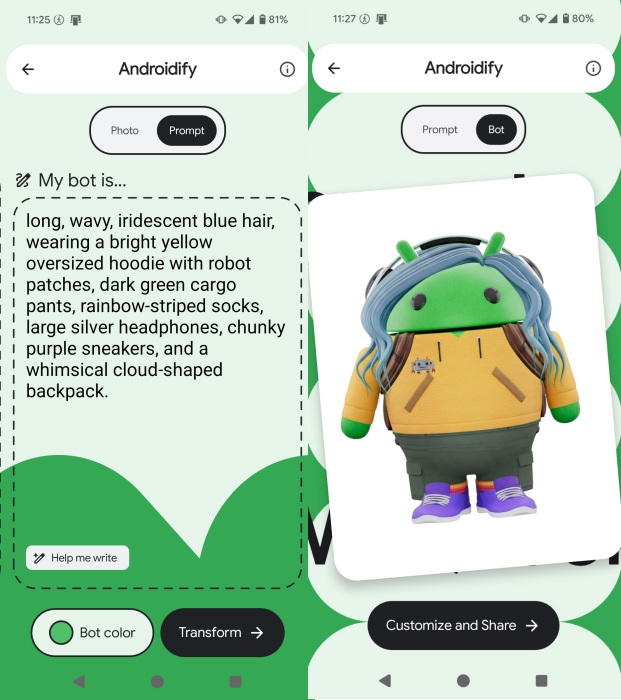
Alternatively, I used the Help me write function and got this description, which I could edit before pressing Transform.
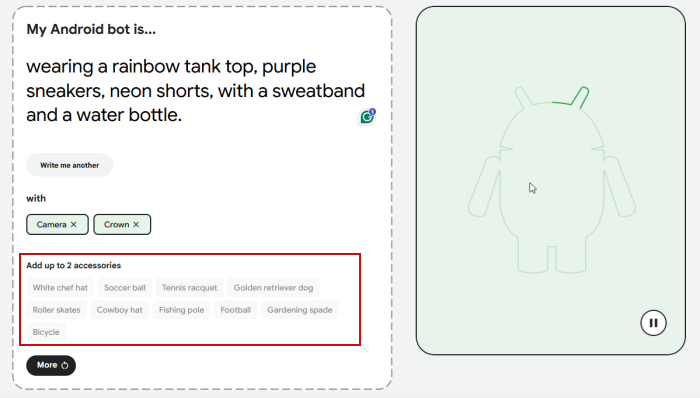
Note that in the web version of the app, Androidify also automatically suggests accessories to include with your bot. Although they can be added via the prompt, as well.
One more thing to add here, each Friday this month, the Androidify app will add the option to animate your Android bot into an 8-second video. The feature is powered by Google’s Veo 3 model.
Tip: here’s how to stop Gemini from remembering your old chats.
Where Can I View My Android Bot Collection?
Unfortunately, there’s no way to save your Android bots for later in Androidify. Since you don’t need to sign up for an account to use the app, your creations aren’t collected in a personal library.
That said, you have to remember to save all your Android bot creations if you don’t want to lose them. You can try regenerating a bot, but they won’t turn out 100% the same even when using the same exact picture.
Any Androidify Alternatives?
Androidify is pretty unique in the sense that it creates Android bot avatars using AI from your uploaded photos or prompts.
However, other apps use a similar technique with artificial intelligence to produce avatars, just not Android bot-style ones. If you’d like to experiment a bit with some alternatives, you can try one of these options:
These days, AI features are everywhere, including in popular mobile photo editing apps. The options included in our post use artificial intelligence to boost your photos in all sorts of creative ways. Why not give them a spin and see what they can do for you?








