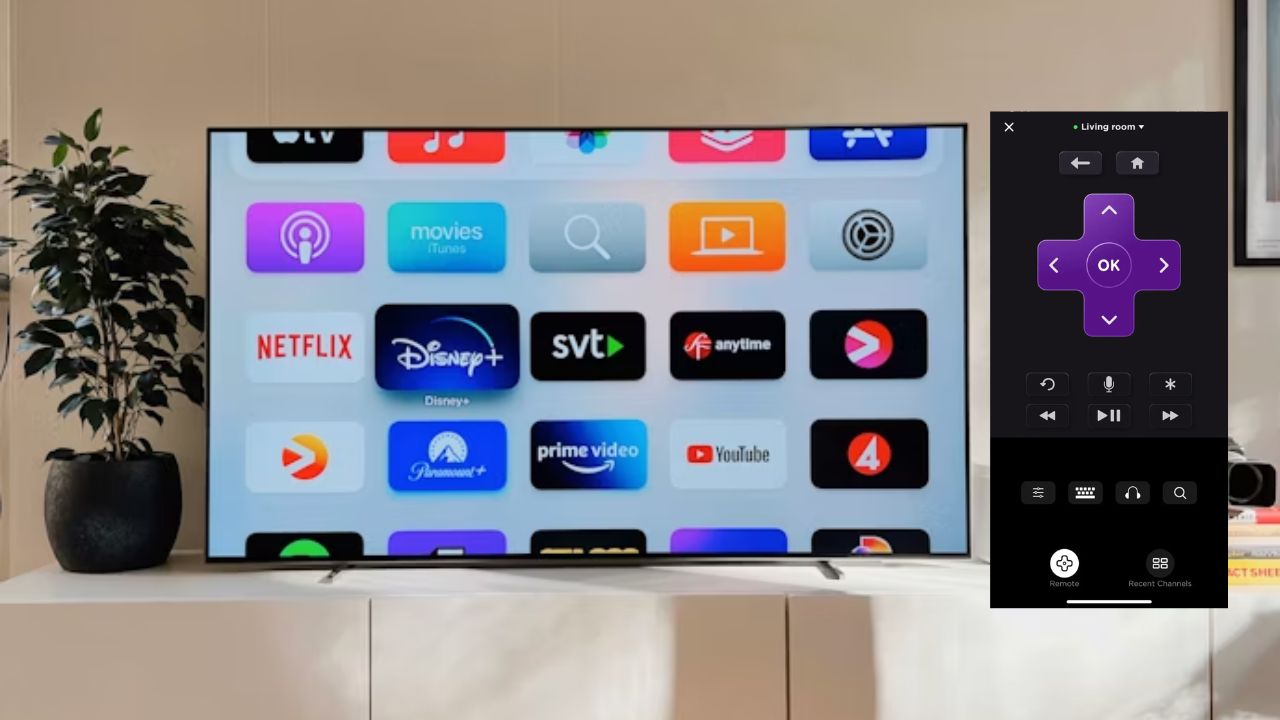
You’re ready to stream your favorite show, but your Roku is offline. Ugh! Been there and it’s a total buzzkill. Connecting your Roku to Wi-Fi can be tricky without a physical remote. This guide keeps it simple, with hacks to connect your Roku to Wi-Fi without a remote. Let’s dive in and get you streaming in no time.
Connecting Roku to Wi-Fi with a Remote
This is a straightforward process unless your remote is hiding under the couch like mine was – a frantic 20 minutes of my life I’ll never get back.
Grab your remote and navigate to Settings -> Network on your Roku.
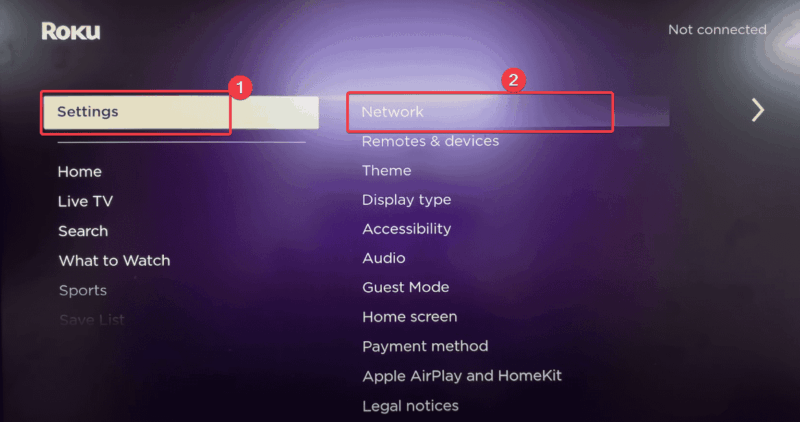
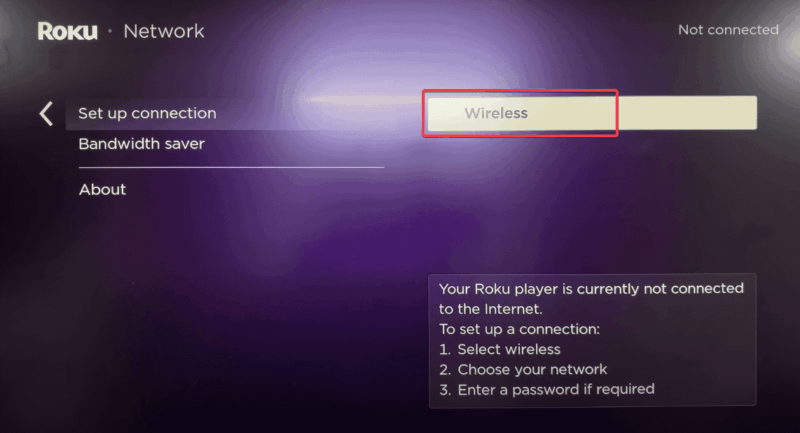
Select Set Up Connection -> Wireless.
Wait for a quick scan before choosing your Wi-Fi network.
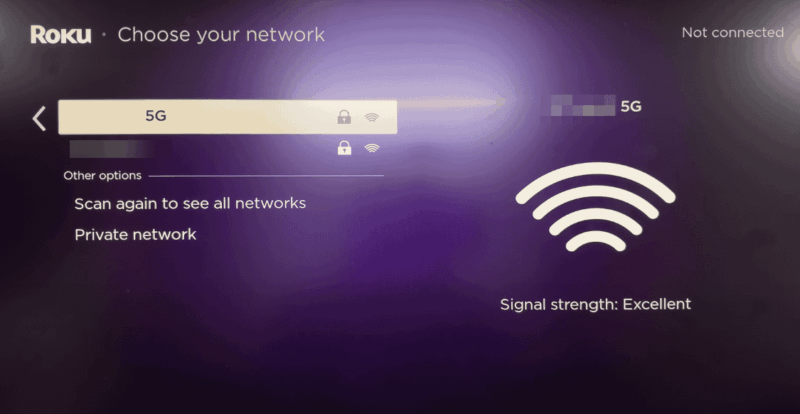
Enter your password. Double-check for typos; they’re the worst. Then proceed and wait for the Wi-Fi to connect.
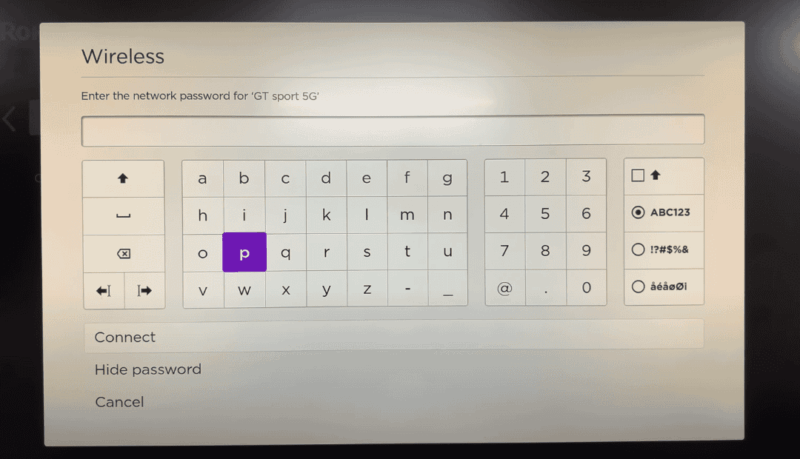
If it fails, reboot your router for a quick fix to glitchy connections. Once connected, you’re ready for buffer-free streaming.
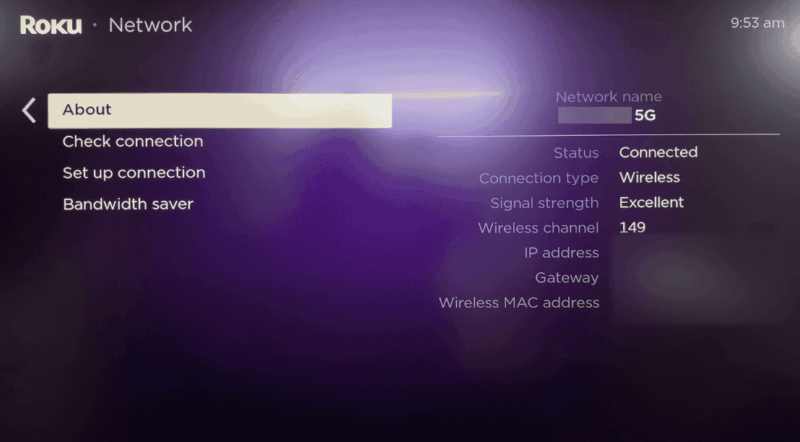
Extra: For a full setup guide, check out how to set up your Roku TV or box.
Connect Roku to Wi-Fi Without a Remote
Lost your remote for real? Or is it simply unavailable for whatever reason? No stress, you can still connect Roku to Wi-Fi without a remote with these options.
Use the Roku Mobile App
Note: Roku must still be set up to its previous Wi-Fi network for this to work.
First, you must have one device using a mobile hotspot and the other with the Roku app (not The Roku Channel app) installed separately. You can get the mobile app on the Play Store or the App Store.
Configure the first phone’s mobile hotspot’s network name (SSID) and password to match the Wi-Fi network that was last used on your Roku.
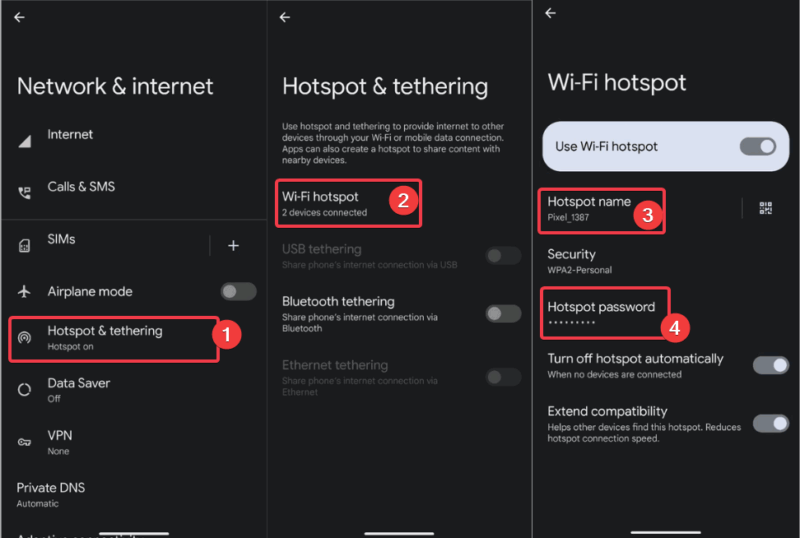
After you turn on the hotspot, reset your Roku by unplugging it for a few seconds and plugging it back in. When the Roku restarts, it should automatically connect to your mobile hotspot.
Then, connect your second phone to the Wi-Fi hotspot of the first phone.
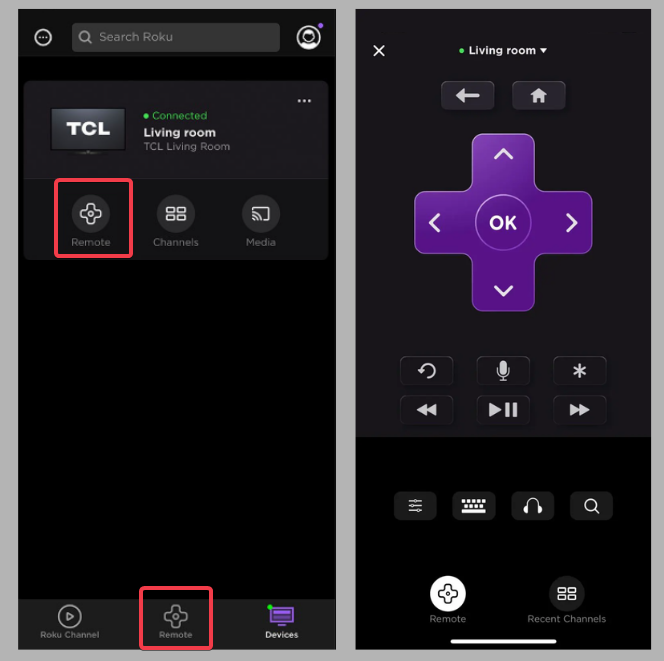
Now that your second phone and your Roku are on the same device, launch the Roku app, sign in, and tap on your Roku device when it appears under Devices.
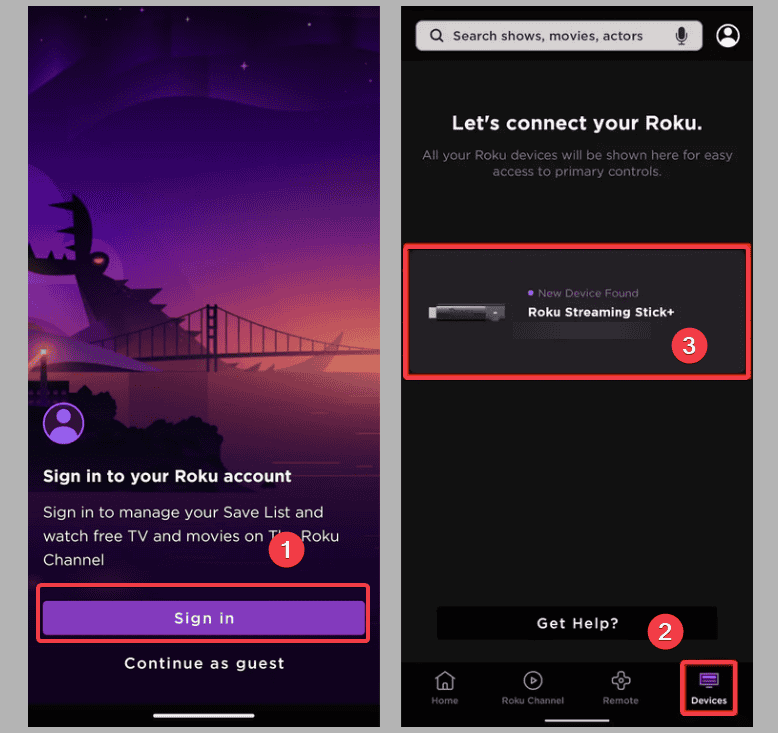
Now your phone is connected to Roku as a remote. Tap the Remote tab, use it to navigate to Settings on the Roku home screen, and select Network.
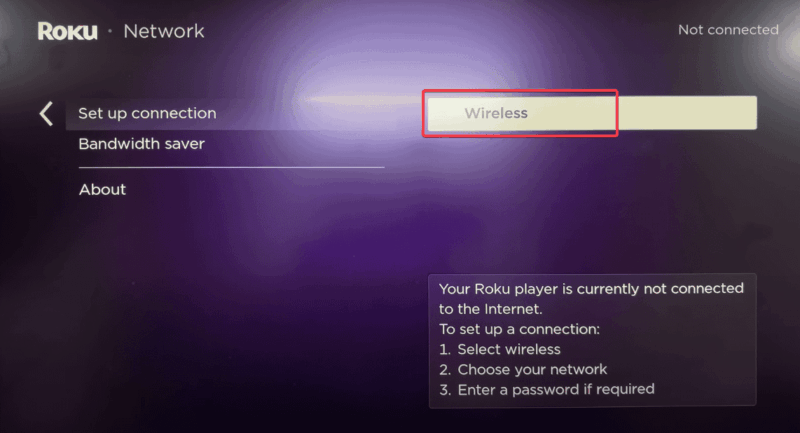
Choose Set up Connection -> Wireless to allow Roku to search for a new Wi-Fi network, and enter the password to connect.
The app’s interface may feel clunky, but it works. Once you connect to the new network, your virtual remote will disconnect, and you’ll need to reconnect to keep using your phone as a virtual remote.
Use the Ethernet cable
If you’ve recently cleared your Roku’s network settings or done a factory reset, you should go this route.
My Roku doesn’t have the Ethernet port. So, if yours does, connect to that. Roku should recognize and connect to your local network without a problem once it powers on.
Then, use the Roku app’s remote control to update the Wi-Fi settings. For more remote-free tips, see how to turn on your Roku TV without a remote.
Alternatively, a universal remote can pinch-hit irrespective of the Roku device you use. Unsure of the Roku device to buy, use our guide to help you make a decision.
Simple Hacks for Roku’s Wi-Fi Woes
If your Roku connection is acting up, don’t throw it out the window yet.
- Move your Roku closer to your router or get a Wi-Fi extender to counter weak signals. I shifted my Roku a few feet and saved our movie night; small moves, big wins!
- Check for firmware updates consistently via Settings -> System -> System Update.
- Overcrowded Wi-Fi channels can also mess things up. So, switch to a 5GHz band for better performance.
If your Roku won’t even turn on, try these fixes. These tweaks mean less buffering and a smoother streaming experience, which is all we crave.
Why This Matters
A reliable Wi-Fi connection unlocks endless movies, shows, and free channels. Roku can be finicky about weak connections and expects perfect Wi-Fi. Hence, it often needs real-time tweaks.
No one is above mistakes, and for whatever reason, your Roku remote might be missing, stolen, or even spoiled by your kids.
So, master these steps to connect Roku to Wi-Fi without a remote or signal issues, and you’re golden. Share your setup tips or questions below, and let’s get streaming!








