If you often lose important pages in a sea of open tabs on your phone, the new pinned tabs feature in Chrome for Android will feel like an instant upgrade. This feature lets you lock your most-used sites in place, so they’re easy to find.
Mobile browsing often quickly turns into chaos. Tabs pile up, key pages get buried, and one wrong swipe can close something you rely on all day. The ability to pin tabs in Chrome for Android solves that problem. Pinned tabs stay at the front of your tab list and never disappear, even after you close and reopen the browser.
If you keep Gmail, banking sites, calendars, productivity, or work dashboards open constantly, you will notice the improvement immediately.
Instead of scrolling through dozens of old tabs every time you pick up your phone, your essential sites are right there waiting at the top. In practice, this can save several minutes a day and remove a surprising amount of frustration.
Pinned tabs also work naturally with Chrome’s other organization features. For example, if you rely on tab groups in Chrome to organize projects, you now gain a permanent “home row” for the sites you visit most.
What the Pinned Tabs Feature Includes
The feature is simple and clean. When you pin a tab in Chrome for Android, it shrinks slightly, shifts to the left side of the tab grid, and shows a small pin icon. The close button disappears, so you cannot accidentally remove it. You can pin as many tabs as you need, and they stay in position even after you restart the app or your phone.
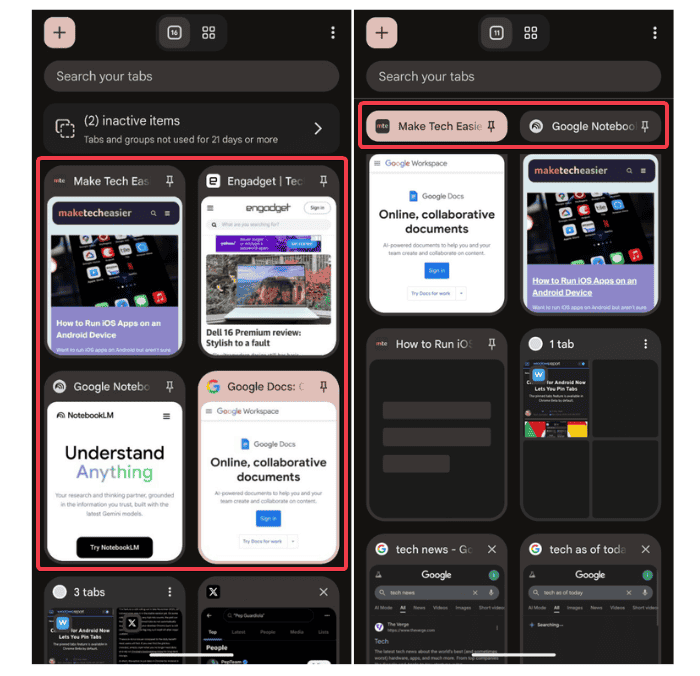
Everything works alongside existing tools. For example, you can pin an entire tab group if you want a whole category always ready. And if you often tweak Chrome using experimental settings, you’ll find the flag for this feature in the same place as many other useful tweaks. Learn more about powerful Chrome flags that can further improve your experience.
Enabling and Using Pinned Tabs
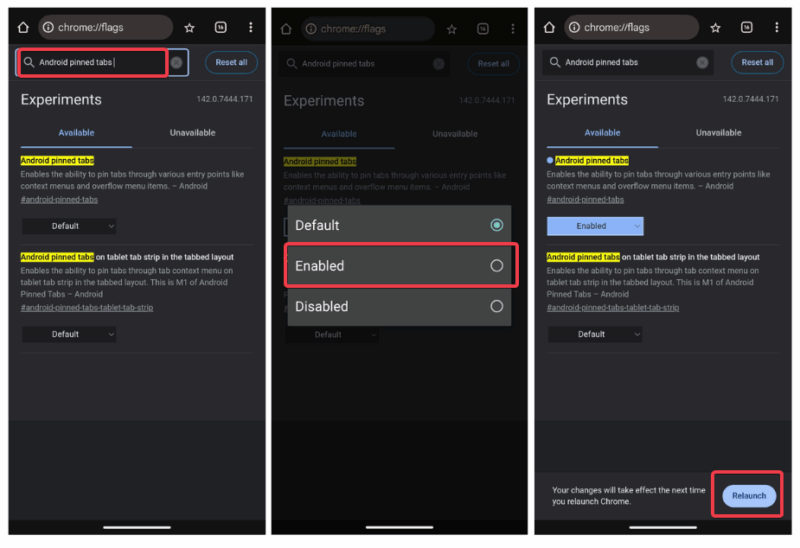
Most people on Chrome Beta or Canary already have the feature turned on by default. If you use the stable versions, you need to manually force-enable it. Go to chrome://flags, search for Android pinned tabs, set it to Enabled, and restart Chrome.
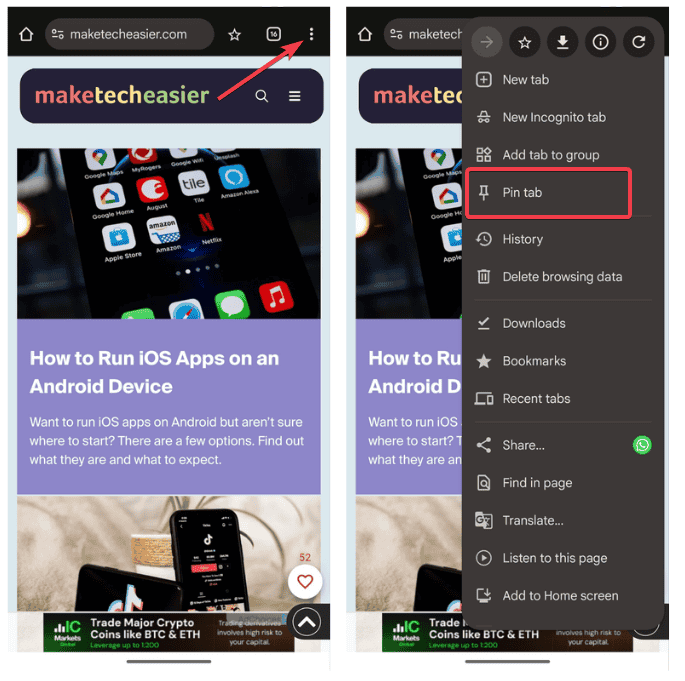
To pin a tab, open the page, tap the three-dot menu, and choose Pin tab. You can also long-press any tab in the grid view and select the same option.
Unpinning uses the same menus. Since pinned tabs lack a close button, you’ll need to long-press and select Close tab to remove a pinned tab.
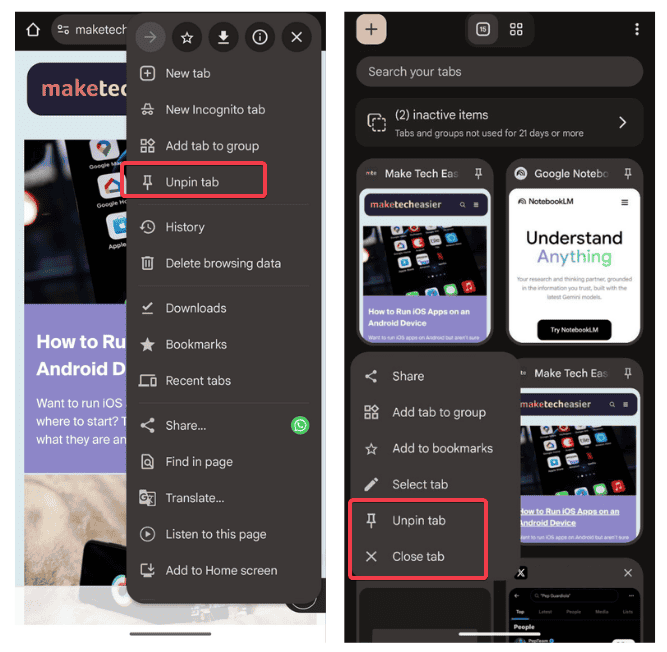
If you frequently switch between phone and computer, combining pinned tabs with sending tabs between devices keeps your workflow consistent across devices. On tablets or foldables, pairing it with Chrome split-screen tabs creates an even more desktop-like setup.
Limitations to Keep in Mind
The feature is still rolling out, so you may not see it yet. In that case, you’ll have to force-enable it. On older Android phones or with very high tab counts, the grid may feel slightly slower. Also, pinned tabs do not sync automatically as pinned on your desktop Chrome, and the flag may turn itself off after major browser updates.
Personally, these are minor issues compared to the daily benefits you will get from using this feature. And if your tab ever gets crowded, unpin what you no longer need daily and use Chrome’s bookmarks for long-term storage, at least that’s how I use it.
In short, the option to pin tabs in Chrome for Android is one of those rare updates that quietly make your browsing experience feel more organized and less frustrating. Give it a try and let us know how it goes for you in the comments.








