
Hundreds of browser extensions for Chrome, Firefox, and Edge have adopted a new monetization tactic: tapping into your PC’s resources to scrape the web. Although not strictly malware – and often operating with your indirect consent – this practice is still quite iffy. If you’d rather not have your PC enlisted in data‑harvesting schemes, here’s how to spot these extensions and remove them for good.
Why Browser Extensions are Using Your PC for Scraping the Web
Large enterprises heavily depend on publicly available data for data-driven decisions and fueling AI initiatives. However, using bots for web-scraping isn’t the best solution, as most websites block mass web-scraping attempts. This is why new and clever web-scraping methods crop up from time to time, like AI web scraping or this new browser extension-based web scraping technique.
These extensions add hidden iframes that open targeted websites hidden from the view of the users to scrape data from them. This way, the websites are opened like the user is opening them, so they avoid many bot detection systems in place. The data collected is then sold to AI companies and data-hungry analytics firms for profit.
While these extensions don’t steal your personal data, they still make use of your network bandwidth and PC resources to open webpages for scraping. Furthermore, they also temporarily remove security headers that can make your browser susceptible to cross-site scripting and clickjacking.
The methods below can help you detect such extensions to avoid them.
Look For Consent to Use Bandwidth
While many extensions tried to do this stealthily, they have already been taken down. Therefore, many will ask for consent – usually deceptively – to comply. In most cases, they will ask to use your idle bandwidth to “support” the developer without explicitly telling how the bandwidth will be used. Some might just ask, “Support the developer for free” to activate the web scraping.
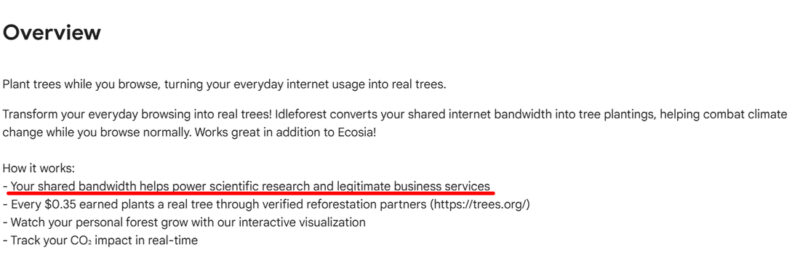
There are also some that let you give your free bandwidth in exchange for something good. For example, the Idle forest extension uses the same technology to let you plant trees for free. If you find such a consent either in the extension description or after installing it, it’s better to stay away.
Use Spin-AI Risk Assessment Tool
Spin-AI Risk Assessment tool lets you search your favorite Chrome or Firefox extension to learn how risky it is. It uses many factors to conclude how risky it can be; we want to focus on the risky permissions for these web-scraping extensions. However, it doesn’t examine all the extensions out there, so there is a chance it may not have vetted your specific extension, especially if it’s new.
Before installing an extension, search for its name on the Spin-Ai Risk Assessment tool. It will show all related extensions along with a score of how risky they are. If you find your extension, click on it to learn more. Under the Permissions section, you need to look for the two permissions “all urls” and “declarativeNetRequest” as they are a must for such extensions to function.
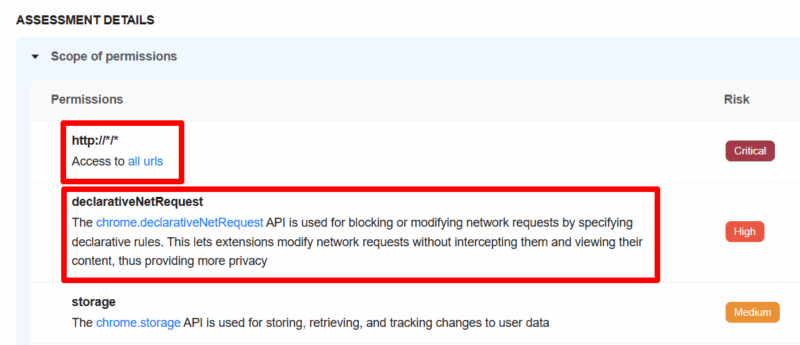
Normally, these two permissions together aren’t needed by most extensions to work. Mostly, security and privacy extensions use these together, like anti-trackers, ad blockers, and VPN/Proxy extensions. If an extension wants both of these permissions, while they don’t have to directly modify network traffic or access data on all websites, they probably need it for web-scraping.
Apart from permissions, the Spin.AI Risk Assessment tool will also give a lot of information about the extension and its developer to decide if it’s safe or not.
Monitor Extensions’ Background Resource Usage
When the extension runs a web-scraping job in the background, it will consume some CPU/memory resources and network bandwidth. If you find an extension suspicious, you can use the browser’s task manager to see if it’s using any resources even when not active.
In Chrome and Chromium-based browsers, press the Shift + Esc keys to open the task manager. On Firefox, type about:processes in the address bar to access background processes. When you are not actively using the extension and it still appears here, it means it’s running background processes. To further confirm if it’s scraping the web, see if both CPU and Network resources are in use.
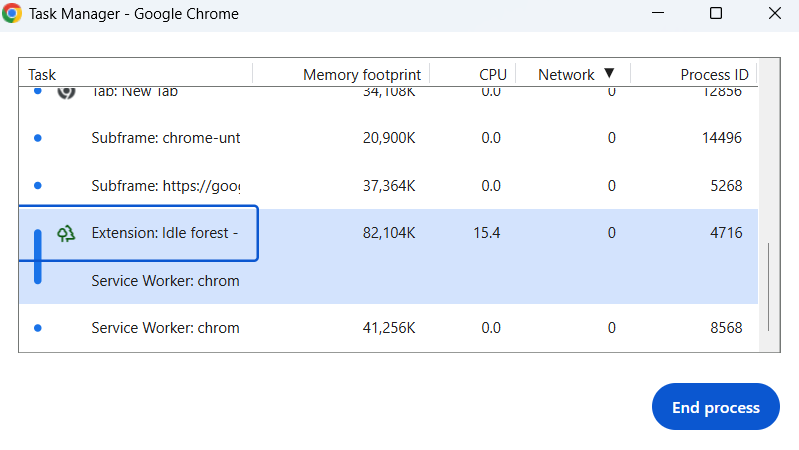
Some of these extensions may not immediately start scraping the web or only do it when the PC is idle, so you may have to check the processes multiple times to catch them.
Apart from these methods, you can also track your network connection to see if any unexpected connections are being made. Using a firewall software, you can both track connections and block them.








