
Downloading images from the web can sometimes be harder than it should be. Luckily, there are several Chrome extensions to easily download images online. This list includes our tried-and-tested top picks.
Good to know: here’s how to use Chrome to turn webpages into AI podcasts.
1. Imageye
Price: Free
Imageye makes downloading images off a site super simple. Instead of having to scroll through the entire page, Imageye automatically lists all images in a handy dedicated panel on the right.
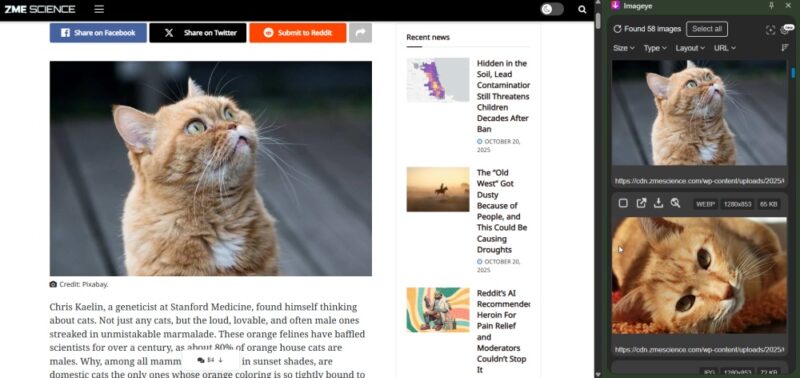
You can then hover your mouse over an image to make the Download button appear. Downlading is available in JPEG, PNG, JPG, or WEBP formats. If needed, you can also open photos in new tabs and save them from there. Or perform a reverse image search.
Another advantage of using Imageye is that you can choose whether you want to see horizontal or vertical images (or both). If you want, you can opt to see only images of a certain size. Downloading in bulk is available, you just need to tick all the images you want to grab first.
2. Image Downloader
Price: Free
Image Downloader works similarly to Imageye. The extension will detect all images on your web page and tell you the file type. Unlike Imageye, however, you don’t have control over the format you download in.
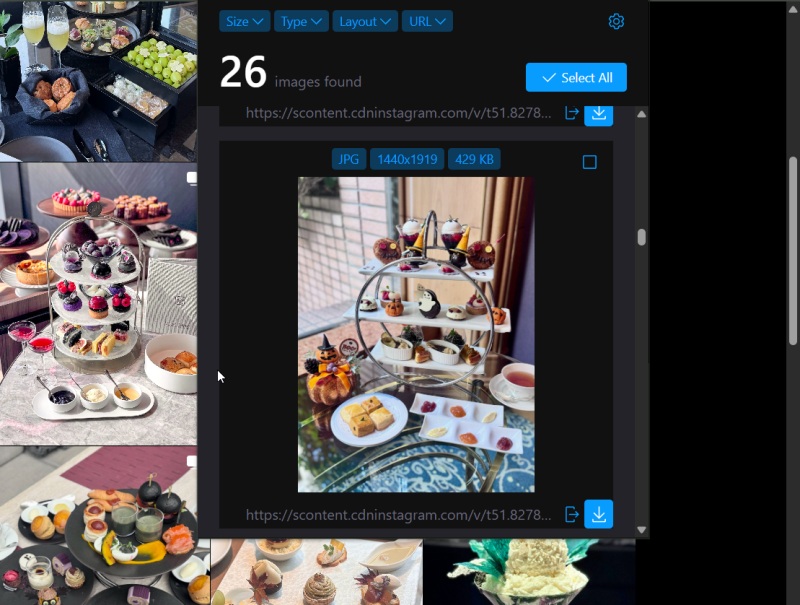
That said, it’s possible to open pictures in a new tab, and also to filter based on file type. If you’d prefer to see images in two columns rather than one, there’s an option to do that.
Like in the case of Imageye, this extension lets you choose the picture size that you’d like to see. You can also download multiple photos at once by ticking the boxes for each that you want to save.
3. Download All Images
Price: Free
Download All Images will, as the name suggests, download all images from a website. You first have to set your preferences for what type of images you want the extension to grab. For instance, it’s possible to download only select filetypes, including PNG, JPEG, GIF, BMP, and WEBP files.
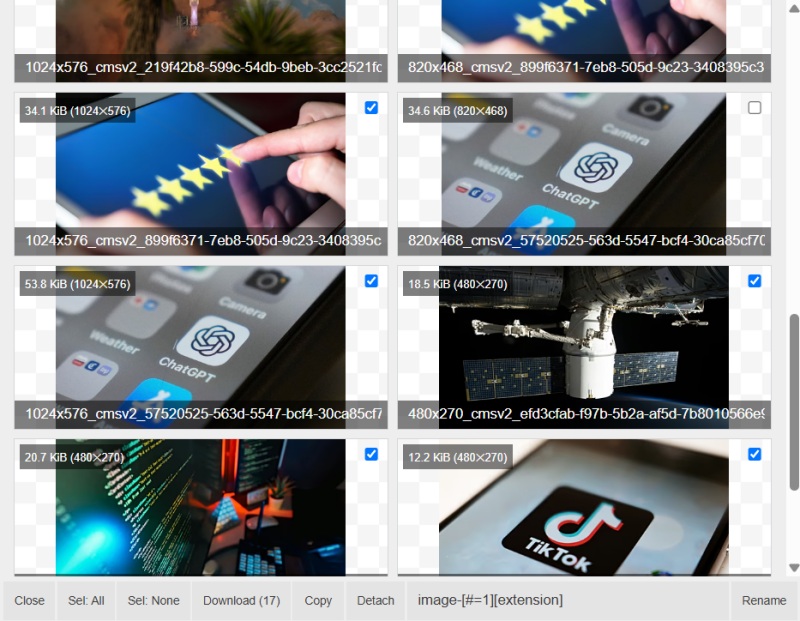
In addition, when using Download All Images, you can select the dimensions for the pictures you download. Moreover, you have control over keywords for images you don’t want to be included.
The extension will then scan the web page and grab all images, as specified, and will save them in a ZIP file. If you want to see the photos you’re going to download, click on the Gallery tab at the bottom of your window. You can manually deselect images that appear twice or those you’re not interested in. Then, go back to the main panel and press the Save button to download them on your machine.
Tip: here’s how to stop Chrome from checking your PC for Windows 11 compatibility.
4. Bulk Image Downloader
Price: Free
Bulk Image Downloader works across social media platforms, including Pinterest, Instagram, and more. The plugin lets you filter by URL and choose whether you want to only download images from links.
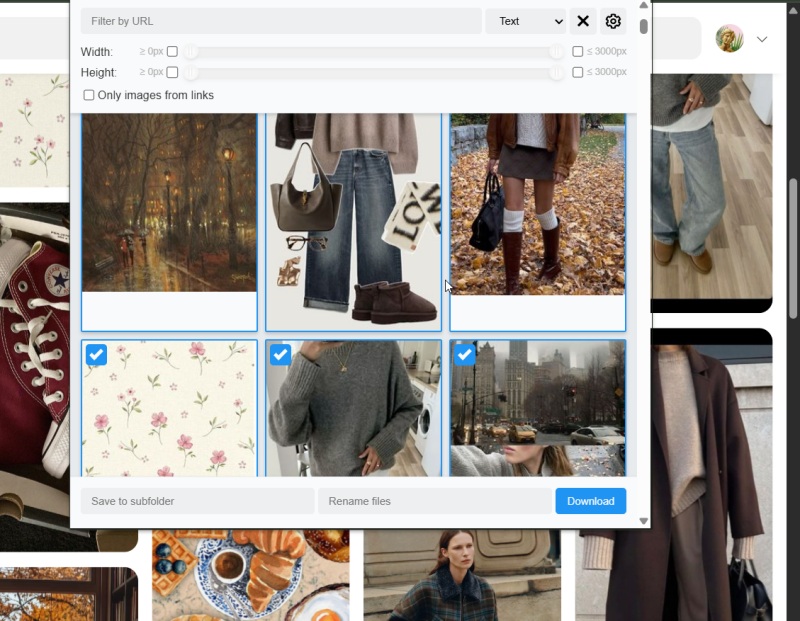
You can also use the extension to easily rename files, which is super useful, and choose subfolders where they will be saved. Moreover, the extension allows you to set how many images you want to see in a column.
Bulk Image Downloader allows you to customize either the width or height, or both if you’d prefer. Downloading in bulk is super simple, too. Check all the images you want to grab off the web page and then press Download.
5. Media Harvest for X
Price: Free
I’ve always liked X (formerly Twitter) for sharing photos, and the Media Harvest for X plugin is ideal for saving high-quality images. Once you’ve downloaded the extension, you’ll see a new icon next to posts with pictures.
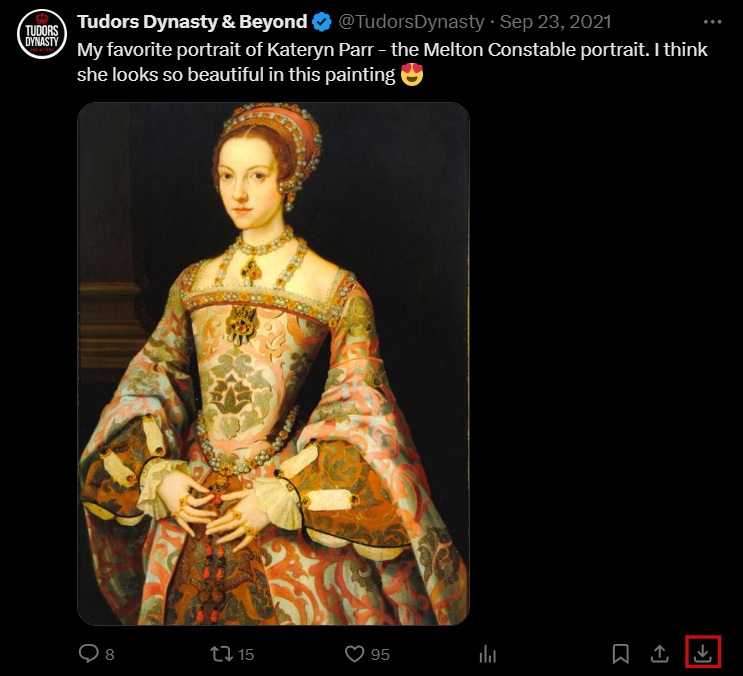
I’ve tried this plugin without signing in to an account, and it works perfectly. Your pictures will be saved to your computer’s downloads folder within a few seconds of you clicking on the download icon.
Media Harvest for X gives you control over whether you can download NSFW content. You can also see the total number of your actions when you click on the plugin and choose whether you want to include video thumbnails.
6. ESUIT for Facebook
Price: Free with premium options
ESUIT for Facebook is an easy way to download images from Facebook. You don’t need to sign in to use its basic features, but if you want to take advantage of premium options, you’ll need to do so.
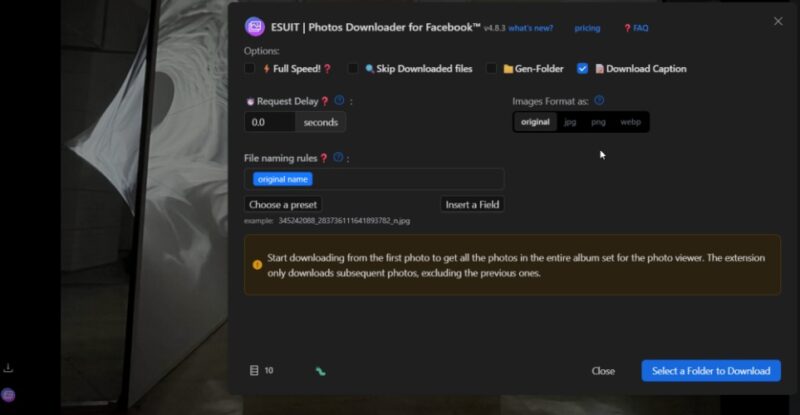
The extension lets you download all pictures from an album and customize the settings, such as the file-naming rules. As a free user, you have 5 credits for bulk downloads. For more, you’ll need to upgrade. Alternatively, you can download each image in turn by pressing the button on the lower left side of the display.
In addition, you can save images in JPG, PNG, and WEBP. If you’ve downloaded files in the past, you can opt to skip accidentally getting a second copy of these. ESUIT also gives you flexibility over which folder your images end up in. Finally, ESUIT gives you access to downloader tools for other social media apps, like Instagram.
By the way, if your Facebook pictures don’t seem to be loading, here’s what you can do about it.
7. Save Image as PNG
Price: Free
If you specifically want to save images as PNG, the Save Image as PNG plugin will help you achieve that. After you install the extension, you’ll see a Save as PNG command when right-clicking on a picture.
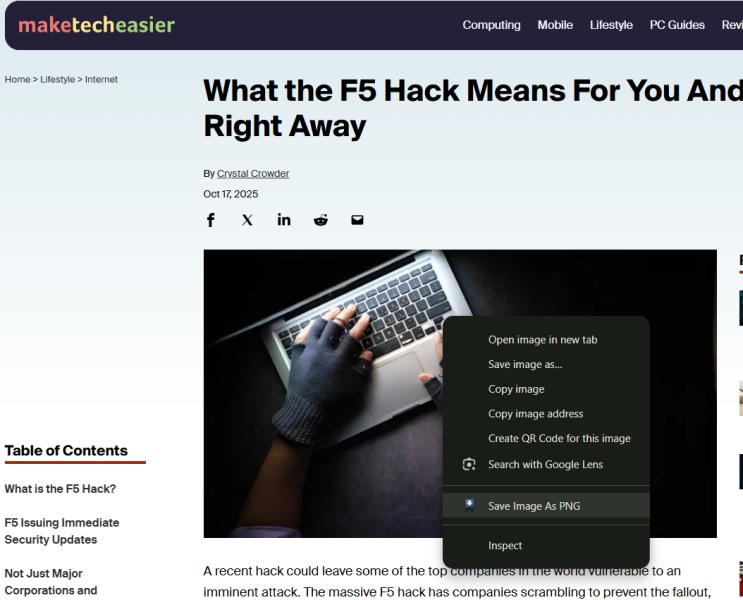
After selecting Save as PNG, you can choose your preferred file location. It’s also possible to change the picture’s name. I’ve tried using the tool on our website, where most of my image uploads are JPG, to great effect. It also works in search engine photo results.
The Save as PNG Chrome extension doesn’t have any of the more advanced features that other plugins on this list do. However, if you’re literally just looking for an extension to download images in PNG, this is more than good enough. Alternatively, you can try the Save as Type extension which also lets you save images as JPG or WEBP.
8. ImageAssistant Batch Image Downloader
Price: Free
ImageAssistant Batch Image Downloader is another extension for Chrome capable of extracting all the images off a web page in one go. In my experience, it works best on regular sites, not social media ones.
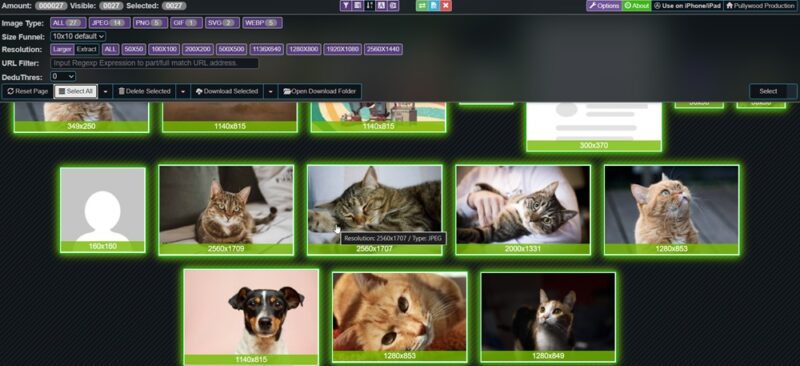
Once you are on a web page, click the extension icon to activate it and select the option to Extract Current Page. The plugin will proceed to display all images in a new window. You can then filter the results by selecting an image type, resolution, funnel size and more. To download in bulk, tick the images you want to grab for later. Or click the Select All button.
This plugin can also extract all links from a page and can generate a handy QR code for the page you’re viewing so you can share it with others. An image editor is also baked in, if you wish to quickly edit the pictures you’ve downloaded. You can access these options also by right-clicking an image. From the same context menu, you can launch searches for finding other sizes on Google or finding similar images.
If you’re not using Chrome, no problem. Check how to download images from web pages as a Firefox user.








