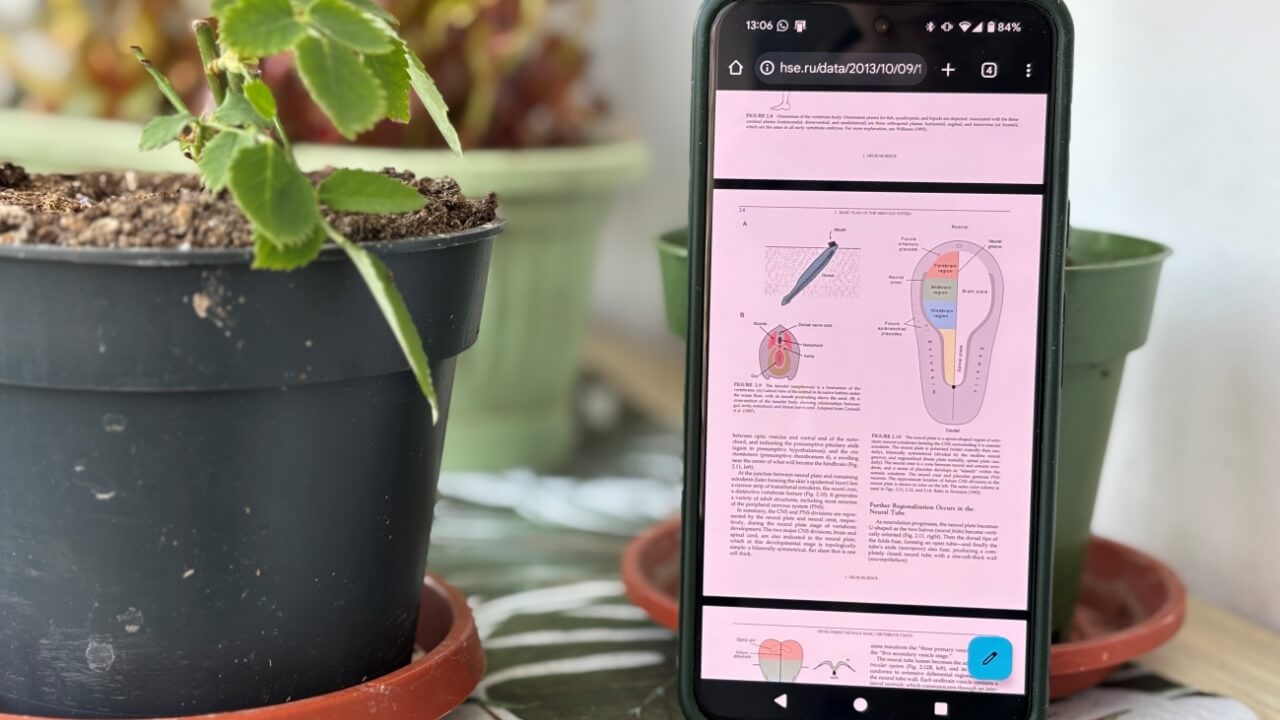
Until recently, viewing PDF files in the Chrome app on Android required a separate third-party application. Now, Chrome for Android includes built-in support for PDFs. Here’s how to open them directly in your browser.
Good to know: check the best remote desktop extensions for Chrome, so you can access far off devices in a few quick steps.
Native PDF Support in Chrome Comes to Android 15 and 16
Chrome on Android has long relied on third-party PDF readers to open PDF files. That’s no longer the case as Google has quietly added the native functionality to open PDF files from within the browser.
This option used to be previously available via a hidden flag(s), but Google has pushed it onto the stable channel. However, there’s one caveat. For the time being, this option is available only in Chrome for Android 15 and 16 (beta versions.)
We’ve tried opening PDF in Chrome using a tablet and phone running Android 12. Instead of opening the file, Chrome downloaded the file, and prompted me to open it with another app, such as Google Drive.
If you have a phone (or tablet) running Android 15 or 16, make sure you update your Chrome app before trying to read PDF files from your browser.
How to View PDF Files in Chrome on Android
On your Android device, open the Chrome app and navigate to a site that hosts PDF files. Or follow a link to a PDF destination.
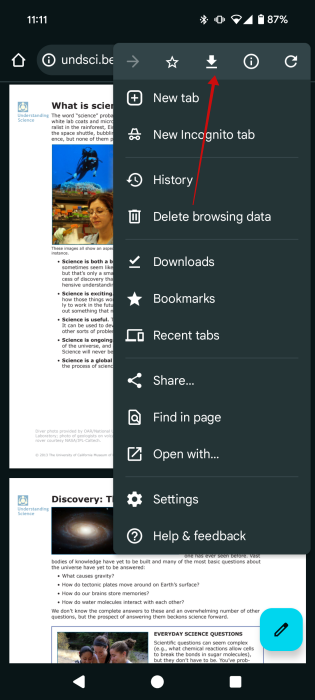
As you can see, Chrome can now display the PDF without asking you if you’d like to use another app to open the page or downloading the file.
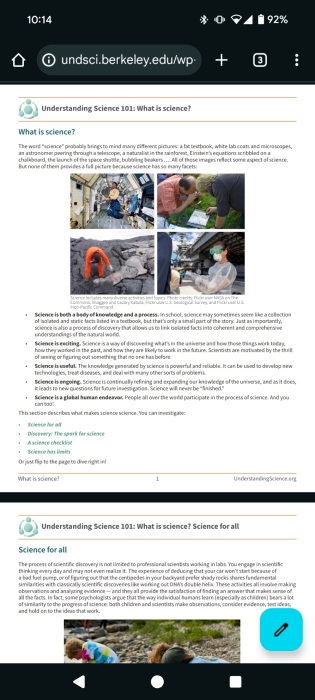
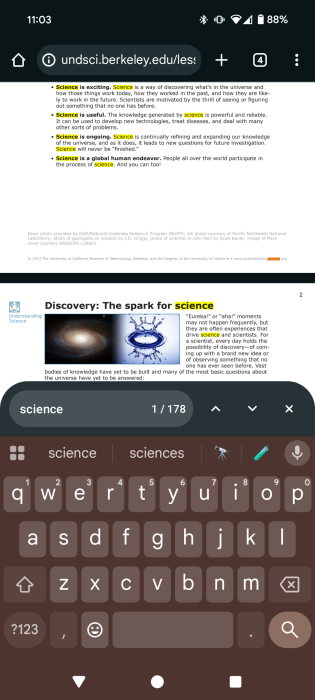
You can zoom in/zoom out the PDF using pinching gestures. Even better, you can search for words in the document by pressing on the three-dot menu and selecting Find in page.
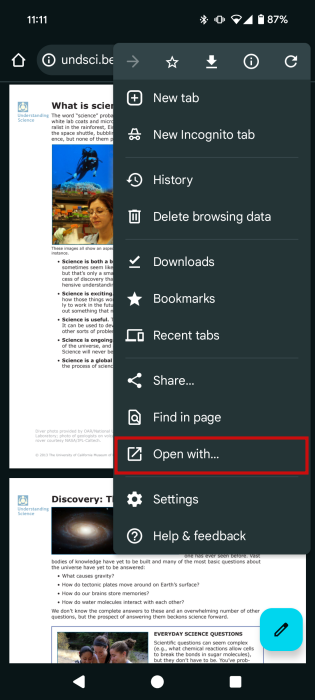
Alternatively, if you still wish to open the PDF with another app on your device, select the Open with option from the same menu.
In case you want to save the PDF on your device, tap on the arrow icon at the top.
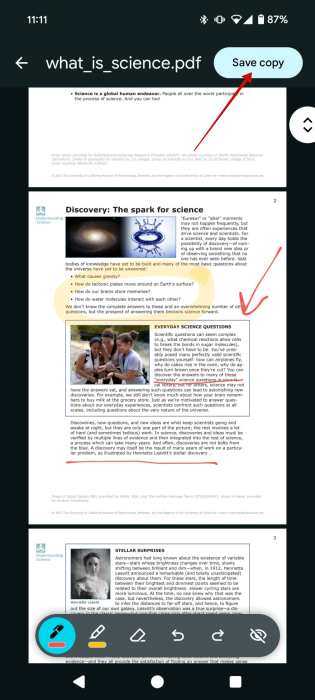
On top of that, Chrome now lets you make annotation from within the browser. Just tap on the pencil button in the lower right corner to go to the editing screen. From here you can highlight and draw on the PDF. Once you’re done, you can Save copy by pressing on the button above.
Note: You can’t digitally sign a document from here, or perform more advanced edits.
Tip: check how to manually transfer your Chrome profile to another PC.
Tips for Those with Devices Running Android 14 and Below
While previously activating the built-in Chrome PDF reader could be done on devices running Android 14 and below and only took enabling a flag via chrome://flags, we couldn’t verify this method still works. We got the same results using the Chrome beta app and the Chrome Canary one.
That’s probably because this option requires the Chrome 134 version to work, which is currently an older version of Chrome. Given that Chrome is a system app on Android, it’s quite difficult to remove it from your phone. That being said, it can be done via ADB, but we wouldn’t recommend it.
Instead, our suggested solution would be to turn to another browser to view PDF files. For instance, Microsoft Edge supports viewing PDFs in-browser even on older versions of Android. So does Firefox. It’s true that you won’t have access to the built-in PDF editor that now Chrome on Android natively offers, but you’ll be able to quickly view the contents of a PDF without having to download it first.
Chrome is constantly getting new features. The latest one is available for the PC and enables splitting tabs in Chrome for better multitasking. Novelties aside, you might benefit from getting up to speed on how to restart your Chrome browser from losing your tabs.








