Android accessibility settings are designed to help people with disabilities use their phones comfortably. Interestingly, many of those options also improve everyday use, making our phones easier and more efficient to navigate. You can also make your Android phone more intuitive by using these accessibility features.
Easily Access Important Functions
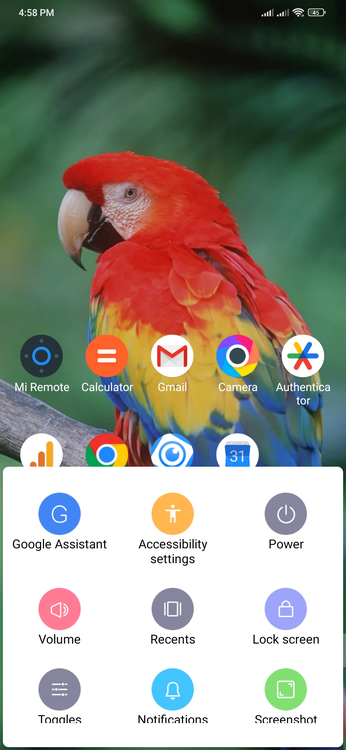
In the accessibility settings, you can enable the Accessibility Menu button, which adds a menu icon to the corner of the screen for quick access to essential functions. It lets you open Google Assistant, adjust volume, lock the screen, access quick settings, take screenshots, and more. Since I mostly work on a PC and often have only one hand free, this menu makes everyday actions much easier.
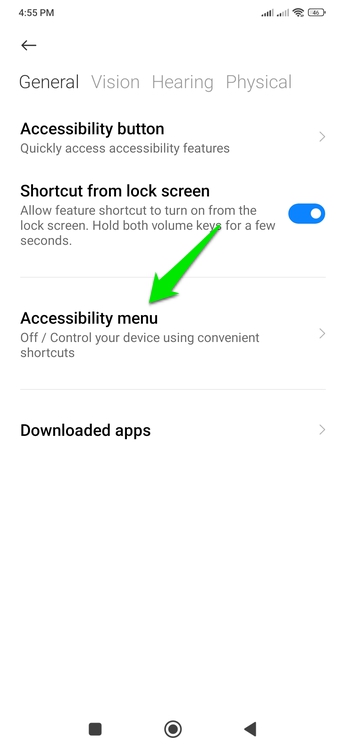
To enable it, open Accessibility inside the Settings (might need to open Additional settings on some phones). Here, open Accessbility menu and toggle on the Accessibility menu shortcut.
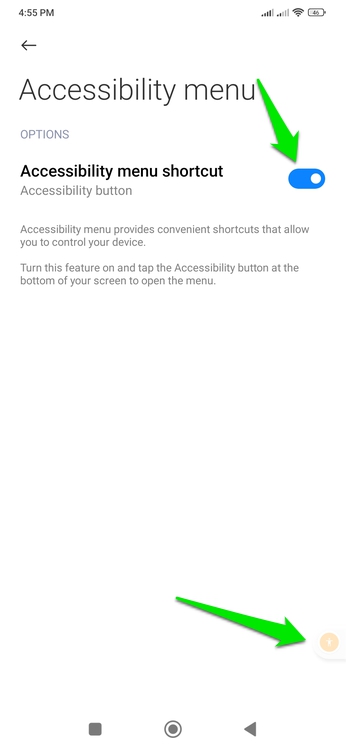
This will add a tiny button at the bottom edge of the screen that you can tap to access different functions. You can swipe right on the button to hide it, and also hold-and-drag to change its position.
See More Display Content
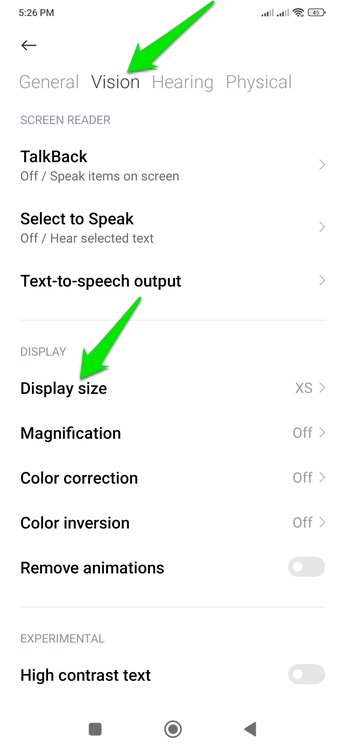
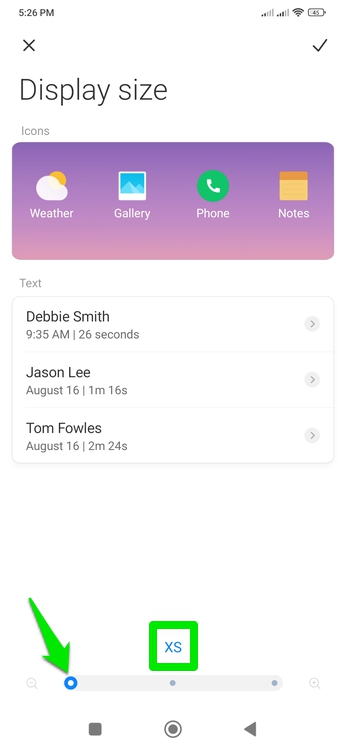
Accessibility settings have an option to make the screen contents big to help people with impaired vision see the contents clearly. However, it works both ways; it can both increase contents size and decrease it from the default size. I prefer to decrease the screen content size to fit in more content at a time, which minimizes scrolling.
In Accessibility, move to the Vision tab and tap on Display size. It should be set to Small by default; set it to ExtraSmall (XS) and confirm the change. All the screen contents should change to a smaller size and show more content at a time.
Make Text Easier to Read
You can use high contrast text settings to make it easier to skim through text. This setting forces text to be either pure black or pure white with a thin outline, making it much easier to read (especially in dark mode). I personally find it very useful when using my phone in the sunlight, as it makes the text pop out and more distinguishable.
Open Accessibility and move to the Vision tab. At the bottom, enable High contrast text toggle under the Experimental section. This will apply high contrast text to phone text and most app UIs. However, it won’t affect web content as websites use their own CSS code.
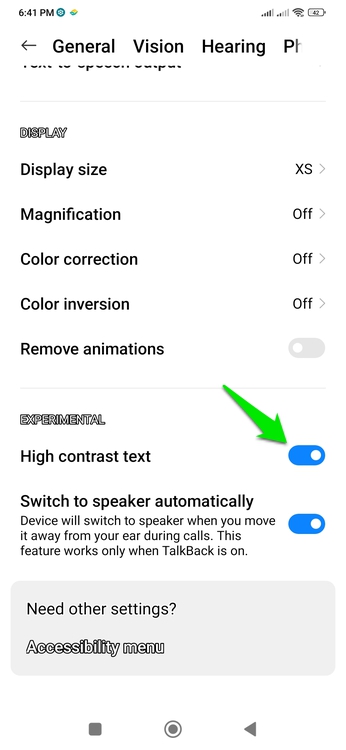
It’s worth mentioning that high contrast text can also sometimes make some apps’ text look messy. While I never faced this issue, it’s a possibility you should be aware of to turn off this feature when the text looks bad.
Manage Audio Balance
I often keep one ear open to be aware of my surroundings when using earbuds, so I use the audio balance functions of accessibility settings to ensure the best audio experience. If you go into the Hearing tab in Accessibility, you’ll find options to manage audio balance and turn on Mono audio. These are great for single ear use as they ensure you get the best audio from one side.
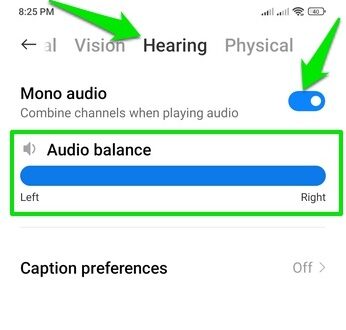
The audio balance slider will allow you to silence one earbud side so it doesn’t disturb others. You should also enable mono audio to ensure no side-exclusive sound is skipped. These options can also be very useful when one side of the headphones is faulty, allowing you to balance audio sides or disable the faulty side completely.
End Calls Faster
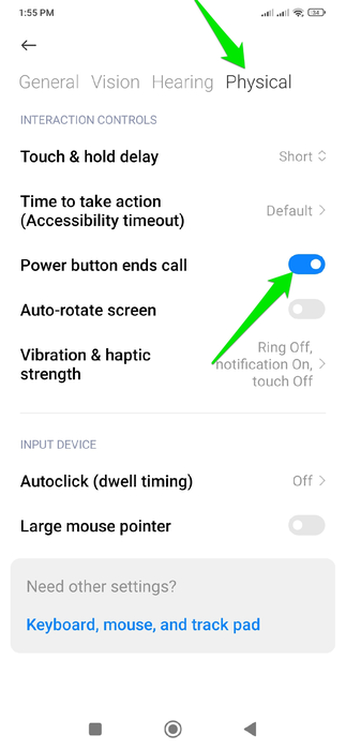
Ending a call takes 2-3 seconds, which can lead to annoying situations where someone starts talking to you while the call is still on. This delay is due to the proximity sensor taking a second to turn on the screen, the phone accepting input, and the network completing the handshake. You can avoid much of this delay by assigning the power button to end calls.
The power button will let you immediately end a call while the phone is still to your ear. While the network handshake delay will still be there, it will remove the UI interaction delay. There is nothing to lose either; the power button essentially functions as a screen sleep/wake function during a call, which is already provided by the proximity sensor automatically.
To enable this function, go to Accessibility and move to the Physical tab. Here, enable the Power button ends call option.
These are just a few of the most useful accessibility settings to make the phone more comfortable to use – I recommend exploring the rest as well. Many other handy options exist, and they’re especially helpful when you’re setting up a phone for seniors.








