Ever needed to drop someone off on the way to your destination? Waze has a handy trick. Learn how to add a stop to your route in Waze, and navigate seamlessly, ensuring a smooth ride for everyone. This guide shows how to easily add stops in Waze, perfect for those multitasking commutes.
Good to know: learn how to draw a radius in Google Maps.
How to Add a Stop in Waze
You can only add a stop in Waze from your mobile app. The functionality is not supported in Waze Live Map on PC.
From Search
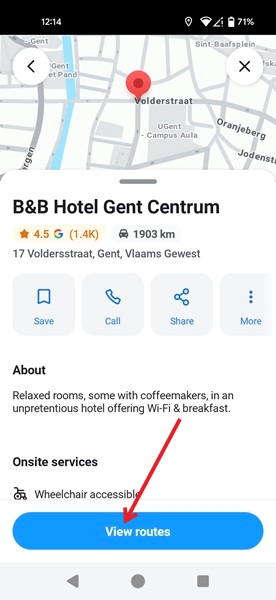
Open the Waze app on your phone. Type your destination in the Where to bar at the bottom. Tap the View routes button on the destination page to create a route from A to B.
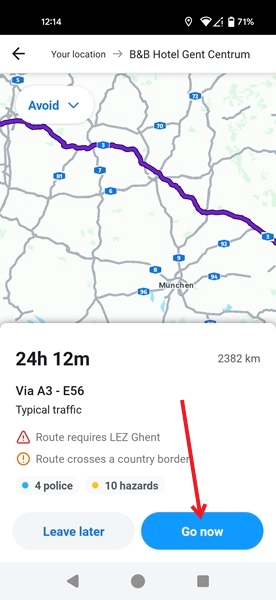
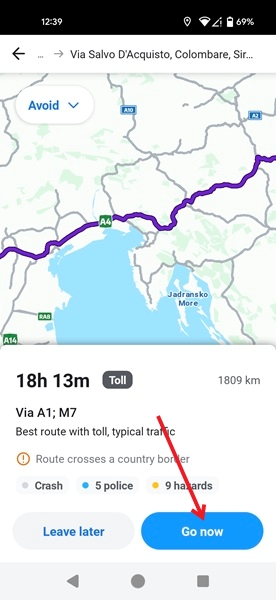
Allow the app to calculate the best route, then tap on Go now to begin driving in that direction.
Note: unfortunately, adding a stop is not available if you opt to Leave later.
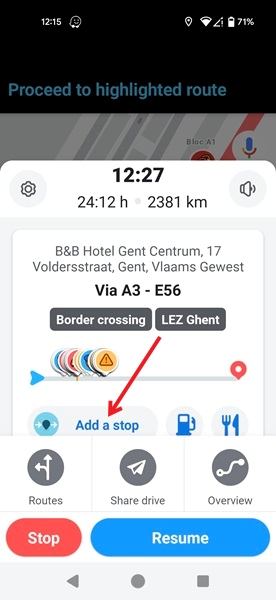
Tap on the upward-pointing caret at the bottom next to the estimated time of arrival, then tap the Add a stop button.
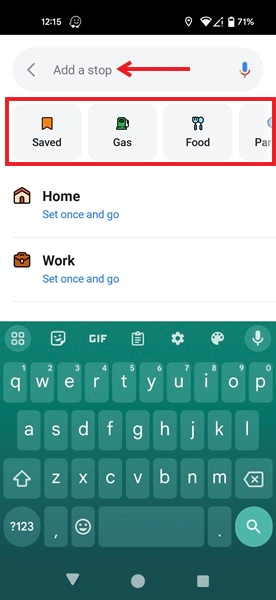
Depending on your intended stop, select from the categories that include Food, Gas, Parking, and Groceries. Alternatively, add a stop manually if, for example, you wish to drop off your fellow passenger at their house.
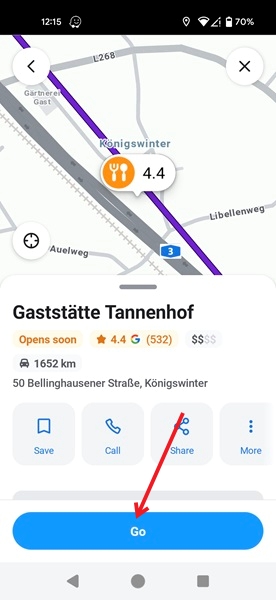
We’re selecting the Food category to stop for a bite to eat along the way, so Waze will show all the restaurants/food places along the route. Make your selection, then tap the Go button.
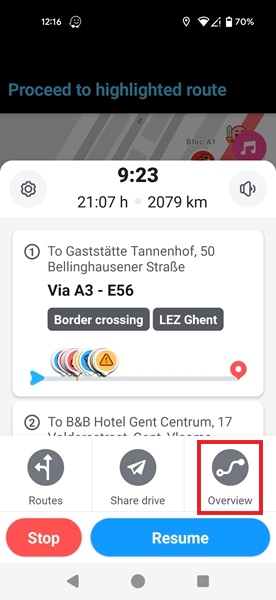
Tap the Add a stop button in the pop-up. Tap on Overview to view your route at a glance and get an idea of where the stop is positioned in relation to your destination.
Tip: need more Google Maps alternatives? Check out this list.
Directly from the Map
You can also add a stop directly from the Waze map.
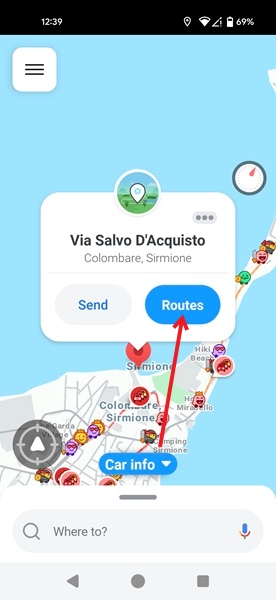
Find the destination on the map by swiping your finger to the desired location. Long-tap on it to bring up a small window. Tap on the Routes button.
Allow Waze to calculate your route, then press the Go now button.
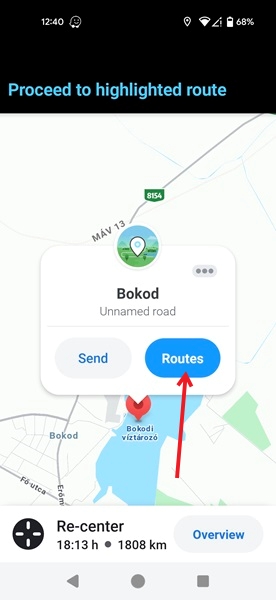
Find the stop on the map. Long-tap it, then tap Routes on the pop-up.
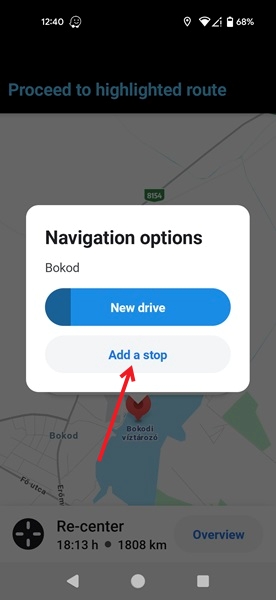
Tap the Add a stop button in the next window.
FYI: did you know that you can use Google Maps to view the speed limit? Learn how to activate the option.
How Many Stops Can You Add in Waze?
If you try to add a second stop directly from the map, you’ll get the message, “You can only add 1 stop to a route.”
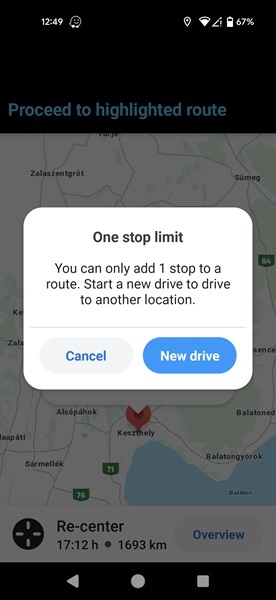
Unfortunately, to add another stop to your itinerary, you’ll need to start a new drive. If you want to drive from A to B with C and D as stops, we suggest creating a route from A to D with C as a stop, then continuing with a drive from D to B.
How to Remove a Stop in Waze
To remove a stop in Waze, you need to first find it on the map, then long-press it.
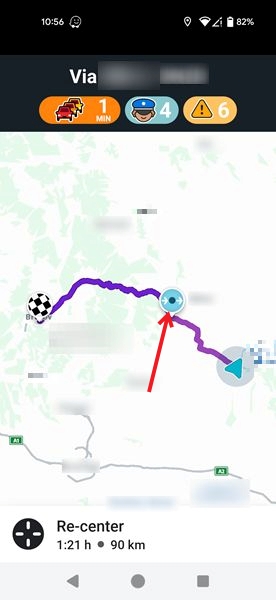
Tap on the Routes button in the pop-up, then tap New Drive to remove the stop from your route.
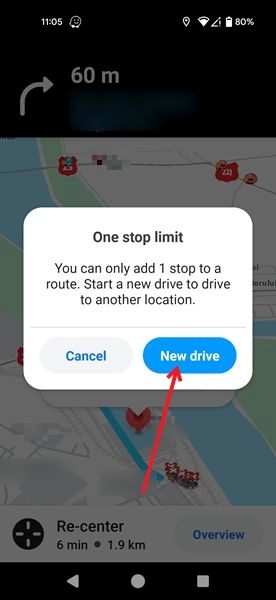
You can now add another stop if you would like.
Tip: learn how to use Google Maps to check traffic in your area.
If you’d like to enjoy some music during your drive, learn how to safely control Spotify from Waze. If you prefer Google Maps, educating yourself on how to save a route in Google Maps could be useful.
Image credit: Unsplash. All screenshots by Alexandra Arici.