Are you frequently experiencing the NTFS_FILE_SYSTEM error on Windows? Let’s check out the different ways to overcome this issue.
By Khizer Kaleem – Jun 25, 2023
When it comes to file systems, you have probably heard of FAT32, exFAT and NTFS. What are the differences between them, and which one should you use?
By Andrew Braun – Feb 25, 2020
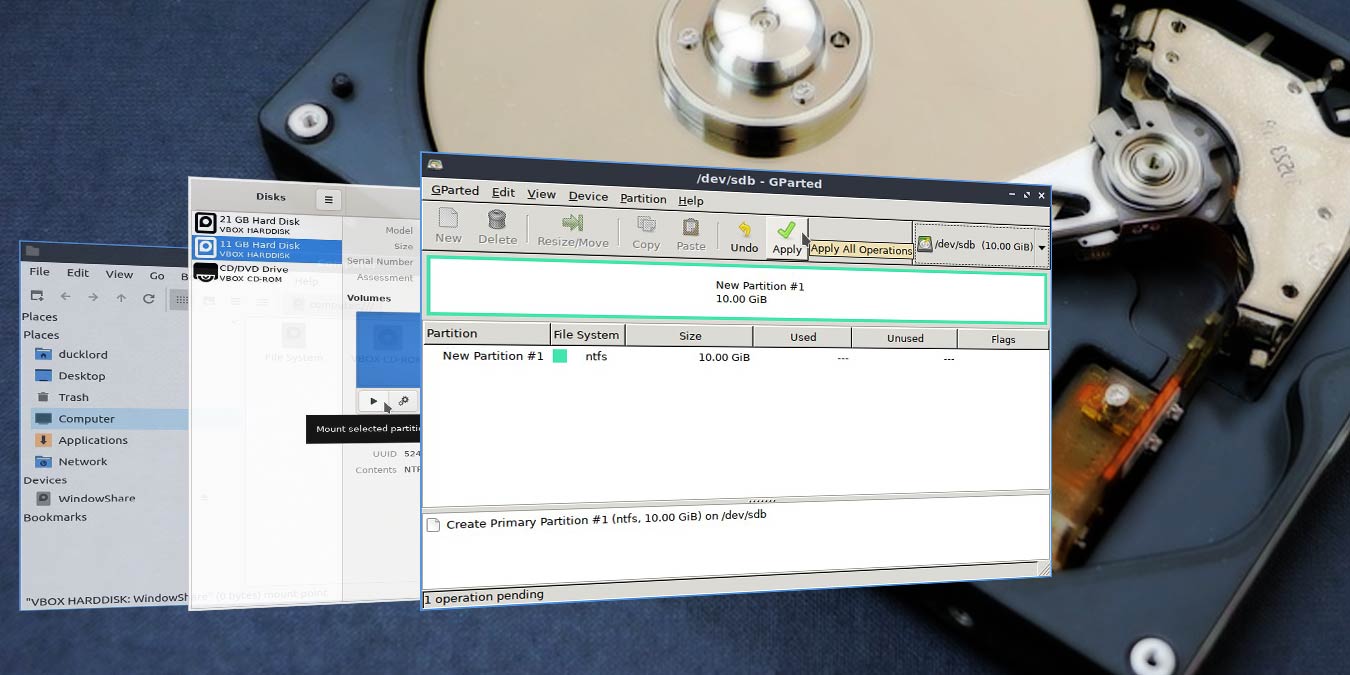
It’s easy to format your hard disk to NTFS in Linux. There are many ways to do this, and we will show you how to do it using GParted.
By Odysseas Kourafalos – Jan 16, 2020
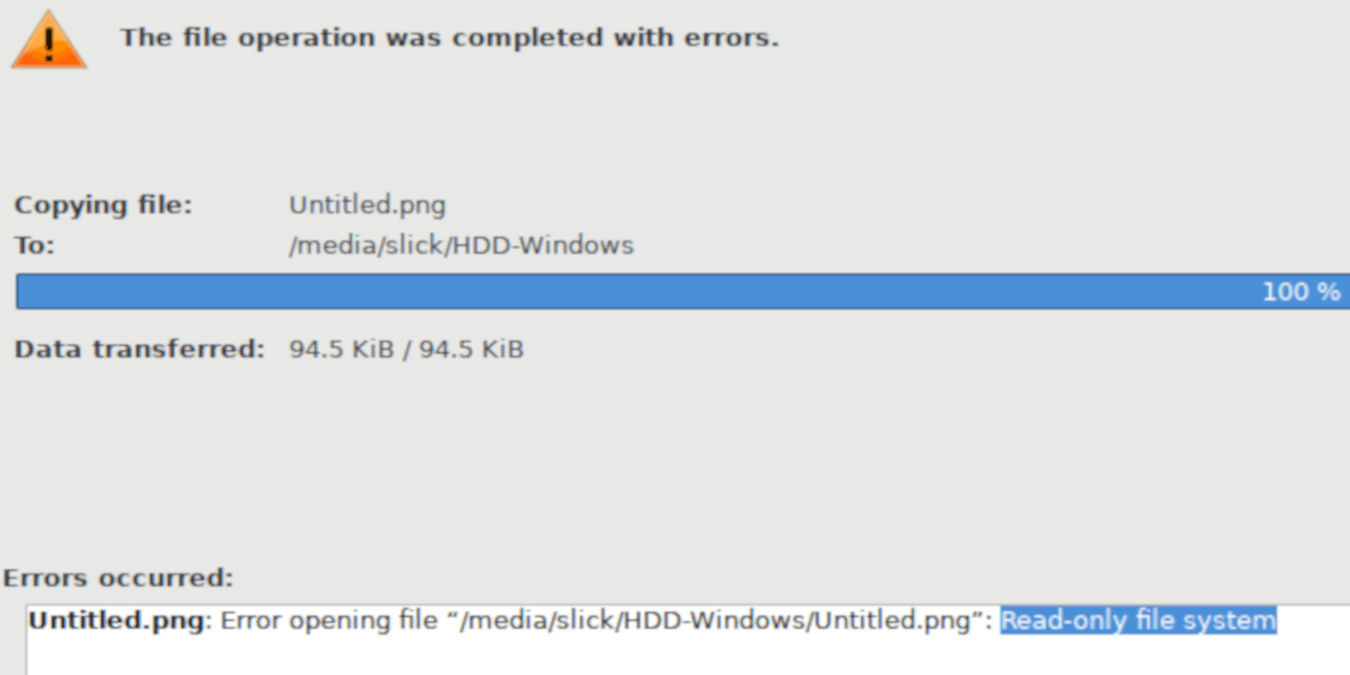
If you’ve mounted your Windows partition in Linux, you may find that you are not able to write to it. Learn how you can write to Windows partition in Linux.
By Alexandru Andrei – Sep 30, 2019
Your macOS does not support writing to an NTFS partition by default. To access your Windows drive, this is how you can write to an NTFS drive in Mac.
By Alexander Fox – Dec 5, 2018
If you share your PC with multiple users, you can easily setup File System Permissions and block other users from accessing NTFS partition in Windows.
By Vamsi Krishna – Sep 16, 2014
Affiliate Disclosure: Make Tech Easier may earn commission on products purchased through our links, which supports the work we do for our readers.