Using Kate As a Web Editor
There are many applications out there that provide project-based web development tools and very feature-rich interfaces, but sometimes all you really need is a good text editor. For those times, there are few editors that can stand up to the KDE powerhouse called Kate.
Kate is a multi-document interface (MDI) text editor, available for both KDE 3 and 4. It runs on multiple Linux and Unix-like platforms, Mac OS X, and Windows. It also includes a component called KatePart, which runs inside numerous other KDE applications, including Quanta+ (on KDE 3 only), KWrite, Konqueror, and Kdevelop. Kate provides syntax highlighting for over 120 text formats, making it perfect for whatever programming language you choose.

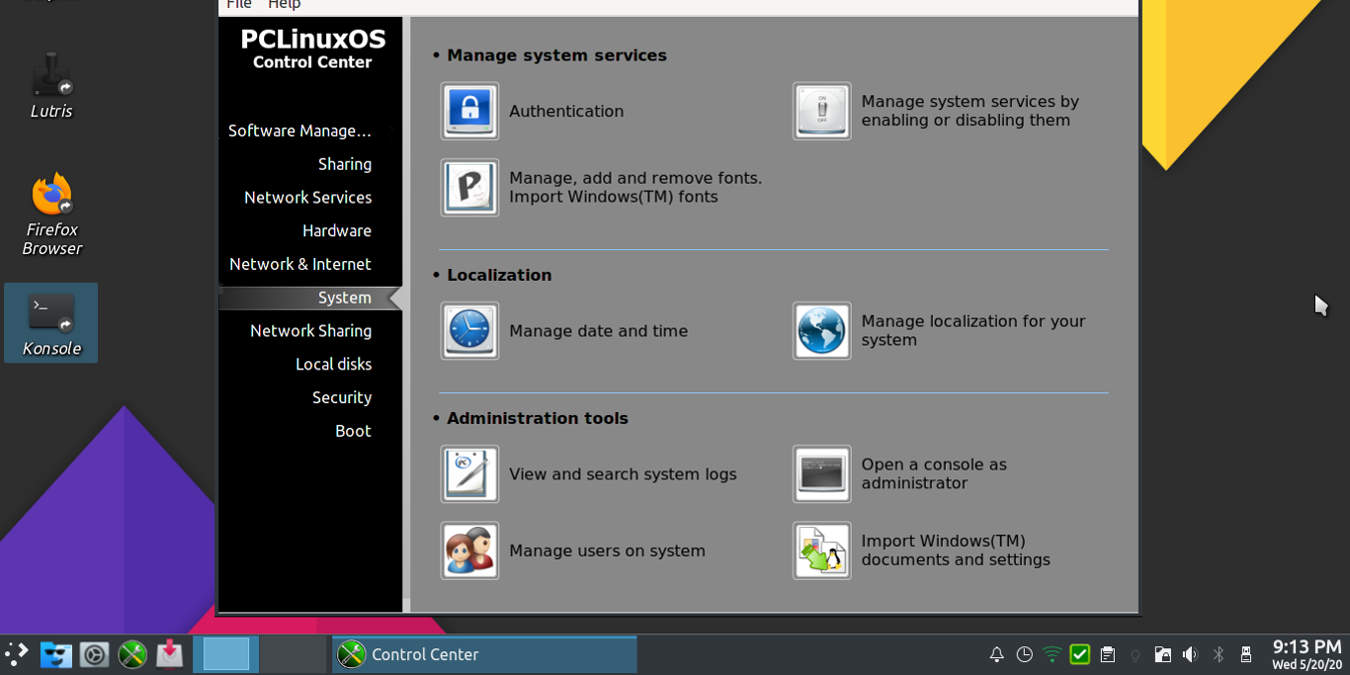
Keeping any computer system running can be some work. It would be nice if we never had to do any type of maintenance or troubleshooting, but no operating system has reached that point. Many desktop Linux users have server administration experience and are quite comfortable dropping to the command line and tinkering with their system. Not only do they know how to do this, it is the method that makes them comfortable.
The release of the newest version of Ubuntu is only 10 days away. Many sites, including MakeTechEasier have
In my last post, I covered some of the
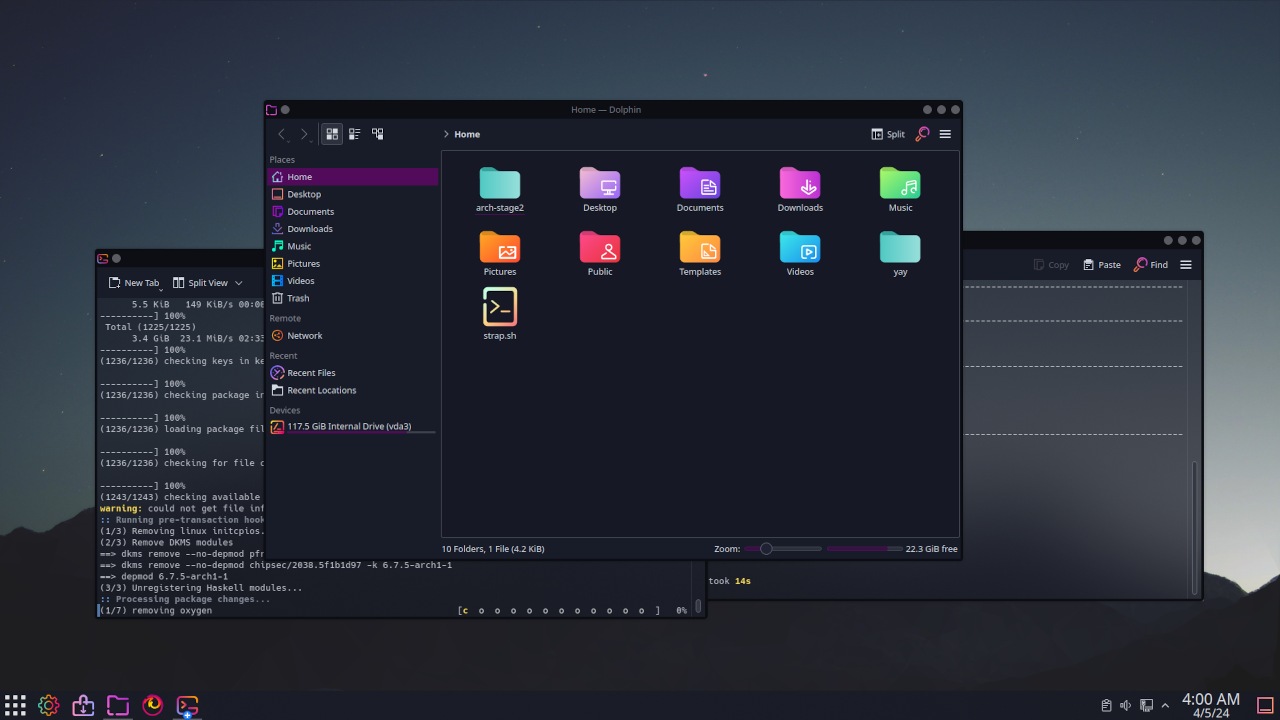
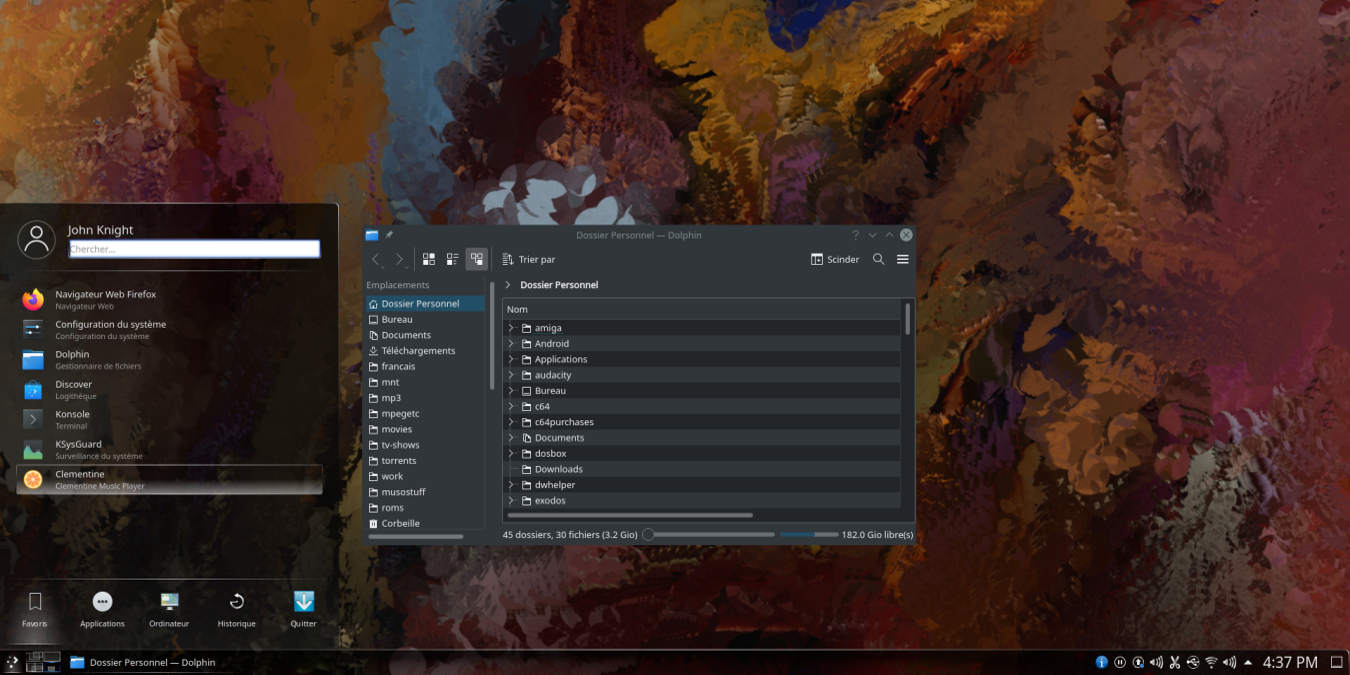
Dolphin is KDE 4’s default file manager, and is a departure from KDE 3, which relied on Konqueror for file management. Unlike Konqueror, which functions as a web browser and many other things, Dolphin is specifically used for file management. If you prefer to use Konqueror or any other file manager, you can change the KDE settings to use it by default.
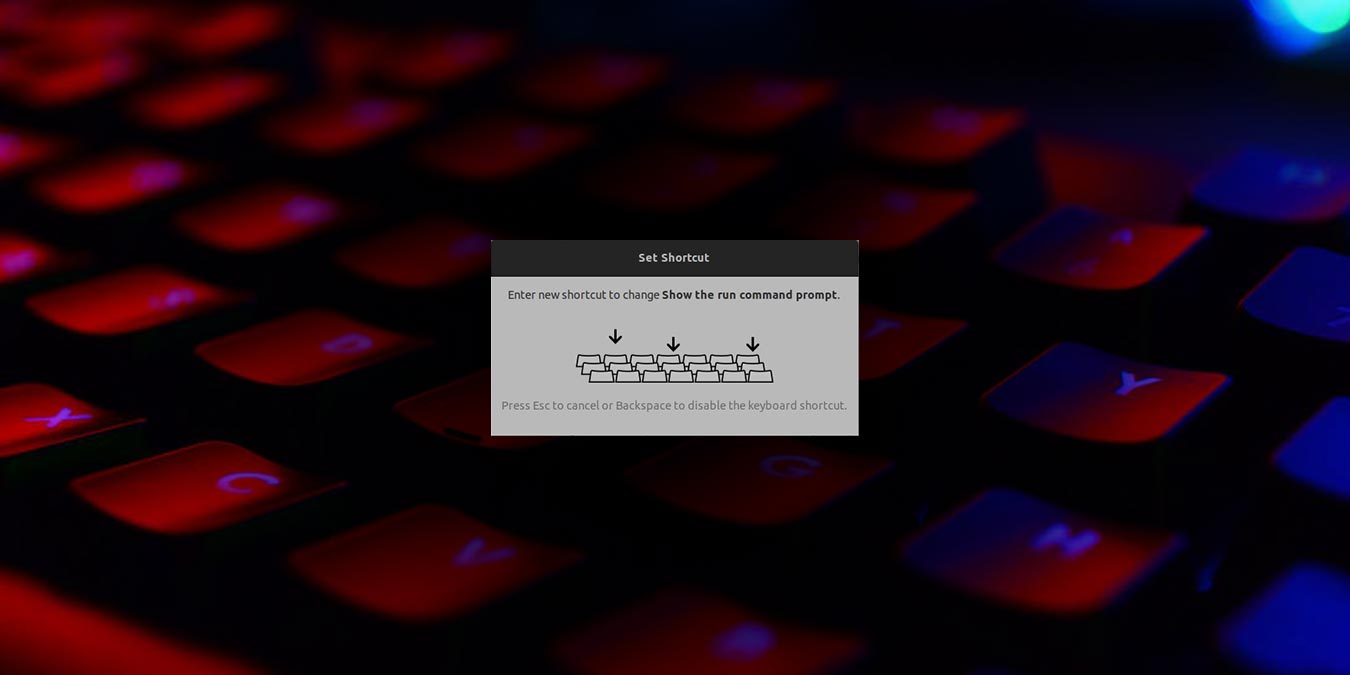
Perhaps Mac users know this better than anyone else. Shortcut keys do exactly what they say, give you shortcuts, saving you time. On my previous computer, my “C” key had worn off the keyboard because I spent so much time copying with “Ctrl-C” rather than going to the menu each time to select “copy”. Whether you are starting an application or cycling through virtual desktops, Linux users tend to love shortcut keys just as much.
In my post two weeks ago, I introduced you to KDE’s
Many Linux users, even the newest ones, love Linux because it is highly customizable. KDE in particular is one desktop environment that is very easy and fun to customize. Whether you want three panels and a rotating slideshow of wallpaper photos from your vacation in Peru, or simply want to make sure text files always open in your favorite text editor, KDE can deliver. One important customization features is file association.