Learn the quick way to open local files, PDFs, and media directly in Chrome, Firefox, or Brave for a faster, more unified Windows experience.
By Crystal Crowder – Mar 14, 2026
Want to keep certain sites out of your browser history? Learn how to disable history for specific sites in Chrome and Firefox.
By Crystal Crowder – Feb 6, 2026

Tired of Firefox pushing AI features you don’t want or need? Find out how to use the new Firefox AI Controls to remove the AI.
By Crystal Crowder – Feb 6, 2026

Probably the easiest way to block ads in your browser.
By Alexandra Arici – Jan 19, 2026
LibreWolf stood out. It offers strong privacy by default, fewer distractions, and less trade-offs.
By Henderson Jayden Harper – Dec 31, 2025
Firefox finally comes with PWAs support in the form of Taskbar Tabs. Here’s how to use it.
By Karrar Haider – Aug 26, 2025

Make the Private tab in Firefox even more private.
By Alexandra Arici – Aug 13, 2025
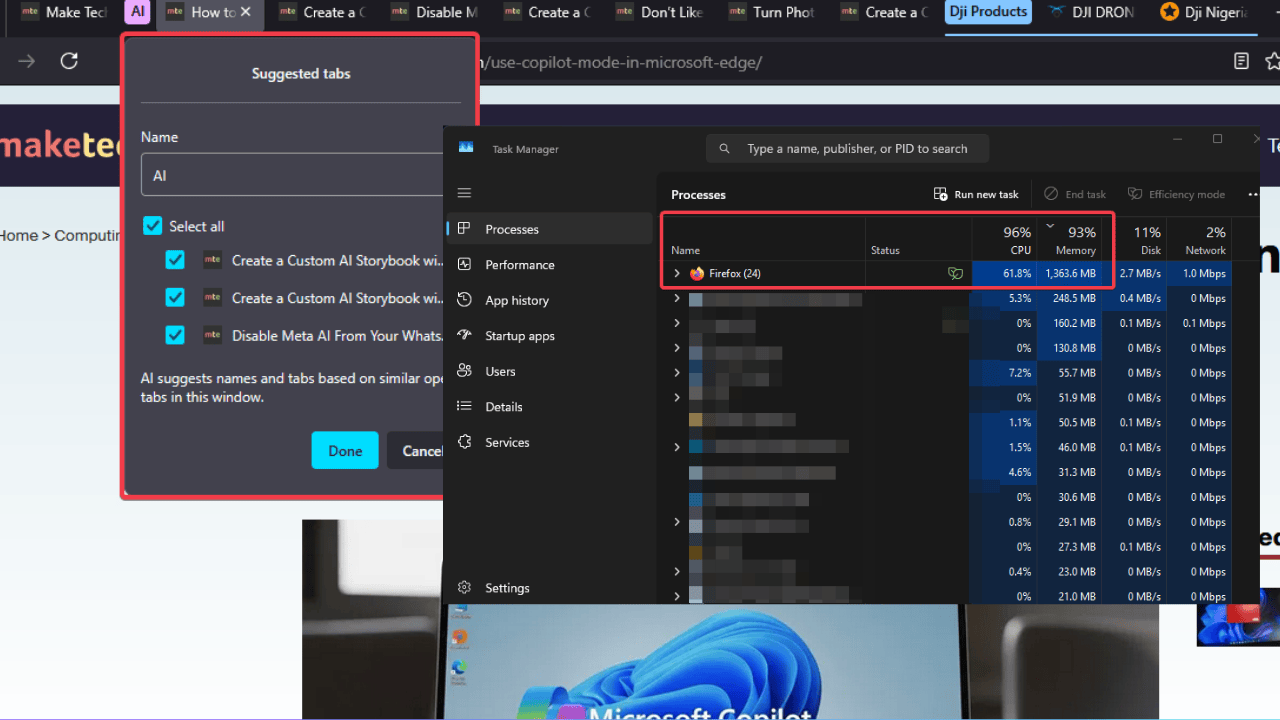
The latest Firefox 141 update shoehorned in an AI tab groupings feature, and causes CPU spikes that slow down browsing and drain the battery.
By Henderson Jayden Harper – Aug 12, 2025

The Firefox address bar just got some major upgrades to transform the way you search and use the browser.
By Crystal Crowder – Jul 12, 2025

The Docker containers provide a good approach to isolate your applications from the system.
By Anees Asghar – Jun 16, 2025
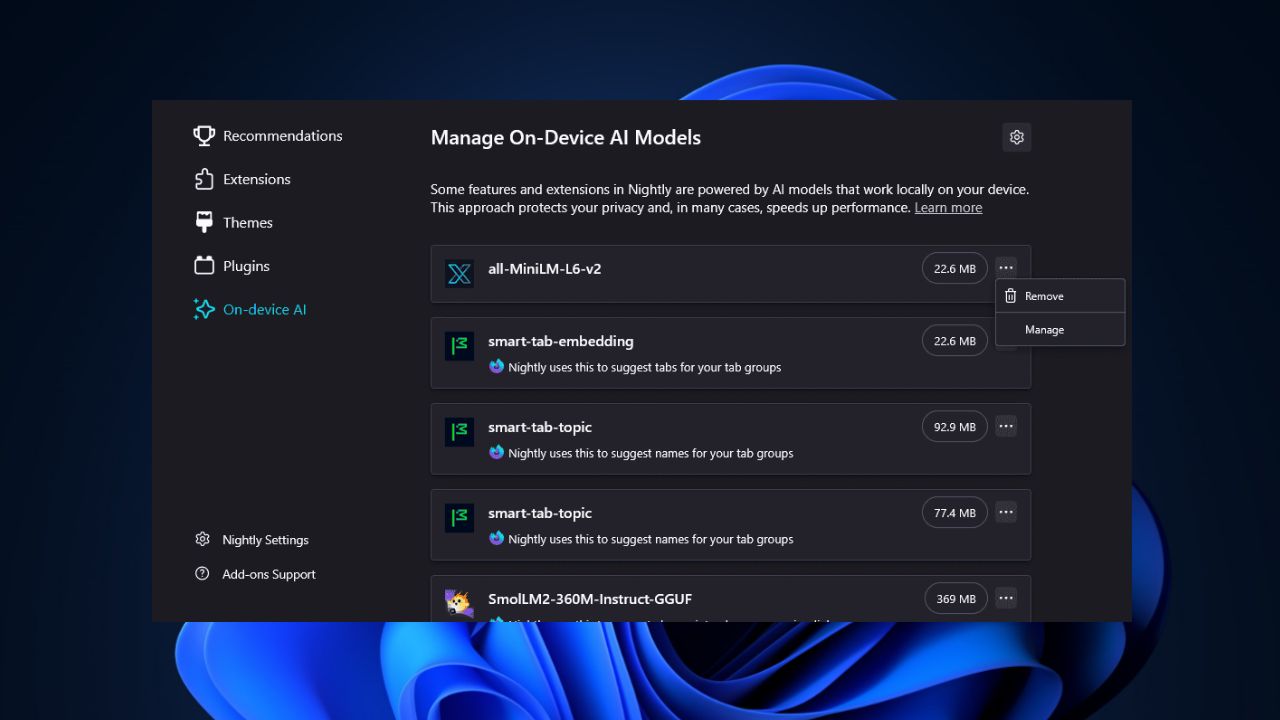
For those who are not enthusiastic about AI tools, Firefox has given you a way to opt it out.
By Henderson Jayden Harper – May 29, 2025

If you’re constantly asking ChatGPT questions, why not make it your default search engine?
By Alexandra Arici – May 3, 2025
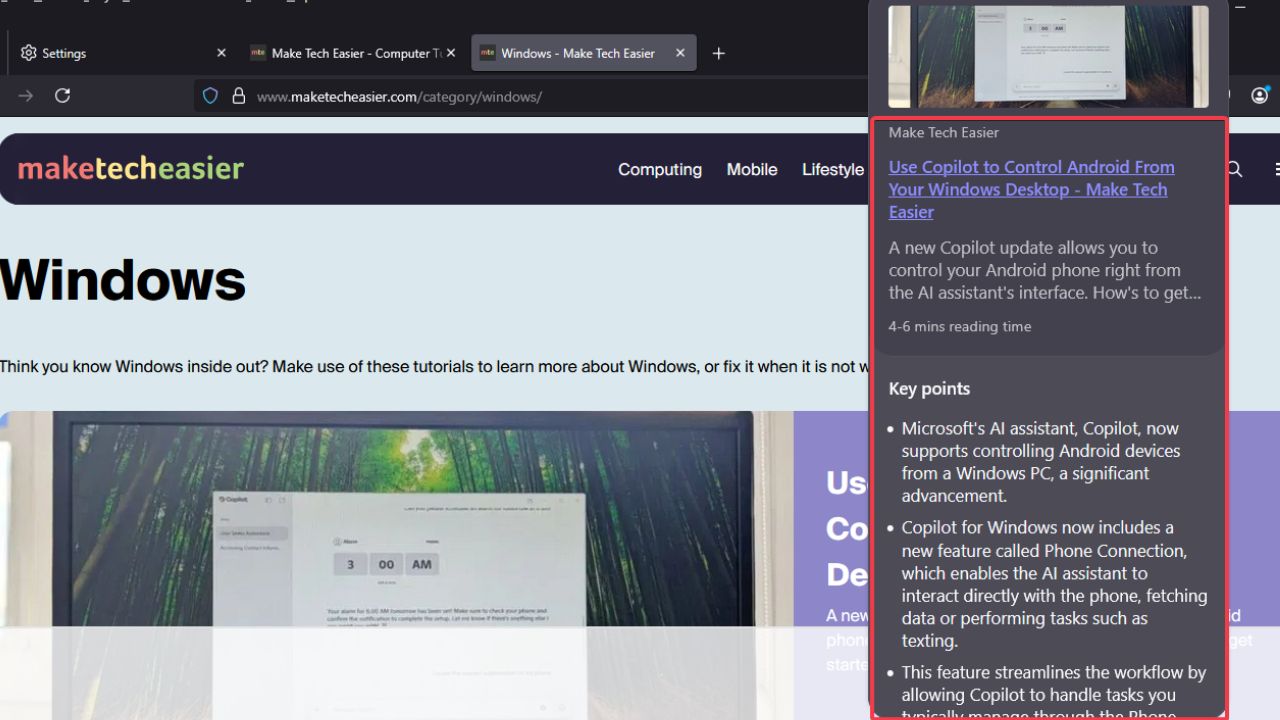
This new Firefox feature prevents you from clicking links that you are not interested at.
By Henderson Jayden Harper – Apr 10, 2025
You don’t have to stick with Google search or Bing.
By Crystal Crowder – Nov 8, 2024

YouTube’s user interface is not really designed for Firefox, but there are some useful add-ons you can use to improve your YouTube experience.
By Sayak Boral – Sep 30, 2024

Zen Browser may be considered the new kid on the block, but it has already convinced me to make a switch from Firefox.
By David Morelo – Sep 15, 2024
Firefox announced on Reddit that it’s testing a new privacy feature, with the help of Meta, that balances privacy and advertising.
By Laura Tucker – Jul 25, 2024

This guide will show how to open a magnet link in various browsers such as Google Chrome, Edge, Firefox, DuckDuckGo, Safari, and Opera.
By Sayak Boral – Jul 12, 2024
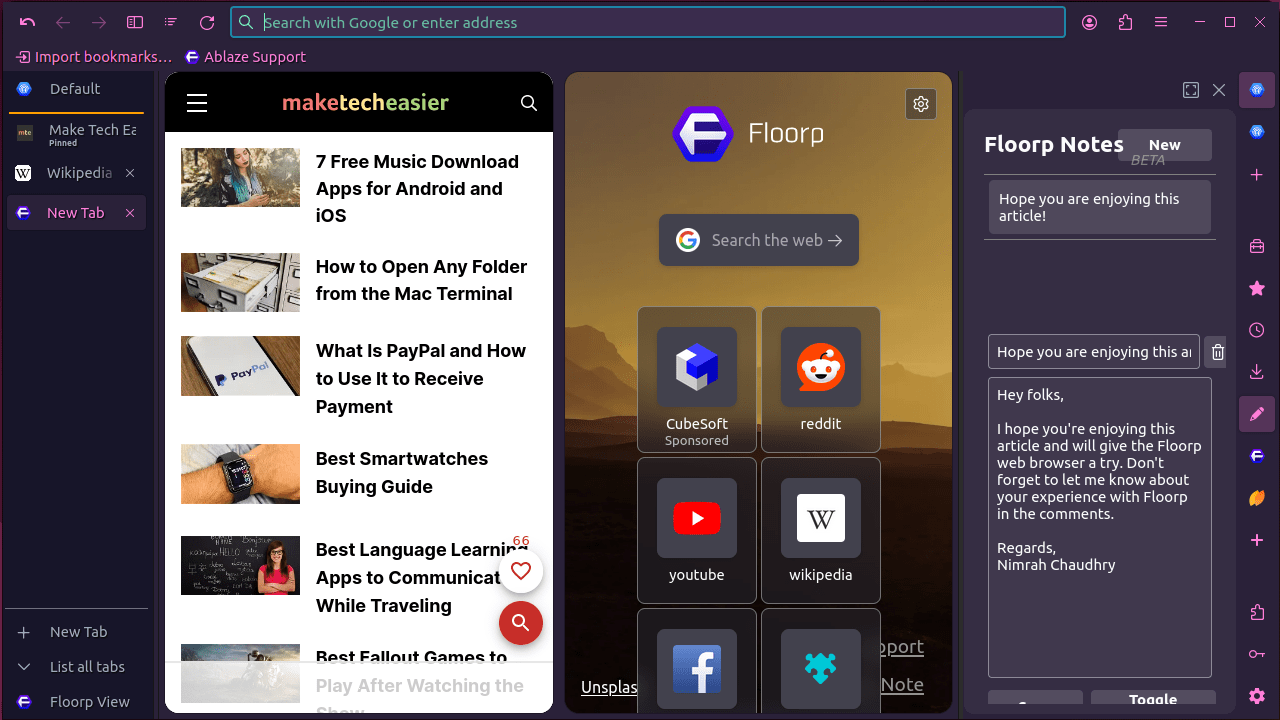
Floorp is a new Firefox-based web browser with a focus on privacy and customization. Learn about its features and installation method.
By Nimrah Chaudhry – May 21, 2024
Affiliate Disclosure: Make Tech Easier may earn commission on products purchased through our links, which supports the work we do for our readers.