Voice typing should make writing on your phone faster, but the cleanup afterward often cancels the time you saved speaking. While testing Wispr Flow on Android, I noticed something different. Instead of dumping a raw transcript on the screen, the app edits your speech before it appears.
Android Voice Typing Works, But It Still Needs Editing
Android already includes reliable dictation through Gboard. Tap the microphone, start talking, and your words appear almost immediately. The issue is that it captures speech literally, so every filler word, false start, and half-finished thought lands in the text field exactly as it left your mouth.
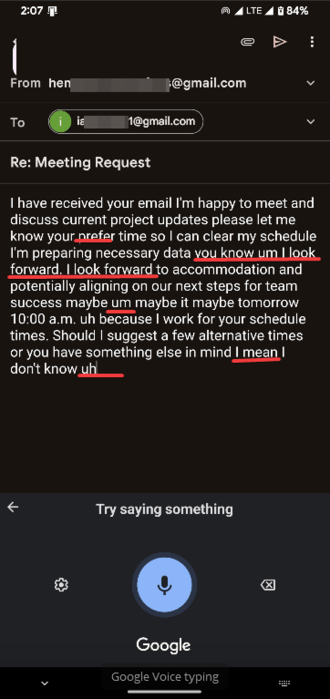
For a quick two-word reply, that is manageable. For a work email or a longer message, you end up going back through the transcript to fix punctuation, cut repeated words, and restructure sentences that made sense out loud but read badly as text.
That second pass is what eats the time you thought you were saving. It is a problem that most Android speech-to-text apps share.
Even if you switch keyboards to address this, the best Gboard alternatives still share the same core limitation. They may change how you type, but not how the output looks. Hence, the cleanup never really goes away.
Wispr Flow Handles the Cleanup Before the Text Lands
Wispr Flow launched on Android on February 23, 2026. While it has been available on desktop platforms for some time, using it on a phone changes how it fits into everyday tasks. We already covered how the desktop version works.
Instead of replacing your keyboard, Wispr Flow Android runs as a floating button that appears above your apps. Tap it, speak normally, and release when you’re done. Instead of a raw transcript, what drops into the text field is a cleaned-up version of what you said. Filler words are gone, grammar is corrected, and sentences are structured before any text touches the screen.
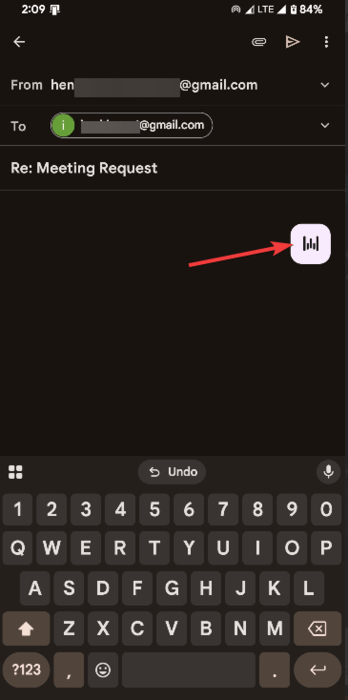
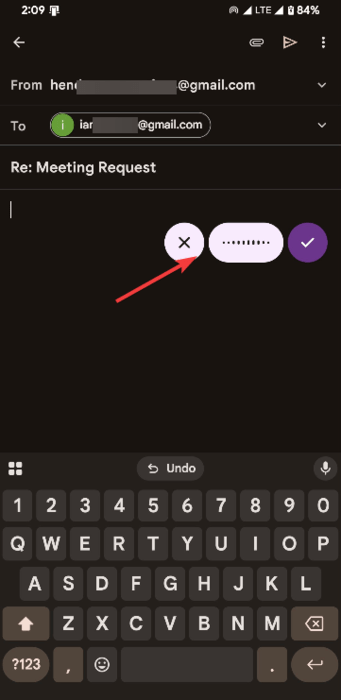
For example, saying: “um I think we should maybe meet tomorrow afternoon, you know.” May appear as: “We should meet tomorrow afternoon.”
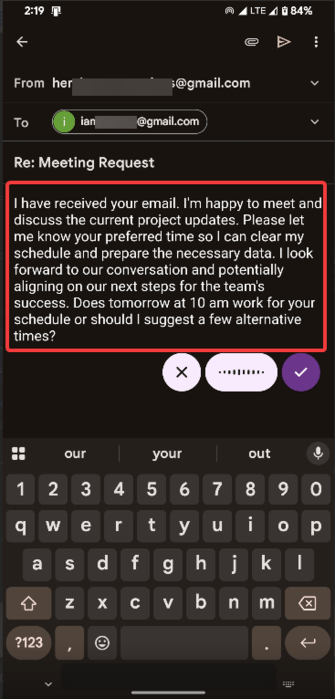
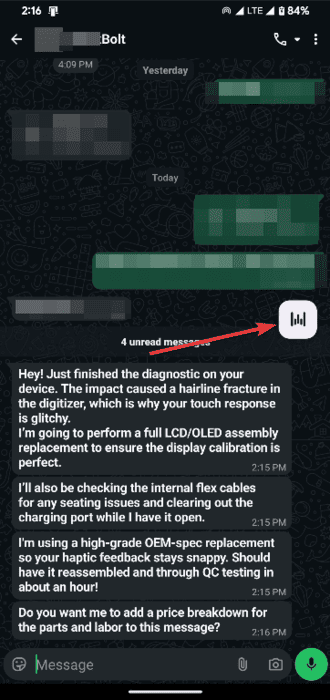
What makes this work on mobile is that it does not ask you to change how you use your phone. It runs alongside your existing keyboard so you can activate it mid-draft in Gmail or WhatsApp without switching apps or breaking your rhythm.
I tested it across both and in a Notes app. Most of the output was ready to send without editing, which is not something I have been able to say about any other voice input option on Android.
Setting It Up Is Quick, and It’s Free for Now
Getting started with Wispr Flow Android takes only a few minutes. After installing the app, you create an account and enable the required permissions. The most important one is Android’s Accessibility Service permission.
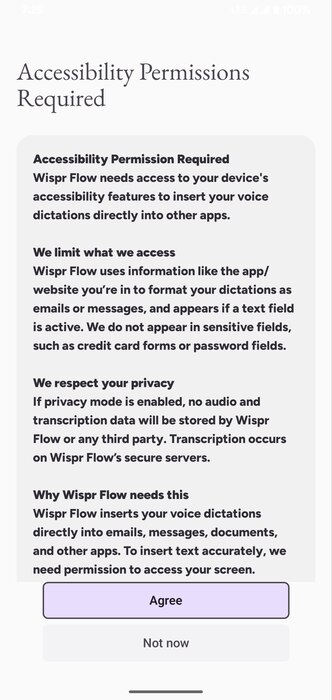
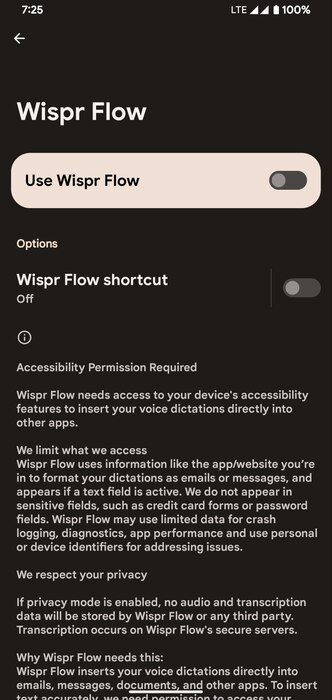
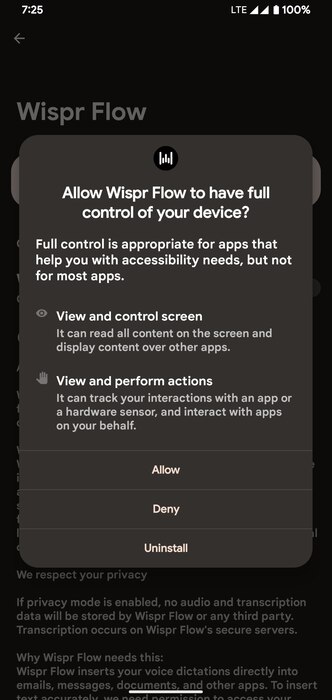
Because Android does not provide a built-in way for apps to insert text across other apps, Wispr Flow uses this permission to detect text fields and place dictated text wherever you’re typing.
It is not a red flag, but it is broader system access than a typical app install, and you should understand what you are enabling before you agree. After setup, the floating button stays available across every app with no per-app configuration.
On pricing, the Android version launched as an early access with unlimited dictation and no word cap on the free tier, which is more generous than the 2,000-word weekly limit the desktop version gives free users. There has been no public commitment on whether that continues, so check the in-app pricing screen when you set it up.
The Android Version Still Has a Few Rough Edges
Even though the core idea works well, Wispr Flow Android still feels like an early release. The most common issue is a paste bug where the transcription completes correctly, but the text does not insert into the app. When that happens, you need to copy and paste it manually.
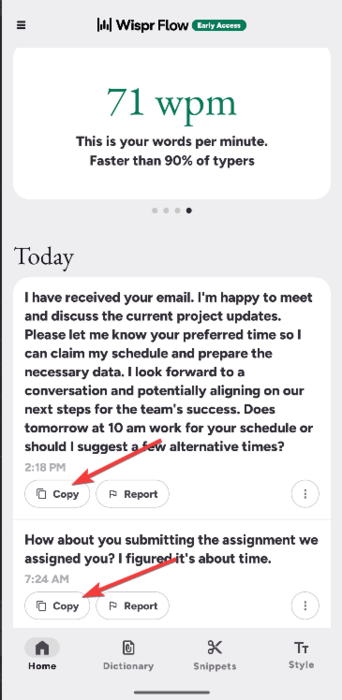
Switching between apps mid-session can also drop the dictation connection. Closing and reopening the target app usually resets it, but that is a workaround rather than a fix. These issues don’t happen constantly, but they show up often enough to notice.
On privacy, all voice processing runs on Wispr’s servers rather than on your device. If that gives you pause, the app has a privacy mode that prevents your data from being collected or used for AI training. It is worth turning on during setup, especially if you plan to dictate anything work-related or personal.
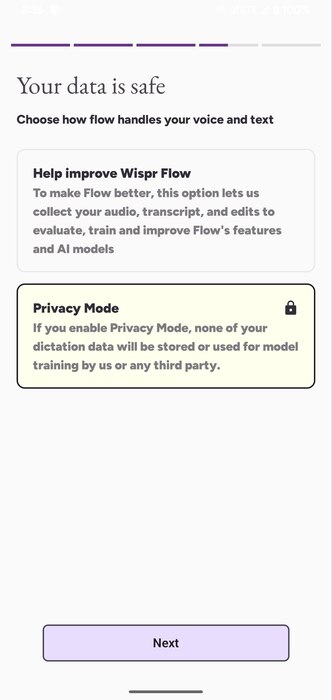
The desktop version is more polished, and the Android app is clearly still catching up, but the foundation is solid enough that the rough edges feel like update material rather than core problems.
My Take
After using Wispr Flow Android, the biggest difference is how little editing I need to do. Standard voice typing captures speech quickly but leaves cleanup to you. Wispr Flow handles much of that step before the text appears.
The Android version still needs refinement, but the experience is good enough that I now dictate longer messages and quick notes more often than before. Try it while unlimited dictation is still free and keep an eye on the updates.