Quake mode is an exciting feature in Windows Terminal that can launch a global dropdown console from the top of your screen. You can invoke it using a simple hotkey – Windows + ` (grave accent), to open PowerShell, Command Prompt, or other terminals. Once you switch to quake mode, you will not want to use terminal emulators on Windows any other way.
What is Quake Mode in Windows Terminal
Microsoft defines quake mode as a special mode the terminal enters, in which your default emulator turns into a dropdown screen. It will appear top down through any window you are working on, including browser tabs. You cannot resize quake mode screens horizontally or from the sides, only from the bottom.
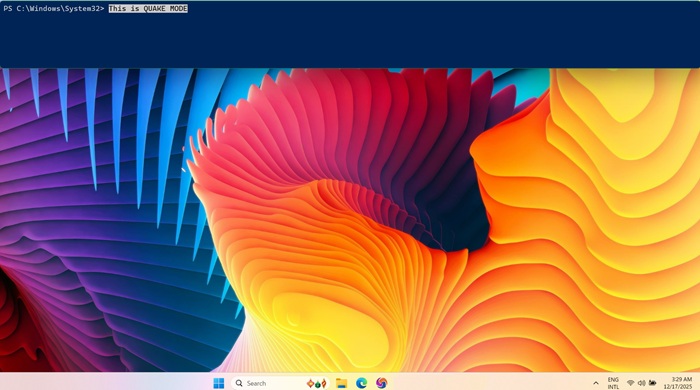
If other Windows Terminal screens are open, quake mode will appear alongside them, but there can be only one quake mode window at a time.
The idea of quake-style dropdown windows first originated in Linux, within programs like Ghostty terminal. Instead of launching a default terminal app, you can quietly invoke or dismiss a quake mode terminal, which is much faster.
The Prerequisites of Using Quake Mode
Before starting quake mode, there are a few things you should ensure first.
Open your updated Windows Terminal application. Check these installation guidelines first if you don’t have it on your device.
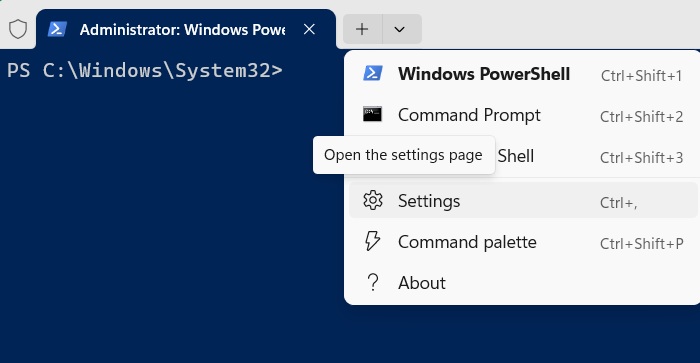
With the terminal window open, navigate to the Settings menu from the dropdown icon.
Go to the Startup tab and choose the correct Default profile depending on whether you’re a heavy PowerShell or Command prompt user.
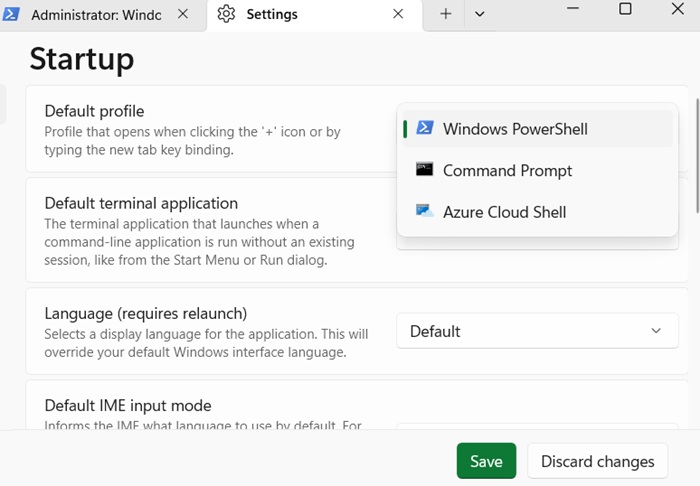
You can further tweak the settings for When Terminal starts to reflect whether you want to open a tab with default profile or start a new session. Click Save to freeze these changes.
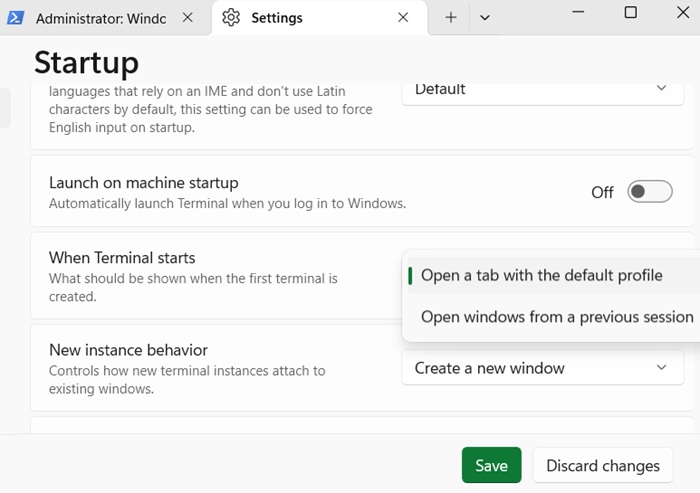
Many of us prefer to launch PowerShell or Command Prompt in administrator mode, For that, click the left sidebar for Profiles, and select your application on launch.
Here, turn the toggle on for Run this profile as Administrator, and change the Starting directory path to C:\Windows\System32. Click Save to finalize.
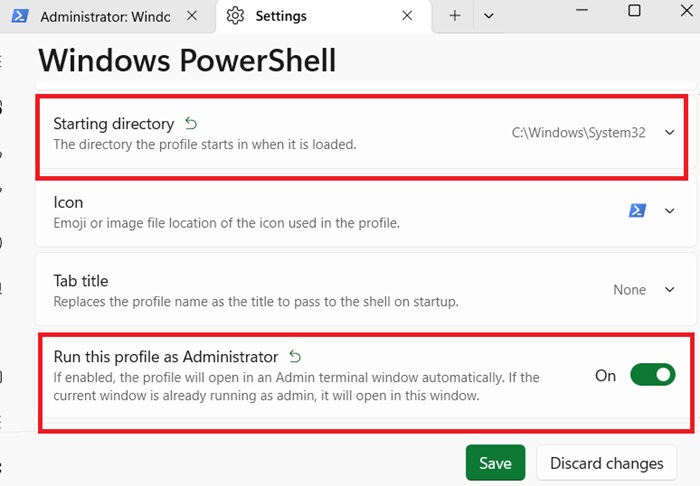
Note: the Windows Terminal should remain open at least once the first time you enable quake mode if you want to avoid errors.
Enabling and Disabling Quake Mode in Windows Terminal
To enable quake mode, open the Windows Terminal. Now, there are two ways to start the global drop-down console.
Method 1: Use keyboard shortcuts (global hotkeys)
Use the keyboard shortcut, Windows + `. It is on the same key on the extreme left of most standard keyboards as the ~ (tilde). The quake mode is instantly visible after this. It can be opened from a browser window.
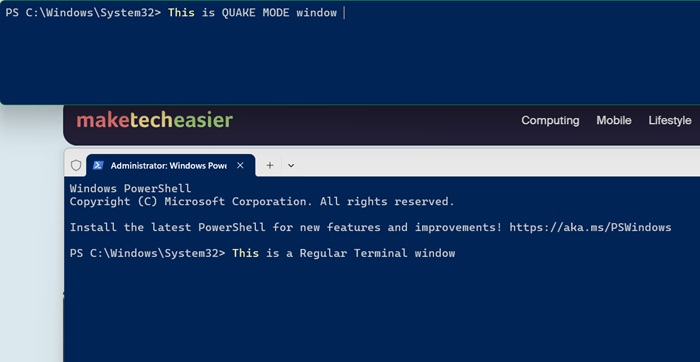
To dismiss or minimize quake mode temporarily, use the hotkeys Windows + ` one more time. You can invoke or dismiss the quake mode as many times as you want. Turn off the main Windows Terminal app now as it’s no longer needed.
Method 2: Type in Windows Terminal Console
You can also enable quake mode in an open Windows Terminal console window by typing the following:
wt -w _quake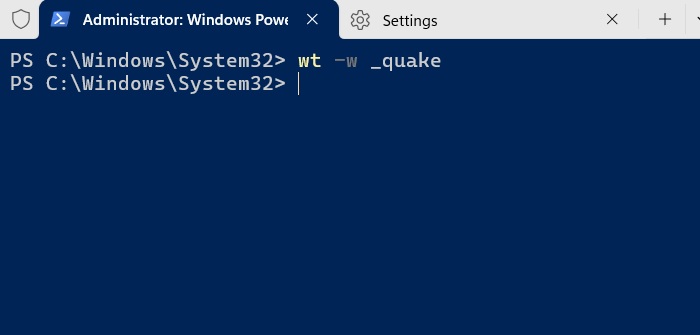
Since Windows Terminal supports both PowerShell and Command Prompt, you can use either application to launch quake mode.
Disabling Quake Mode in Windows Terminal
I found the best way to disable any quake mode terminal is to type exit in the dropdown console window. This is permanent. To re-enable the quake mode, you have to launch Windows Terminal all over again.
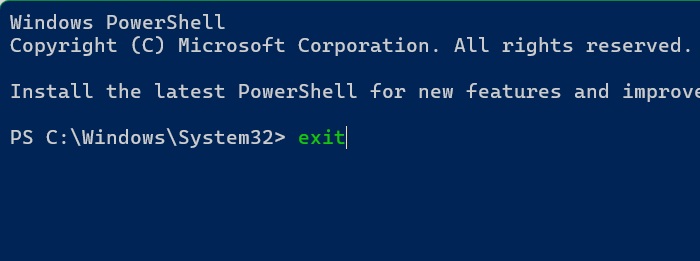
For cleaning up the previous commands in a quake mode window, simply use cls.
Quake Mode is the Ultimate Power User Hack
When you have instant access to the command line, your workflow becomes fast. This is critically useful to developers, administrators, and other power users as checking processes and running scripts can now be done anytime, from any browser window.
Here’s an example I use frequently whenever my system feels slow. Before quake mode, I had to minimize my browser or whatever application I was working on. After that, I would launch a Windows Terminal or PowerShell window, navigate to Task Manager, and then run a debug test based on CPU‑hogging applications.
Now, I can remain within the application I am using, and type Windows + `. Once the console opens, I run a simple cmdlet where the top 10 CPU-intensive programs are introduced in descending order.
Get-Process | Sort-Object CPU -Descending | Select-Object -First 10
In quake mode, I’m able to view all the CPU‑intensive programs one by one. Now I just use a simple Taskkill to end programs I don’t need. All this from the comfort of my default window without ever leaving it. I could be watching my favorite Netflix series while eliminating CPU‑intensive tasks on the fly.
From running powerful scripts to debugging unformattable USB drives that don’t work, I can now do everything in an instant.
Other Uses of Quake Mode (Casual Users)
Quake Mode in Windows Terminal is the single most impactful hack for boosting productivity, speed, and improved workflow on Windows 11 or 10. You don’t have to be a frequent user of Windows Terminal or any other emulator. However, there comes a time when we all need default system testing or troubleshooting which involves Command prompt.
- One hotkey to check network status anytime: just use
ipconfigin quake mode, or ping websites. - System maintenance on the fly: we have listed the importance of running commands like sfc/scannow or chkdsk. Now you can do it anytime without breaking your current workflow.
- Quick system info on demand: whether you need your device statistics, check battery status, and monitor resource usage through commands like
resmon, it’s now quick and easy. - Copy-pasting made easy: earlier, it used to be an ordeal copy-pasting commands from multiple open terminal windows. Now with a global console that you can launch in any window, it really saves a lot of time.
Having a global hotkey triggered overlay saves precious seconds for troubleshooting and debugging. With reduced dependency on mouse clicks, there is so much you can do using the keyboard alone. The best part is the quake mode is super lightweight on your system and does not burden your device specs.








