Year after year, LNK files are exploited in malware attacks, mainly because a core vulnerability hides malicious content from users. Microsoft has not yet fixed the flaw, so we must be cautious when handling LNK files. Follow the steps in this guide to protect yourself from attacks that abuse them.
What Are LNK Files and Why Are They Dangerous
You have probably created shortcuts in Windows before or allowed apps to create shortcuts (usually desktop shortcuts). Those shortcuts are LNK files and have .lnk extensions. You may not know this since the .lnk file extension is not shown by Windows, and they instead have a sideways arrow icon.
These shortcuts have a target field that points to the location of the app/file it can open. More importantly, this target field also accepts command-line arguments and other launch instructions, allowing malicious actors to run malicious scripts, often used for fileless attacks like the Astaroth malware.
Being able to run malicious scripts/instructions upon execution isn’t even its vulnerability. The main vulnerability is that a malicious actor can add empty spaces in the target field beyond its visible limit to hide malicious scripts. The user will see a safe target address, but it will execute malicious instructions. It’s officially tracked under the ID: CVE-2025-9491.
An attacker usually hides a .lnk file in an archive. The .lnk file hides the malicious instructions in the target field and shows a fake icon with a fake name like “Instructions.pdf.ink”. Since Windows doesn’t show the file extension for these shortcuts, the user sees the name as “Instructions.pdf”. When launched, it will execute the attack.
Show LNK File Extension in Windows
Knowing that it’s a shortcut file and not a real file is the most important defense against such attacks. LNK files are made to open files/apps on the same PC or in a network drive. This means no third party will ever send you an LNK file since they don’t know what is in your PC. Receiving an LNK file in any form is most likely a malicious attack.
To make identification easy, you can force Windows to show the .lnk extension for all shortcuts. We’ll need to use a Registry hack for this, as the built-in file extension revealing option doesn’t apply to .ink files. First, enable the Show file extensions option, and then apply the Registry hack below:
Warning: make sure you back up the Registry before following the instructions, as any incorrect change in the Registry can cause system instability and possible data loss.
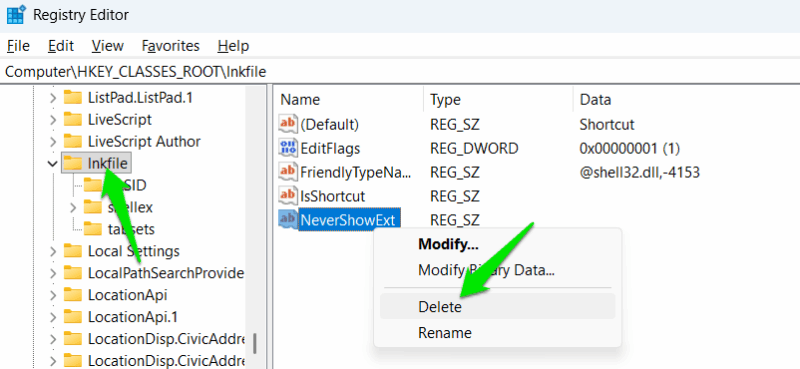
Open the Registry and move to the following location:
HKEY_CLASSES_ROOT\lnkfileHere, delete the NeverShowExt string in the right column. You’ll have to restart the PC for changes to take effect. You will now see that all shortcuts will have the .lnk extension. If you ever receive a file from someone with the .ink extension, don’t open the file.
Properly Analyze the LNK File
If there is an LNK file that you find suspicious, you can carefully analyze its target field to find clues. Right-click on the LNK file and select Properties. In the Shortcut tab, you’ll find the Target field that you need to analyze.
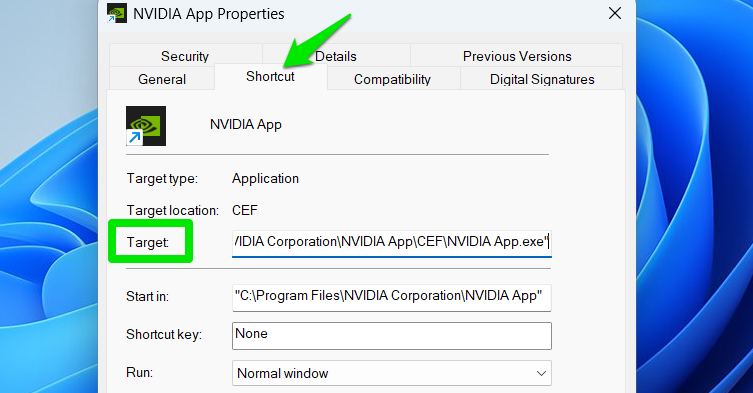
For a regular app shortcut, this field should just show the exact location where the app is located on your PC, inside quotes. If it doesn’t lead to the expected app/file, and instead opens a command tool like cmd.exe, powershell.exe, mshta.exe, wscript.exe, etc., it could be malicious.
Furthermore, if you see random characters, binary code, or white space at the end of the string, it can also suggest malicious behavior.
Disable AutoPlay and File Previews in Windows
Historically, Windows AutoPlay for USB drives and the file preview feature of File Explorer have been exploited for LNK file attacks. While Microsoft has enhanced security, the risk still holds due to the nature of these features. If you don’t use these features, you should disable them for security.
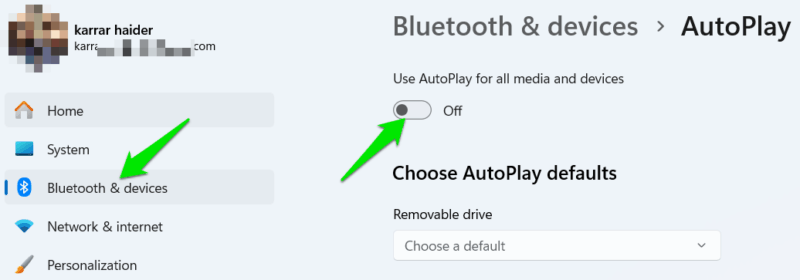
In Windows Settings, go to Bluetooth & devices → AutoPlay and turn off the toggle button here to disable AutoPlay. For file previews, follow our guide to disable file previews and manage exceptions.
Enable Controlled Folder Access
Controlled Folder Access is a Windows feature to protect against ransomware. It protects important user folders like pictures, documents, desktop, etc., from tampering by untrusted sources. Since many LNK file attacks interact with these folders for malicious actions, this feature can provide security. Follow our guide to enable Controlled Folder Access.
Harden PowerShell Security
LNK file attacks often run PowerShell commands to take over. You can harden PowerShell security by only allowing signed scripts to improve security. Search “powershell” in Windows Search, right-click on it, and select Run as administrator. Here, run the following command and then type “y” to confirm the change.
Set-ExecutionPolicy AllSigned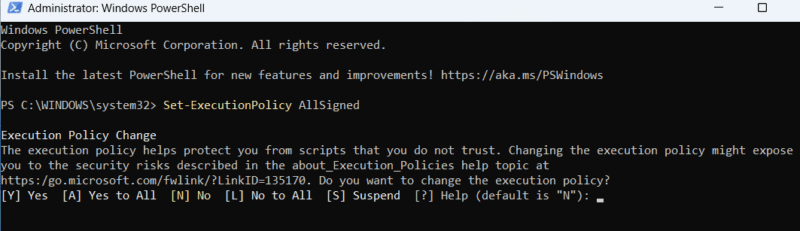
This might impact some workflows that depend on custom scripts, like in enterprise environments. If you want to undo the changes, then run the following command:
Set-ExecutionPolicy UndefinedYou should also follow the tips in our guide to secure PowerShell for even better security.
A good rule of thumb for safety is to never open an LNK file if you didn’t create it yourself or allow an app to create it, especially if you downloaded it from the internet. Also, make sure you use Windows security features, especially the disabled security features.








