In order to make its Gemini service more accessible, Google has integrated many of its services with Gemini, and some of them to great effects. One particular integration that we found very useful is the ability to search videos on YouTube using natural language in Gemini. This guide will show you why using Gemini to search videos on YouTube is better and how to enable this functionality.
Why Use Gemini to Search YouTube Videos
YouTube’s search looks for specific keywords and filters to look for videos, but in Gemini, you can use natural language to search YouTube videos. While this may not seem like a significant change, it completely switches the way you search videos on YouTube.
To put it simply, Gemini knows all the content available on YouTube (just like the YouTube search), and it also “understands” your query. It’s like having a personal assistant who also happens to know what’s inside each YouTube video, when it was uploaded, how many views/comments, video length, etc.
For example, you can ask, “compare the explanations of ‘mindfulness meditation’ across the top 10 wellness channels, list the common techniques they cover, and highlight the most concise tutorial under 10 minutes“. For this search, Gemini will first check the common theme in videos from the best channels and then find a video that best covers the methods. You’ll get a video that gives you the best info for your purpose, and doesn’t waste your time.
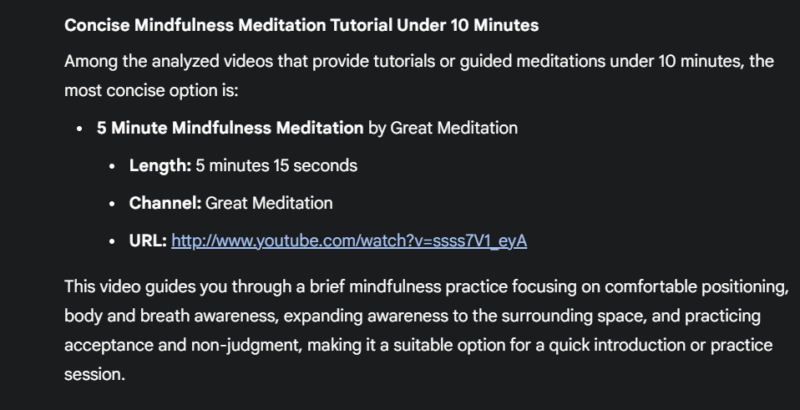
This type of search is impossible using YouTube’s own search bar, even when you use filters, operators, and other YouTube features.
Following Up With More Prompts
YouTube search always starts a new search, so you can’t refine the results more than what filters offer. Gemini, on the other hand, allows you to follow up with more prompts to further refine your search.
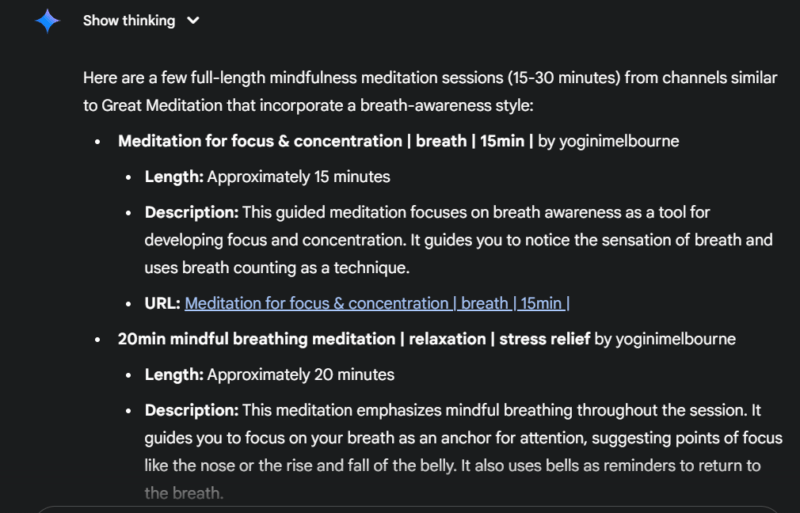
If you are not satisfied with the results or want to further search on the same topic, you can follow up with more prompts. Following up on the above example prompt, you can ask something like “find full-length mindfulness meditation sessions (15–30 minutes) from channels similar to Great Meditation that use the same breath-awareness style“.
You can also ask questions about the video itself to make it easier to understand its contents. For example, you can ask Gemini to summarize the video or ask questions like “at what timestamp does the instructor introduce the body-scan technique?“.
Enable the YouTube App in Google Gemini
You need to make sure YouTube integration is enabled in Gemini, otherwise, you’ll just get vague information about videos that you’ll have to search yourself. Here’s how to enable it:
Click on the Settings & help option in the bottom-left corner and select Apps.
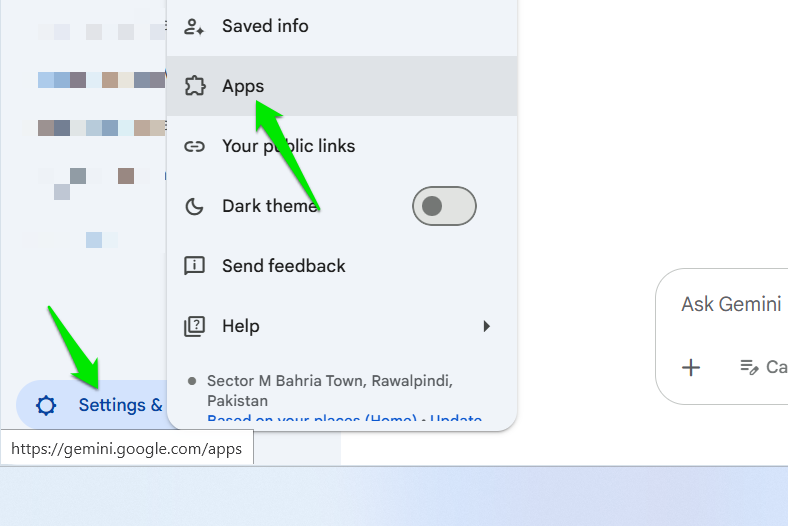
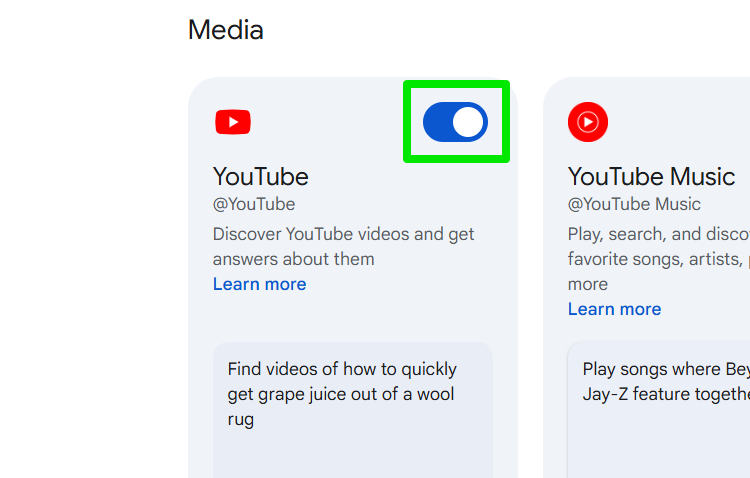
Under the Media section, enable the toggle on the YouTube app.
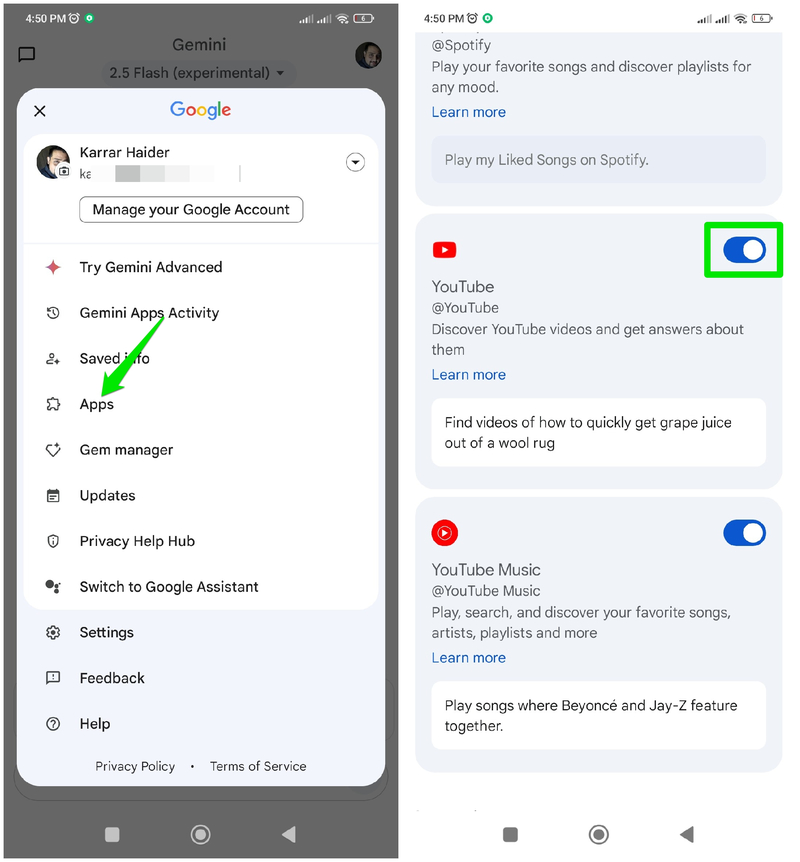
If you want to enable it on the Gemini app on your phone, tap on your profile in the top-left corner and select Apps.
Here, enable the YouTube app at the bottom.
You’ll have to start a new chat to use this integration. Gemini will provide a direct link to every video it searches and embed a small preview as well, allowing you to watch it inside the chat.
To search for a video, you can either ask Gemini “search for a video on YouTube” or use the @YouTube command at the start of your prompt to narrow its search to the YouTube website only.
If you’re just hunting for trending videos or matching a title, YouTube search does the job. Gemini shines when you want to dive deeper, like extracting specific transcript moments or running cross-channel comparisons. Make sure you check Gemini’s thinking process as it reveals a bunch of information that could be used to refine the search.








