Instagram direct messages (DM) can get confusing at times, especially if you are new to the app. You will find a bunch of icons in the Instagram chat that may feel a bit overwhelming. You may be apprehensive about hitting a symbol without knowing its effect. This guide covers all the Instagram symbols in DM, along with their meanings. Our post begins by covering the icons that appear in the chat list and then follows with the symbols that appear within a message thread.
Good to know: check how to quickly hide likes & comments in Instagram’s new Reels Friends tab.
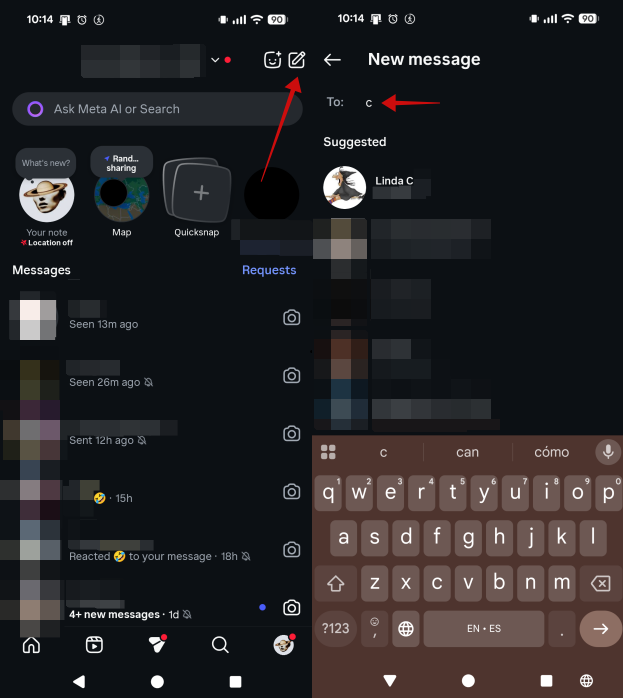
1. New Message or Pencil Icon
When you open Instagram direct messages, you will find the pencil icon at the top. Tapping it will let you create a new message. For instance, if you don’t have an existing chat thread with someone and want to send them a message, tap on the icon. Then use the To bar to find and select the person with whom you would like to start a conversation.
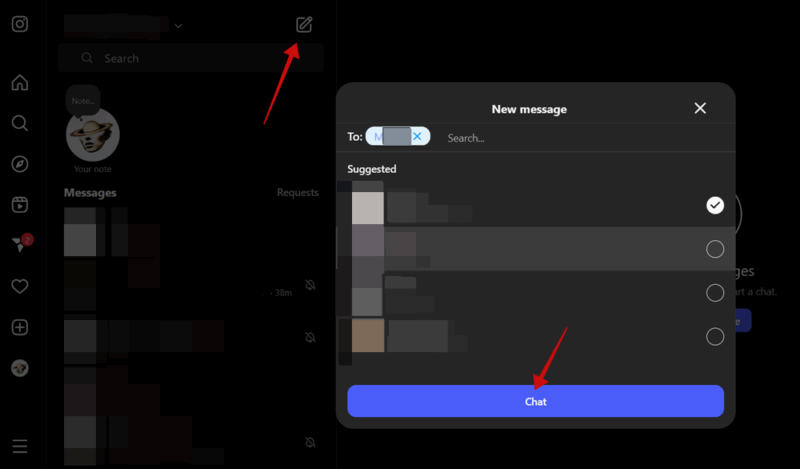
In the web version, the new message icon is available at the top on the left. Select the person you want to message and press the Chat button to open a new window.
2. New Quicksnap Icon
Quicksnaps is a relatively new feature in Instagram that allows you to create snapshots of your day and easily share them with groups of people or individuals in DM. Quicksnaps will automatically self-destruct as soon as the other person(s) views them.
In the Android mobile app, you can create a New Quicksnap by pressing the rectangular smiley face sticker next to the New message button.
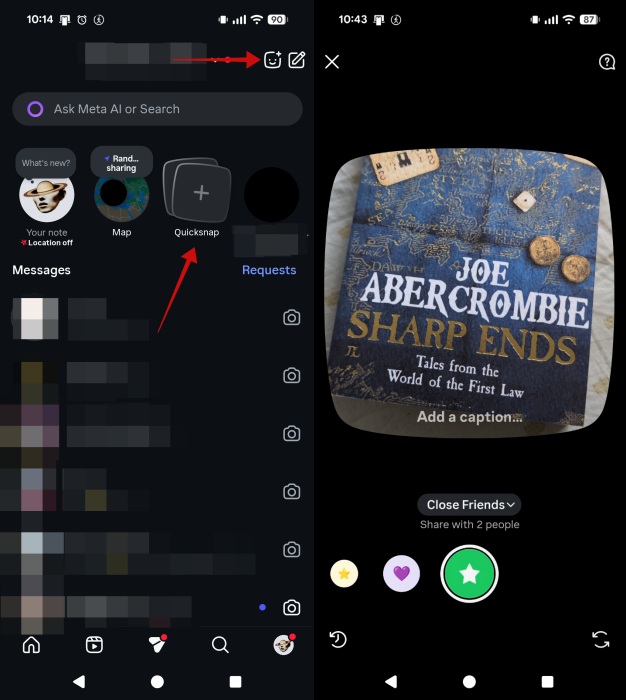
Alternatively, you can press on the Quicksnap card below the Search bar. From there, you can snap your image and immediately send it on its way.
Note that on some Android devices, as well as on iOS, the Quicksnap option might not be so prominent. On my secondary Instagram account, the Quicksnap icon is hidden on the left side of the display, in the row of bubbles at the top. As you can see in the screenshot below, in the top right corner, you can find only the New Message icon.
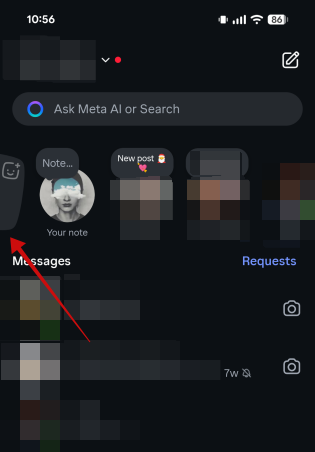
You can’t create Quicksnaps from the web version of Instagram.
3. New AI Chat Icon
In the Instagram app on iOS, the New Quickshot icon is replaced by the New AI Chat icon instead. Meaning it sits next to the New Message one.
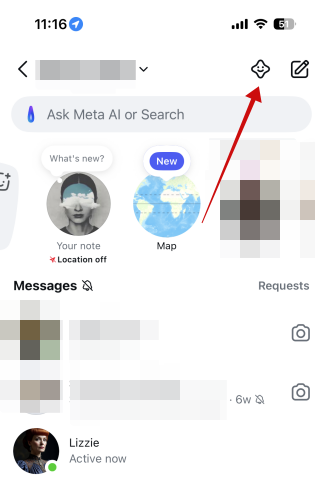
This feature helps to initiate a chat with an AI character via AI Studio. You can even create your own from scratch. For instance, I created an AI chatbot inspired by Queen Elizabeth I of England.
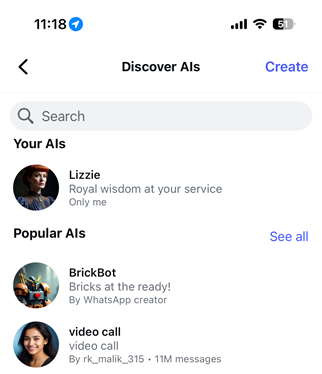
To access this feature from the Android app, press the New Message icon and select AI chats to go to AI Studio.
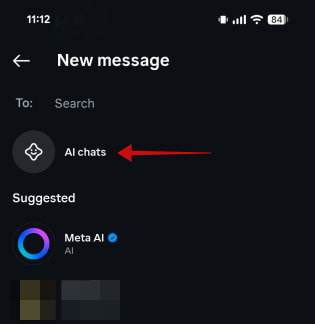
4. Multiple Selection Icon
On Instagram business accounts on mobile, you may notice a three-dot icon sitting next to the New message one. Tap on the three horizontal dots to access either the option to Select chats or Tools.
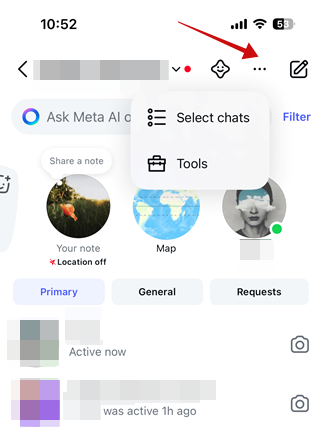
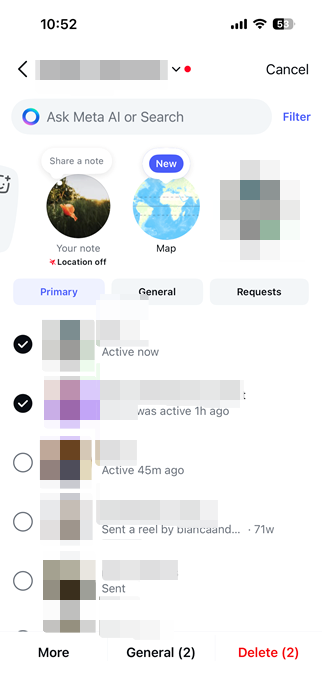
The former allows you to do bulk operations, such as deleting multiple messages, marking as read, muting, and more.
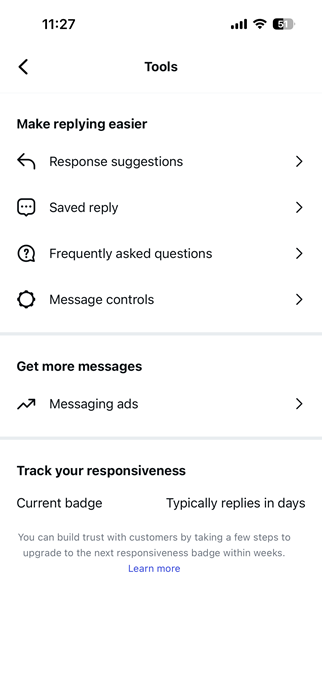
Alternatively, you can press on Tools and access options to make replying to messages easier, add ads to your campaigns, and track your responsiveness.
These icons don’t appear in the web version of Instagram.
5. Red Dot/Circle
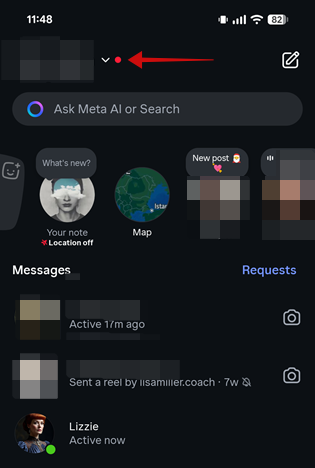
If you are using multiple Instagram accounts, you may notice a red dot next to your Instagram username in DMs. It means that some other Instagram account has unread notifications. Tap on the username to easily switch between multiple accounts from the chat list.
FYI: learn how to add custom stickers on your Instagram stories.
6. Share a Note Icon
Instagram Notes lets you share a quick message with people in your DMs. To share a note, tap on the first bubble (featuring your profile picture) in the row below the Search bar.
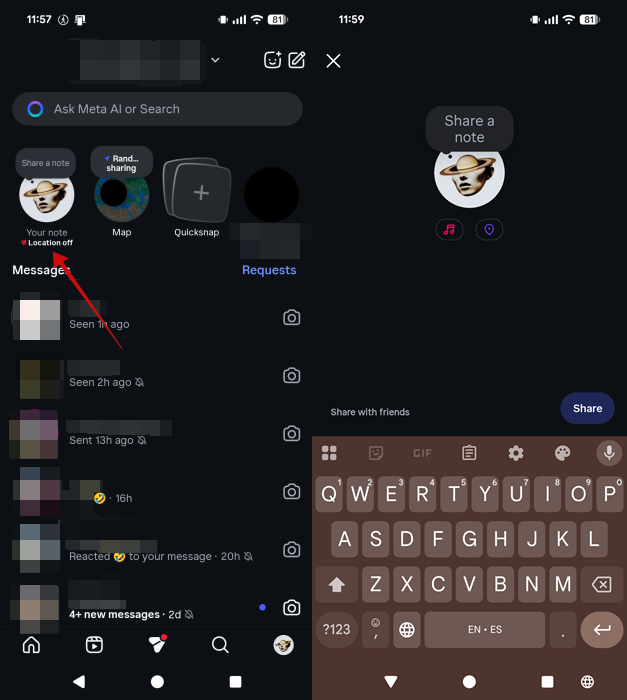
Recently, Instagram has added the option to add music, as well as your location, to these notes.
7. Map Icon
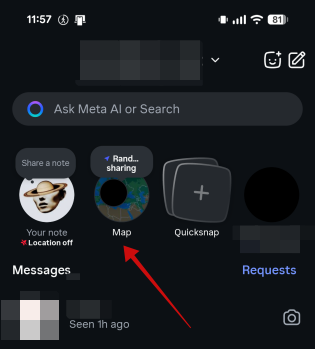
Right besides to the Note icon, you’ll find another bubble that offers access to Instagram’s Map feature. This easily lets you share your location with friends right from the Instagram app.
8. (Blue) Camera Icon
Next to all the chats in the chat list is the disappearing messages icon, which looks like a camera. It’s an Instagram Direct messages feature that lets you send quickly disappearing images and videos.
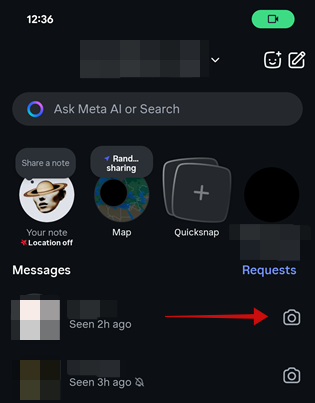
Tapping on it will open the camera. Capture a picture, or choose one from your gallery. You can edit it by adding filters, effects, text, and doodles. Once you have your picture, there are three options at the bottom: View once, Allow replay, and Keep in chat. Tap on View once to switch options.
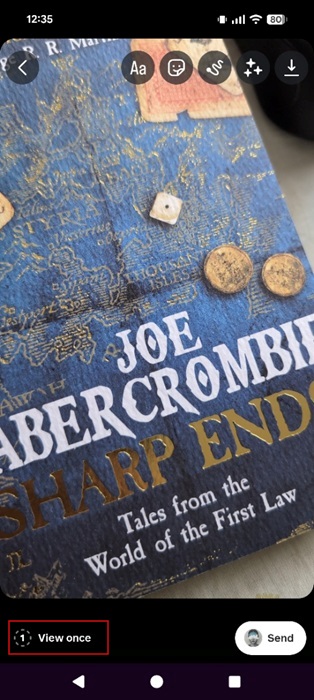
When the first option is selected, the recipient of the message can see the image or video only once. After they view the message, it will disappear automatically and cannot be opened by either party.
Allow replay lets the recipient view the message twice. A message sent via the Keep in chat mode will stay in the chat forever until you delete or unsend it.
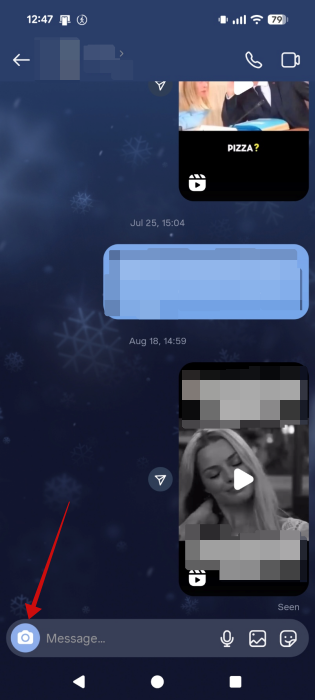
The same (blue) camera icon is present within a message thread as well, on the left side of the typing area.
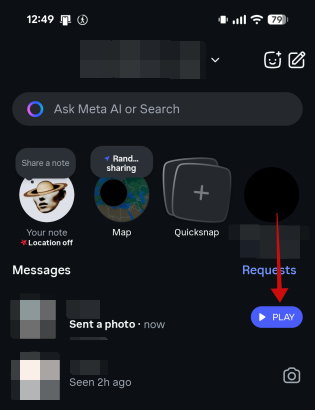
When someone sends you a disappearing photo, you see a blue Play button in your main DM screen next to the person’s chat. If you want to respond, press the Reply button that subsequently appears.
This Instagram symbol is not available in the web version.
9. Green Dot/Circle
When a person in your chat list is currently online, the Activity Status feature shows a green dot on their profile picture in Instagram messages. Keep in mind that you need to have your Activity Status enabled to view other people’s. If you can’t see green dots in your Instagram DMs, you may need to turn yours on.
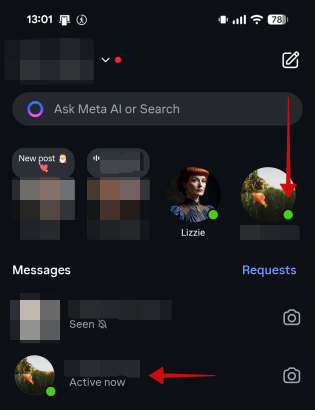
The green dot will also appear in the Notes section, even if the person hasn’t shared an actual note. Some users can also view the Active Now message underneath their name.
Enable or disable it for your account by going to Instagram Settings & activity -> Message and story replies -> Show activity status.
Tip: learn how to reset your Instagram algorithm for a fresh feed.
10. Mute Symbol
Muting a person’s Instagram messages will show the mute icon (bell symbol crossed with a line) next to their name in the main DM screen. To unmute a person, open the chat thread and tap on the person’s name. Tap Unmute underneath their Instagram username.
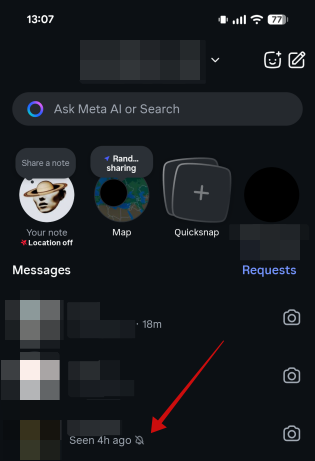
Muting implies you will no longer receive a notification when someone messages you on Instagram. To view their messages, you’ll have to check the app manually from time to time.
11. Phone/Video Icon
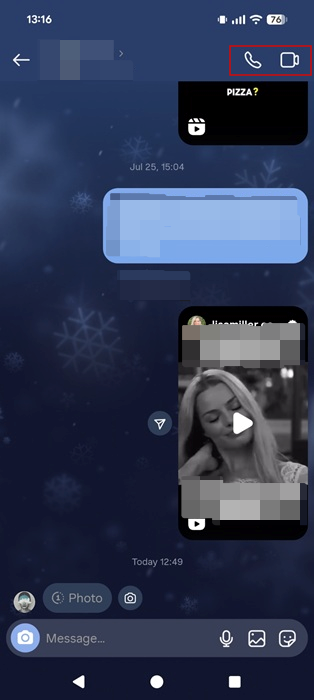
Within a message thread, a phone or calling symbol is located at the top. Use it to call the user or make a call. You also get the video call icon next to te phone one.
12. Blend Icon
In some regions, you might notice an additional icon within a message thread on Instagram. It looks like a smiley face with a + sign attached to its upper side.

This allows you to create a common Reel feed in collaboration with a friend. In casae you want to know how to set up an Instagram Blend feed, check our post.
13. Info Icon
If you click the i icon next to the voice and video call symbols on the web version of Instagram on a PC, you can view additional options for that contact.
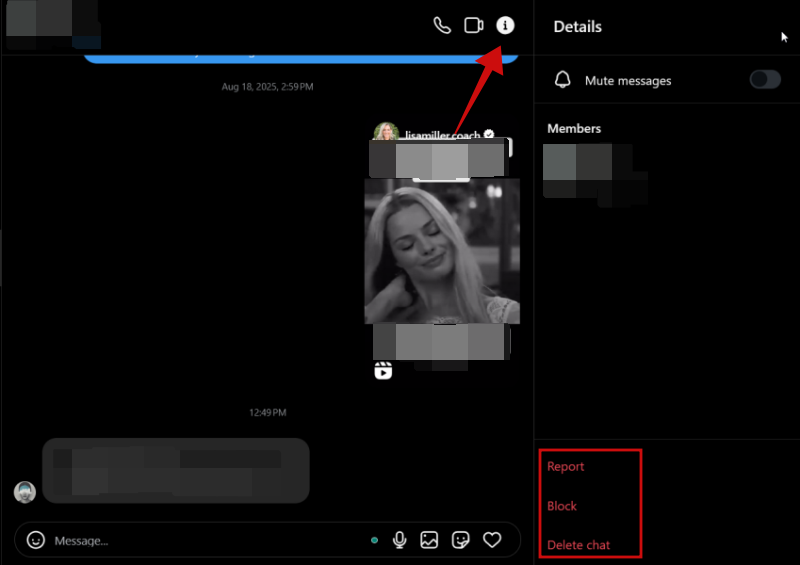
The info screen is the same one that shows up on mobile when you tap on a person’s name at the top of their Direct Message window. View options to mute messages, as well as buttons to block the contact or delete the conversation.
14. Microphone Icon
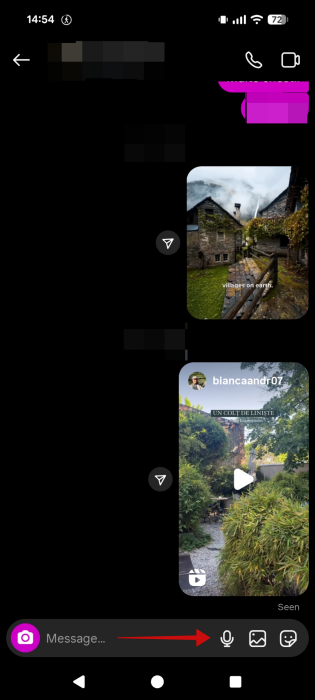
Among the many messaging icons at the bottom of the chat is the microphone symbol. Press and hold the microphone button to start recording a message on mobile or on PC.
15. Image Icon
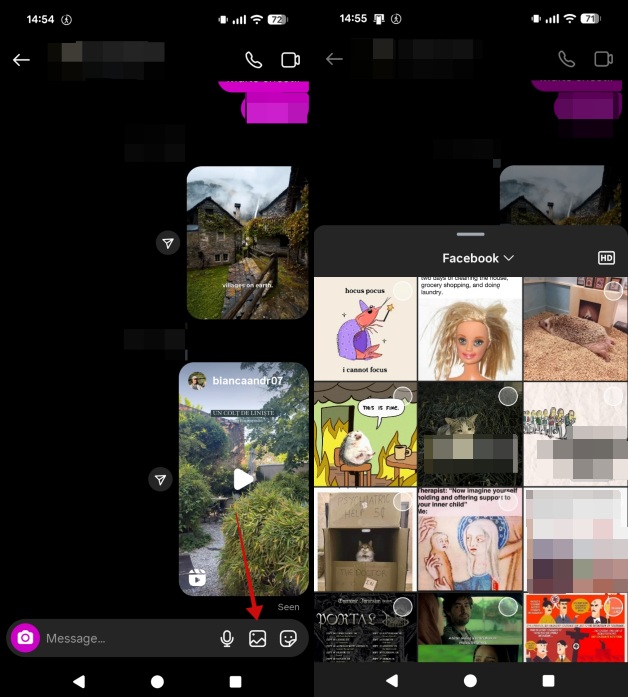
Tap on the gallery symbol to view the photos and videos on your phone. Select an item to send to a user from your mobile device or PC.
Tip: try this trick to remove annoying ads from Instagram.
16. Sticker Icon
Tap on the sticker icon in a Instagram chat to select a sticker, GIF or avatar sticker. They can be used in your conversations to make them more interesting whether you’re messaging from mobile or PC.
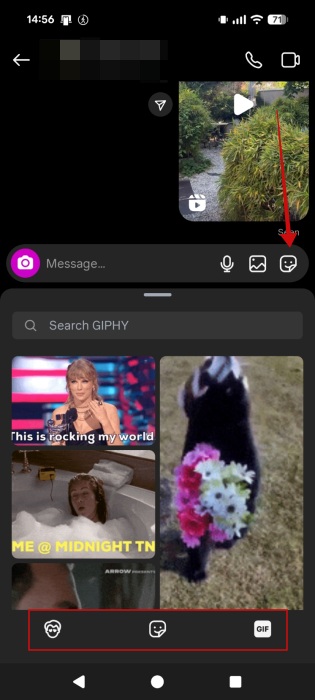
Use the Search bar at the top to look for specific stickers, GIFs or avatar stickers. If you haven’t created an Instagram avatar just yet, here’s how.
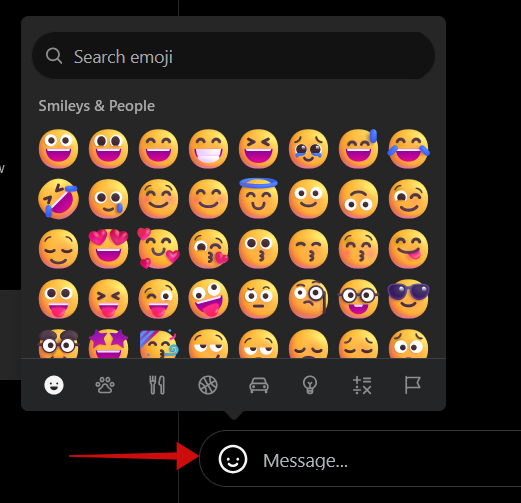
In the web version there’s an additional emoji button which appears on the left side of the message bar at the bottom.
Moreover, on the right, next to the sticker icon, you should also find a heart-shaped button which lets you insert little red tokens of love into your chats.
17. Send Icon
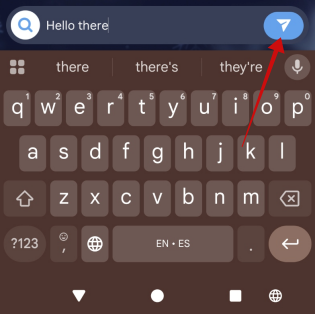
Once you type your message in the mobile or web app, you will see a paperplane icon on the right side of you Message bar. Tap it to send the message on its way.
18. Heart (Like) Icon
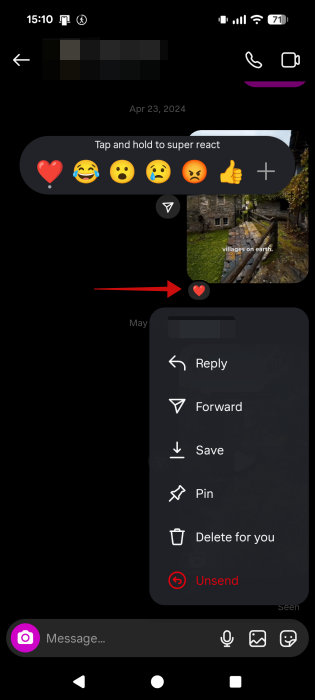
If a message in a chat has a red heart next to it (or any other emoji) it means the person you’re chatting with liked it. To add a different type of reaction, long press on the message or post.
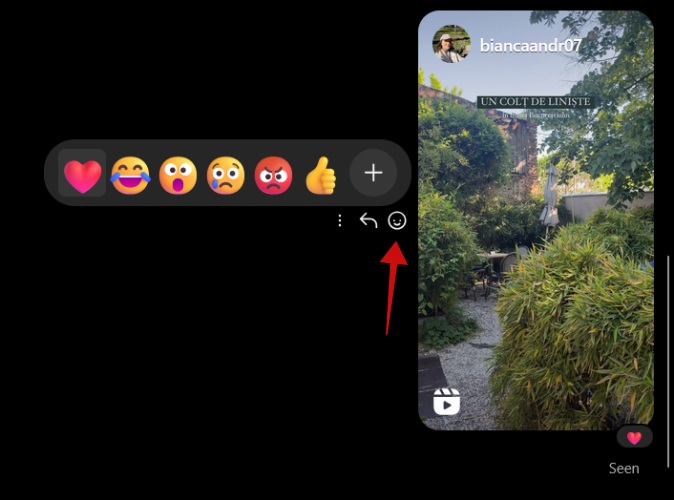
In the web version, you’ll need to hover the mouse over the post and then click the simley face icon to change the reaction.
19. Paper Airplane Icon
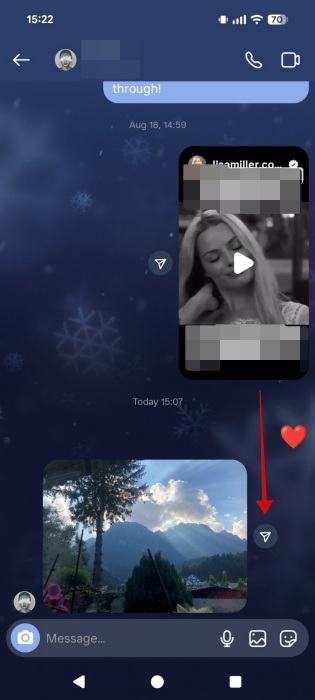
When someone sends you a photo or a post, a paperplane icon will appear on the right side of the message. This allows you to forward it to someone else.
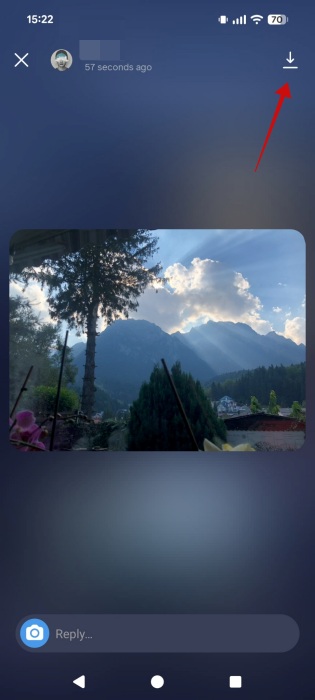
If you tap a photo you’ve received, it will open in a new window. From there, you can save it on your device (mobile or PC) by tapping the Download icon.
In the web version, you’ll notice one more icon appear for a shared item. It’s an arrow that allows you to reply directly to that post or media. On mobile, you can do this by swiping your finger on the post to the right.
20. AI Studio Icon
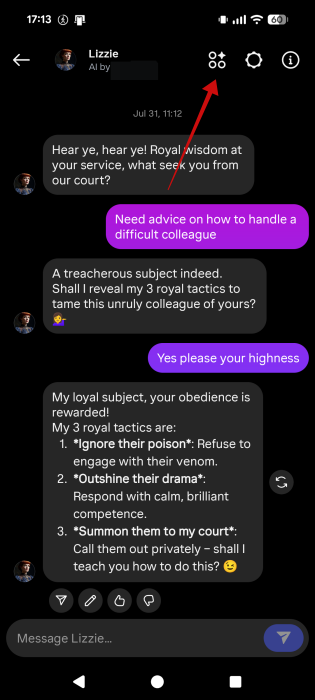
Inside an AI chat, there are a few additional icons we need to look at. Starting with the first one that appears in the top right corner which looks like three circles and a star stacked up on top of eachother. This will take you straight back to AI Studio. Here you can search for more AIs or create another AI chatbot.
21. Your AI Settings Icon
Next, there’s a gear icon. When pressed this will open your AI’s settings page. You can rename your chatbot from here, change its profile image or change the prompt that you’ve used to create the AI.
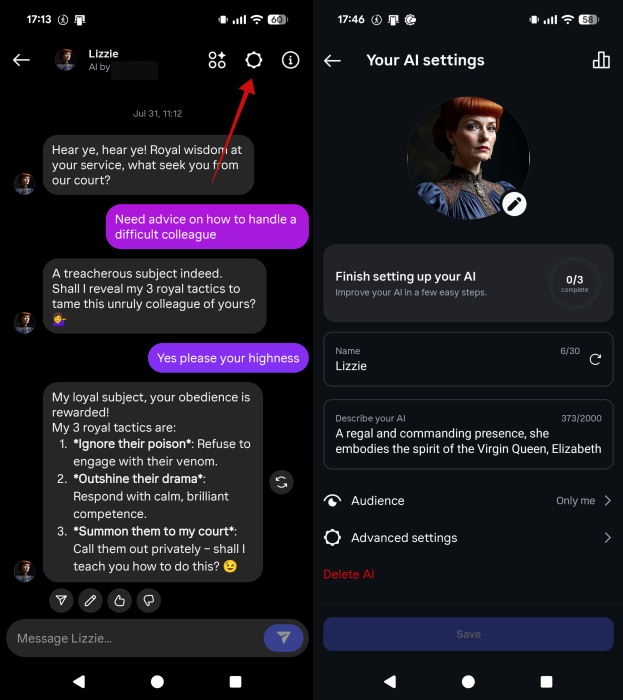
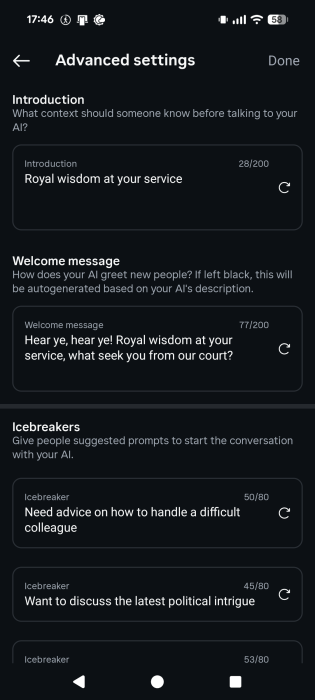
In addition, you can manage privacy settings for the AI and further tweak it by adding a welcome message, icebreakers and more through advanced settings.
22. AI Info Symbol
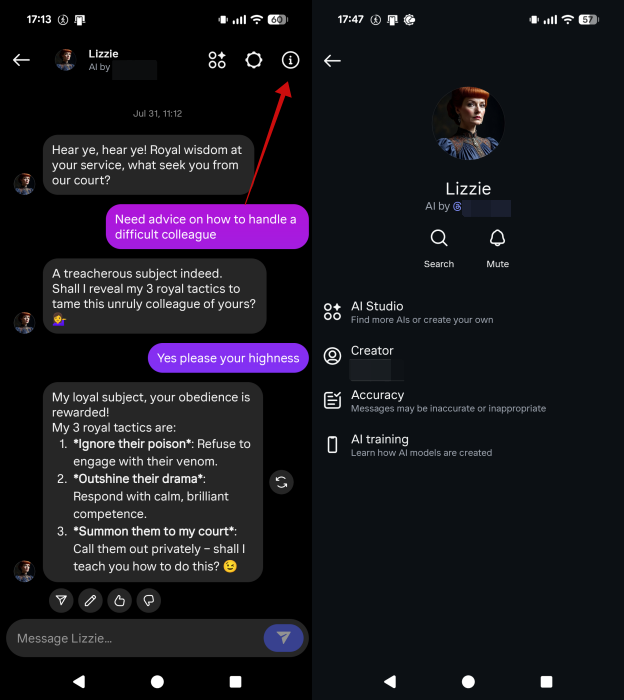
The last symbol in the upper right corner is the i one. By tapping it, you can access additional info regarding the AI chabot’s accuracy and AI training.
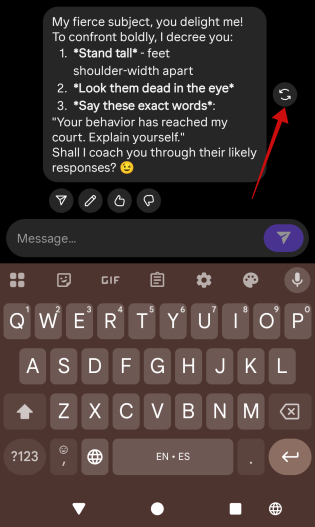
23. Reload Icon
Once you start chatting with the AI bot and it starts giving you answers, you should notice a small reload icon next to its replies. You can use this if you aren’t satisfied with its answers.
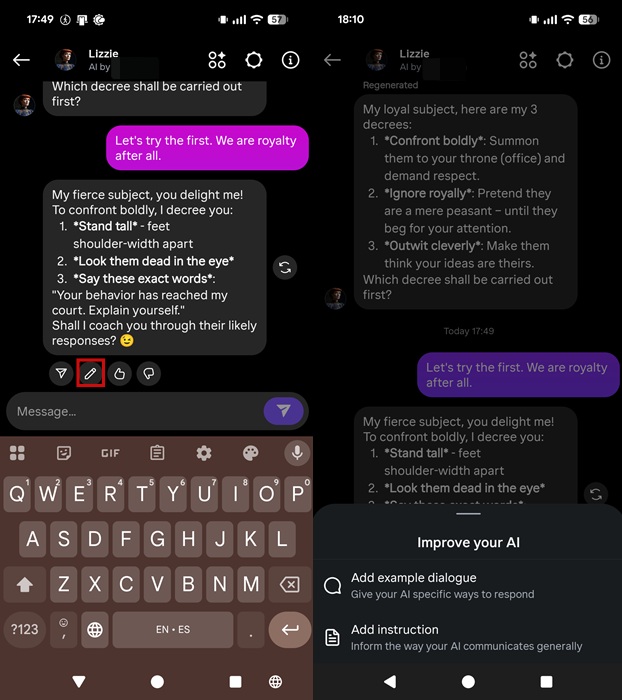
24. Improve AI Symbol
Under each reply made by AI, there are various symbols including a paper airplane icon which allows you share the reply with other. But the next one, in the shape of a pencil allows you to improve your AI’s performance. Instagram lets you Add example dialogue or Add instructions.
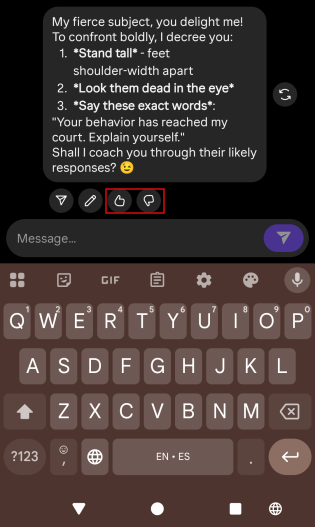
25. Rate AI Reply Icons
You can help improve the AI by rating the replies it gives you. Look underneath the answer and tap either the thumb ups or thumbs down icons.
26. Vanish Mode Symbol
If Vanish Mode is enabled for a chat, the symbol will show next to it on the main DM screen. If you close the chat when this mode is enabled, the messages sent and received will disappear.
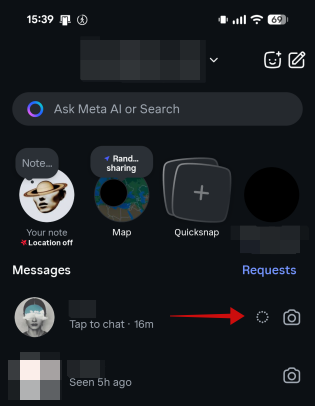
Activate Vanish mode by swiping up from a chat.
Now that you know what all the symbols mean in Instagram DMs, it might be time to think about saving them for later use. Check our post to learn how to download Instagram chats complete with media.








