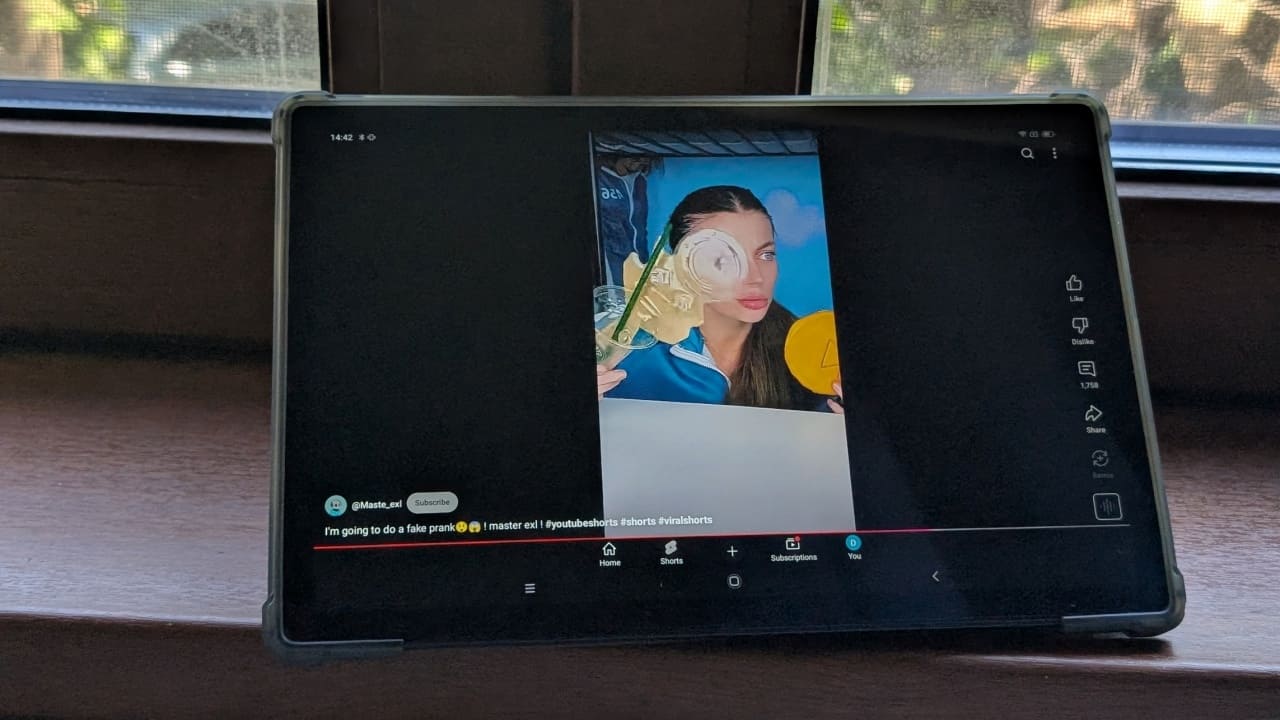
YouTube Shorts, like TikTok videos, are built for vertical scrolling. Still, YouTube now offers a way to watch them sideways, in landscape mode. It’s an unusual way to view vertical videos, but if you’re curious to try it, here’s how to give it a try.
Good to know: check how to try AI-powered search in YouTube right now.
Landscape YouTube Shorts: Who’s It Actually For?
The new landscape option for YouTube Shorts is an Accessibility setting, suggesting it’s intended for users with specific accessibility needs. Case in point, disabled individuals who use wheelchairs or specialized equipment may rely on fixed device mounts set in landscape orientation. The tool would enable users in this category to view Shorts comfortably, without the need for uncomfortable head tilting or body repositioning.
Beyond special accessibility needs, viewing landscape Shorts may appeal to users who simply prefer watching videos in landscape mode. Without a stand, it’s often easier to prop a phone horizontally. Likewise, those using a keyboard case may naturally want to keep their device in landscape orientation for convenience.
Tip: learn to upgrade your TikTok privacy with these tips.
Enable Shorts in Landscape Mode in YouTube
The feature is currently offered on select phones. On my Pixel 8 running Android 16, the option is available, but on my iPhone 15, it wasn’t there. You might want to try updating the app before checking to see if you have the feature. Go to the Google Play Store or App Store, search for YouTube, and check to see if there’s an Update button available.
Next up, open the YouTube app and press the You button in the lower right corner of the display.
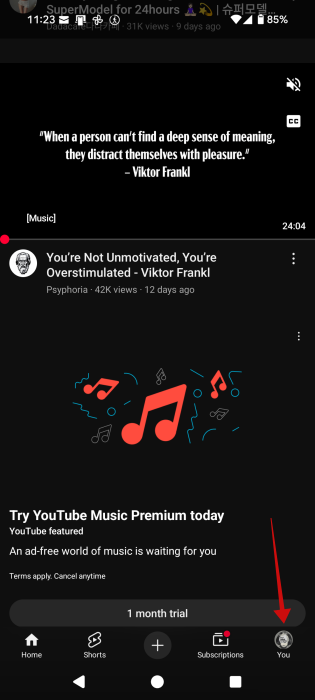
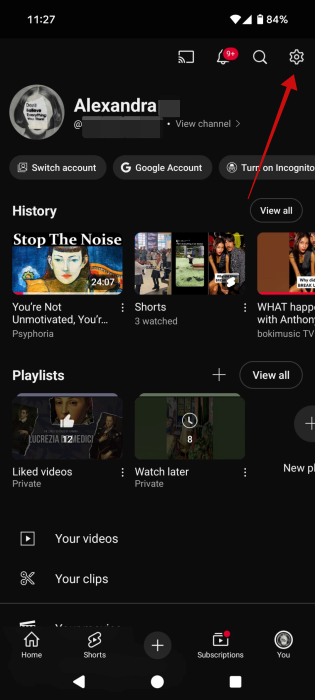
Tap the gear icon in the upper right corner.
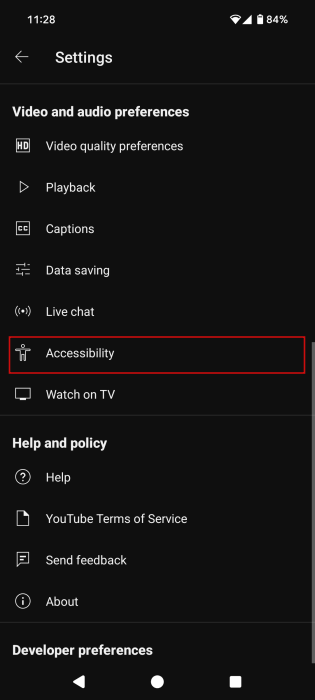
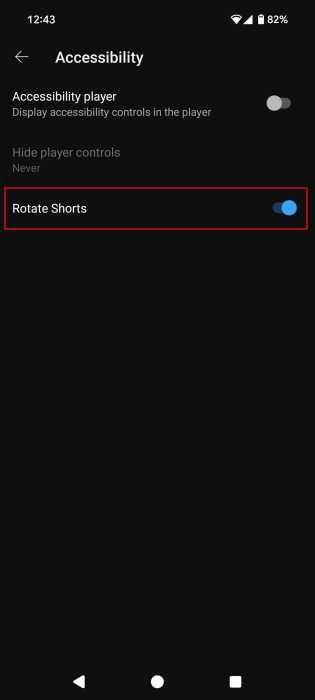
Swipe down to the Video and audio preferences section and select Accessibility (on my iPhone, this menu wasn’t available.)
Toggle on the option to Rotate Shorts.
FYI: here are a few easy methods to help you play YouTube videos in the background on Android.
Viewing YouTube Shorts in Landscape Mode
You might think that’s all you need to start watching YouTube Shorts in landscape mode, but strangely, it is not.
You’ll also need to enable the Screen Auto-Rotate option on your device, in this example, our Android.
To do so, swipe from the top of your phone’s screen to bring up Quick Settings. Then find and tap on the Auto-rotate tile to activate it. Some of you might already have this option on. However, I find it a bit too sensitive, often causing accidental screen rotations even with minor tilts.
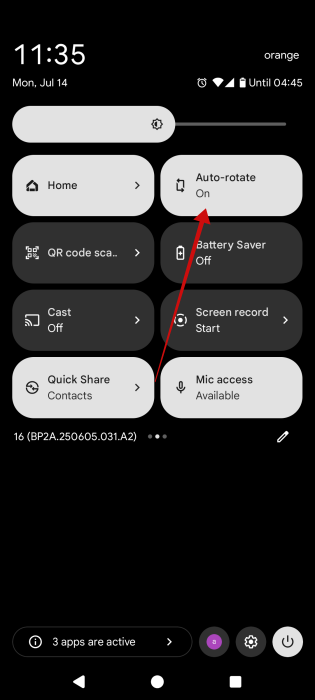
Keep in mind that BOTH options need to be enabled for you to be able to view YouTube Shorts in landscape. If Auto-rotate remains off, the feature won’t work. At the same time, enabling the Auto-rotate mode without activating the Rotate Shorts feature will cause it not to work too.
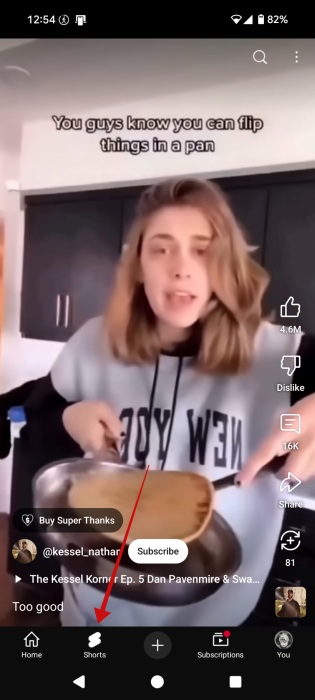
With the two features now on, return to YouTube and press the Shorts button at the bottom to access the short-form video feed.
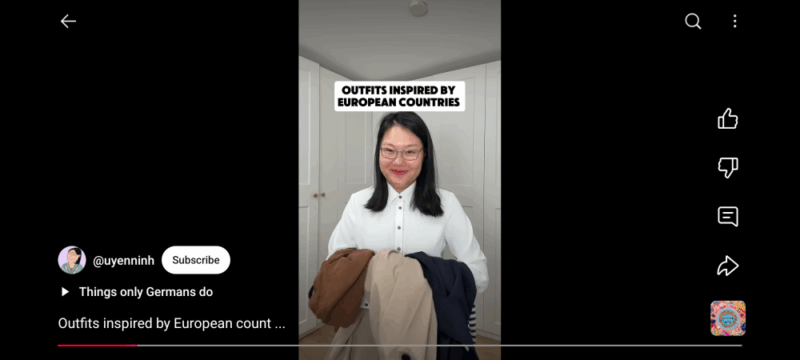
Now tilt your phone. The Short you’re viewing will automatically rotate to landscape. To continue watching videos, swipe up or down just as you would if you were watching in vertical.
Viewing Landscape Shorts on Tablets
Personally, I think tablets are the better option for watching Shorts in landscape, thanks to the extended screen space. Interestingly, though, my Blackview tablet didn’t show the Accessibility option in YouTube, yet I was still able to watch Shorts in landscape.
I simply rotated the tablet while playing a Short. Surprisingly, it worked, even though the Android’s auto-rotate feature was turned off. So if you’re missing the feature, give it a try anyway. It worked for me.
Note: I tried the same on my iPhone and it did not work.
If you want to unlock more tips on how to take advantage of YouTube to the fullest, check out our post, which includes some of the best lesser-known YouTube features. Alternatively, get up to speed with how you can use ChatGPT for YouTube content creation.








