There are no universal volume settings for each app on your Android phone. You need to adjust the volume of every app according to your needs before using it. For example, you may like to listen to music loudly, but the bashing sound of a video game may not be pleasing at full volume.
If you find it annoying to adjust the volume every time you switch to another app, then you might want to automate the process to set specific volume for different apps right after your phone boots up.
Introducing the App Volume Controller App
App Volume Controller is a free Android app that will give you full control over apps’ volume. You can pre-set the volume of your apps, and this app will automatically adjust it as soon as you launch the app.
Not only that, it will even let you adjust system volume on a per-app basis for a better experience. You don’t need a rooted phone, but it does require a bit of setup initially. Let’s see how App Volume Controller can make your life easier.
Setting Up App Volume Controller
Download App Volume Controller and launch it. You will be prompted to agree to the terms of service and enable Accessibility services permission. Tap on the Accept button, and you will be directed to Accessibility settings. Now enable this service for App Volume Controller and confirm the warning prompt.
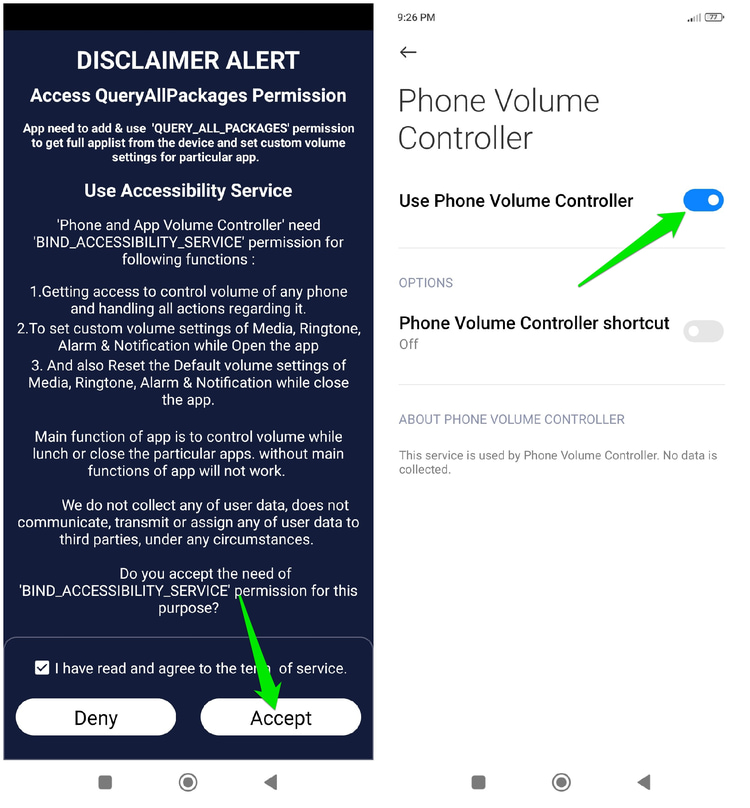
Do note that the Accessibility services permission is a sensitive Android permission, but necessary to let the App Volume Controller know when an application is started, adjust volume, and give custom notifications.
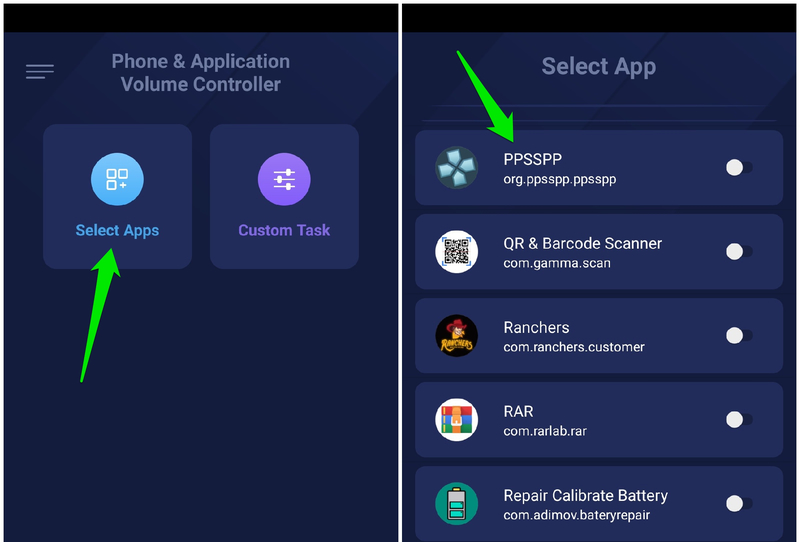
Once enabled, go back to the app and tap on Select Apps. You will see a list of all the apps installed on your phone. Tap on the app that you want to configure, but don’t tap the toggle button next to it (it will give an error if not configured already).
Set Volume for an App
Once you open an app to configure, you will see five types of volume to adjust, including:
- Media: The sound of a standard application when you open it.
- Ring: The sound that you hear when someone calls you.
- Alarm: Sound of your phone’s Alarm.
- Notification: Sound of app notifications or text messages, like WhatsApp message alert.
- System: Sound of a phone’s system, like taps and swipes, etc.
You can tap on the toggle button at the top-right side of each volume type to turn it on and adjust it. If you do not turn on any of the volume types, the default volume will be used instead.
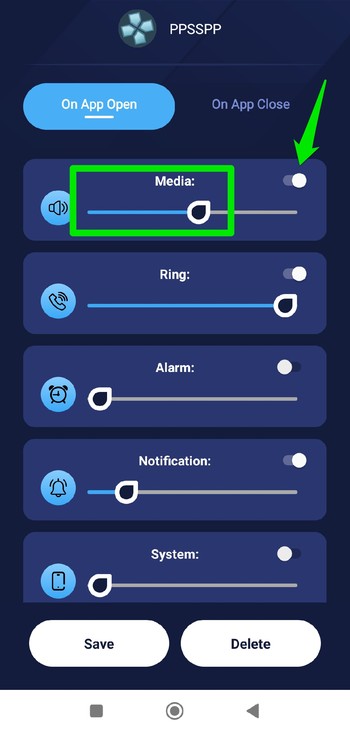
You can configure separate volume settings for when an app is started and when an app is closed. Switch to the On app Close tab, and you will see options to adjust the volume that you want to apply when an app is closed. By default, it is set to switch the volume back to default, but you can change it if you want. Once you are done adjusting both the On App Open and On App Close volumes, click on the Save button to apply them.
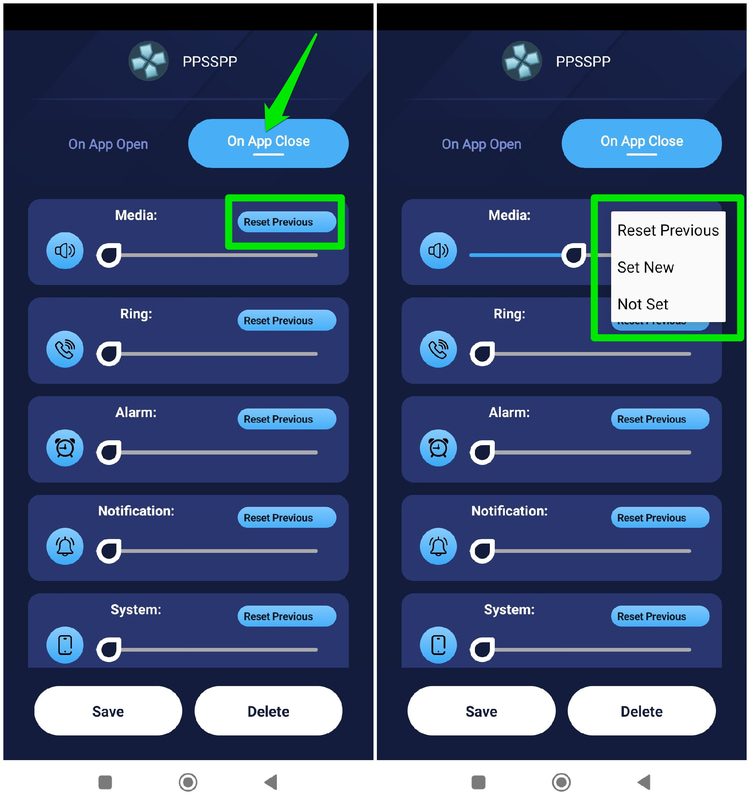
Now you will see that the volume settings for that specific app will be toggled on. Whenever you open that specific app, the volume will be automatically adjusted, and you will be notified. If you would like to stop automatic volume adjustment, just tap on the toggle button next to the app, and it will turn off without messing with the customized settings.

Repeat the process with all of your desired apps to automatically adjust their volume. This app also has an additional function to adjust volume based on whether the phone screen is on or off. You can even adjust incoming call volume based on time.
App Volume Controller will surely make volume management easy and minimize a bunch of button presses. In fact, with full automation in place, you can even disable volume buttons to avoid accidental changes. If you liked this app, you’ll find these other volume control apps useful as well.








