The days of trying to manually edit videos, images, and audio, only to get frustrated and give up, are officially over. Instead of trying to become an expert or hiring someone to do it for you, Digiarty’s VideoProc Converter AI makes it easy for anyone to upscale and enhance images, videos, and audio.
This is a sponsored article and was made possible by Digiarty. The actual contents and opinions are the sole views of the author, who maintains editorial independence even when a post is sponsored.
All-in-One AI Tool for All Users
I’m skeptical of any image and video editing tool that promises a truly easy-to-use experience, even for a beginner. But I was pleasantly surprised by VideoProc Converter AI. It truly has everything you would need to fix blurring, improving video quality, enhancing old family photos, getting rid of shakiness in videos, and so much more.
It has a slew of easy-to-use features that both beginners and professionals will love, including:
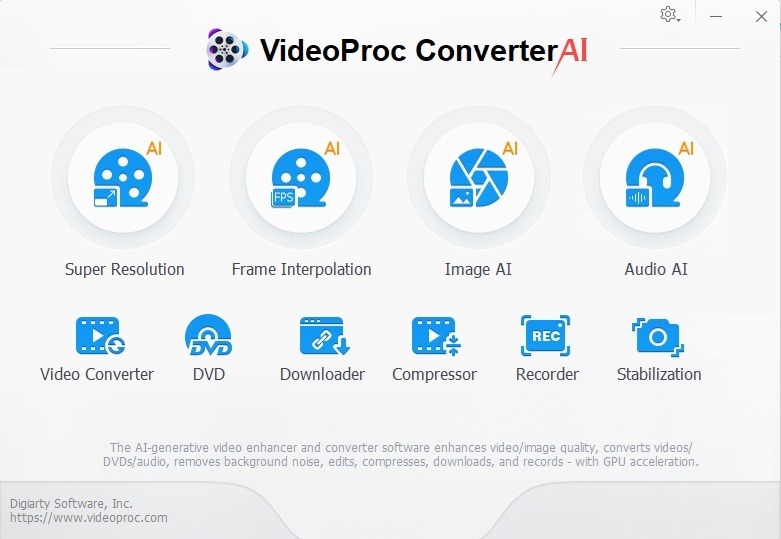
- Super Resolution – this AI video enhancer feature upscales resolution, fixes blurring, and more.
- Frame Interpolation – get smoother playback by increasing the FPS (frames per second).
- Image AI – for poor image quality, these AI image upscaler tools let you enhance and clarify images like never before.
- Audio AI – easily separate vocals and remove pesky background noise.
- Stabilization – finally eliminate annoying camera shakiness, which is always an issue with me.
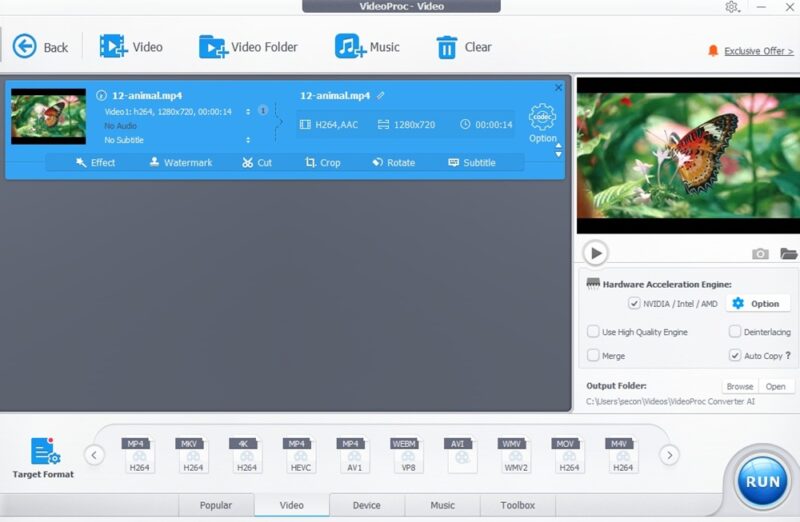
- Video Converter – don’t worry if your file’s the wrong type. Convert it here without sacrificing quality.
- DVD – back up your DVDs, convert the file type, and prep them to use on mobile devices, YouTube, and more.
- Downloader – download playlists, streams, and live video from your favorite user-generated content sites like Facebook and YouTube.
- Compressor – save valuable space or shrink files to upload to various sites without clarity issues.
- Recorder – not only can you record your screen, but you can also make edits for custom screen recordings.
Again, it does it all and then some. For my review, I’m mainly focusing on the AI image, video, and audio tools to see just how well they work.
Installing VideoProc Converter AI
Installation was a breeze. It’s compatible with Windows (7 and later, both 32-bit and 64-bit versions) and macOS (10.15 and higher to use the AI features). It’s recommended to have at least a 1 GHz Intel or AMD processor and, ideally, 2 GB of RAM or higher. Surprisingly, you only need around 200 MB of disk space for installation.
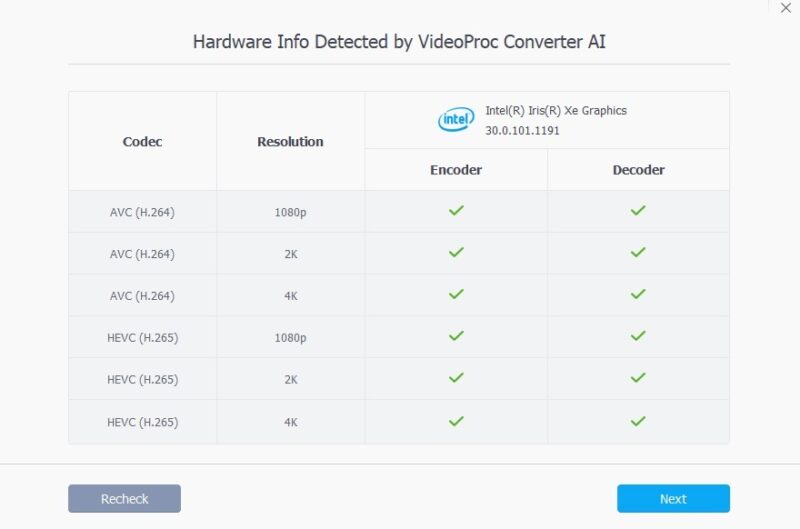
The installer runs a check to make sure your hardware is compatible. As long as you get the proverbial green light, you’re ready to start using the software.
Using Super Resolution to Upscale Videos
The Super Resolution feature in VideoProc Converter AI is an AI video enhancer that takes videos with resolutions as low as 360p and upscales them to HD and 4K quality. This helps remove noise from poor lighting, sharpens overall video quality, reduces graininess, eliminates blurring, and more.
Naturally, there are some limitations. Some extremely low-quality videos may not be fully salvageable. But, for most videos, you’ll see noticeable improvement.
The first step is to choose the AI model you want to use:
- Gen Detail V3 – get sharper overall details, such as hair and textures.
- Real Smooth V3 – best for low-quality or compressed video to reduce noise and blurring.
- Anime – perfect for cartoons, anime, and illustrations.
- Zyxt – designed for low-end GPUs to offer the best balance of performance and quality.
Select your mode, model settings, and export settings. You can also change these after uploading your video.
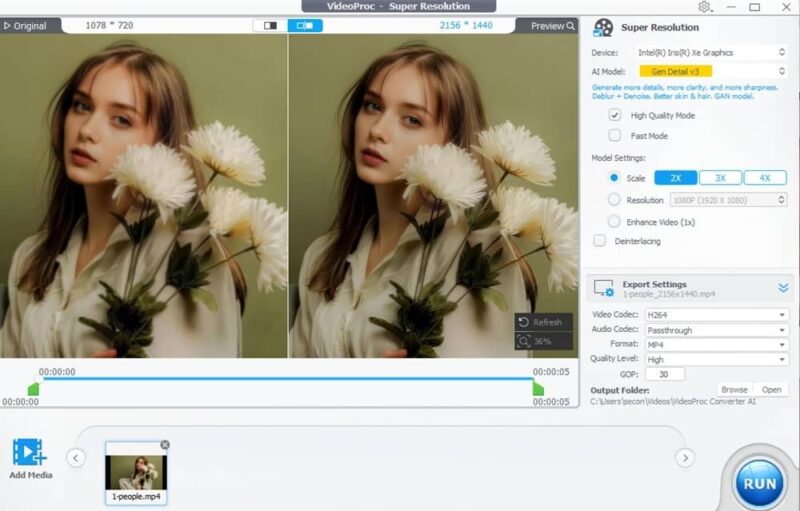
Previewing the results before exporting makes it so much easier to get the results you want. I saw a noticeable improvement in the sharpness of details in the video I tested, especially with the hair, facial features, and flowers.
Testing Frame Interpolation
In VideoProc Converter AI, Frame Interpolation lets you insert extra frames or even use slow motion on video shot at a low frame rate. Easily upscale your videos from 30 FPS to 240 FPS or drastically slow down a video clip of someone dancing to see even more detail.
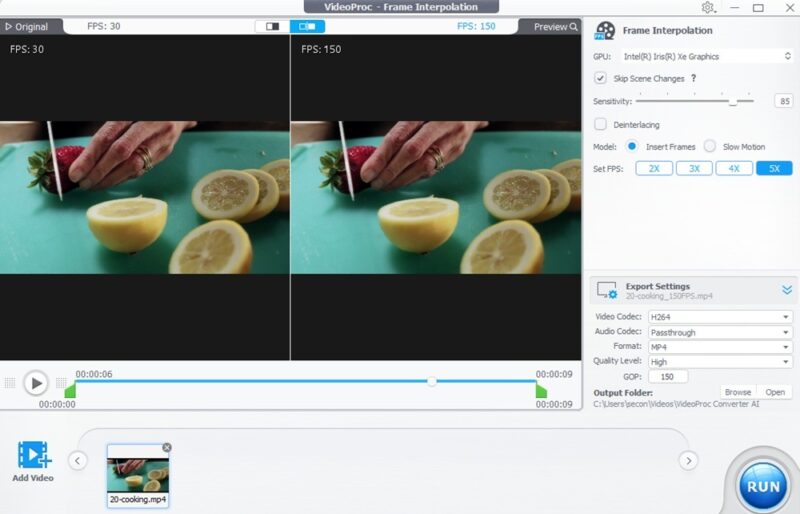
Start by uploading the video, choosing the sensitivity, and selecting the FPS you want to use. The default is to insert frames to stick with the original video speed. Alternatively, switch to Slow Motion to slow things down.
While it’s hard to see in the below image, I went from 30 FPS to 150 FPS in a cooking clip. And, yes, it was easy to tell the difference when playing back the video. It looked much smoother overall.
Upscaling Images With AI
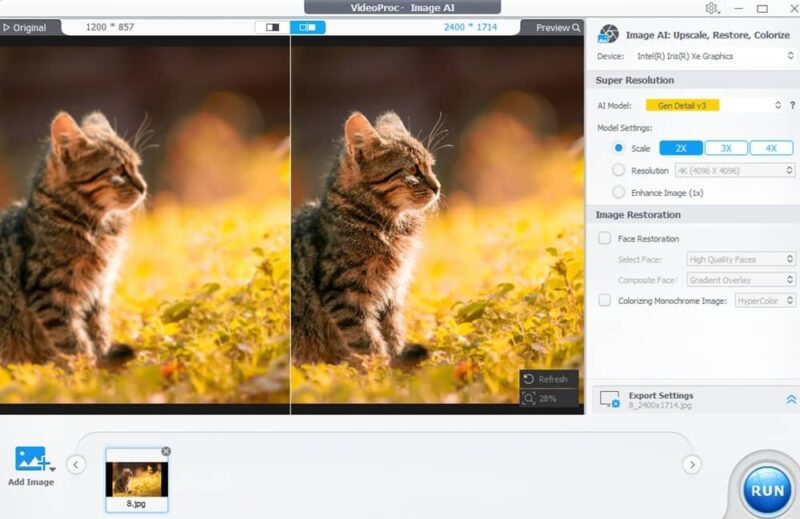
VideoProc Converter AI isn’t just for videos. The AI image upscaler lets you choose between the four AI models, depending on your needs. Change the resolution, enhance the overall image, restore facial quality, and even colorize monochrome images.
I started with a simple kitten image with obvious blurring and softness. In just a minute, I had a significantly sharper image with improved coloring, especially on the kitten itself.
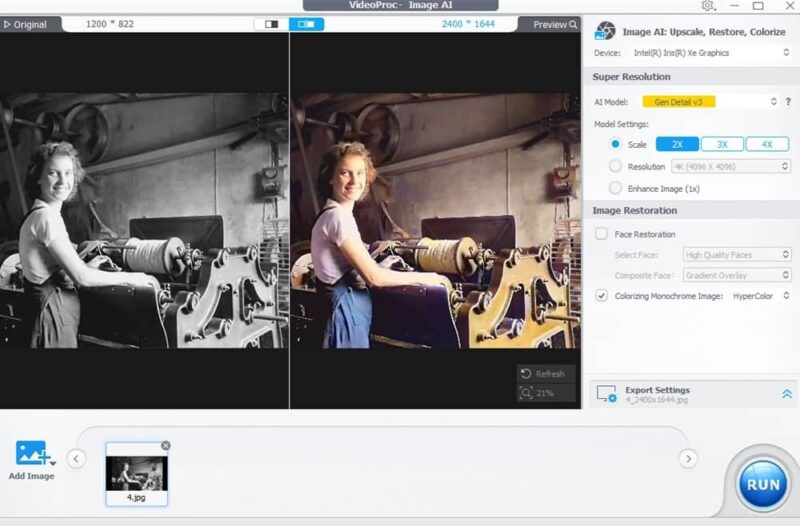
I was also excited to try the colorization option. I tested an old black and white photo. It only took about three minutes to add color to the image.
Editing Audio Like a Pro
I absolutely love VideoPro Converter AI’s Audio AI tool. I use it to strip away pesky vocals I don’t need or eliminate background noise that distracts from the video content.
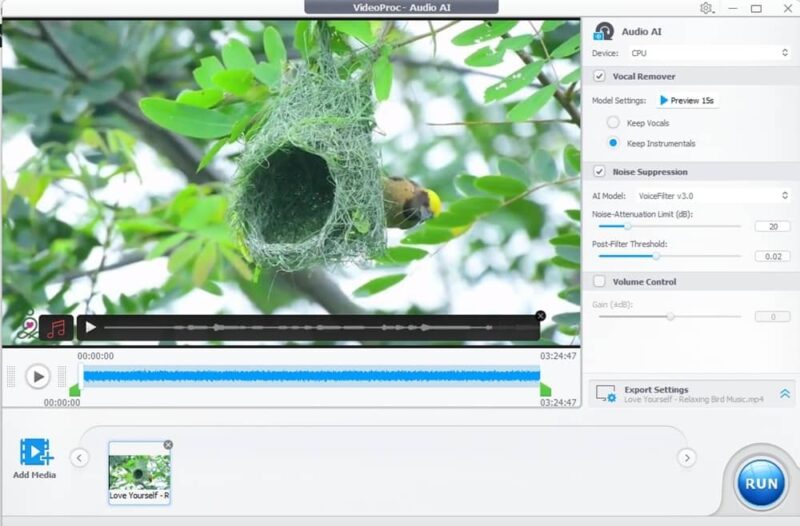
I tested a short bird documentary that featured bird sounds, instrumental music, and narration. I wanted to turn this into just a relaxing ambience style video by removing the narration. I selected the Vocal Remover option but kept the instrumentals.
I got a 15-second preview, and it was perfect. There were no vocals, but I could still hear the bird sounds and music.
Stabilizing Bumpy Video
I love to film videos while walking, but they tend to get a bit bumpy, no matter how steady I hold the phone. Now I can quickly fix that to get a smoother video. This also works well for GoPro-style footage that jumps around far more than you’d like.
Simply choose the mode, preset, border color, and crop details, then check out the preview. For me, I found Best Stability worked best most of the time, but try the other options before exporting to see which works best for your specific video.
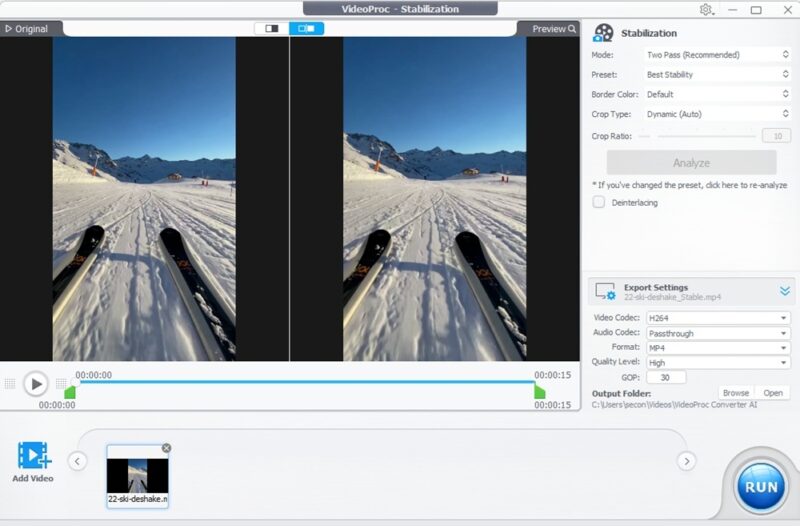
It won’t fix massive jumps, but your average jittering and micro-shakes are all but eliminated.
Convert Media Quickly
I think we’ve all run into video, image, and audio files that aren’t in the right format for our devices. Many media converters help you switch file types, but the result is horrible. VideoProc Converter AI has a built-in media converter to switch formats without losing any quality.
Simply upload your file, choose the target format, edit if needed (such as cropping or adding watermarks), and choose where to export. It’s that easy.
The Affordable AI Editing Tool for Everyone
I love that you don’t have to be a professional video or image editor just to upscale old images or stabilize a shaky video. Even more importantly, it’s affordable. Choose between a low-cost subscription of just $34.95/year (regularly $59.95/year) or opt for the lifetime license for just $54.95 (regularly $89.95). Pick up VideoProc Converter AI, and use the power of AI to transform your images, videos, and audio with ease.