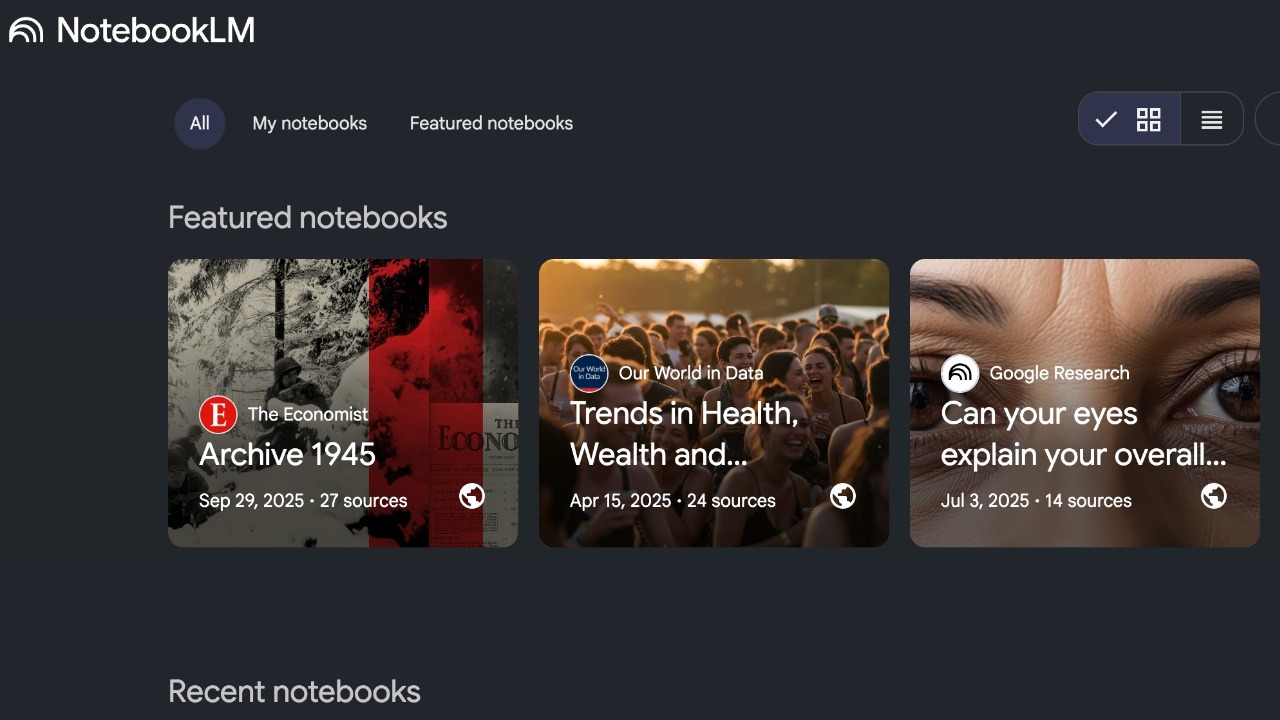
Unlike other AI chatbots that are trained on the internet, NotebookLM is based on the specific documents you send to it. It only knows what you feed it, which may include your lecture slides, your PDF textbooks, and your class notes. However, simply uploading a PDF and asking for a summary is a waste of its potential. To truly cut down your study time, you need to move beyond summaries and use them for active recall and multi-modal learning.
Use Source Selection to Create Specific Audio Podcasts
This is the main feature that separates NotebookLM from every other tool. Audio Overview takes your text-heavy notes and converts them into an engaging podcast featuring two AI hosts who joke to liven the mood, discuss, and explain the material.
It sounds funny until you try it. The AI hosts use analogies, change their tone, and actually sound like they are debating the topic. It’s perfect if you’re an auditory learner or for situations like when you’re commuting, doing laundry, or working out.
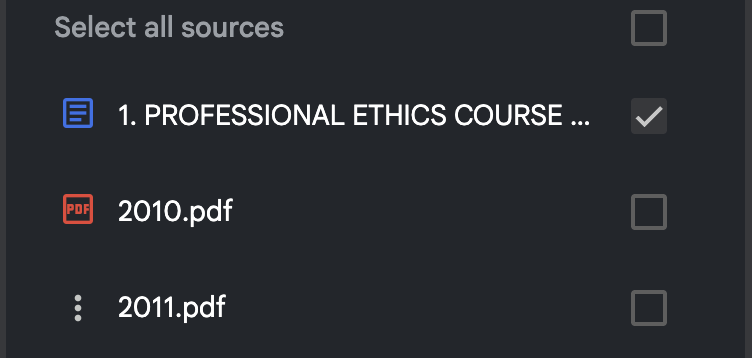
The hack I’d recommend is that you use specific source selection for moments when you’re idle to study. Instead of generating a podcast for everything, select only the one complex reading or lecture slide deck you are struggling with.
Check the box next to that specific source in the left-hand panel.
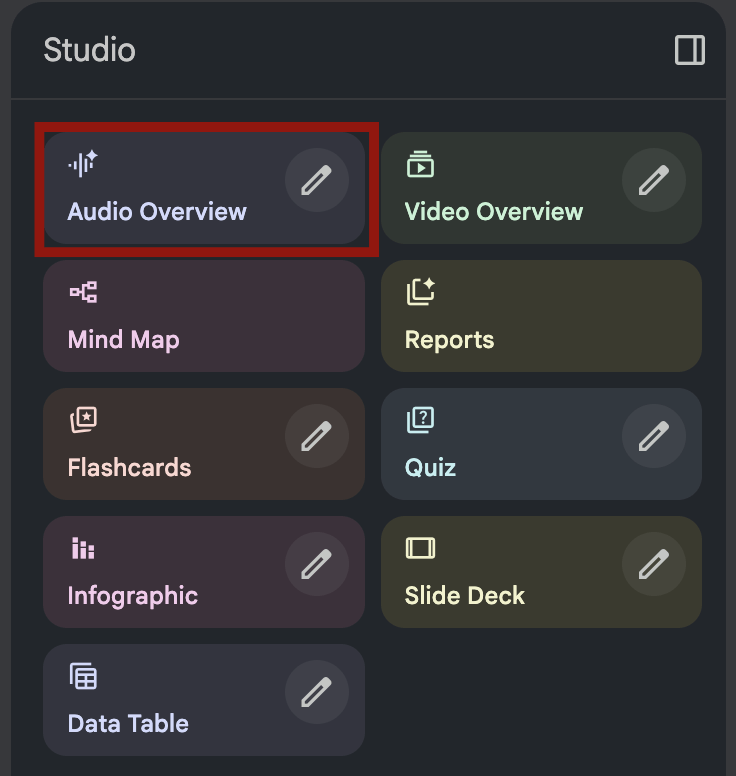
Then click on Audio Overview in the Studio dashboard.
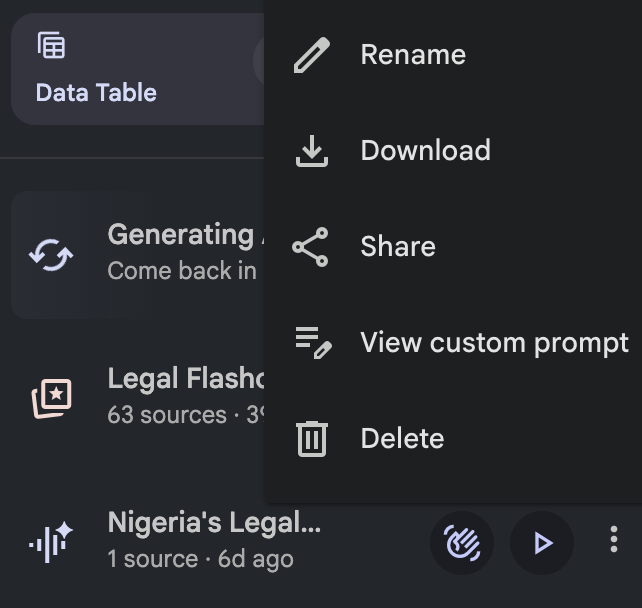
I’d recommend you download it to your phone so you don’t have to open the app each time to listen to that specific audio. Now, instead of listening to music on the bus, you’re listening to a 10-minute breakdown of your notes.
Simulate Exam Conditions With Prompts
NotebookLM has a built-in Quiz feature, which can be useful for recap and exam preparation. Click Quiz in Studio. Once you do this, NotebookLM will generate multiple-choice questions based on your sources.
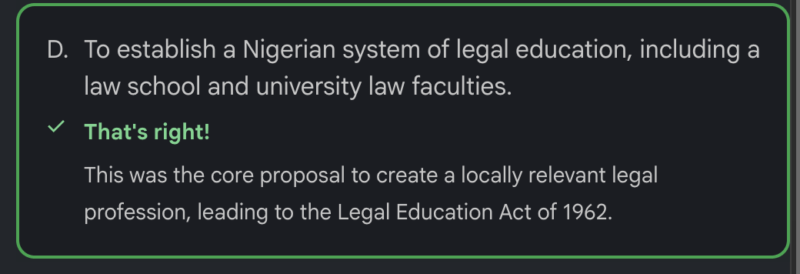
To make your study sessions more efficient, you should prompt the AI to act as a Socratic Tutor.
Instead of asking for a list of questions, use this specific prompt in the chat and say something like “Quiz me on the concepts in these notes. Ask me one question at a time, wait for my answer, and then grade my response. If I am wrong, explain why using the source text.“
Personally, this works better because it forces active recall, and here you have to type the answer yourself. Also, it stops you from accidentally glancing at the answers like you might with a basic list.
For me, it provides immediate feedback based on your notes or the source you’ve chosen, not general internet knowledge.
Make the Most of the Explain Feature on Flashcards
Instead of typing a prompt, click the Flashcards button in the Studio menu. Then give it a few minutes, and the AI will instantly generate a deck of cards based on your uploaded documents.
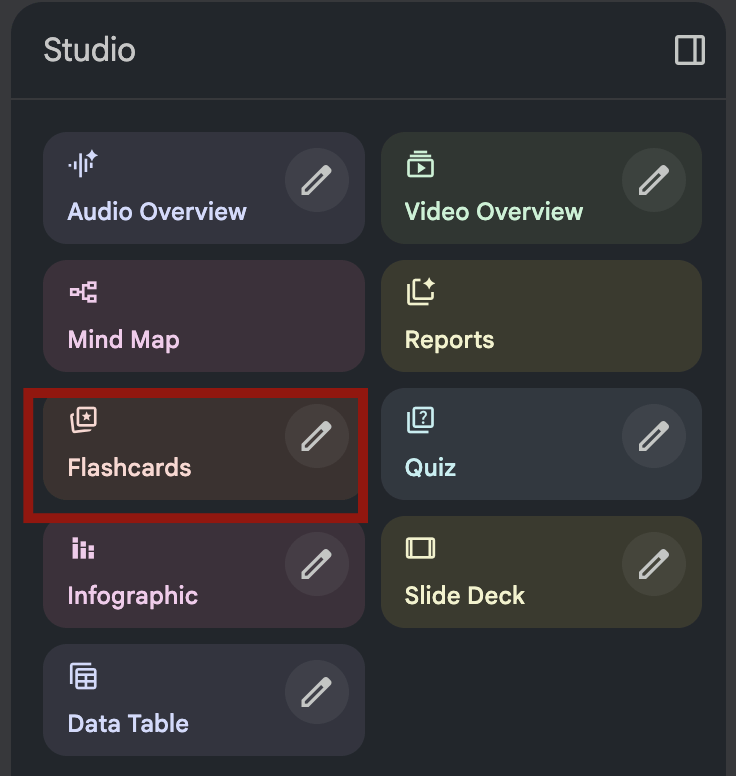
Now, when you flip a card and realize you don’t know the answer, don’t just move to the next one. Click the Explain button.
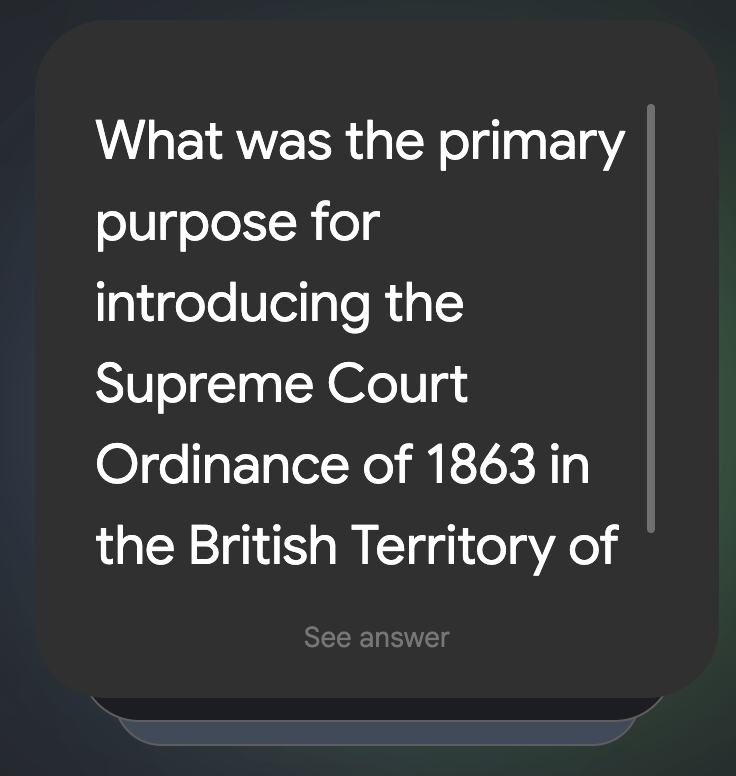
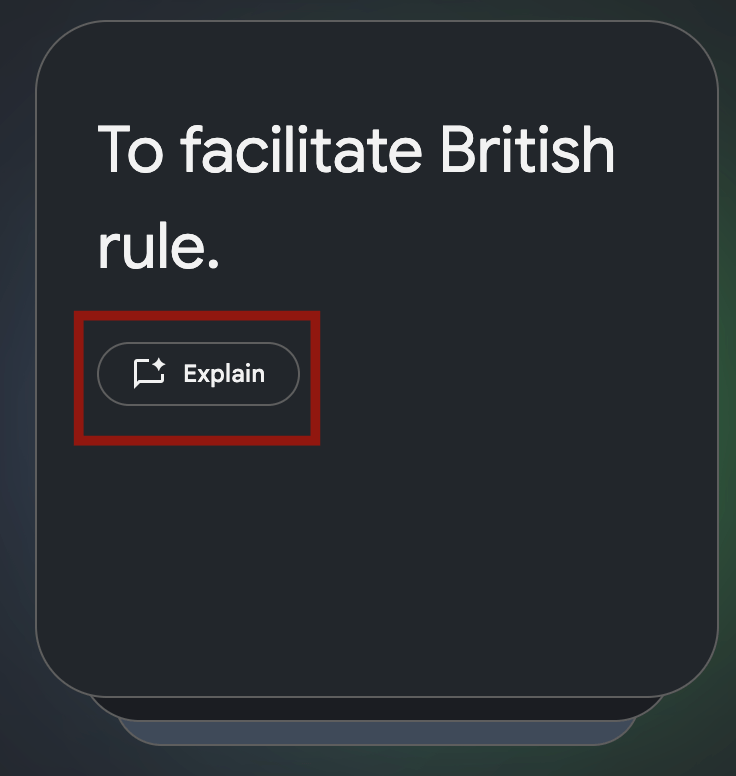
I find that this does two things. First, it expands on the answer with more context. Next, it provides a clickable citation (e.g., [1]) that moves you instantly to the exact paragraph in your source where the concept is defined.
It acts like a form of control and a way to fact-check the answers and ensure you aren’t just memorizing definitions, but understanding the context where they appear in your lectures.
Organize Your Notebooks to Prevent Confusion
A common mistake is treating NotebookLM like a messy binder, dumping every document from every class into a single notebook. If you dump four different classes into one notebook, the AI might get confused when you ask general questions.
Also, try to clean your PDFs. If you are scanning physical handouts, make sure the text is readable. If the AI can’t read the text, it can’t study it.
The strategy I use is to treat each Notebook as a specific Exam Container. First off, create separate notebooks for separate courses. Then, if I’m reading a course, I create a notebook for each topic in that course when I want to fully internalize the content.
Note: Each notebook can hold up to 50 sources if you’re using a free Google Account. However, if you have a Google PRO account, there doesn’t seem to be a limit so far. I tried uploading about 70 sources, and it felt like I could go on.
Avoid the Passive Reliance Trap
The biggest risk with AI study tools is that they make you feel productive without actually helping you learn. Reading an AI-generated summary gives you a false sense of competence; you recognize the words, so you think you know the material.
To maximize efficiency, try and follow an 80/20 Rule. Spend 20% of your time using it to organize or summarize by uploading notes and generating timelines. Then spend 80% of your time using it to test yourself using quizzes, flashcards, and prompts.
If you aren’t struggling to answer a question it poses, you aren’t retaining the memory. I’d recommend that you use it to challenge your knowledge, not just to condense it.
Does NotebookLM Save Your Work?
Yes, this is because NotebookLM is fully integrated into the Google ecosystem. Everything is saved to your Google account automatically. You can start a study session on your laptop and continue asking questions on your phone with the app while walking home.
Also, your chat history with the notebook stays there. If you ask it to explain a concept today, you can scroll up and see that explanation three weeks later.
Now, because it links to files in your Google Drive, if you update the original Google Doc (let’s say you add more notes to your class document), you can usually refresh the source in NotebookLM to get the latest information.
However, be aware that Audio Overviews do not auto-update. If you add new notes, you must click Audio Overviews again to create a new podcast that includes the new information.
Common Mistakes That Make NotebookLM Useless
Like any tool, NotebookLM is only as good as the user. In terms of traps, for starters, don’t put every document you own into one notebook. If you mix, for example, your Maths with your History notes, the AI might draw weird connections or struggle to find the specific info you need. Keep your courses separate.
Don’t completely trust its responses without verifying. NotebookLM is grounded, which means it rarely makes things up outside of your sources. However, it can still misinterpret a sentence inside your source. Always hover over the citations to ensure you understand the context correctly.
Finally, NotebookLM is a good tool, but it lives in your browser, which is full of notifications. If you find yourself tab-switching to social media while the Audio Overview plays, you aren’t learning. To fix this, you may need to pair this feature with one of these mobile apps to help you focus and study to lock down your device during these study sessions.
To further elevate your learning on how to use NotebookLM while you study, you might be interested in learning how to create video overviews with Google’s NotebookLM. Also, if you need to lock in your focus while studying on your laptop, try these 6 essential Windows apps for students.








