Google wants everything about its search engine to be AI-powered. That’s why all users now get to use AI Mode in Google search. If you are keen to try it out, here are a few ways to make good use of it.
1. Accessing AI Mode in Google Search
There are multiple ways to access Google’s new AI Mode. Since it released on May 20th, some users still aren’t seeing it appear with the search box just yet. But, you can still use it.
On your favorite desktop or mobile browser, login to your Google account. Yes, you have to be signed in. This is how Google saves search queries, responses, and more to personalize your results. Also, AI Mode isn’t available in Workspace accounts yet.
Visit Google and click AI Mode to the right of the search box on the main Google search page. This takes you to a new screen where you can ask longer, more detailed queries.
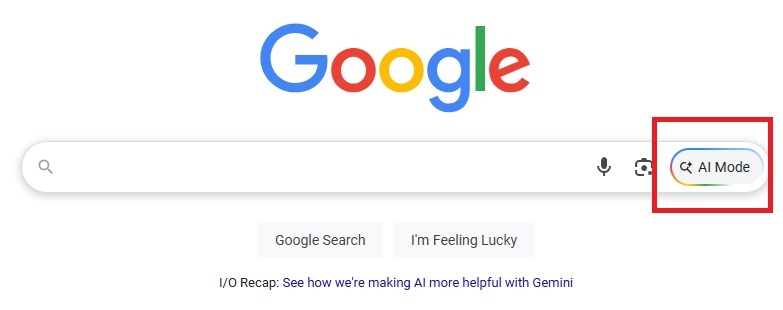
Or, search normally and click AI Mode just under the search box to transition to AI search.

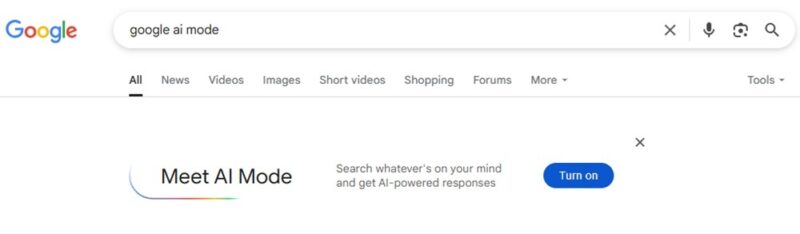
If you don’t see it in either place, search for google ai mode and follow the prompts to turn AI Mode on. This usually happens if you’ve previously turned off AI features in Google search.
Alternately, visit the AI Mode page directly. You’ll still need to be logged in to use it.
If you use the Google app, tap AI Mode from the home screen or in the Search tab at the bottom of the app.
2. Search Using Text or Voice
No matter where you use AI Mode in Google search, you’re able to use detailed queries via text or voice. Personally, voice is much easier if you’re using your phone and want to use a longer query.
For text, enter your query just like you would in Google search, but add more details. Want to find local restaurants? Great. Be more specific, though. Ask Google for local restaurants in a set price range that offer great burgers, for instance. When I searched, the results were fairly spot on with only one result I didn’t agree with.
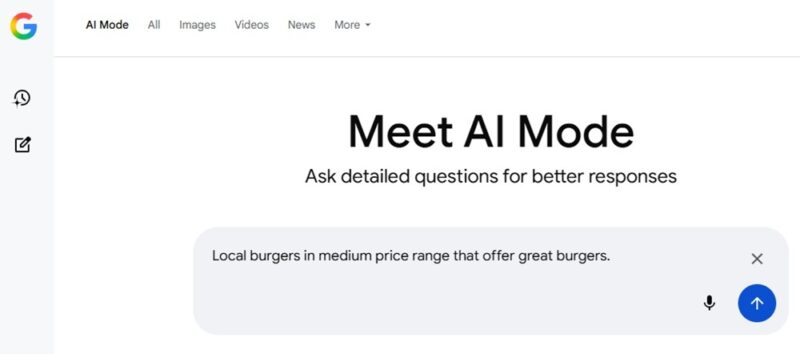
For voice searches, just click or tap the microphone. Then, tell AI Mode what you’re searching for.
3. Search AI Mode Using Images
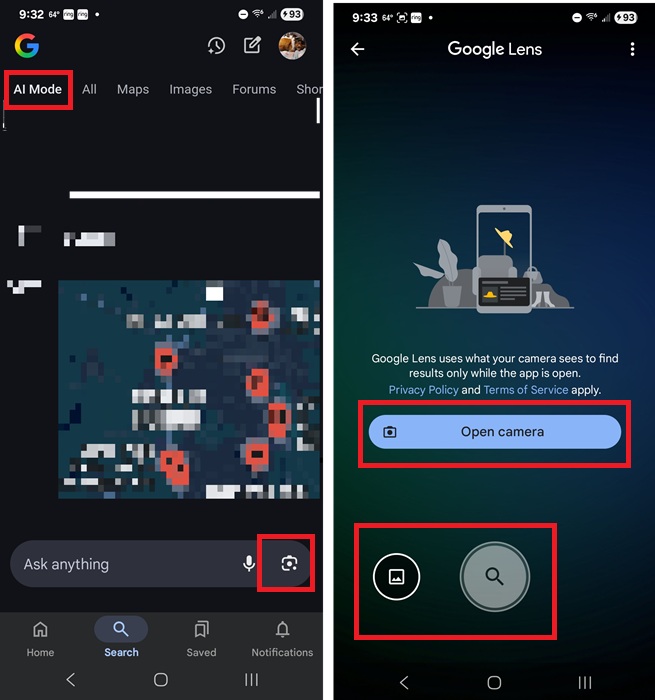
Currently, AI Mode in Google search only supports image searches in the Google app. I’m hoping this comes to the desktop/browser version soon. It’d be nice to have the capability in more than one place.
Open the Google app on your mobile device and tap AI Mode. Or, start a search and then tap AI Mode just below the search box. Then, tap the Lens (camera icon) at the bottom of the screen to add an image. Either take a picture of what you’re currently looking at or upload an image from your phone’s gallery.
4. Turn Your Search History On or Off
If you want AI Mode to sync your search history across devices and sessions, you’ll need to turn on search history. This also lets you pick up conversations with Gemini in AI Mode to refine searches later on.
To see if your history is already on, click the History icon in AI Mode. It looks like a small clock. If there’s nothing there and you’ve performed searches already, you’ll see an Update Settings button.
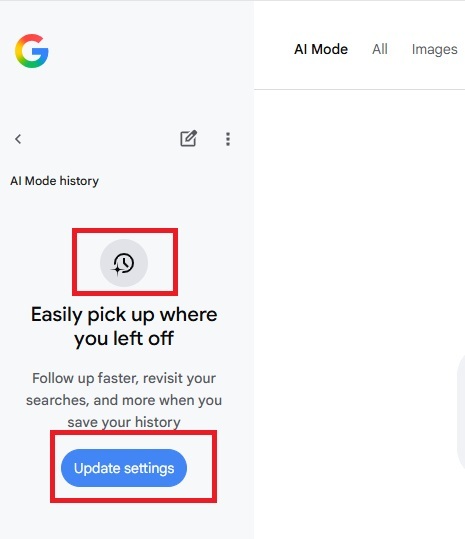
Toggle on Web & App Activity. I’d suggest going a step further to customize what you save, such as choosing whether to save voice and audio history. I also use the auto-delete feature to delete my history after a set period. The default’s 18 months, but I set mine to three months. From here, you can also view your history and manually delete it.
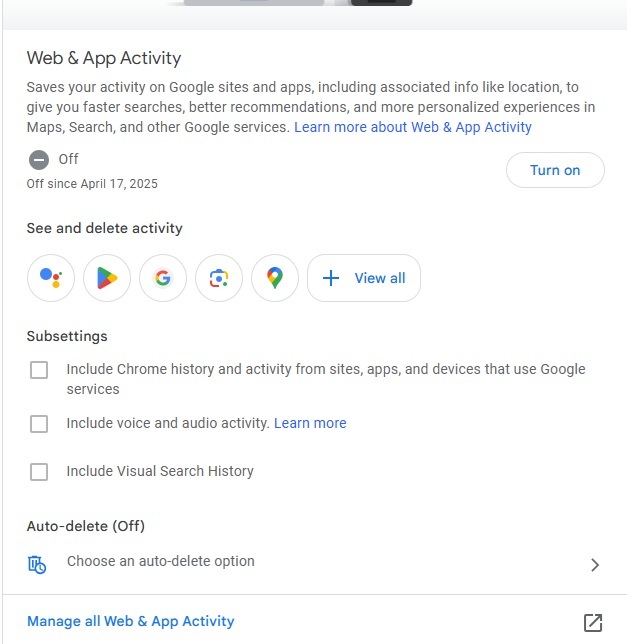
If you prefer not to save your history, just toggle this setting off and delete your history by clicking Manage all Web & App Activity.
5. Start a Deep Dive in AI Mode in Google Search
Why stop at a basic search when you can deep dive? Your initial search in AI Mode looks similar to the AI Overview in a regular Google search. But, unlike a regular search, you get to follow up with extra questions. For example, I searched for “what is google AI mode.” I then asked for a deep dive to get more details. I followed up once more to get a report on Google AI Mode usage statistics.
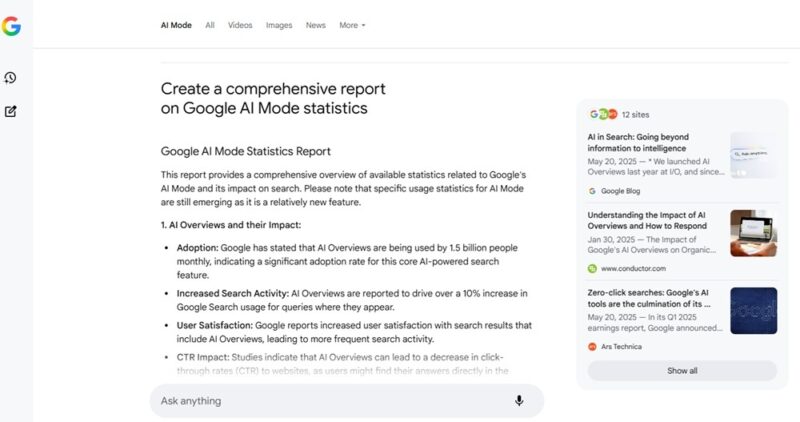
Ask as many questions as you need. Plus, if your history is on, click the History button to go back to your search and ask any additional questions you might think of days, weeks, or months later.
Also, if you prefer AI chatbots like Gemini to not use your conversations to train their models, opt out.
6. Try Clothes on in Google Search
Admittedly, this one isn’t that useful for seeing if clothing fits. AI that could reliably predict if a clothing item would fit perfectly really would be incredible. For now, we’re still stuck with just guesstimating and hoping for free returns.
However, AI Mode in Google search offers Try On now. It’s still experimental and you’ll need to toggle it on in Google Search Labs. Once it’s on, search for a clothing item and switch to AI mode once you get your results. When you’ve refined your results using additional queries, click a product. Tap the Try it on button over the product itself to get started.
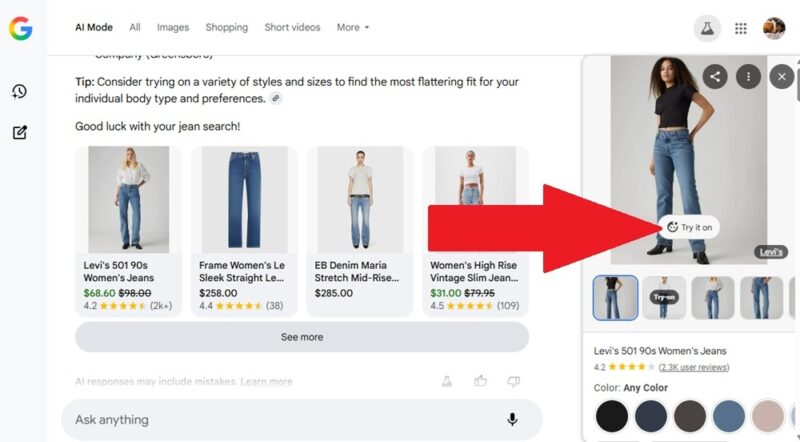
If this is your first time, you’ll need to upload or take a picture of yourself. Try to get an image that shows you from head to toe clearly, preferably in a close-fitting outfit so Google gets an idea of your body shape and size. Then, Google uses that image to show how you might look in various clothes.
It is a fun way to see how a certain style or color might look on you. But, you won’t learn much about what size fits you best.
Another use for AI Mode is to search YouTube. You’ll get improved results by using more advanced queries than YouTube’s search allows. If you’re a Gemini Advanced user, you’ll get faster queries and sometimes better results.








