The Windows 11 Snipping Tool now has a visual search feature powered by Bing. Whether you have text, an image, OCR data, a QR code, or a mathematical equation, you can quickly get answers. If you use Google Lens on your mobile, the Snipping Tool offers the same experience on your Windows desktop.
What is Visual Search in Snipping Tool
Visual search in the Windows 11 Snipping Tool is an integrated feature that helps you perform reverse image searches directly from a captured screen grab. The search results are analyzed and processed by Bing’s advanced reverse search engine on your default desktop browser.
Initially rolled out to Windows 11 insiders, this powerful upgrade has now been built into Snipping Tool. You should at least be on Windows version 11.2508.29.0 onward, and above to access the feature.
Bing’s visual search is a key Microsoft tool now being added to many of its products. The Snipping Tool is the newest Microsoft product with a Visual Search with Bing button. This button is already present in Edge, the Photos app, the Bing app, and Microsoft Copilot. It will soon come to Paint, Word, and other Office apps.
Use Visual Search in Snipping Tool on Windows 11
Launch the Snipping Tool window by searching for the app in Windows search, pressing the PrintScreen key, or using the shortcut Win + Shift + S.
A small toolbar opens at the top of your screen with various screen capture options: choose from rectangular, freeform, window, or default.
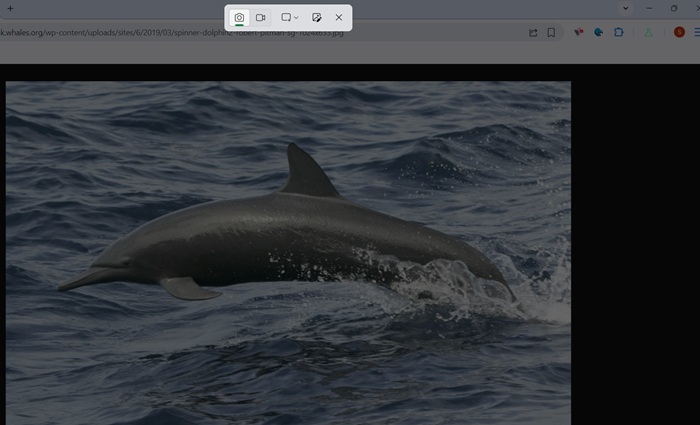
Do make sure you have updated Snipping Tool to its latest version, either from Microsoft Store, or through a regular Windows 11 update.
Drag your mouse (or finger on touch devices) to highlight the area you want to search. Release to capture the screen.
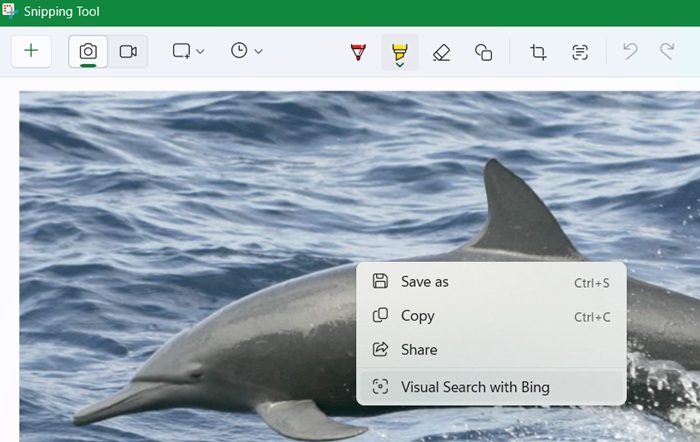
You will soon be on the Preview window. Here, you can right-click on the image to select the Visual Search with Bing menu item.
Alternatively, you can use the “See More” button on the right to select Visual Search with Bing.
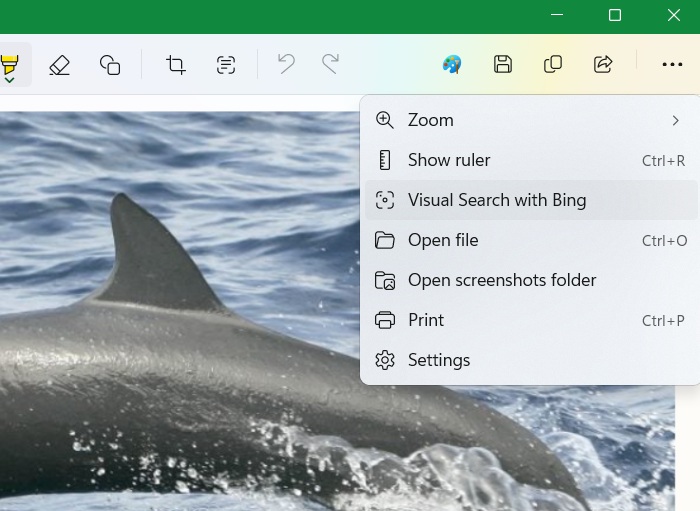
The image is now uploaded to Bing search engine. It will open in your default web browser with Windows 11, such as Chrome, Edge, or Firefox.
Bing search will now analyze results based on contextual requirements. If it’s a simple image, just ask “what it is” to get a quick answer.
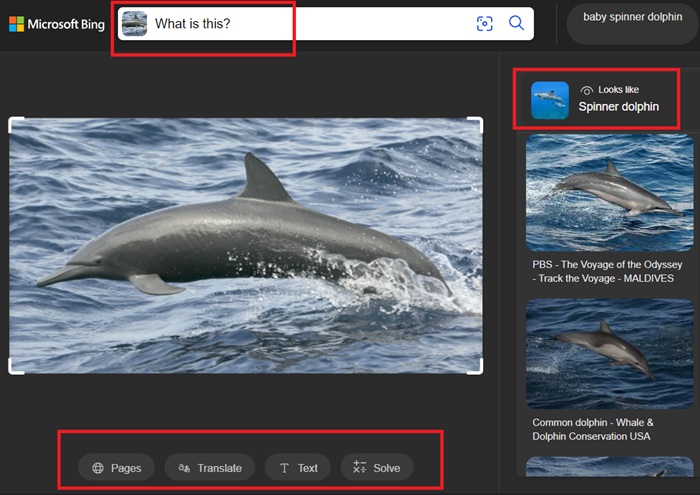
Accessing Bing visual search results directly from Snipping Tool gives you the perfect way to analyze anything on your screen without switching desktop apps, or uploading the image separately. You can use Copilot on the search results page for further queries.
Applications of Visual Search With Bing Through Snipping Tool
There are many applications of doing a reverse image search through Snipping Tool.
- Translations: you can translate from and to any language that you see online. You just need to grab it as a screen image.
- Identifying product code: e-commerce users on websites like Amazon will benefit from knowing what exactly a product is before making a purchase.
- Homework help: whether it’s analyzing equations, chemical formulae, or electronic circuits, Snipping Tool allows you to focus on the right region (using rectangular grab) to analyze the results properly.
- QR code generator: to generate a QR code using Snipping Tool, try to extract text results such as a URL or a string, for example a website or contact information. Now all you have to do is paste it in a QR code generator online, plus there are other ways on Windows.
Related: if you use Edge browser with Windows 11, you can get a fully integrated Copilot search prompt experience with visual search.
Visual Search in Snipping Tool Versus Google Lens
In terms of effectiveness, the visual search feature in Snipping Tool is a close equivalent of Google Lens. But there are a few differences.
- Desktop vs. Mobile: unlike Google Lens which works on both mobile and desktop devices, Snipping Tool is a desktop-only feature for updated Windows 11 users.
- Less contextual and precise: Google Lens uses smarter technology to help you understand pictures better when you search them. You can figure out hard-to-recognize things in pictures and get clear text from them. Bing can do these things too, but it’s not as good at contextual, precise queries.
- No offline mode: unlike Google Lens that can process certain tasks offline on mobile, Bing’s visual search can’t function without Internet.
Visual search in Snipping Tool is a great software for Windows 11 desktop users. But if you’d rather use Google Lens, check out these exciting, unique things you can do with it. Google Lens also helps you analyze and create QR codes quickly.








