
Many gamers use the same PC for both gaming and work or study, but that doesn’t mean you should lump both setups together. Gaming and everyday productivity often have different priorities, so keeping them separate usually works better. We recommend creating a dedicated user account for gaming on Windows, and here are five convincing reasons why.
1. Avoid Conflicting Windows Optimizations
Windows has many optimization options and registry hacks to make your gaming experience better, but they often conflict with normal PC usage. You either have to deal with the downsides or constantly re-adjust settings.
Below are some common Windows optimizations that conflict:
- Power plan: while gaming, you’ll generally use the Best performance mode or Ultimate performance mode. For most work/study routines, this can cause excessive heat generation and component noise, which most people don’t want. It’s especially bad when you are on a laptop and trying to save battery.
- Visual effects: gamers often disable visual effects in Windows for performance gain, as they don’t apply to games, but they greatly enhance the normal PC experience.
- Network settings: if you optimize network settings, you’ll generally want lower ping for games, which often leads to slower download speeds and streaming issues. Contrarily, optimizing the network for faster downloads often negatively affects in-game ping.
- Display settings: you may also have different display settings for gaming, like a custom resolution for a bigger FOV in games, but it won’t look good in normal use.
- Mouse settings: when optimizing mouse settings for gaming, you’ll probably want a higher/lower DPI (as preferred), a higher polling rate, mouse acceleration disabled, etc. These can be bad when using a mouse for non-gaming activities.
These, and many other conflicting optimizations, can be easily separated by having a dedicated user account for gaming with its own configurations.
2. Better Startup Apps Management
You will have a bunch of startup apps for both gaming and work/study, but you’ll be using your PC for one thing at a time. This means you’ll have to deal with a lot of unneeded apps chewing up resources in the background or even interfering mid-use.
For example, for games, you’ll have game launchers, overlays, optimization apps, streaming apps, etc., and for regular use, you’ll have a VPN, productivity tools, communication apps, etc. With a single user account, all of these apps will launch together, no matter the activity you’ll do on the PC.
Since startup apps are user account-bound, having separate user accounts will ensure you don’t have unneeded resource hogging startup apps running all the time and causing disruption.
3. You’ll Have Fewer Background Processes
Many apps create background processes that consume CPU and network resources. These processes can start on Windows startup, on specific triggers, or when you use the app, negatively impacting your other activities (especially gaming). With separate user accounts, you’ll have fewer background processes to manage.
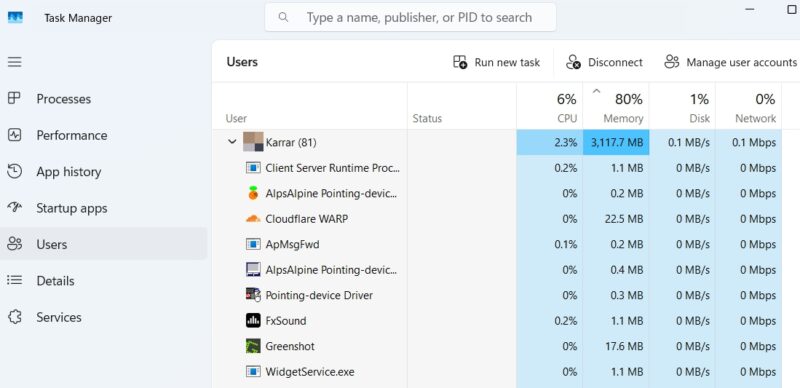
Your work/study-related background processes won’t start in your gaming user account, and vice versa. Any background processes opened in a user account will close when you log off and switch users.
4. Reduced Risk to Personal Data
Gamers are often targeted by scams and malware attacks due to a large user base. Gaming often involves the use of game mods, overlays, automation tools, and other game-related tools that are easy vectors for malware distribution. Not to mention, phishing attacks targeting gamers.
Furthermore, if you stream your games, then your personal and work data is also at risk of being revealed accidentally. While creating a separate user account won’t eliminate all these risks, it will greatly limit how much damage such malicious attacks can do due to limited access to other user accounts’ data. You can further enhance security by creating a standard account for gaming.
5. Minimize Interference From Scheduled Tasks and Notifications
Work routines and related apps often have scheduled tasks that require user interaction. They can pop up while gaming and disrupt gameplay, as they can’t be blocked by the Action Center like notifications. For example, a task that needs UAC prompt confirmation or a task that faces a system error.

Furthermore, having all game/work-related apps show notifications in one place also forces a strict management of notifications. Since scheduled tasks and notifications are generally limited to a user account, you can avoid disruptions from work-related tasks and notifications by playing games on a separate account.
If you create a separate user account for gaming, be sure to fully log out when switching so no processes linger from the previous account. You might also consider creating a local account, which avoids Microsoft’s cloud ecosystem and its background processes – unless you’re using Xbox Game Pass.








