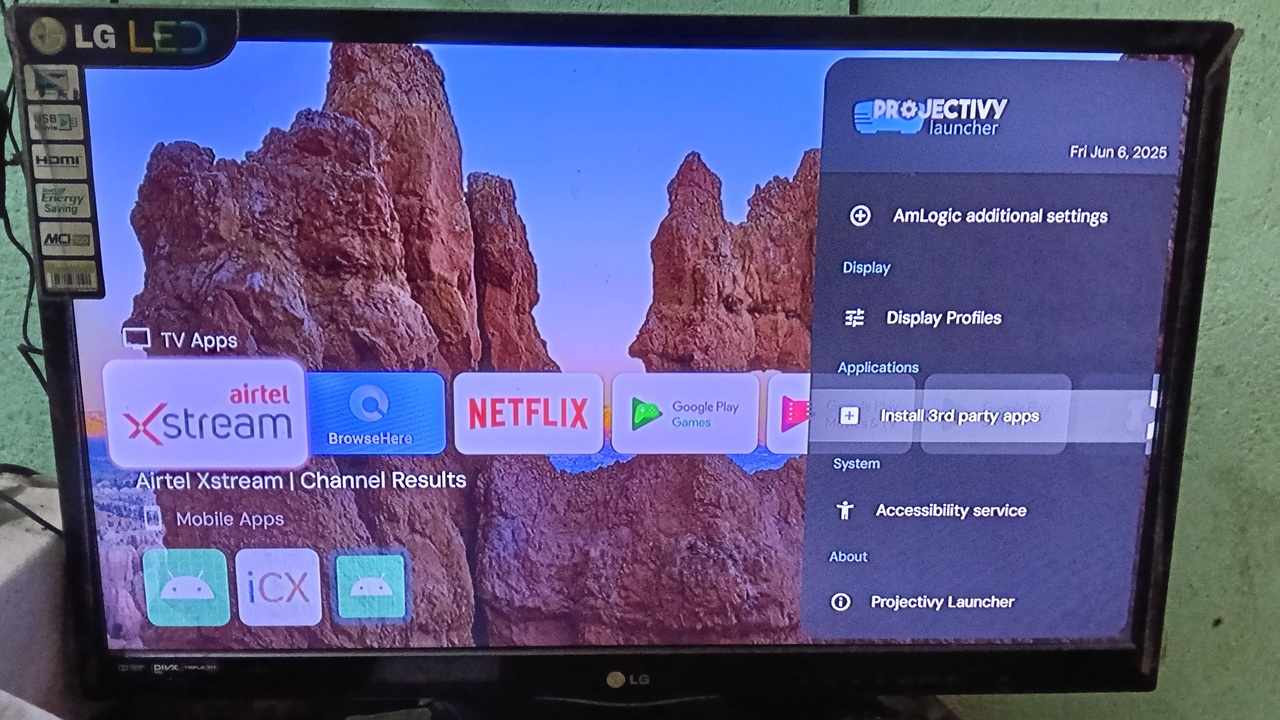
On a smart Android TV, quickly switching apps and browsing streaming libraries is a big part of the fun. But the default Android launcher focuses more on showing ads than providing smooth navigation. I have been using Projectivy in place of the default Android TV launcher, and it brings much joy.
Install Projectivy Launcher on Android TV
On the top menu of your Android TV or Google TV home screen, select Apps, and go to Google Play. Search for Projectivy Launcher, and click Install.
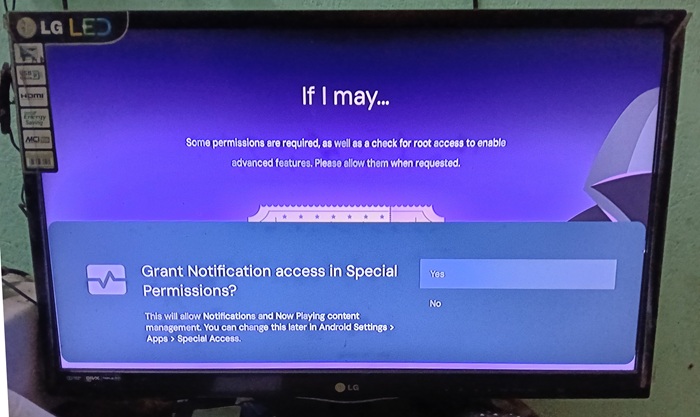
After you click Open, the app will walk you through a list of setup actions. First, it asks for permission to read all TV listings on your device. Then, it requires you to grant notification access under special permissions. Finally, it asks you to allow anonymous usage and crash reporting. Click Allow or Yes for all the options.
Also, don’t forget to enable the Accessibility menu in your Android settings (on the default launcher.) Go to Settings -> Accessibility -> Accessibility menu and toggle the switch on.
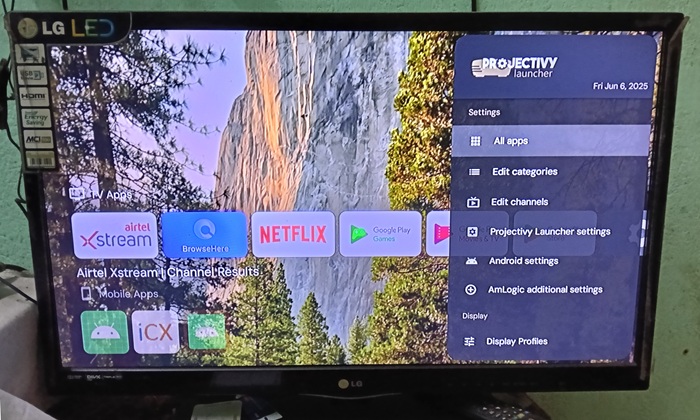
Now open the Projectivy app, and click the Projectivy Launcher settings -> General -> Enable Override current launcher. After setting it up, you can access menu options that help ensure smooth, responsive browsing.
Uninstalling Projectivy from your Android TV is easy, Go to Google Play and search for the app and quickly uninstall it from there.
Related: check out our list of popular Android TV launchers.
Enjoy Faster Navigation Speeds
The Projectivy launcher is light and ad-free, organizing apps in neat rows like your default Android TV launcher.
Unlike the stock launcher, which prioritizes ads and cluttered recommendations, Projectivy offers a clean, ad-free interface with easy access to menu icons. You can place your most-used apps, like Netflix or a TV browser, right at the front instead of scrolling through channels that you do not watch.
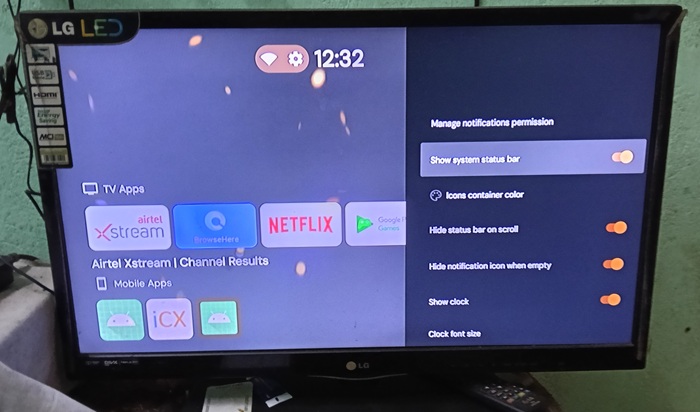
The home row layout also lets you switch between apps without leaving the current one. For example, jumping from Netflix to YouTube takes just a single press, unlike stock apps that require extra remote presses through the app drawer.
Secondly, you can create separate user profiles right from the home screen. This lets anyone, such as a family member or flatmate, have a personalized experience and quickly find their apps. Unlike the stock launcher, where you have to go through the Android menus in a sidebar, Projectivy makes switching simple. Each user gets their own individualized setup from the home screen.
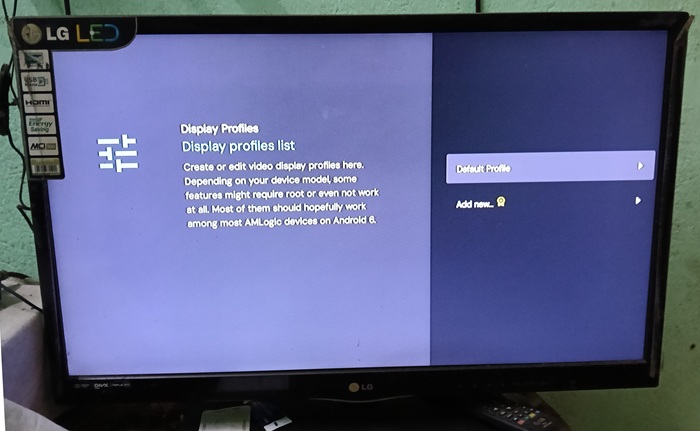
If you use your Android phone as a remote, you’re in luck. The Projectivy menu is designed for smooth D-pad navigation, with input shortcuts placed directly on the home screen for minimal scrolling.
Create Customized Categories of Your Choice
The stock Android TV launcher has categories, but many feel unnecessary, and your favorite apps might not be where you want them. Navigating through each category takes more effort than it’s worth.
Projectivy lets you customize app categories to match your preferences. Go to Settings -> Edit categories, where you can add new categories, modify existing ones, or delete those you do not need.
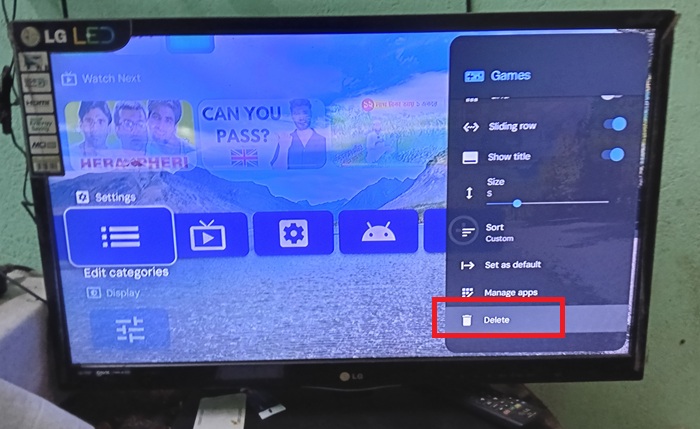
With adjustable menus and icon visibility, you can keep your favorite apps within easy reach while pushing less-used categories into the invisible space where you don’t have to deal with them.
Good to know: check out how to restore YouTube TV on Roku if it disappears mysteriously.
Effortlessly Install Third-Party Apps: Sideloading Made Easy
This faster sideloading of third-party apps is one of the best features of Projectivy. To do that on a stock launcher, you must always rely on a browser, which means dealing with the inconvenient mouse scrolling on a TV.
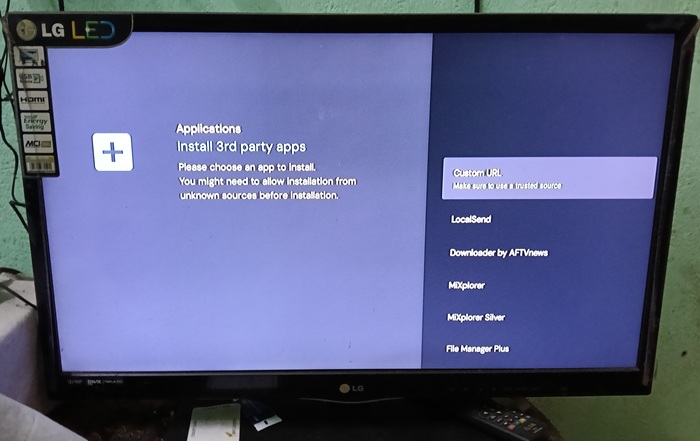
With Projectivy, simply go to the Install 3rd party apps feature from the home screen. It gives you access to multiple built-in download sources such as LocalSend, File Manager Plus, MiXplorer, etc. You can also enter a custom URL. Just pick your preferred source and install the apps directly onto your Projectivy launcher.
Also read: here are some alternatives to Google Play you can install on Android TV.
Tech-Friendly Features for Advanced Users
If you’re an advanced Android TV user, many settings are conveniently placed for quick access. For example, if your TV is connected to a Bluetooth speaker, go to AmLogic Additional Settings -> CEC Control. Enabling the CEC Switch lets you use one-touch play and system audio control for multiple devices at once, directly from the TV launcher.
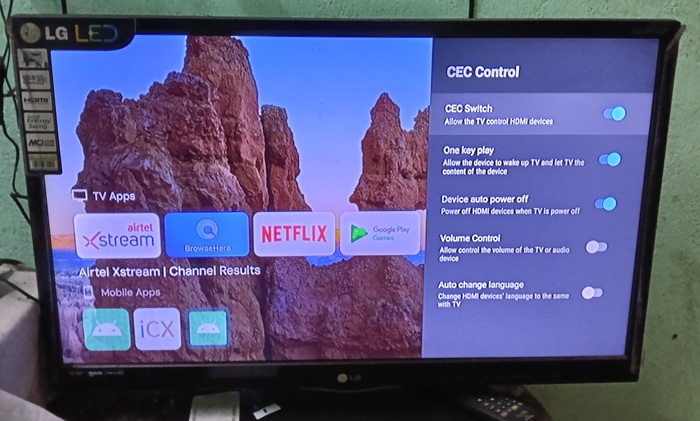
Other options you can experiment here include Android debug bridge (ADB) menus and HDMI integration with other devices in the same Wi-Fi network as your Android TV. With a stock launcher, all advanced features like CEC or HDMI are managed by the Android TV operating system.
Now that you have an easy-to-use launcher, check out several of these Android apps to supercharge your TV experience. For some reason, if your Google TV remote is not working, check out how to fix that problem.
Casting your Android phone to TV gives you a more enhanced view of apps. If your TV is unable to connect to Wi-Fi, it is easy to bring back the connectivity.








