Ever wondered where your friends’ content is filmed or wanted to share your own location with friends? Meta’s introducing Instagram Map to make location sharing easy, though it’s completely optional.
Viewing the Instagram Map
If you just want to check in on where your friends are posting content from, you don’t have to share your own location. Instead, just bring up the Instagram map.
Tap the DM icon in the top right corner. If this is your first time, you should see a message promoting the new feature.
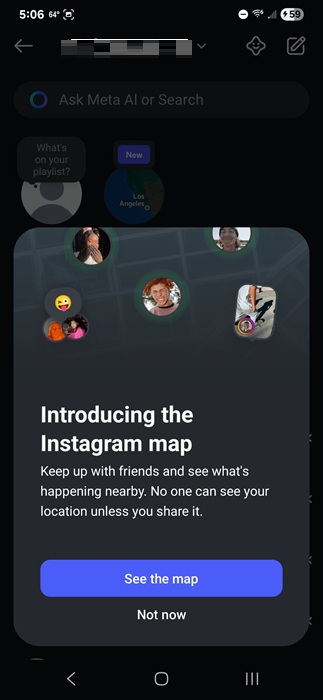
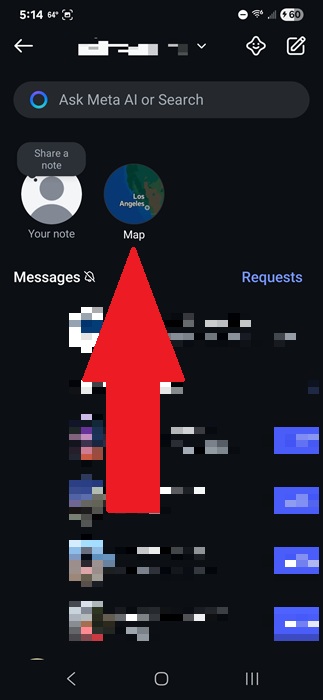
Tap See the map to proceed. Or, if you skipped the intro box already, tap Map just under the Meta AI search box.
Instagram prompts you to share your own location to provide map details closer to your area, but that’s not required just yet.
Instead, skip the location sharing and just scroll through the Instagram map. You’ll see content from friends and other accounts you follow as long as they’ve tagged the content with their location.
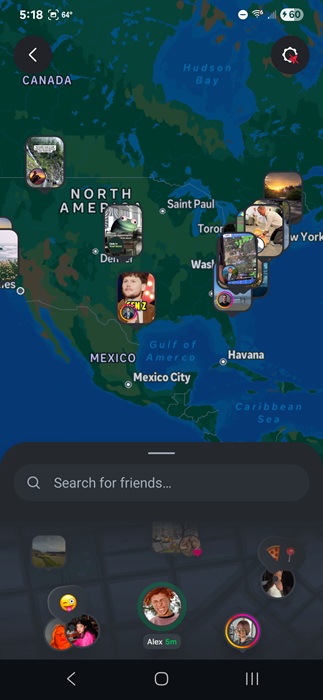
All posts on the map disappear within 24 hours. This includes any location-based content you choose to share on the map. Any location-tagged content can appear here, including posts, Reels, notes, and stories.
If your map is a bit too crowded, use the search box to find a specific user.
You’ll notice that you only see content in the US. Meta is launching the feature for US users only. It’ll roll out to other regions soon.
Sharing Your Own Location
Before you do anything, turn on your location sharing on your phone. Instagram needs access to your location in order for you to share it.
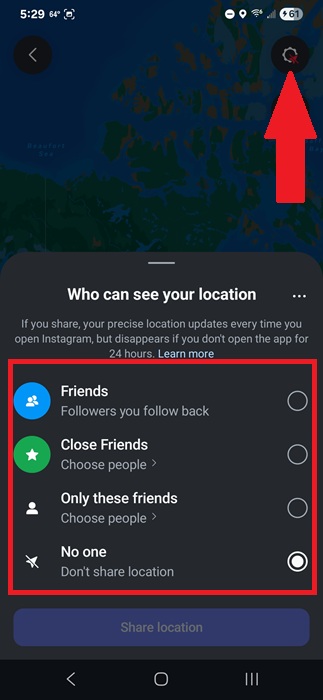
Now, tap the DM icon at the top right of the Instagram main page, tap Map, and tap Settings. Choose who you share your location with. Anyone you share your location with will see your location every time you open Instagram. If you don’t open the app for 24 hours, your last location disappears.
The default setting is No one. You can also choose Friends, Close Friends, and Only these friends. For teen accounts with parental supervision, the parent can override this setting. Tap Share location when you’re done.
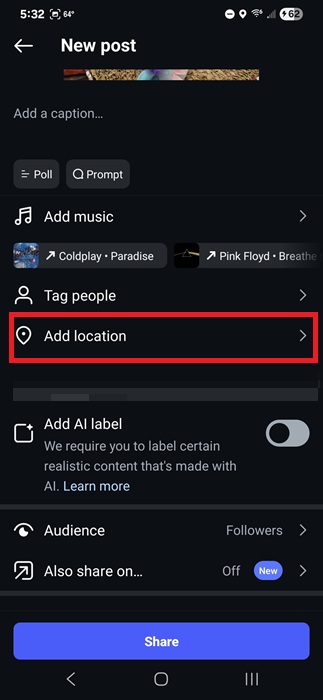
When you post content, your location is automatically tagged. Or, you can change the location on individual posts. When creating a new post, select Add location and choose your location.
If you’re not sure if you’re sharing your location, open Map and look at the Settings icon at the top right. A blue arrow means you’re actively sharing your location. An orange triangle means your location services aren’t turned on. A red dot means you’ve chosen not to share your location.
Select Locations to Hide
Everyone has a private life, so you might not want to share certain locations with your friends. For instance, if everyone doesn’t know where you live, you might choose to hide your home from Instagram Map.
Instagram lets you hide up to three locations automatically. Or, if you need to go dark, just turn off location sharing temporarily.
Open the Map and tap the Settings cog at the top right. Tap the three dots at the top right in the location sharing options window. Choose Hide places and tap Set up.
Use the map to pinpoint the location you don’t want to share. Then, use the slider to adjust how large of an area you want to hide. You can only hide up to 500m around the area. Tap Next and name your location. Then, tap Done.
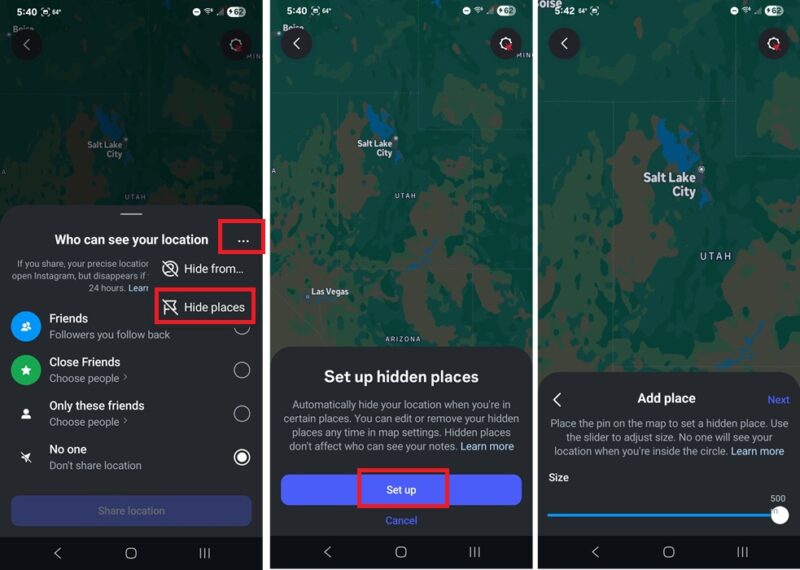
No one else sees this name or location except you. Tap a hidden location to change or delete it at any time.
Hide Your Location From Specific Users
If you just have a few users you prefer not to see your location, just hide it from them. Open the Map, tap Settings, tap the three dots at the top right of the location sharing box, and tap Hide from.
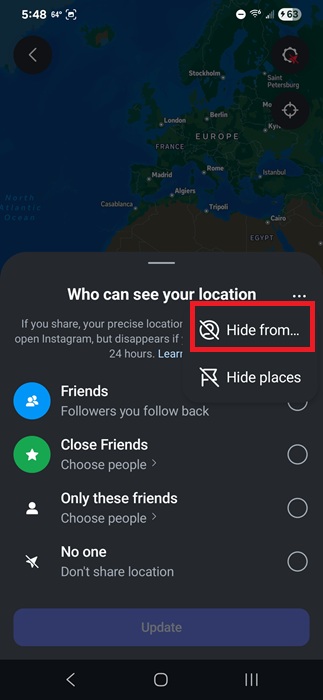
Tap each account you want to hide your location from. Tap Done to save the changes. Repeat the process to add those users back if you want.
Ask Others to Share Their Location
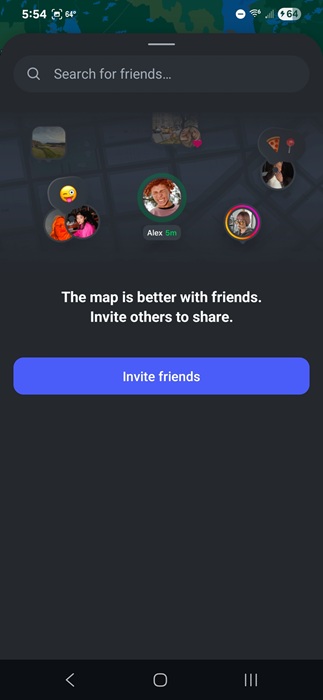
When you swipe up when viewing the Instagram map, you see everyone who’s sharing their location with you. You can also tap any user on the map to send them a message. If you’re viewing a friend’s Reel, you can also download it.
But, if you notice a friend’s missing, invite them to share their location with you. Remember, they can choose to only share their location with you if they’re worried about privacy.
Swipe up from the bottom of the map. If no one’s sharing their location, tap Invite friends. If some friends are sharing, tap the Invite icon at the bottom right. Choose a friend from your list and tap Request to invite them.
I’d also recommend letting them know about the privacy settings and why you’re requesting their location. With all the spam and phishing that goes on, it’ll make them more likely to accept.
No one has to share their location if they don’t want to. You can even hide your Instagram account so others can’t find you.








