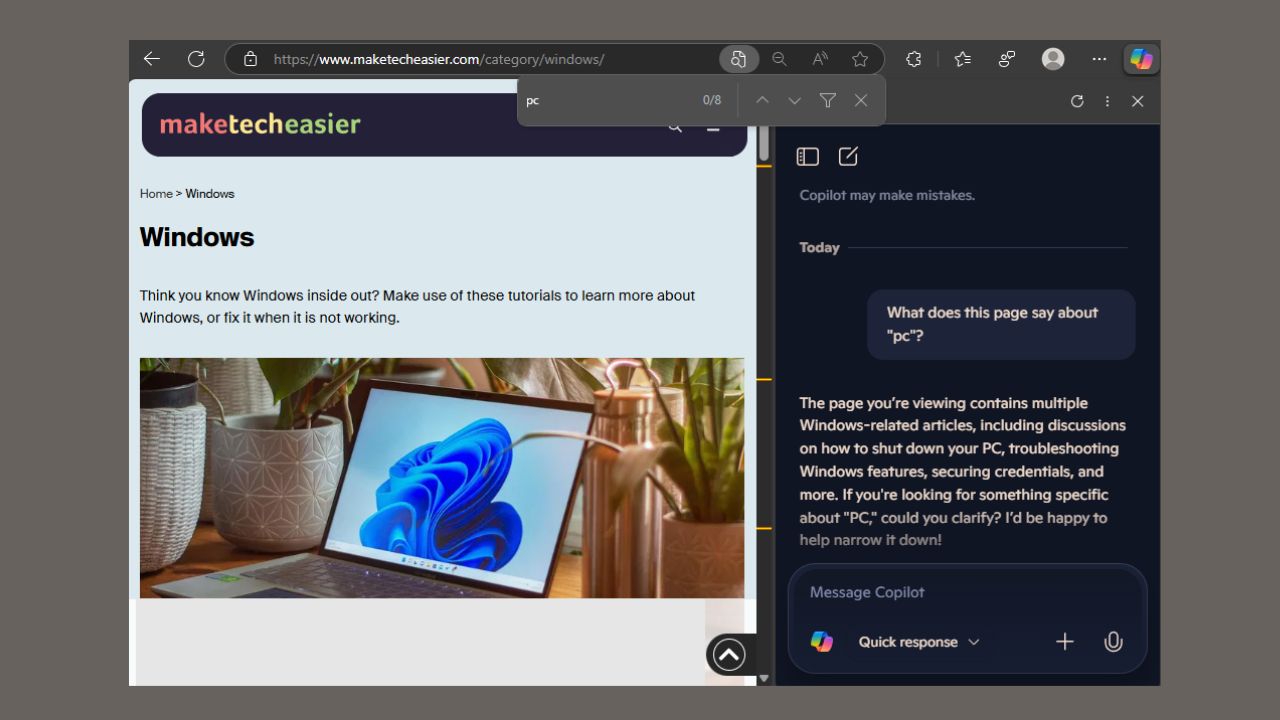
Doing a specific search on a webpage can sometimes feel like finding a needle in a haystack. But with Edge’s Find on Page feature, that has become manageable. And now, Microsoft is making it even easier by adding Copilot suggestions in Edge Find on Page feature. This AI-powered tool upgrades your searches with smart ideas. Let’s explore what it is, and how to enable and use it.
What Are Copilot Suggestions in Find on Page?
Initially, Ctrl + F is used to open and search a web page on Microsoft Edge. However, with the Copilot Suggestions in Edge Find on Page, you don’t just get word highlights; you also get clever questions.
For instance, type phone on a tech site and it might suggest questions like this: “What’s this page about phones?” “What does this page say about your type of phone?“
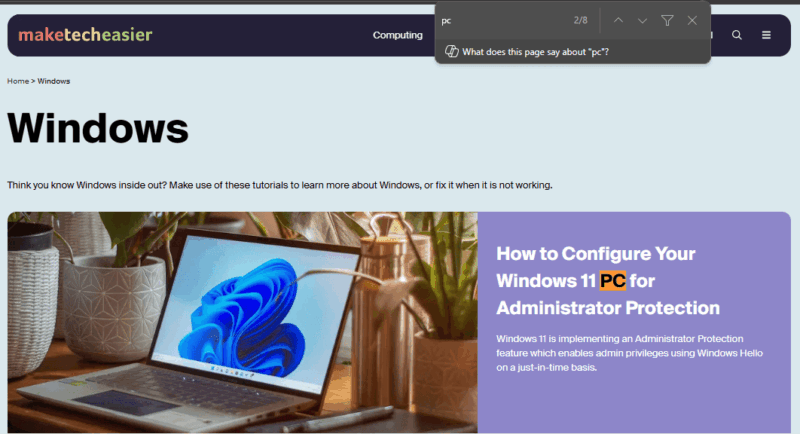
In addition, these suggestions pop up in the search bar and if you click one, extra info appears with details in Copilot.
This feature feels like having a friend who knows everything about the page explain it to you. It’s however not available on regular browsers yet. You can only access it on Edge Canary and using it is like taking a sneak peek at Microsoft Copilot’s cool tricks.
How to Enable Copilot Suggestions
If you want to try Copilot suggestions in Edge Find on Page, download Edge Canary from the Microsoft Insider website. It’s the testing app for new browser tricks by Microsoft and doesn’t affect the main Edge browser on your device. Although you can customize your Edge browsers to make it look cool like the Canary version.
Now, open a webpage in Edge Canary. Then press Ctrl + F or navigate to Menu -> Find on Page. Type a word in the search bar to get it going. If you’re in the test group, you’ll get a suggestion pop-up.
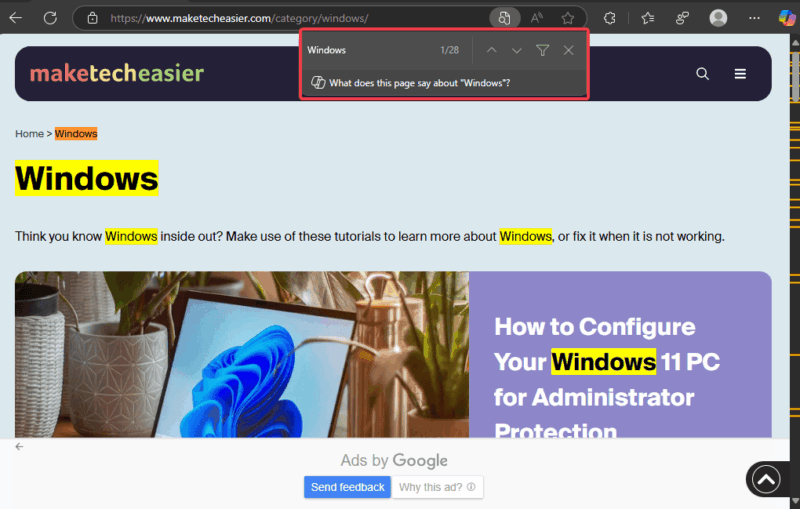
Now, click on it and the answers show up in the sidebar.
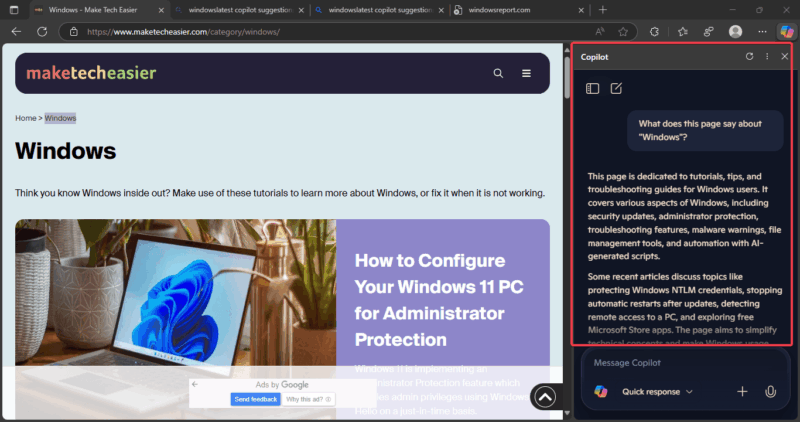
You can further explore the page by clicking on the other copilot suggestions below the initial summary.
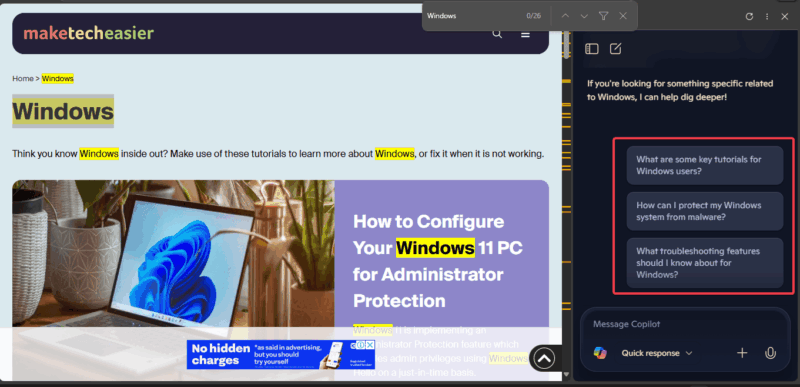
However, if there are no suggestions, your Canary might need an update. Also, it could be that the rollout hasn’t gotten to you yet. So, you may need to wait.
FYI: Pairing this with other AI features like Bing’s Copilot’s search tools makes browsing a breeze.
Tips for Using Copilot Suggestions Effectively
To better use the Copilot Suggestions in Edge Find on Page, it’s important to take note of the following tips:
- Use clear words and simple words related to what you want on the page. For instance, searching for words like “AI” or “technology” on a tech site.
- Avoid vague words to ensure you get helpful suggestions.
- Check the sidebars for extra questions that may lead to more clarifications on what you’re searching for.
- Combine the feature with other features like the Copilot on Edge’s new tab for more AI fun.
- Since it’s a test feature, it might mess up sometimes. So, always double-check the information.
Copilot Suggestions in Edge’s Find on Page feature makes it easier to search web pages smartly. Also, it’s a nice way to try out AI features in browsers if you’re just starting out. Simply get the Edge Canary and give it a spin. If you have any comments, share them below.








