
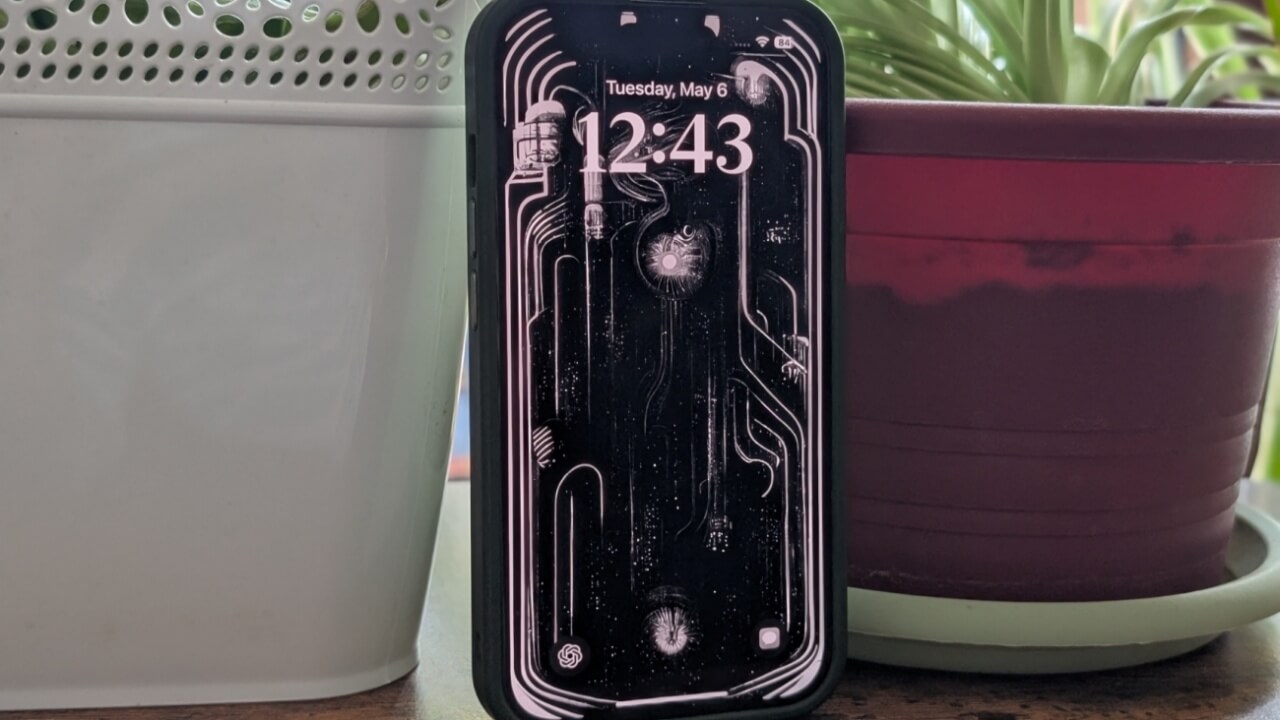

With iOS 18, Apple continues to expand customization options. Among the new features is the ability to change lock screen shortcuts, allowing users to swap the default Camera and Flashlights for various alternatives. Here’s how to make the switch and upgrade your lock screen experience.
Good to know: did you know that you can also add widgets on your iPhone lock screen? Here’s how to make use of this handy feature.
Replace Default Lock Screen Shortcuts on iPhone
Make sure you’re iPhone is running at least iOS 18 before you attempt this. Go to Settings -> General -> About and check under iOS version. If you’d like to try your luck and see if any new updates are available for your device go back to General -> Software Update. Any new software version will appear here.
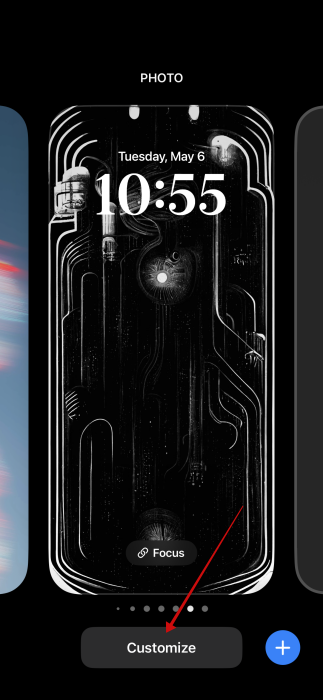
After you’ve updated, wake up your phone so that you’re viewing the lock screen. Long press on it until the Customize button appears at the bottom and tap it.
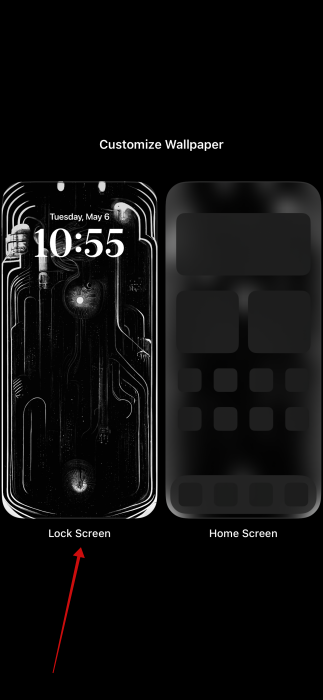
On the next screen, press on Lock screen.
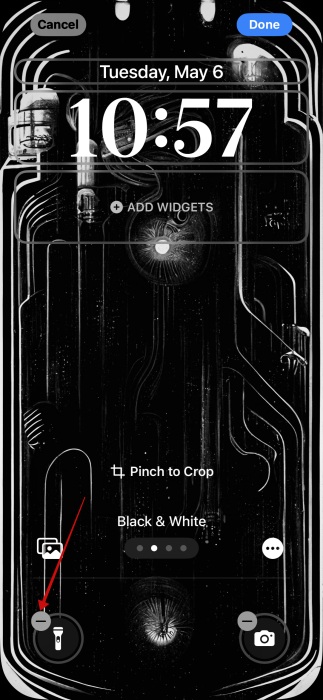
As you can see, the two lock screen shortcuts now appear with a – sign on top of them. This is your cue to change them. First you’ll have to remove them by pressing the – on both shortcuts. If you don’t want any shortcuts to appear on your lock screen, then you’re free to press Done in the upper right corner and that’s it.
In the other hand, if you wish to add a new set of shortcuts, tap the + button on the first shortcut.
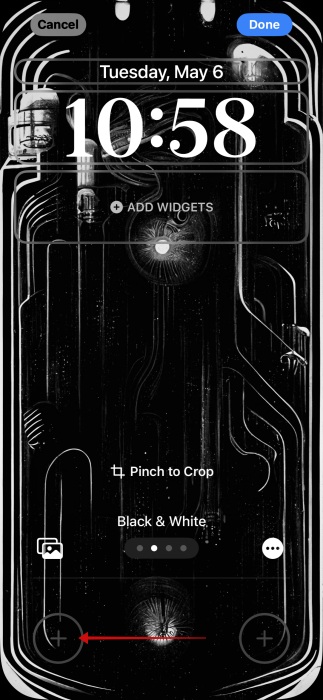
Search through the various options available. For instance, if you are a fan of Apple’s new Ambient Music feature which made a debut in iOS 18.4, you can add a shortcut straight to your lock screen, so you can start playing soothing sounds without unlocking your phone.
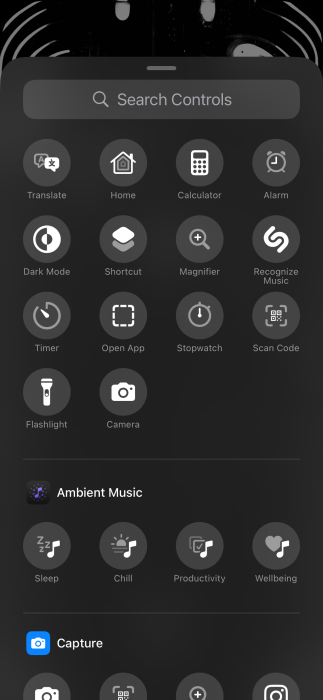
There are many other options to go through including the ability to open any app you’ve installed on your phone from the lock screen, accessing a QR code scanner or the Translate feature.
Now depending on what apps you’ve got installed, you can add some very specific shortcuts. For instance, I find it very useful that I can add a ChatGPT shortcut on the lock screen, so I can chat with the AI without having to unlock my phone.
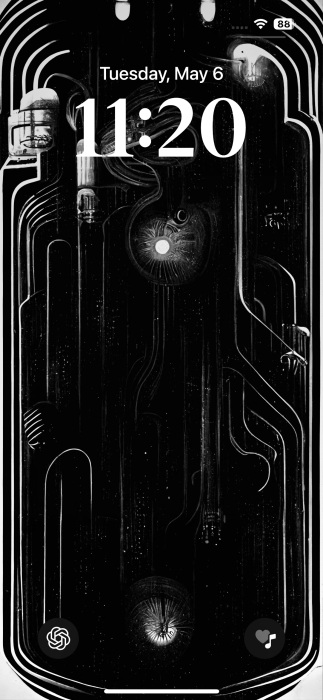
Moreover, you also have the ability to use and add Shortcuts you’ve created using the dedicated app from the lock screen. We’re going to talk about this in the next section.
Once you’ve added your new lock screen shortcuts, remember that you have to long press on them to activate them.
Tip: learn how to use Autofill like a pro on your iPhone or iPad.
Add Custom Shortcut to iPhone Lock Screen
The best part is that you can add your own custom shortcuts to your iPhone’s lock screen. You can create these via the Shortcuts app. With the arrival of iOS 18.4, Apple has added a new shortcut that lets you open specific chat from the Messages app, and now you can add it to your lock screen. We’re going to try this option out in what follows.
Open the Shortcuts app on your phone. Press the + button in the upper right corner of the display.
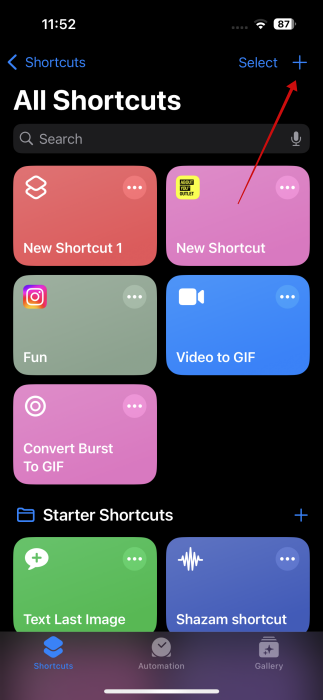
On the next screen type “Open conversation” in the Search Actions bar that appears on the New Shortcut page.
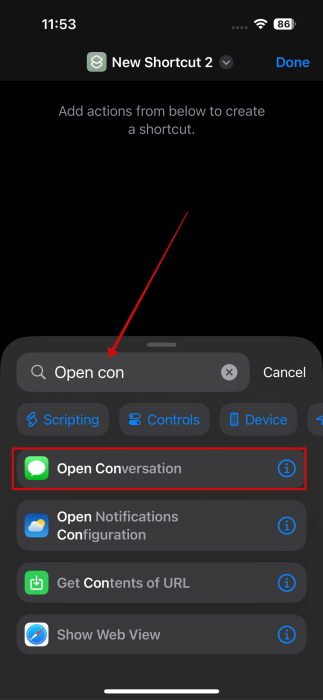
Select the option when it appears.
Press on Conversation (in blue text.)
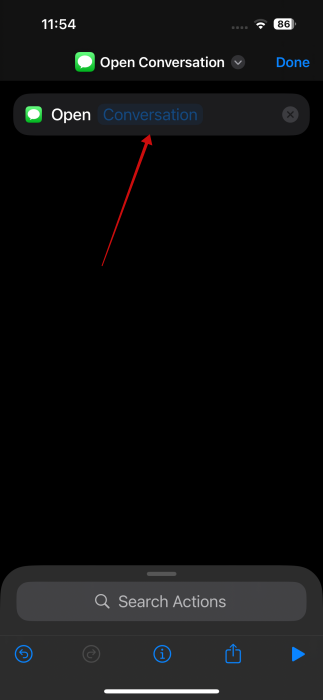
Select the conversation you want to add to your lock screen. For instance, if you’re chatting every day with a close family member or a friend, you might want to add that conversation. This way you can quickly send them texts without having to unlock your phone.
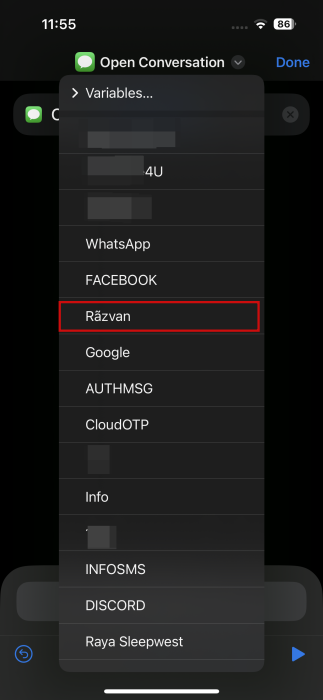
Once you’ve added the conversation press Done. Your new shortcut has been saved.
Now go to your iPhone’s lock screen and bring up the customization screen. Remove one of your shortcuts and press the + button to add a new one.
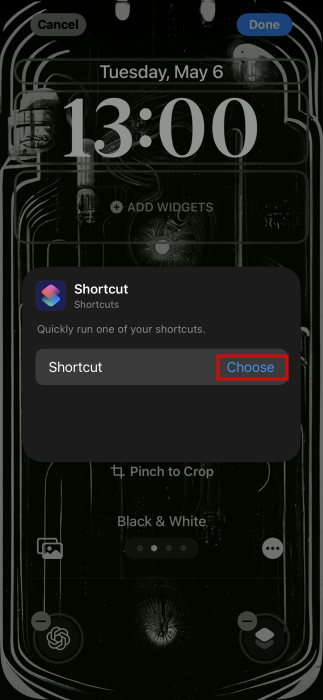
Select Shortcut this time around.
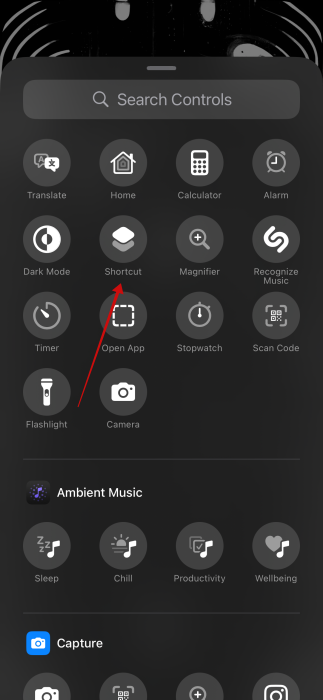
Tap the Choose button in the pop-up that appears.
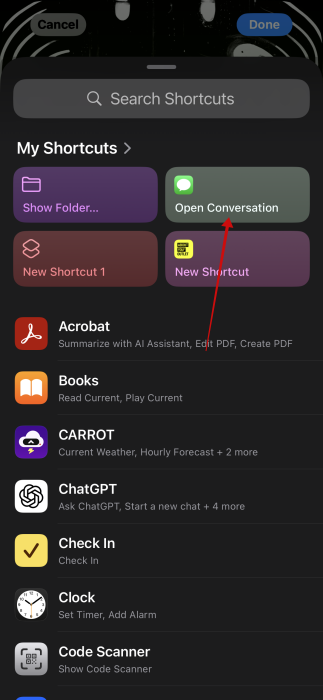
Find the Open Conversation shortcut and select it.
Tap anywhere on the screen, then press Done.
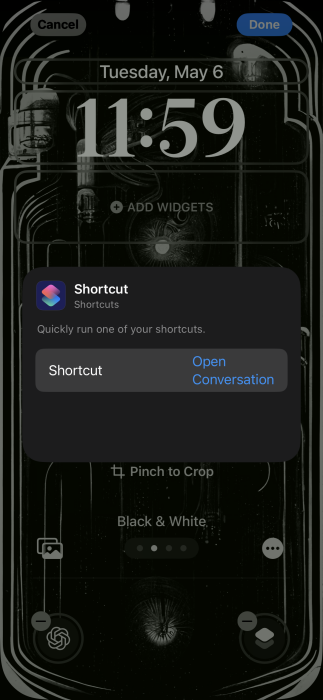
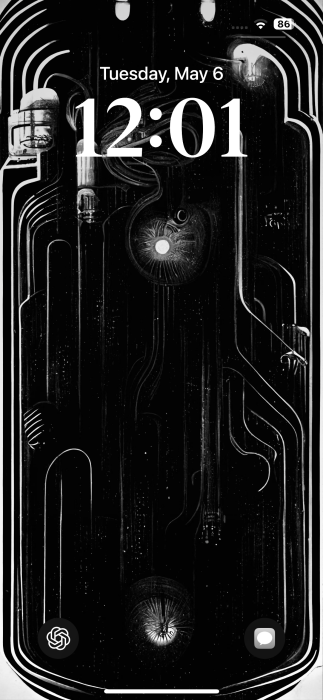
Your custom shortcut has now been added.
FYI: if you’re in need of more privacy, read up on how to hide and lock apps on your iPhone or iPad.
Change Custom Shortcuts Icons
The shortcut for opening a conversation features the Messages icon (the great chat bubble.) Other custom shortcuts, however, will just feature the standard Shorcuts icon by default. If you wish to change it into something else, so you can easily differentiate it, you can do so.
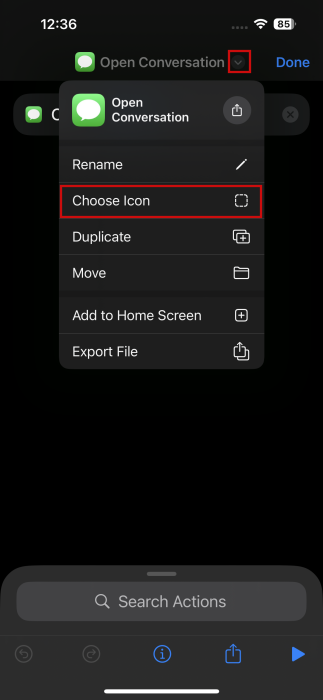
In the Shortcuts app, access your shortcut. In this case, I’m using the Open Conversation one. At the top, tap on the tiny downward icon and select Choose Icon.
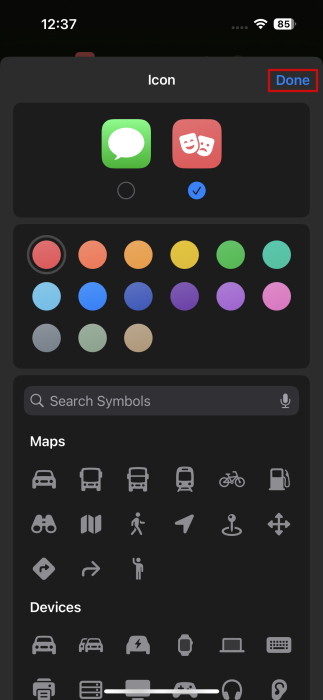
Switch to the Shortcuts icon. Browse the alternatives below and find another icon that would be more suited to define that particular conversation you want to pin. Press Done to save your new icon.
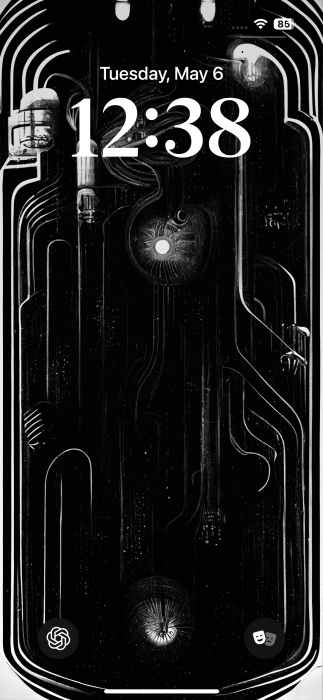
Go back to your lock screen, the new icon for your shortcut should be showing up.
For more tips on how you can customize how your iPhone lock screen looks, check our post which details additional features. If you wish to go beyond the lock screen, check how to change the look and feel of your iPhone’s icons.