As AI-powered assistants become commonplace in browsers, Microsoft Edge stands out as the first major browser to fully embrace them. The new Copilot Mode transforms Edge into an AI-driven browser, letting you have every query handled by Microsoft’s Copilot assistant. If you are ready to browse smarter, this guide will show you how to enable and use Copilot Mode in Microsoft Edge.
Enable Copilot Mode in Edge
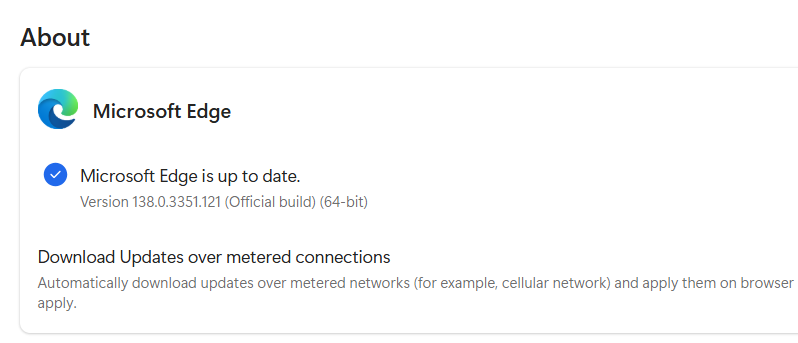
Copilot Mode is disabled by default, so you need to enable it manually. However, before you enable it, make sure you are logged in to your Microsoft Account and have the latest version of Microsoft Edge (version 138). To confirm, open Edge’s main menu at the top-right corner and go to Help and feedback → About Microsoft Edge.
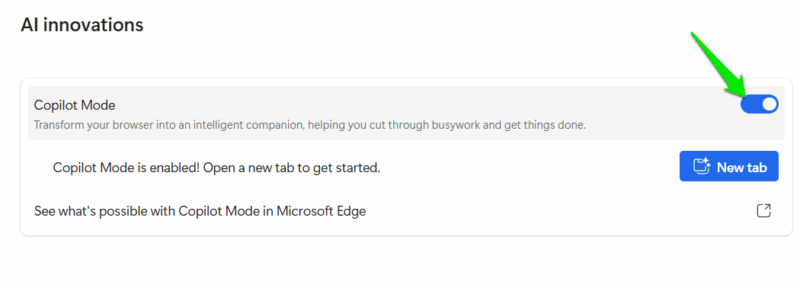
Open Settings from the Edge’s main menu and move to the AI innovations section in the left panel. Here, toggle on the Copilot Mode option.
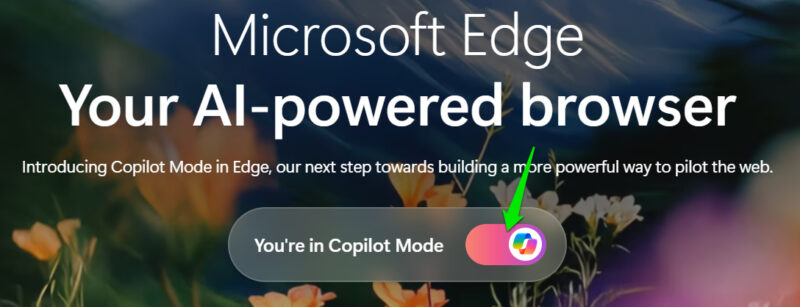
This will open an information page where you have to toggle on Copilot Mode again and go through the tour of its features.
If you don’t find the Copilot Mode option in the Settings, you might need to enable the associated Edge flag. To do so, type edge://flags in the Edge address bar to open the experimental features. In the search field above, type “copilot mode” and enable the Edge Copilot Mode flag. Restart Edge afterward, and you’ll see the Copilot Mode in the AI innovation section.
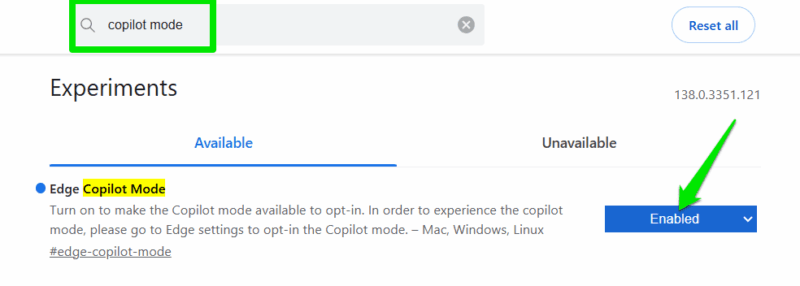
Tip: you can also turn on the Edge Copilot Mode Profile Toggle flag to get quick access to the Copilot Mode in the profile menu.
Using Copilot Mode in Microsoft Edge
To use Copilot Mode, you just need to open a new tab or refresh one. It will replace the regular search field with Copilot with a new Search & Chat mode. In this mode, Copilot will automatically try to understand your search query to decide whether it should answer it or search it using Bing.
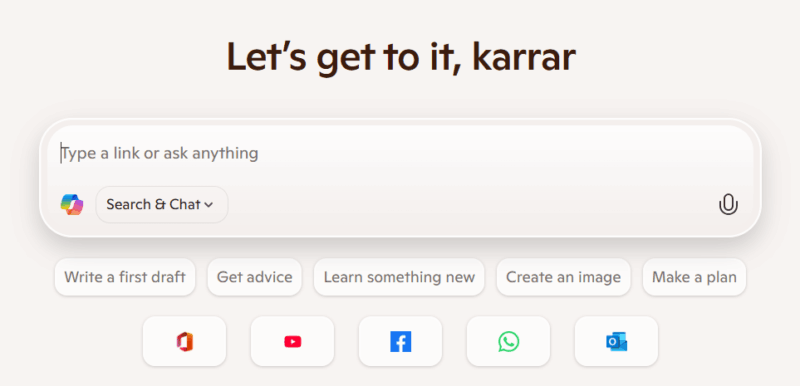
For simple queries like searching the name of a website, it will open it in Bing. However, for most other direct questions, it will try to answer itself and provide relevant links. We noticed that if you directly ask a question about a website, it usually uses Bing instead of answering itself. For questions without mentioning a source, it answers itself.
You can also switch to regular Copilot modes here, like Ask Copilot or Think Deeper, if you don’t want it to search the web. The address bar at the top will still use the default search engine, so you can use that to search the web.
More importantly, it adds a Copilot button to the address bar to ask questions about the tab in focus. It even understands context across all open tabs and lets you answer questions in a single interface.
Using Copilot Quick Assist
When a webpage is open, you can click on the Copilot button on the left side of the address bar to open the Quick Assist panel. This feature lets you ask questions about the content of the tab, with the options to summarize and expand on the topic available by default.
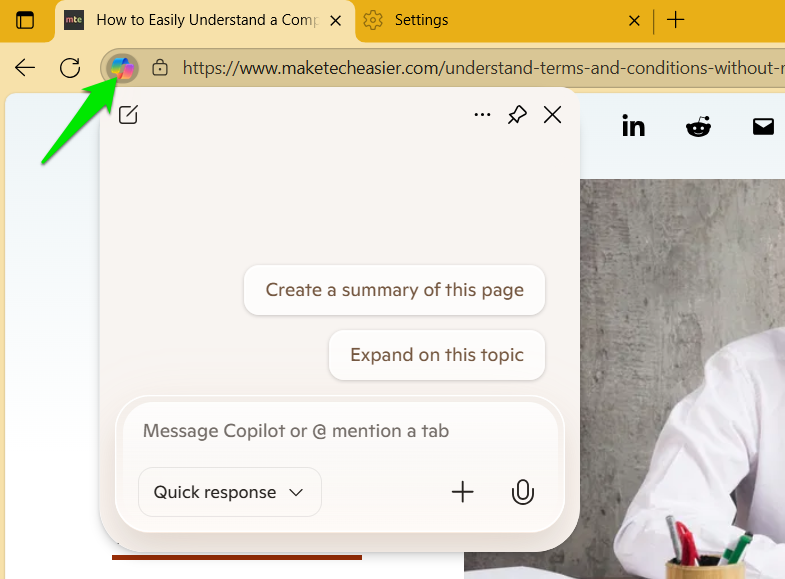
You can ask anything about the contents of the tab, like finding specific information without reading the page, or learning more about a specific section beyond what the page has to offer. You can also reset chat by opening a new one, and your old conversations will be saved and viewable from the dots menu.
Analyzing Multiple Tabs
The Copilot Quick Assist panel and the Copilot search bar in a new tab work for all tabs’ content at once, so you can ask questions about other tabs without moving to the specific tab. Of course, the current tab will always be the focus, so you’ll have to mention information on the other tab to receive answers regarding it.
Not only does this help get answers about all tabs in one place, but it also answers questions with all tabs in context. This means you can compare information over multiple tabs or summarize content across tabs in a single interface. For example, if you have multiple recipes open, you can ask Copilot to create a big list of all the ingredients you’ll need to arrange to make them.
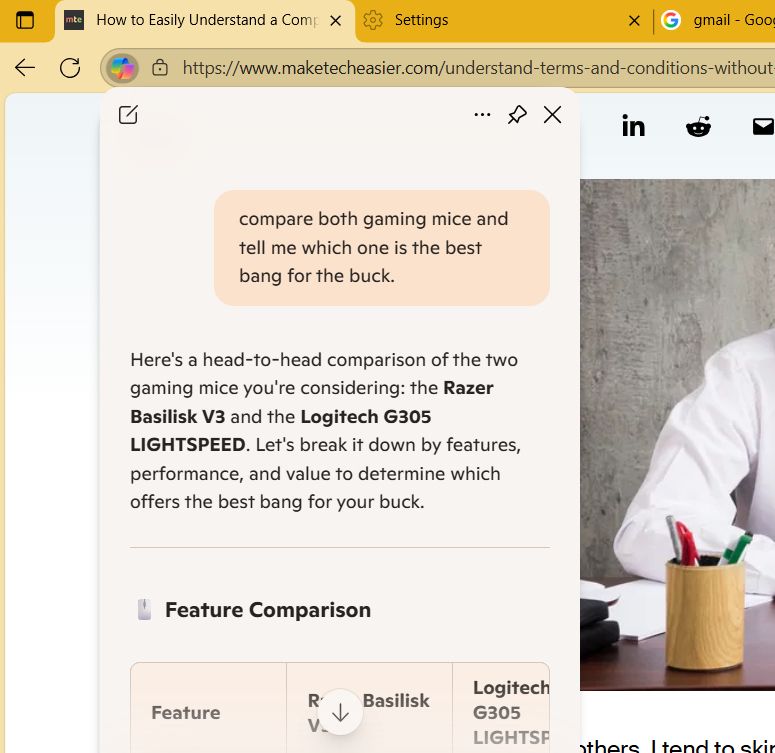
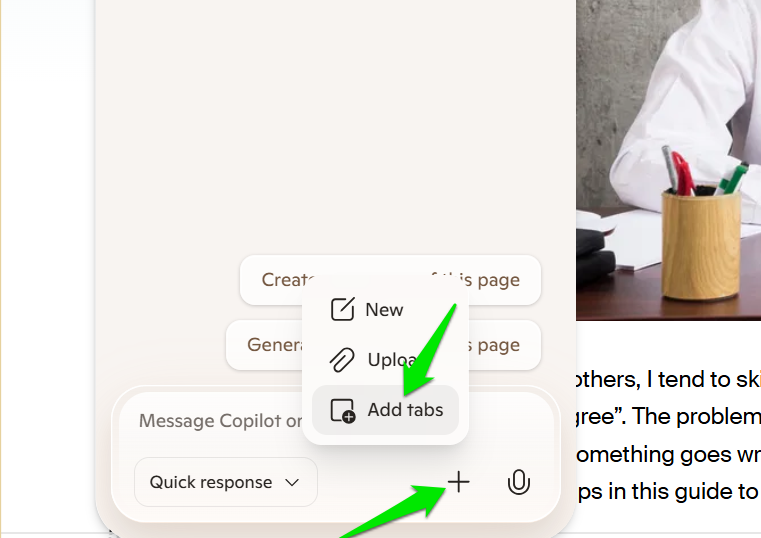
You can also force Copilot to limit its answer to specific tabs so it doesn’t mix information from other tabs. To do so, click on the + (Plus) icon in Quick Assist and select Add tabs. You can then choose tabs from the list and ask questions about them.
Considering that the regular search function will still be available in the address bar, you aren’t losing any functionality by enabling Copilot Mode. Microsoft also confirmed that this feature is going to get more control soon to allow completing tasks on its own. Of course, this also raises more privacy concerns. If you don’t like it, you might be interested in disabling Copilot in Microsoft Edge.








