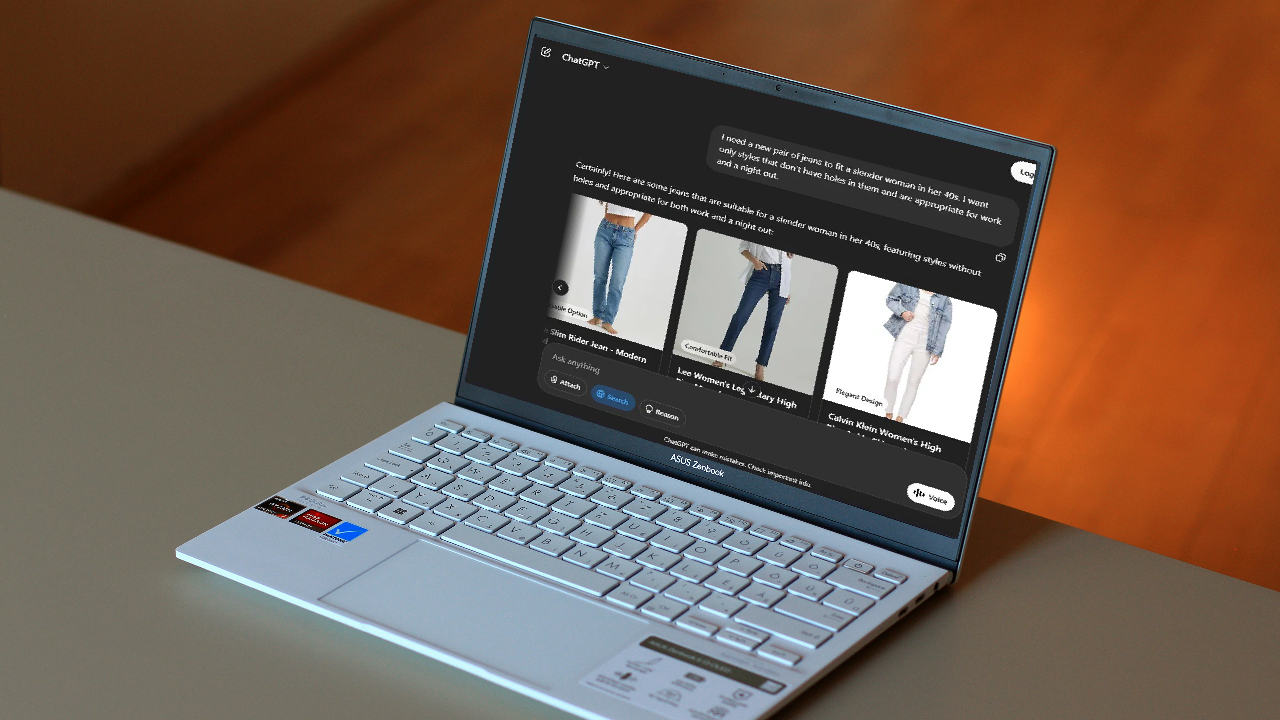
Imagine a search engine that recommends products you actually want without any bias or sponsored brands popping up first? ChatGPT search added in a new shopping feature that could make finding the best products easier than ever before.
OpenAI Upgrades ChatGPT Search for Shopping
Just like any other search engine, you could use ChatGPT search to search for various products. But, OpenAI upgraded their AI search engine to now recommend actual products, letting you click on a product image to go directly to the retailer and shop.
This is to better compete with Google and other search engines that have dedicated shopping tabs. But, you won’t see any priority placements or ads mixed in with your search results in ChatGPT. OpenAI is basing all results strictly on the retailers metadata, reviews, pricing, and more.
For now, it may lead to better overall results. Plus, you can use natural language to further clarify what types of products you’re looking for. In my own tests, I had the best results with electronics and fashion, though the initial launch focuses on electronics, fashion, beauty, and home products.
I’m impressed ChatGPT search is offering the shopping upgrade feature to all users, including those who aren’t even logged in.
How to Shop with ChatGPT Search
Go to ChatGPT search and describe exactly what you’re looking for. Be as detailed as possible. For instance, I tried a search looking for stylish jeans with no holes in them that were perfect for a woman in her 40s, along with being ideal for work or a night out. Honestly, the results were spot on.
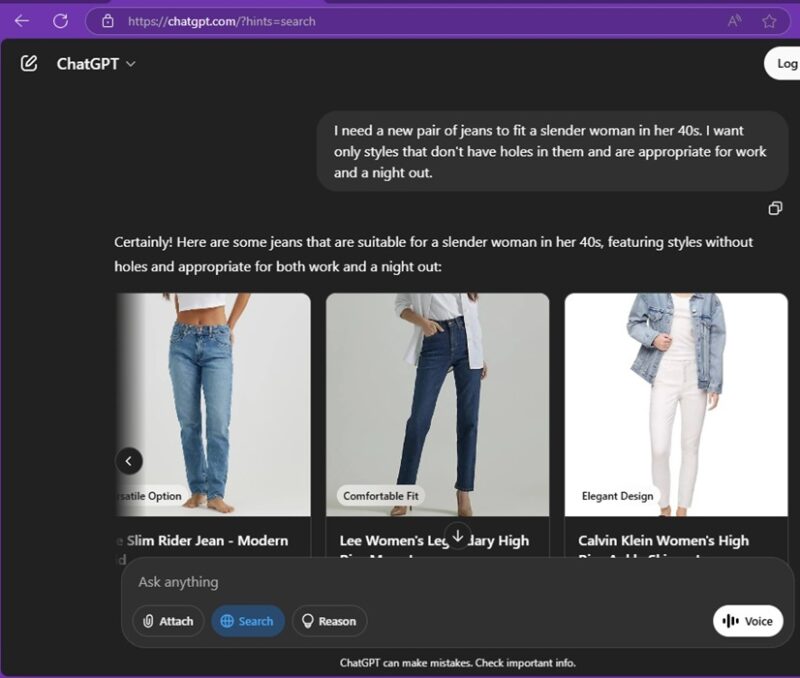
I received seven product images that link directly to the retailer. Each had a type of fit or design, helping me quickly see the different styles without needing to click anything. Just below the images are links with a longer description.
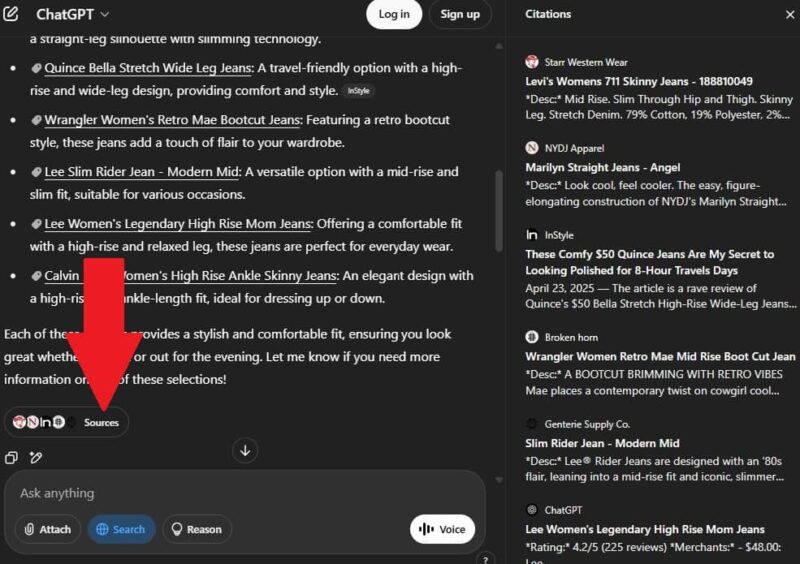
If you want even more details and recommendations, click Sources at the end of the answer. This gives you a list of sources, which often includes articles with product roundups/recommendations.
Refine Results
With a standard search engine, you have to start a new search or use pre-set filters to refine your results. The ChatGPT search shopping feature lets you keep chatting to further narrow down your results.
For example, I added another query to my search for great jeans – list options under $50.
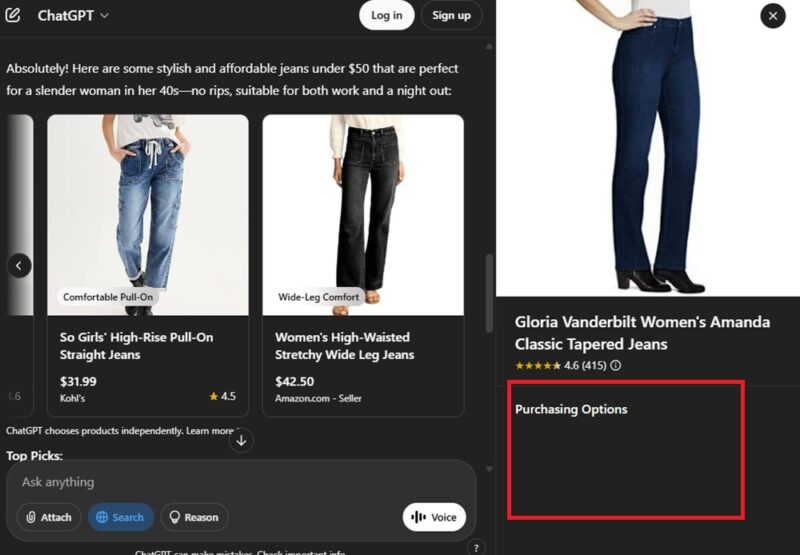
This time, I got six results. Of course, these came with descriptions and purchase options, along with sources.
If you want to find the best possible products, I suggest using the following tips:
- Be as specific as possible about what you want – List sizes, colors, must-have features, etc.
- Describe what you want to do with the product – Need a new laptop that’s perfect for gaming? Tell ChatGPT you need a laptop for playing specific types of games.
- Explain what you don’t want – Include any features you don’t want in a product. Need decorative items, but don’t want them to clash with your blue sofa? Use that detail to refine results.
- Don’t accept the first results – Continue chatting to narrow down each set of results. You’re not limited to just the first set. ChatGPT search continues building on your previous queries to create a highly personalized set of results.
Signed In Vs. Signed Out
I noticed something interesting when shopping with ChatGPT search. I got completely different results when I was signed in vs. signed out. In fact, I got more results when I was signed in and they were more catered to my query.
Another issue I ran into was purchasing options didn’t always load correctly when I was signed out. More often than not, I’d get blank area instead of the retailer’s information. When signed in, I usually get multiple retailers for each option.
If you’re having any issues getting results, I recommend signing in first. Plus, you can save your searches to go back to later if you’re not sure about what you want to buy right now.
Creating a Shopping Profile
Much like Copilot’s memory and personalization features, ChatGPT search offers an additional benefit to Pro and Plus users. As long as you’re signed in, ChatGPT remembers previous searches to give you more personalized results. This includes shopping queries, products you’ve interacted with, and non-shopping related chats.
The more you search, the more ChatGPT will customize your shopping profile.
If you don’t want ChatGPT using previous chats to personalize your results, you can turn this feature off. On the web, click your profile icon, select Settings, and choose Personalization. Toggle Memory off.
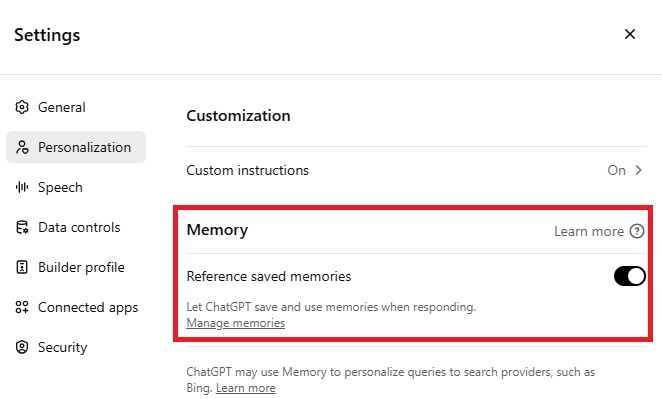
On mobile, open the menu, select your profile, tap Personalization, and toggle off Learn from your chats.
If you shop for anyone other than yourself, I’d suggest turning off memories. Otherwise, every time you shop with ChatGPT, the results are catered specifically to you and not anyone else you’re shopping for.
Outside of this handy shopping feature, there are other ways to use ChatGPT to help with buying gifts. And, if you’re having issues getting results, try these hacks to help ChatGPT better understand you.








