Slack has become the digital hub for modern teams, but its constant flow of messages can be overwhelming. ChatGPT for Slack aims to fix that by bringing OpenAI’s assistant directly into your workspace to help summarize threads, draft messages, and make sense of the noise. It’s not just a new integration, but a glimpse into the future of work communication.
What ChatGPT for Slack Actually Is
ChatGPT for Slack is OpenAI’s latest move to blend AI with team chat, rolling out as both a dedicated app and a connector.
The app adds a sidebar in Slack for one-on-one AI chats, letting you ask questions, brainstorm ideas, or draft messages without switching tabs. Or you can connect the optional Slack connector, and ChatGPT gains access to workspace context, allowing for deeper and more relevant answers.
This integration turns Slack into something more than a chat tool. It helps transform ongoing discussions into usable knowledge. It also hints at how collaboration tools are changing. They are starting to interpret information rather than just host it.
For teams already using OpenAI products, this adds a consistent layer of AI support across apps. Still, every benefit depends on how much data your team is willing to share with a system outside your control.
If you’re curious about what Slack is doing with AI, check out Slack’s new workspace AI features.
Setting ChatGPT for Slack Up and Using It
Getting ChatGPT for Slack is straightforward, but you’ll need paid plans: Slack Pro or higher, plus ChatGPT Plus, Pro, Business, or Enterprise. Start by searching ChatGPT in Slack’s App Directory, install it, and authenticate with your OpenAI account.
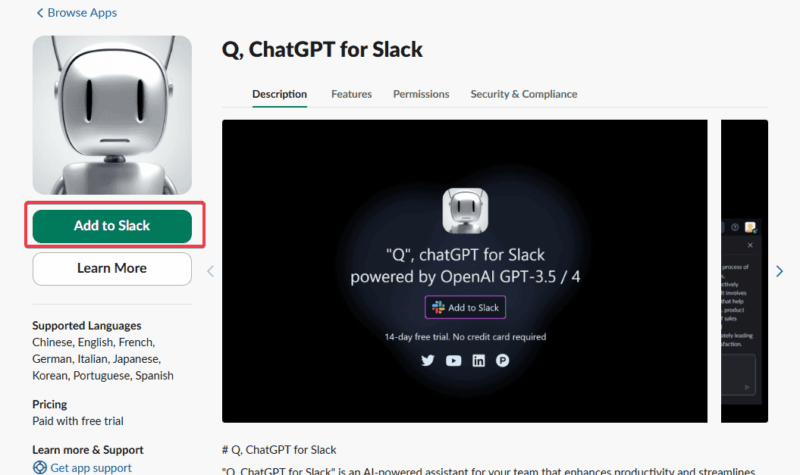
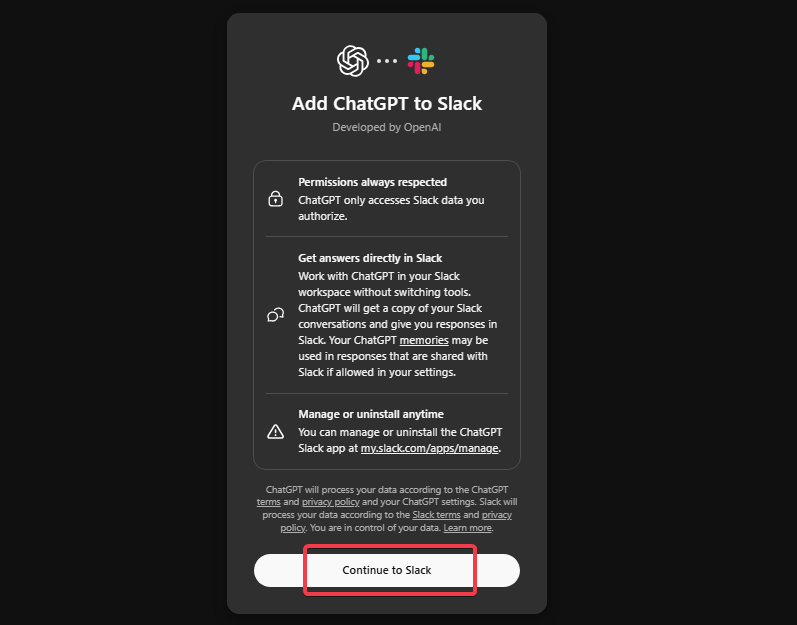
Then, in ChatGPT settings, connect your Slack workspace under Connectors. You’ll be prompted to add ChatGPT to Slack, then click Continue to Slack to proceed. Admins may need to approve for Enterprise setups.
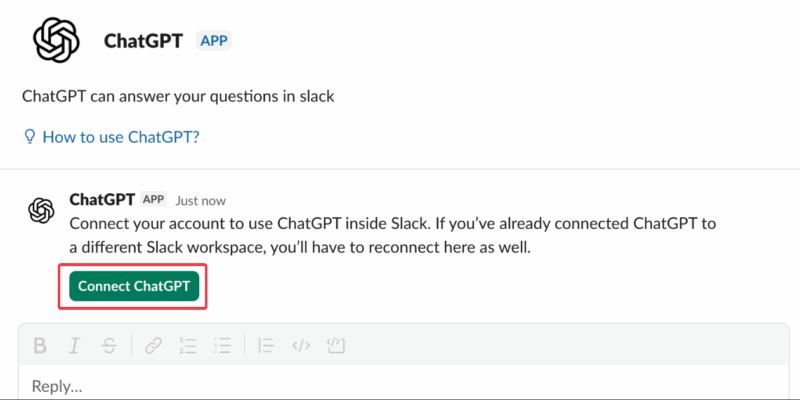
Before using the app, you will need to connect it to your ChatGPT account from Slack, too.
Once integrated, you can mention “@ChatGPT” in any conversation or use simple slash commands such as “/chatgpt summarize engineering-team with action items” to condense discussions.
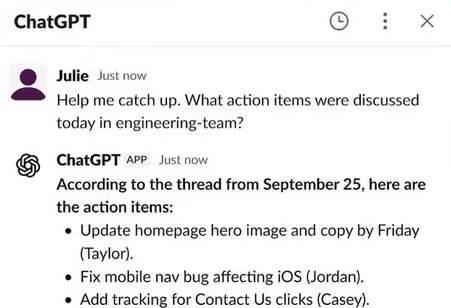
Note: With ChatGPT for Slack, you can reference channels only by typing them in plain text.
Enterprise plans unlock more advanced options like smarter searches and broader summaries, but even free users will notice less noise and faster responses.
The key is to set limits early. Restrict ChatGPT to non-sensitive channels and define where it can summarize or interact. Check out our guide on Slack free vs. paid for a detailed look at your options.
How ChatGPT for Slack Changes Daily Workflows
The change is noticeable from the start. For remote workers, it means faster brainstorming. Marketers can generate campaign ideas mid-thread, and devs edit code without leaving Slack.
In Salesforce channels, you can pull insights or analyze conversations via Agentforce. Easily get a smoother report, like summarizing weekly engineering chats into actionable briefs.
It’s not just hype; it reduces email fatigue and boosts collaboration, especially in fast-paced sales or dev teams. You can even pair it with productivity bots for Slack for more efficiency.
That said, the integration isn’t flawless. If your team deals with complex, nuanced discussions, the AI’s summaries can flatten tone or context, potentially missing key details that a human scan would catch.
It’s great for quick wins, but over-relying on it could dull critical thinking in the long run. Still, for busy pros juggling multiple channels, this Slack AI feature can genuinely streamline the stress, but it needs human oversight.
The Trade-Offs and Privacy Risks Users Should Consider
No tool’s perfect. This feature requires a subscription starting at $20/month for ChatGPT, plus additional Slack fees, which locks out free users.
Accuracy remains imperfect. ChatGPT can write clean summaries that subtly miss key facts. If you rely on them without checking, a wrong detail can spread quickly, leading to embarrassing errors in professional settings.
Geo restrictions in data laws are another layer of complexity. Some regions, such as the EU and UK, limit or delay access due to privacy requirements. Even where it works, policy changes can shift data files at any time. To keep control, review app permissions regularly and decide which channels stay off-limits.
The biggest issue with ChatGPT for Slack is trust. To summarize and respond accurately, it must process messages through OpenAI’s servers. That means part of your workspace data leaves Slack.
Besides, OpenAI’s data retention policies make your data linger longer since deletions aren’t instant. While Admins can control what it accesses, once shared, it is no longer entirely in your hands.
For safer AI use, see our tips on using ChatGPT to stay safe online. Alternatives like eesel.ai offer more control without the lock-in, especially if you want to keep data internal.
Critically, while the convenience is tempting, the shared data model raises red flags. You have to weigh whether the time savings justify handing over conversation history to third parties.
Is It Right for Your Team?
ChatGPT for Slack can help teams that deal with message overload or async coordination. It saves time, improves writing quality, and makes Slack easier to navigate. But it also requires trust in the tool and in how your team manages it.
For message-heavy teams, project managers, and fast-moving startups, it’s a genuine productivity boost. For smaller or privacy-sensitive teams, it may be overkill.
The smartest approach is to test via trials to see the fit. Track what actually improves and expand if it sticks.








