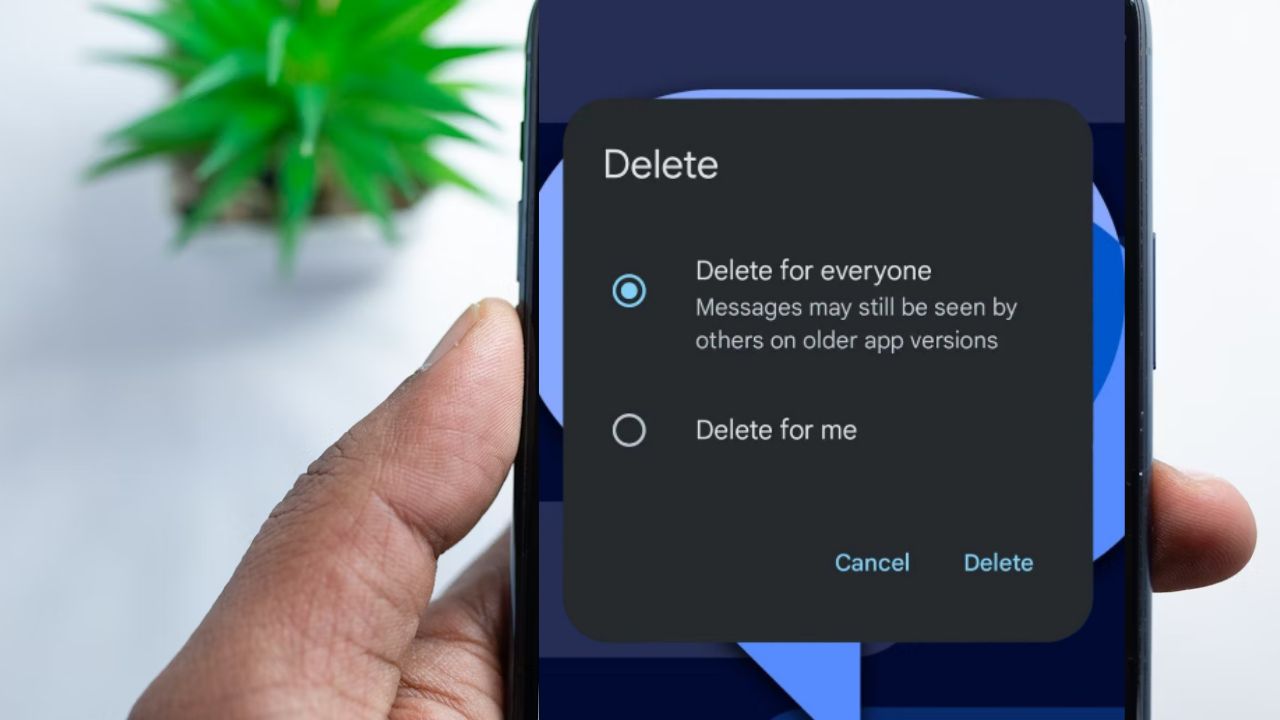
Have you ever sent a message you instantly regretted and wished to take back? With its new beta feature rollout, you can now unsend messages on Google Messages. It’s kind of like unsending messages on WhatsApp. While it’s in the beta stages for Android users, it’s perfect for fixing group chat blunders and slip-ups. Let’s explore what the feature is and how to use it without breaking a sweat.
There has been an influx of updates and upgrades to Google Messages to make it a worthy competitor to other messaging apps. This latest beta feature lets you unsend messages in Google Messages, but only in big group chats of 12 or more people.
Unlike WhatsApp and Telegram which allow up to a 2-day grace period, you only have a 15-minute window to delete your message here.
Further, it only works with RCS, a modern and fancy messaging protocol. For this feature to work, everyone in the chat must be on the latest Google Messages app with RCS turned on. You can explore this guide to RCS messaging on Android to understand how it works.
While this feature is similar to WhatsApp and Telegram, it’s not available for one-to-one chats yet. Google is still testing it, so it’s not perfect yet. However, it’s still a worthy tool to save your blushes in group chats.
Join the Google Messages Beta
To unsend messages on Google Messages, you need to join the beta team. Here’s how to do so:
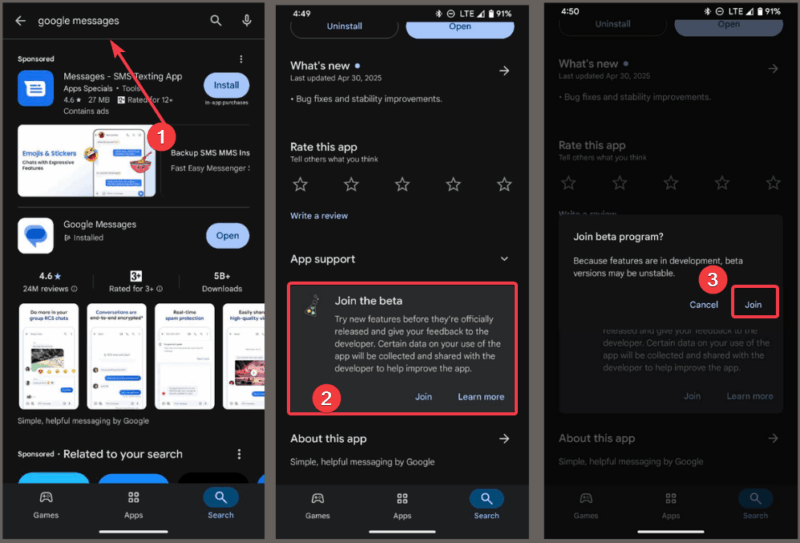
Go to the Google Play Store and search for Google Messages. Scroll to Join the beta section, tap Join, and confirm your selection.
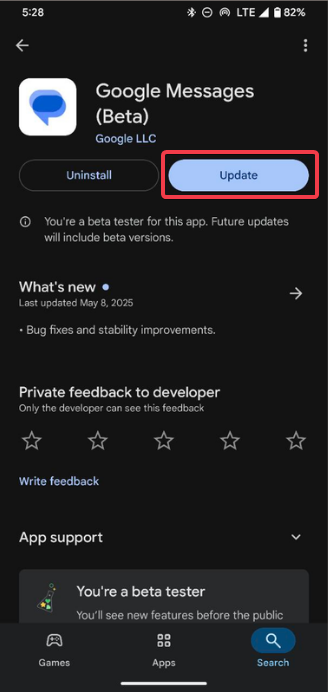
Wait for a few minutes for the app to update to the beta version. Then, click on Update.
Note that Beta apps can be buggy and messy at times. Besides, not everyone gets the delete for everyone option right away since it’s a slow rollout from Google. So, you can wait for the stable version if you’re not ready for the beta stress.
Delete a Message for Everyone
To Unsend messages in Google Messages’ group chats, do the following:
Open Google Messages and go to your group chat of 12 people or more. Find the message you sent within 15 minutes.
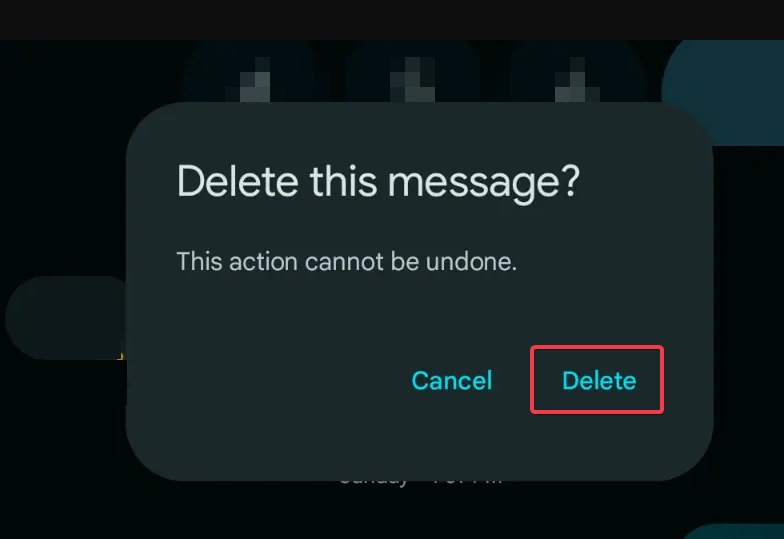
Long-press or hold the message and tap Delete for Everyone from the prompt and hit Delete.
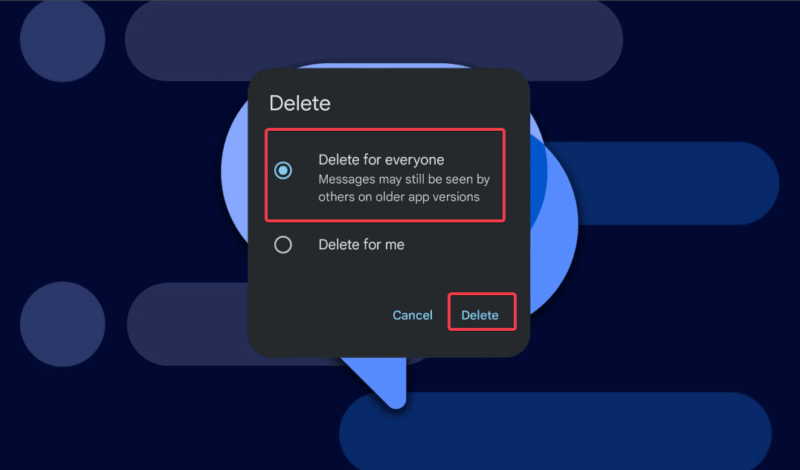
Wait for the prompt to confirm your action and hit Delete. Your message disappears from the group chat immediately.
Here’s the catch: if someone is offline or using an older version without the RCS enabled, they might still see the message.
Should you mess up and delete something important, you might still be able to recover the deleted text messages on Android.
Key Limitations and Best Practices
This feature isn’t perfect yet. You only have 15 minutes to Unsend your messages, and it’s strictly for large groups for now. Also, everyone needs to update their apps and enable the RCS for the feature to work. Try these quick tips:
- Don’t wait, always act fast to unsend your messages.
- Ask your group members to update Google Messages.
- Watch for the stable release that may support more chat types.
Unsending messages on Google Messages is an excellent feature that can save your blushes in a group chat. Join the beta to try it early rather than wait for the full release. Meanwhile, you can also check out other Google Messages tips and features if you want more messaging hacks.








