
AI is popping up in just about every app these days, and TikTok’s not missing out. The platform’s newest feature, AI Alive, enables users to transform their still photos into dynamic short videos. Check this post to discover how you can use this tool to enhance your TikTok posts.
Good to know: you might want to enable these privacy features while using TikTok for a more discreet experience.
Where to Find TikTok’s New AI Alive Feature
TikTok’s new AI Alive feature has only very recently started rolling out to users. Before you attempt to find it in the app, we recommend you go ahead and update TikTok first. To do this, open the Google Play Store or App Store (depending on your device) and search for TikTok.
If you see an Update button underneath the app name, press it to get the latest version. Once that’s done, go ahead and open TikTok.
For the time being, AI Alive is only available for TikTok Stories. Meaning, you’ll need to open the Story Camera and select a photo from there.
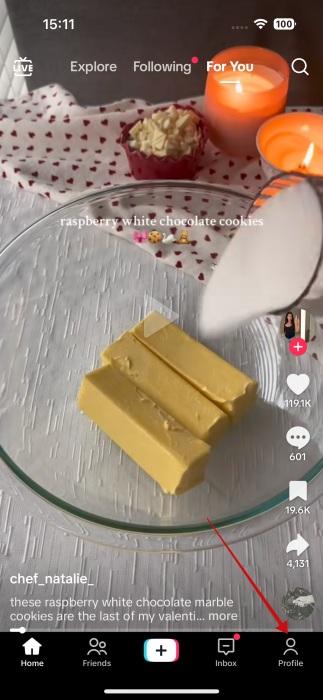
You can do this by pressing on your profile picture in the app at the bottom.
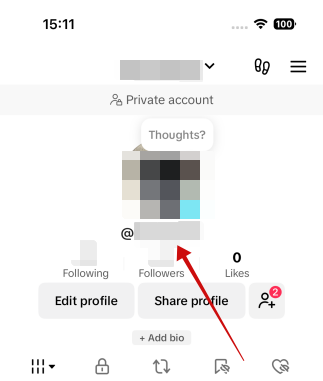
On your account page, tap on your profile picture at the top.
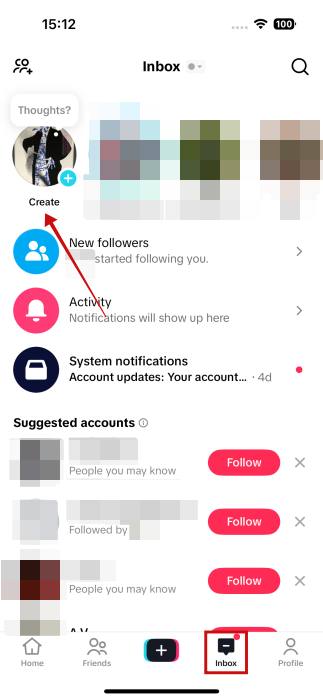
Alternatively, you can access your Story Camera by switching to Inbox and pressing on the Create bubble at the top. Now you can go ahead and upload your image from your device or snap a new one.
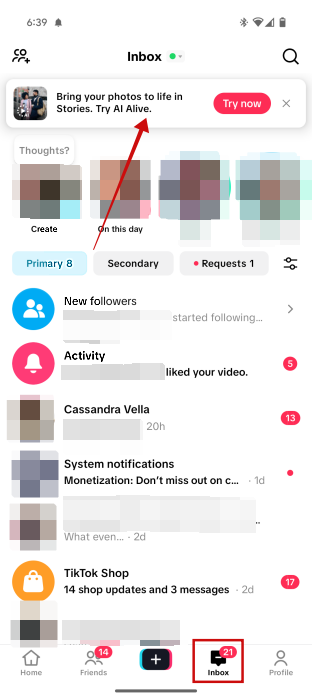
Since the feature is new, you might see a notification inviting you to try AI Alive at the top of the screen while in Inbox.
Tip: learn how to take advantage of TikTok’s Time Away feature which helps teens take a break from scrolling.
How to Use TikTok’s AI Alive Feature
Once you upload an image to the TikTok Story Camera, check the editing panel that appear on the right side. You should see the AI Alive option underneath the Aa one for adding text.
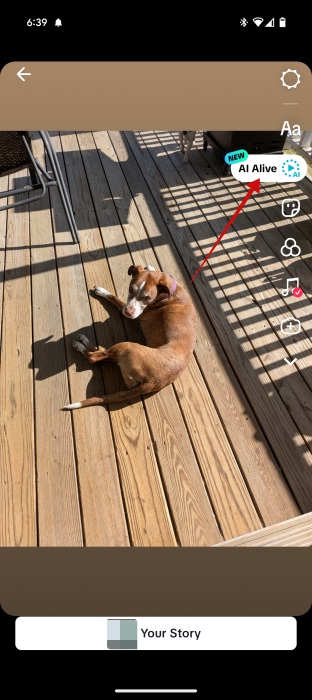
Tap it to go to the prompt screen. Here, depending on the image you’re using, TikTok will generate some prompt suggestions.
For instance, when we uploaded a picture of our dog the suggestions included “Tilting head with curious eyes” and “Resting chin on paws” but you can go ahead and get creative with your own scenarios.
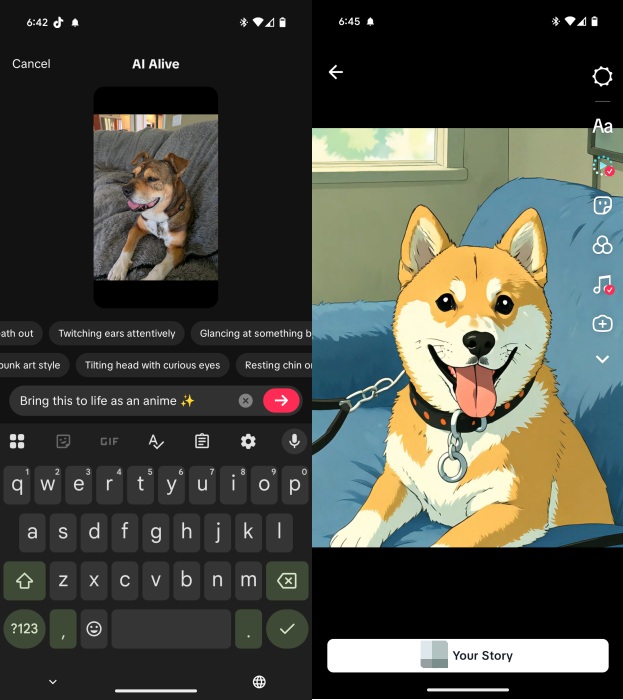
We opted to ask the AI to bring the image to life as an anime. The result, was a bit odd, since the AI didn’t create an accurate image of our dog, going as far as to actually change the dog’s breed.
We gave it another try and uploaded a snapshot depicting the sea. We asked the AI to bring it to life and add a surfer on top of the waves too. The result this time was OK, although the perspective seems off, as the surfer should probably have been bigger.
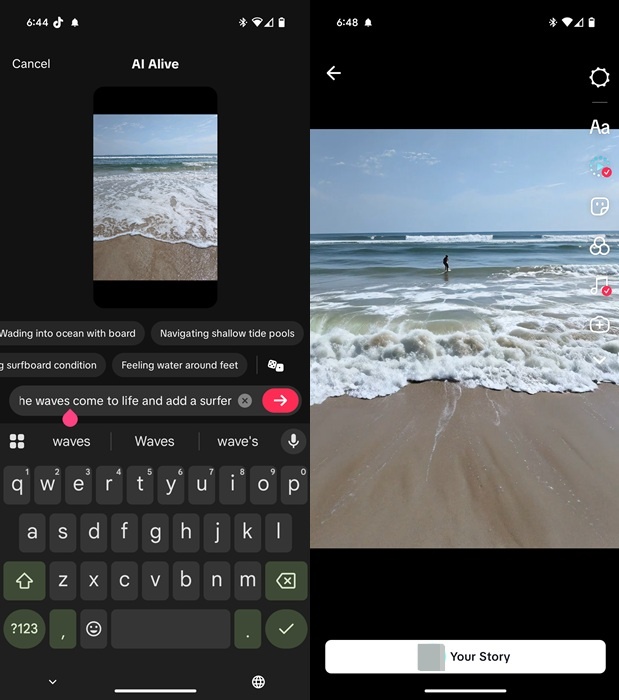
As you can see, taking advantage of TikTok’s AI Alive is a breeze. We encourage you to experiment with it and see in which scenarios it works best. In the press release, TikTok suggest users experiment with AI Alive on selfies or landscapes.
For now, you might get some odd results, but TikTok will surely continue perfecting this tool, so creations are bound to get better.
FYI: here’s how you can go live on TikTok.
How Safe Is TikTok’s New AI Alive Feature
As with most AI features, there’s potential for misuse by bad actors. However, TikTok is aware of these risks and has already put safety measures in place to help mitigate potential harm.
TikTok runs a multi-step moderation process for each uploaded photo. It starts with a automated review of the image, followed by a prompt check for inappropriate requests. Another scan occus before the creator sees the result, and a final review takes place just tbefore the Story is made public.
Additionally, all videos created using AI Alive will include an “AI-generated” label making it clear to viewers that the content was produced with AI.
Don’t Have TikTok AI Alive Yet? Try This Instead
If you don’t have TikTok’s AI Alive just yet, don’t worry. It might just take some time until the new feature reaches you. Or you’re not in the regions where TikTok is pushing this new tool.
In which case, you can try experimening with third-party AI tools that offer similar options of bringing photos to life. One of these is Pika. The easiest way to try its capabilities is through Pika’s Discord server.
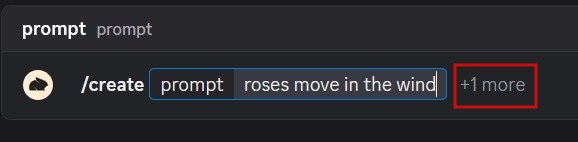
Once you join, to one of the #generate channels on the left side of the display. Type /create and add your prompt.
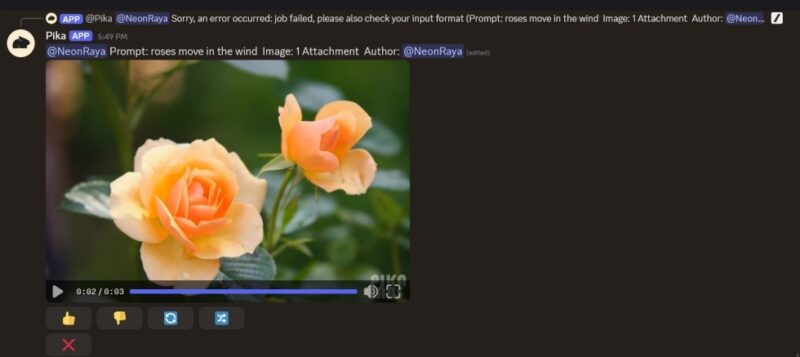
Press +1 more and upload your image. Then tap or press Enter. Wait a few seconds until Pika generates the animated image for you. Errors might occur, so be patient.
Results aren’t always great, but sometimes Pika manages to hit the soft spot, if your prompts aren’t too convoluted or super complex. However, TikTok’s tool does seem to more advanced, even with its strange results.
TikTok is constantly adding new feature and some might have slipped under your radar. For instance, check how to create a duet using TikTok. Alternatively, here’s how to make a slideshow on TikTok.








