Your Instagram feed used to be all about displaying recent content from accounts you followed so that you could stay up to date with your interests and friends’ activities, but that, unfortunately, has changed. The current Instagram algorithm prioritizes suggested content based on your activity, connections and trending content, often at the expense of content from followed accounts. Luckily, Instagram still offers a level of control regarding what shows up in your feed. This tutorial shows how to customize Suggested Posts view on Instagram.
Good to know: did you know that you can now download Reels directly from the Instagram app? Here’s how you can try this feature yourself.
1. Snooze Suggested Posts in Feed
The easiest way to get rid of Suggests Posts is to snooze them. With this option enabled, content from accounts you don’t follow will be hidden from your feed for 30 days.
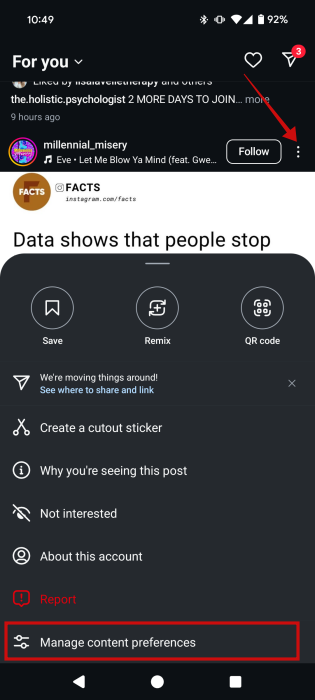
If you’d like a respite, open the Instagram app on your phone and find a Suggested Post (Suggested for you). Tap on the three dots in the upper right corner of the post and select Manage content preferences from the menu that appears at the bottom.
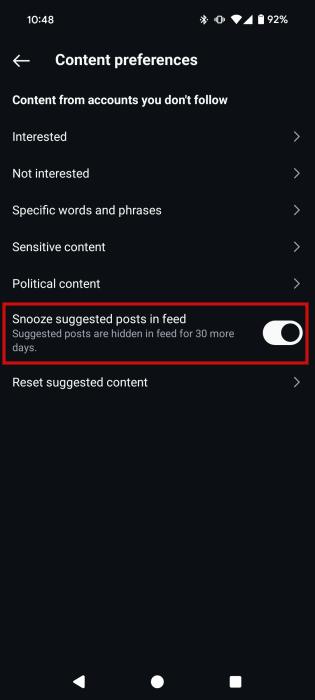
Turn on the toggle next to Snooze suggested post in feed to stop Suggested Posts from flooding your feed.
2. Hide Specific Suggested Posts from Feed
Alternatively, if you find that Suggested Posts do help you discover interesting content from time to time, you can just hide specific ones that you’re not interested in. Doing this will remove that one post from your feed, but content from the same account may show up later on anyway, although Instagram says it will take into account your preferences.
Find a Suggested Post that doesn’t match your criteria in your Instagram feed.
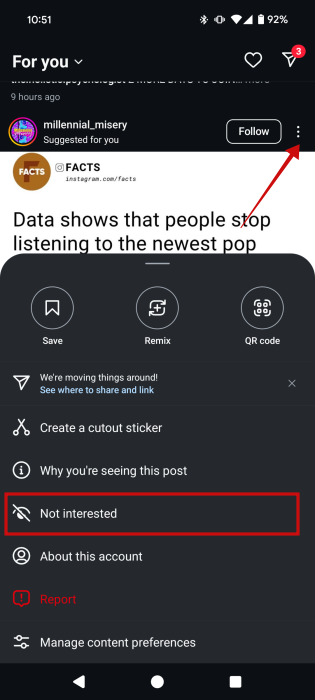
Tap the three dots in the upper right corner of the post. Select Not interested in the menu that appears at the bottom.
Once you press this button, the post will automatically be removed from view. A few follow-up options will appear instead.
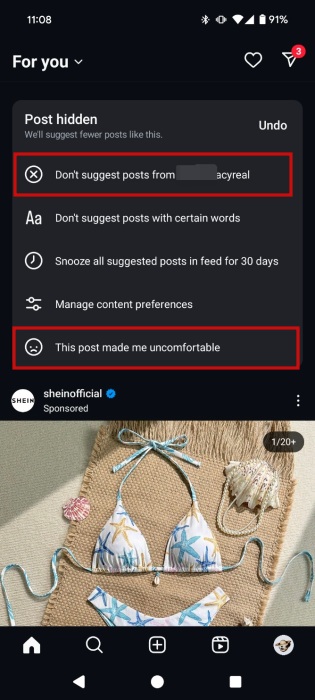
Tap on the Don’t suggest posts from [account] at the top. Alternatively, if you found the post disturbing, you can opt for the This post made me uncomfortable option at the bottom.
Note: if you’re using the web version of Instagram, you can click the X button on the right to get rid of the Suggested Post.
3. Customize Suggestions in Feed Based on Keywords
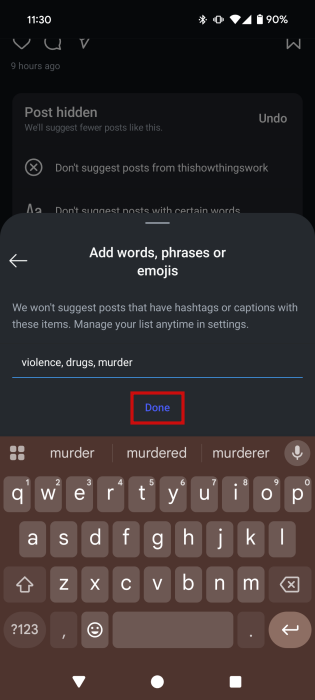
if you’re bothered by certain Suggested Posts due to the nature of their content, consider customizing your suggestions based on keywords. You can create a list of words, phrases and emojis and Instagram won’t suggest post that have hashtags o captions with these items.
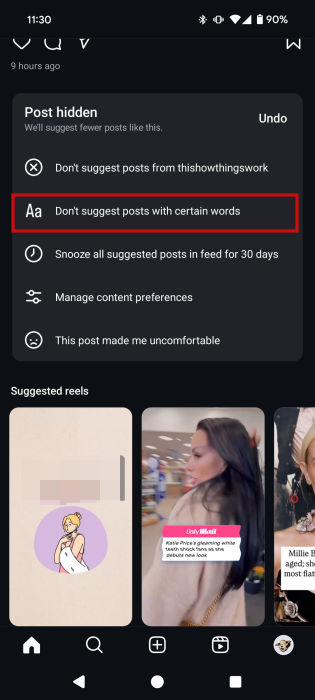
Find a Suggested Post and tap the Not interested option like we showed you above. Select the option to Don’t suggest posts with certain words.
Type in your keywords so Instagram knows you don’t want posts containing these indicators to surface on your feed.
FYI: Instagram’s new video editing app has arrived. Learn how to create clips using Edits.
4. Switch Feed View
Another alternative to stop seeing suggested posts is to switch from the default For You feed view to another option. You might not have been aware of this feature until now, as it’s not really highlighted in the app.
Open the Instagram app and tap next to the large For you text at the top.
Two options will appear: Following and Favorites.
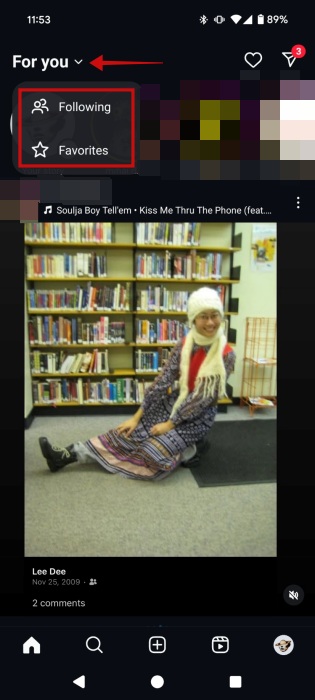
If you select the first one, you’ll be taken to a curated feed alternative with posts from the people you actually follow.
Similarly, Favorites is a feed that includes posts from your “favorite” accounts on Instagram. (Find out how to add an account to your Favorites below.)

Note: you’ll need to switch to a custom feed view every time you open the app, as the option won’t stay selected.
Add Accounts to Favorites List on Instagram
To add an Instagram account to your list of Favorites, access their profile. Underneath the account’s description, tap on the Following button.
Select the Add to favorites button.
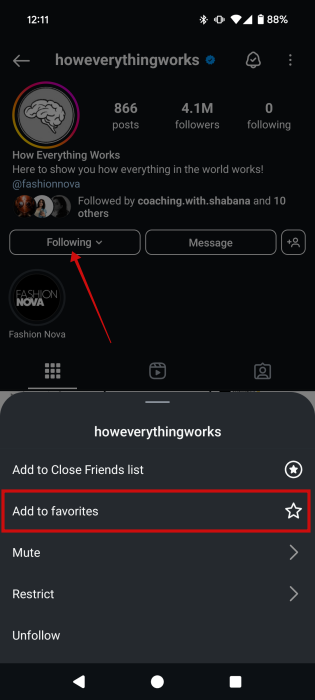
Whenever you come across content from this account on your feed, it will be flagged by a red star.

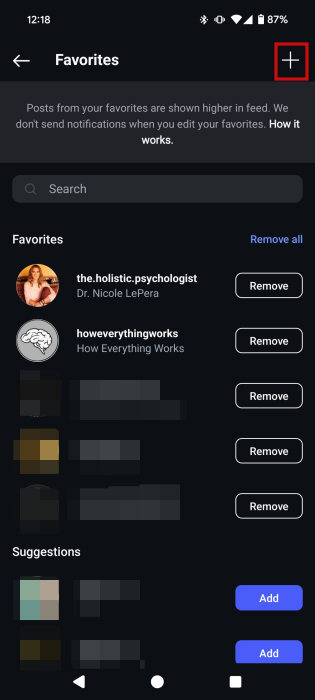
Alternatively, you can go back to your Favorites feed as previously shown. Tap on the hamburger menu in the upper-right corner.

Add more accounts to your Favorites list by tapping the + button or scrolling up and down the Suggestions list.
5. Reset Content Suggestions
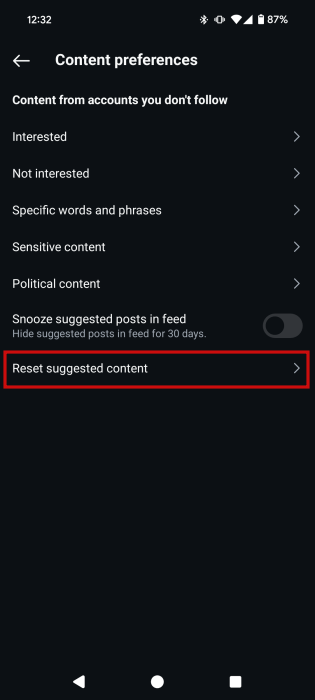
If you want to start fresh and basically change the kind of content you’re seeing in Suggested Posts, Instagram allows you to perform a reset. Tap on the three dots on a Suggested Post and select Manage content preferences.
Select the last option Reset suggested content.
On the following screen, press Next.
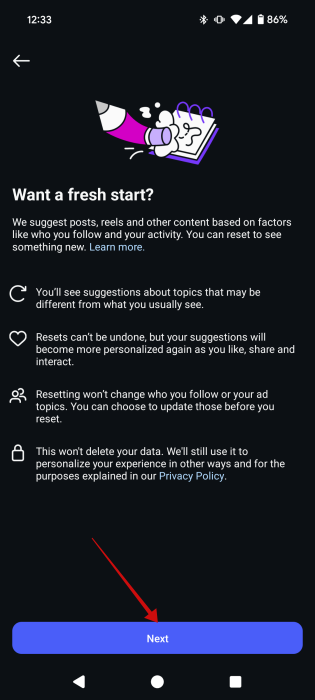
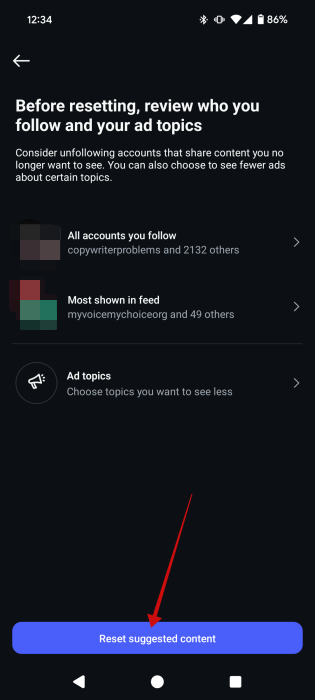
Review who you follow and reconsider your decision if you want. Press Reset suggested content if you’re sure you need a fresh start.
6. Further Manage Content Preferences
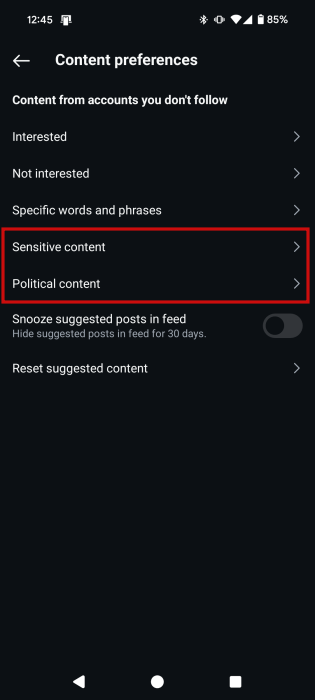
You can further Manage Content Preferences from this specific menu. For instance, you can opt for the frequency at which it shows Suggested Posts featuring sensitive topics.
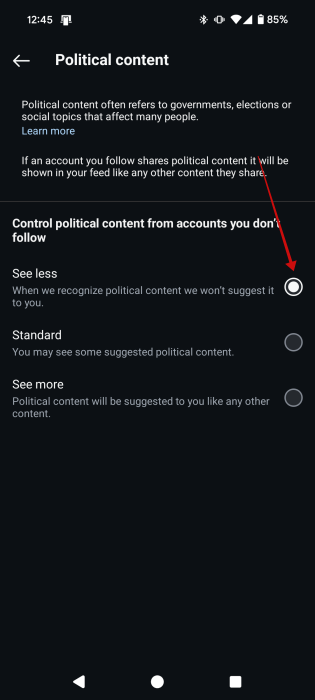
Alternatively, you can dial up or down the political content.
Tip: learn how to mute someone on Instagram.
7. Block Accounts With Undesirable Content
Finally, if you want to make 100% sure you won’t be seeing content from that account ever again via Suggested Posts, you can quickly block them.
Go to the profile page for the account that posted the Suggested Post.
Tap on the three dots in the upper-right corner. Select Block.
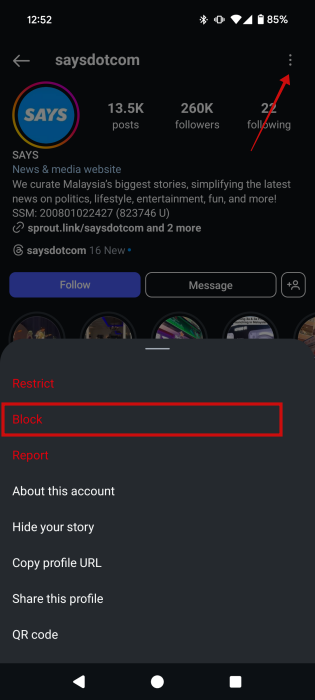
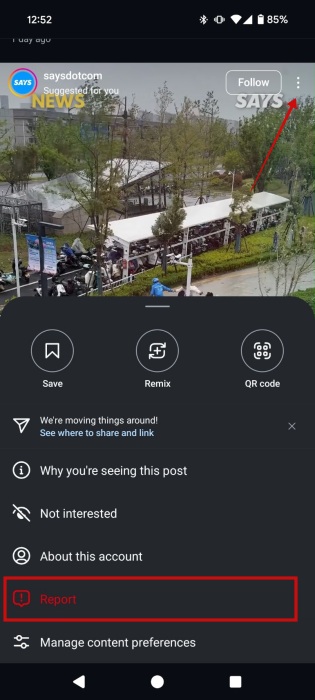
Alternatively, you can take the more drastic route and Report the post.
You can also report a post without visiting the account’s profile. On the Suggested Post, tap on the three dots in the upper-right corner. Select Report.
8. Customize Suggested Posts in Discovery Feed
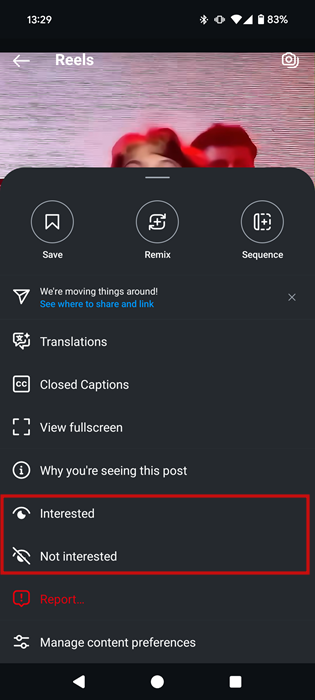
The Discovery feed on Instagram also contains a lot of Suggested Posts based on your activity, preferences and what Instagram thinks you might enjoy. The feed includes a mix of posts and Reels. If you want to teach Instagram to show you better content, open a post or Reel and press on the three dots.
You can select Not interested or go on to Manage content preferences from there as we explained previously.
For Reels, there’s also the Interested option. This shows Instagram that you want to view more videos like this one.
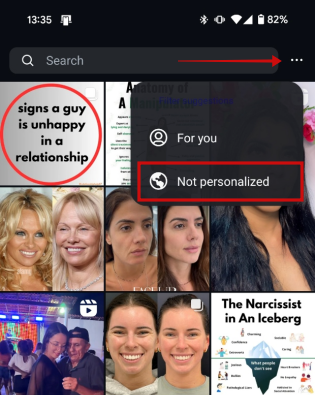
Alternatively, you can also switch to a different view in Discovery. To access this, press on the three dots in the upper right corner and select Not personalized. Wait a few seconds until the new Discovery loads up with what should be completely random posts.
You can try most of these strategies to customize your Suggested Posts in the web version of Instagram as well, but content moderation settings are only available in the mobile apps. If you’re just starting out with using Instagram on your PC, here’s how to access the social app and start posting. Alternatively, in case you need to take a break from Instagram, we got you covered with a guide that shows you how to delete or deactivate your Instagram account.








