Google Photos has introduced a Motion Photos feature with higher end Android models, similar to Apple’s Live Photos. The few seconds of video-like motion make the images come alive. However, it can turn annoying when you want still images. The video clips also take up more storage space on your Google account. Find out how to disable Motion Photos in Google Photos app on Android.
What is Motion Photos in Google Photos
From Android 15 onward, most advanced Android cameras have automatically started creating still photos with motion effects. This technological evolution has pushed Google Photos to make default a similarly labelled Motion Photos feature for the individual picture across many latest Android models.
When you capture what looks like a still picture, the phone records a few seconds-long mini-video behind the scenes, which comes alive inside the Google Photos Android app. As soon as you open an individual photo inside the Android app, or in the desktop version of Google Photos via any browser, you will be able to play the short clip with a toggle titled Motion to turn it on or off.
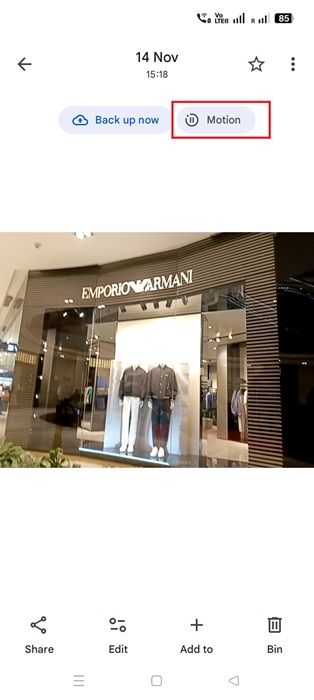
While the motion effects feature is quite nice, the annoyance stems from the default “Auto” mode in Android camera apps, and a lack of clear user consent. The bandwidth-intensive motion photos also hog memory in your Google Photos backup. The increase is typically around 30-50% (or 1-3MB extra per file),
How to Turn Off Motion Photos Within Google Photos App
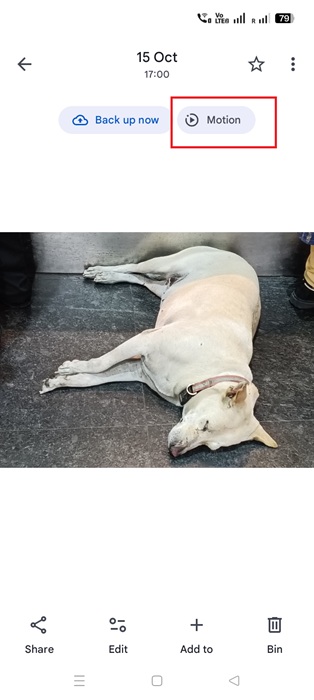
If you want to keep the Motion Photos effect on your pictures but stop the spinning movement that plays on every single photo in the Google Photos app, either pause the moving image or turn off auto-play completely.
To pause the motion, just tap the Motion toggle on each photo. If you’re watching a slideshow where every picture has motion, you’ll need to tap pause on each clip separately.
A better way is to turn off autoplay completely, even if you want to use Motion Photos feature in the future.
On your Android device, go to Google Photos home screen and click on your name. Select Photos settings.
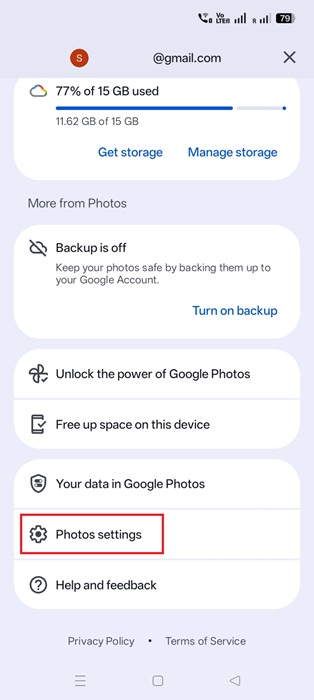
Go to Preferences -> Photo grid playback.
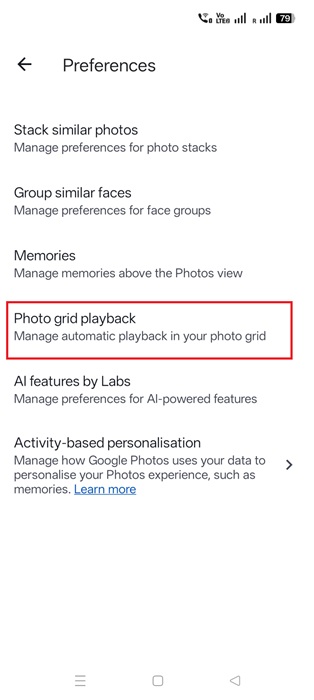
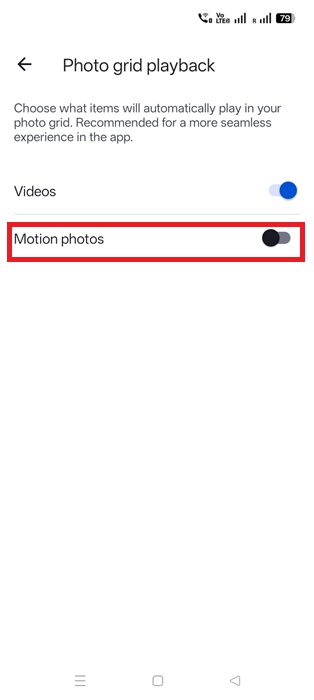
Toggle off the Motion photos menu which is enabled by default. After this, any sounds recorded will be muted and the video clip stops playing.
Did you know? You can add Google Photos to Photos app on a Windows device. You can also turn photos to videos and remixes with Google Photos AI.
Disable Google Photos Motion Effects on Your Android Camera
Today’s smartphones cameras create high quality images using super-fast burst shots, a gyroscope to spot movement, and instant stability fixers. That is why motion -like features are automatically enabled on Android cameras.
Since the Google Photos Motion feature depends on the latest Android camera settings, you need to turn off Motion Photos (or Top Shot) in your phone’s camera app if you don’t want them to appear in Google Photos. The exact steps vary from one Android phone model to another.
- Pixel: on latest Google Pixel devices, go to the Pixel Camera app. Tap a tiny Settings icon on the lower left of the Viewfinder. It takes you to Photo Settings, where you need to turn off Top Shot option.
- Oppo, OnePlus, Redmi: open the Camera app and under Photo setting, you can see a tiny yellow circle on top that labels Live Photo. Tapping it once turns it off.
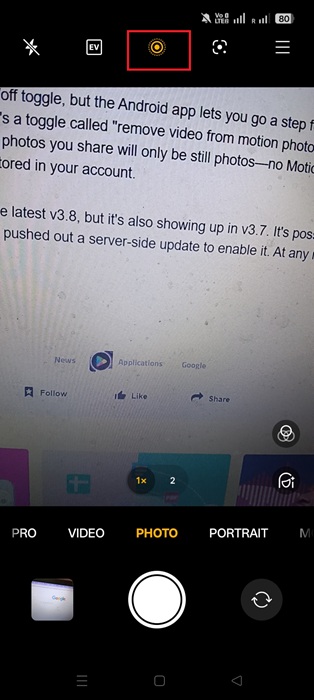
- Samsung Galaxy: on the Camera app, look for a tiny yellow triangle in square option. It says Motion Photo. Tap it once to turn it off.
- Motorola: on a Moto phone Camera app, click the Settings icon on top right. Turn off a menu called Active photos.
After you’ve turned off Motion Photos in your Android camera, the Motion toggle will no longer appear on your photos in Google Photos.
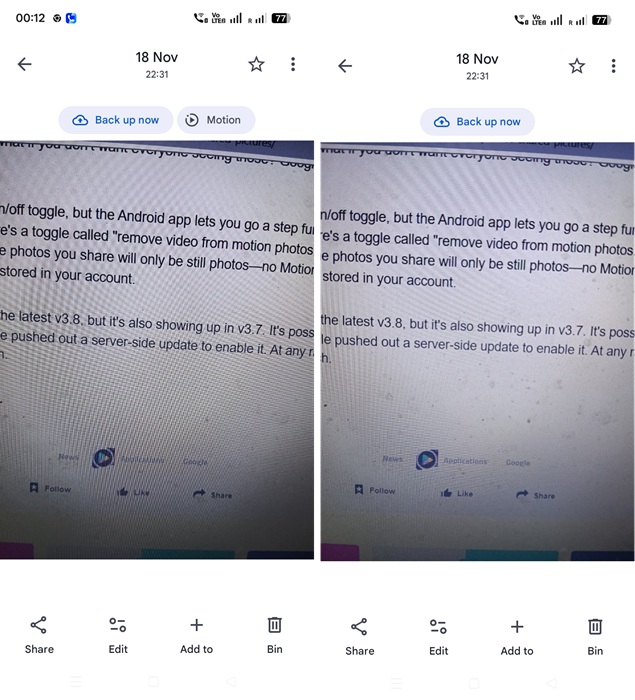
The addition of Motion Photos to Google Photos actually started back in 2017, but if you’re seeing a bunch of new ones piling up and want to clean up your storage, just search for photos from whenever you started using the feature. I had quite a few of them adding up too! You can search for “Motion photos” in the timeline to sort out and remove these bulky images.
To save space for Google Photos on the cloud, you can choose to back up Google Photos to your computer.








