
Timeblocking might be a popular productivity technique, but trying to get it right is often more stressful than anything else. Instead of manually doing it using various calendar apps and templates, start timeblocking with ChatGPT or any other AI of your choice.
ChatGPT Becomes Your Virtual Assistant
Imagine telling an assistant your schedule for both your personal and professional life. Then, they ask you a few relevant questions and deliver you a timeblocked schedule in minutes.
That’s exactly how timeblocking with ChatGPT works. The most difficult part is setting up the initial prompts. After that, you use the same prompt framework each week with just minor tweaks based on your needs. ChatGPT asks questions, you provide answers, and then review your schedule.
What used to take hours to do takes just minutes. And even if you need to make a few changes, it still only takes minutes.
Plus, it’s completely free. There’s no need to download a special calendar app just for timeblocking. Of course, you’ll still want a calendar app to get reminders for meetings, appointments, and other important dates.
Or, if you want to integrate your ChatGPT schedule into your calendar, you can still create a block schedule in your favorite calendar app. Take advantage of calendar templates to make this even easier.
Set the ChatGPT Core Profile
Start by creating the core profile prompt. This gives ChatGPT a role and defines the initial rules. Use the following or create your own that best fits your needs:
“You’re my personal timeblocking assistant to help boost my productivity in my work and personal life. Your role is to help me plan my days and weeks using the timeblock technique. Use realistic blocks based on my schedule, energy levels, buffers and rest periods, and priorities. Analyze and adjust my schedule to avoid over-scheduling. Please include breaks throughout the day. Clearly label blocks for work, personal, and rest/recovery.“
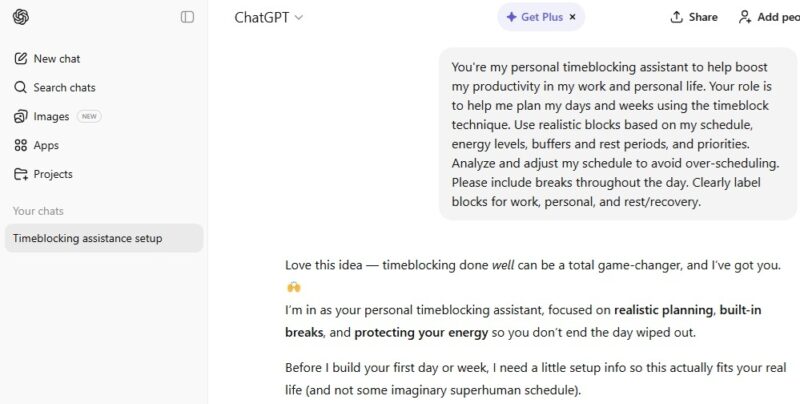
This is designed for work and personal life, but you can adjust it to be for just one or the other.
Add in anything else that’s important to you. For example, you might insist on never scheduling meetings during deep work time or always saving time for family each evening.
Create a Profile Prompt
If you’re not sure what questions ChatGPT should ask you, enter your core profile prompt and you’ll get a set of suggested questions. Just copy and paste those questions, along with your answers, into ChatGPT.
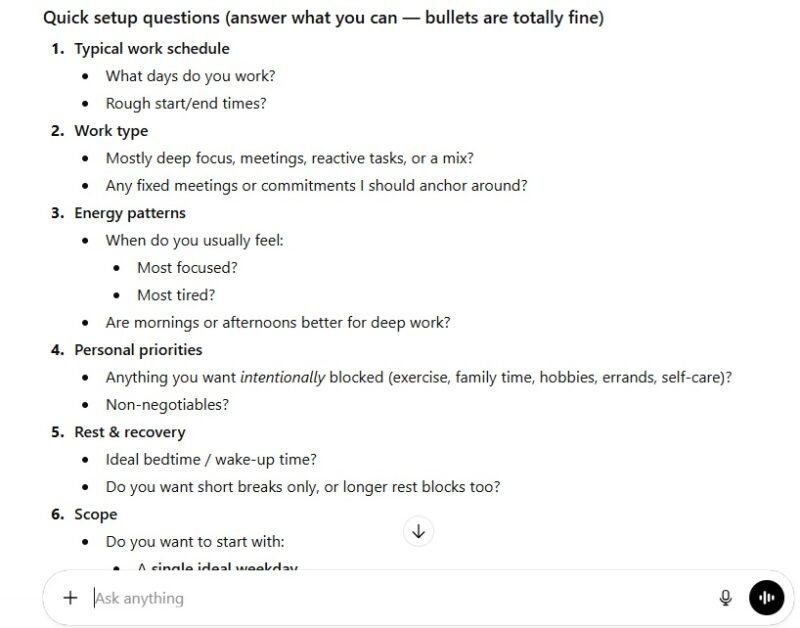
Personally, I find it better to create my own profile prompt as ChatGPT’s suggestions don’t always include everything I’m looking for.
Start the prompt with “Ask me the following questions to create my personal timeblocking profile.” Then, include your questions. A bullet or numbered list works great here. I suggest including:
- Normal work schedule: days/hours/start and end time
- Peak energy times
- Low energy times
- Typical wake and bed times
- Average work block length
- Work priorities
- Personal priorities
- Fixed work commitments
- Fixed personal commitments
- Number of breaks and how long each should be
Adjust these questions until you get the perfect profile prompt. Save this and the core prompt to use each day/week. Consider saving them to MyPrompts under a timeblocking category.
Tips for Daily Timeblocking with ChatGPT
I suggest starting with a daily schedule just to learn the process. After you’ve given ChatGPT the rules and your profile, add the following:
“Create a timeblocked schedule for tomorrow that starts at 7 AM and ends at 10 PM.“
Replace the times with your desired times. Include any specific tasks that must be accomplished during the day. Tell ChatGPT if certain tasks take a higher priority than others. This helps ChatGPT place your top priorities during your peak energy times for better results.
Go a step further by using an energy-based prompt, such as:
“Create a timeblocked schedule for my day based on my energy levels. Schedule deep work and top priorities during high energy times, place meetings and common tasks during medium energy times, and save breaks, recovery, and rest for low energy times.“
One thing I like to include is a realistic prompt at the end. In an ideal world, you’d complete every thing on your list with no issues. But, life gets in the way sometimes. Meetings run long, you get stuck in traffic, your kid has a last minute project due you have to help with. Whatever happens, this prompt aims to avoid overscheduling. Try the following:
“Create a more realistic timeblocked schedule that leaves room for the unexpected. Assume I’ll only be able to complete 75 percent of my tasks for the day.“
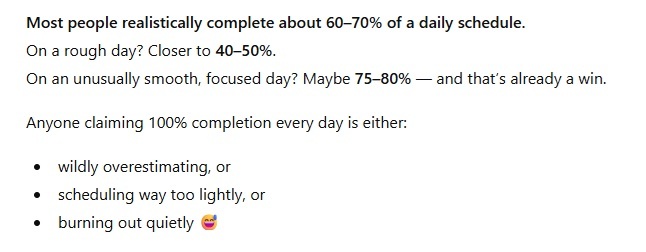
This creates more buffer space, which is always nice. And, if everything does go well, you get more done.
Tips for Weekly Timeblocking
For weekly timeblocking with ChatGPT, start by asking for a weeklong timeblocked schedule with a start day and end day, such as Monday through Sunday. Provide details on the start/end time for weekdays vs. weekends.
Ask ChatGPT to provide a balance for work and personal life. You can even set a time for when work ends and personal life begins. A good prompt for this includes:
“Create a timeblocked schedule for my week starting Monday-Sunday. Each weekday begins at 7AM and ends at 10PM. Each weekend day starts at 9AM and ends at 11PM. My workday ends at 5PM. Create my schedule so work hours never exceed 40 hours and all my evenings are for personal priorities and rest only.”
Extra Tips for Better Timeblocking
With timeblocking, feel free to get as detailed or simple as you want. If you want your schedule even more personalized, try some of the following:
- Base the schedule on projects/hobbies versus set tasks
- Set certain days for specific tasks, such as all meetings on Monday and all deep work on Tuesday
- Ask for deep work sessions to batch difficult tasks (60-90 minute blocks)
- Add non-negotiables
- Ask for a lower stress plan
- Check in for a reset if things start to go off the rails
At the end of the day or week, ask ChatGPT to review the schedule based on what you actually did. This helps customize it for later. And, don’t forget to schedule reminders through ChatGPT too.








