The latest update to Meta’s Threads app brings the option to post disappearing content, a feature already familiar to users of other social platforms. But Threads adds its own flavor to the concept, which may give it an edge in encouraging adoption.
Good to know: you might also want to check how to blur text on Threads to hide spoilers.
How Threads Approaches Disappearing Content
The concept of disappearing content isn’t new to social media. Facebook and Instagram feature Stories: photos and videos that expire after 24 hours and are shown separately from the main feed. Both apps also feature disappearing messages in private conversations, which are texts that self-destruct after a set period. On Instagram, you can go a step further by sending Quicksnaps in DMs, which disappear instantly after being seen.
Then there’s Snapchat, one of the original players in ephemeral content, which enables users to send Snaps that disappear immediately after viewing, and also has 24-hour Stories. TikTok also offers its own take on Stories, though, like with the other apps, these posts don’t show up in the main feed.
Threads, takes a slightly different approach by allowing users to post disappearing content, also known as Ghost posts, directly into their main feed. These posts remain visible for 24 hours, appearing alongside regular posts. Meta says the goal is to encourage users to share unfiltered thoughts more openly right where it matters most: directly in the feed.
How to Create a Ghost Post on Threads
Since this is a newly launched feature (just in time for Halloween, which makes for a nice coincidence), make sure you first update the Threads app to the latest version.
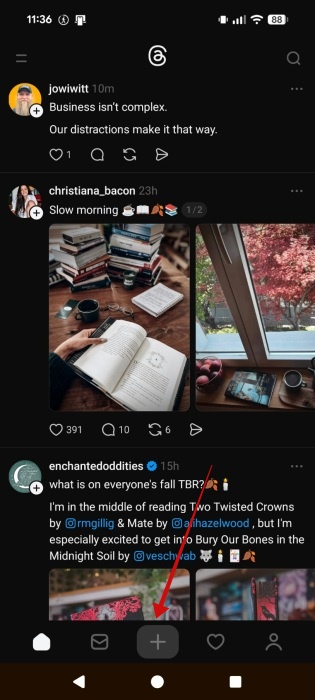
Open the Threads app on your phone and press the + at the bottom to start creating a new post.
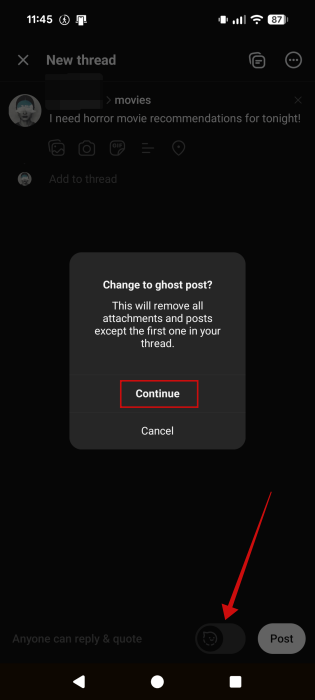
Write your post as you normally would. Now look at the bottom and flip on the grey switch next to the Post button. Press Continue in the pop-up.
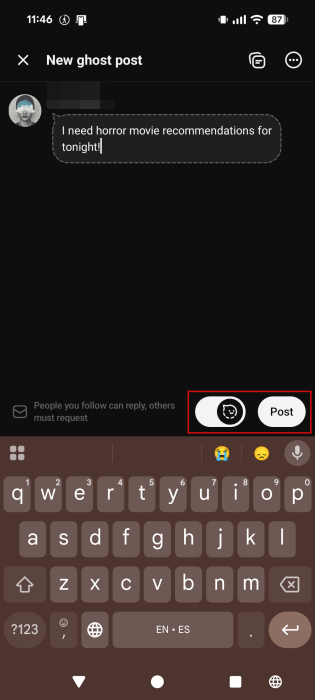
Your new Ghost post is ready. As you can see, it stands out from regular posts by featuring a dotted conversation bubble around it. You can press Post.
It will also show up this way in your feed after you post it, as you can see here:

You can also view all your active Ghost posts, plus the Ghost posts you’ve interacted with, by pressing the menu icon in the upper right corner of your feed. Then switch to Ghost posts from there. You can write up a new one from here as well.
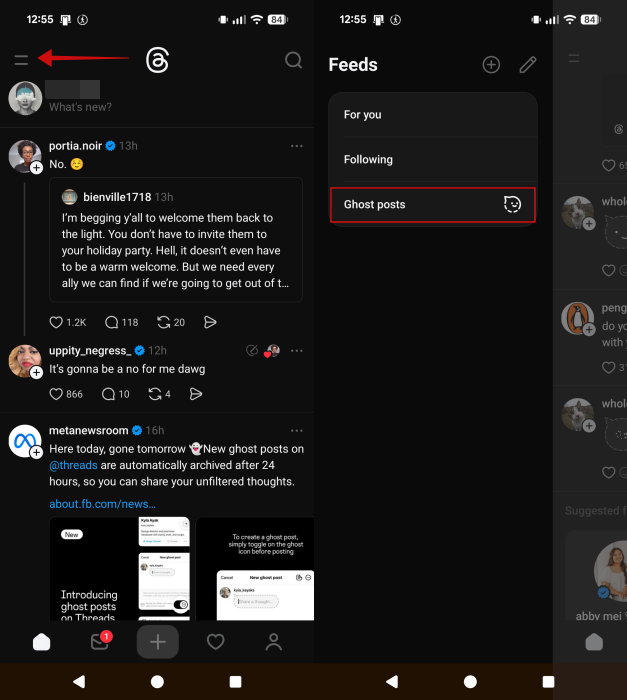
On iPhone, there’s also a ghost post icon in your feed at the top, in the What’s new bar.

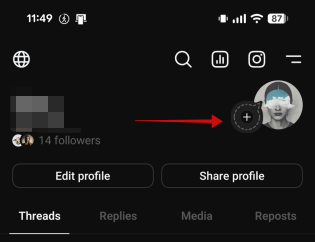
Alternatively, on Android, you can create your first ghost post by going to your profile in the Threads app. Check your profile picture in the upper right corner. It should now have a small + bubble on top of it. Tap it to start creating a new ghost post.
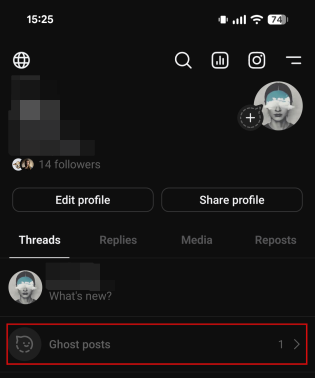
Since you’re on your profile page, also check underneath What’s new bar. Your active Ghost posts will show up on your profile on top of your older posts in the Threads section.
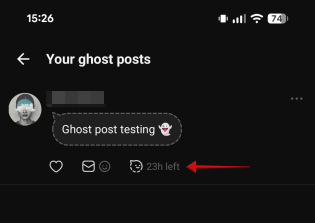
Check underneath an active Ghost post to see how long it has left to stay visible.
Tip: need to see all your comments on Instagram? Here’s how.
Who Can Reply to Ghost Posts
Only people that you follow will be able to reply to your Ghost posts. Otherwise, those who want to interact with your disappearing posts will have to send you a message request first. These will land in your inbox.
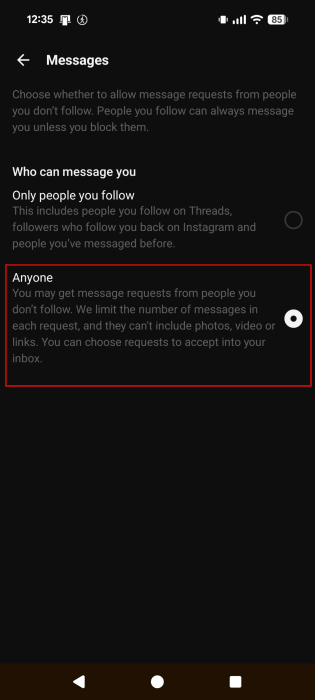
Take into account that if you have turned off message requests in your app’s settings, people you don’t follow won’t be able to comment on your ghost posts. To disable the feature, go to Settings -> Privacy -> Messages and switch to Anyone.
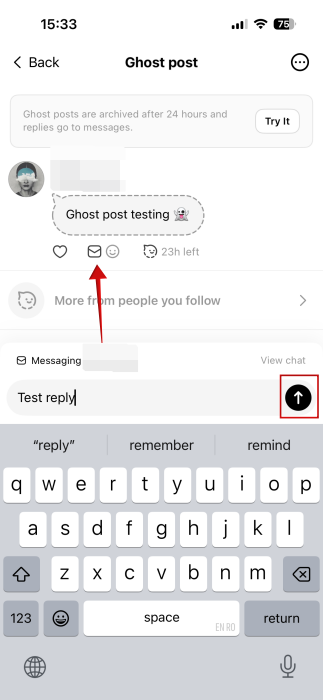
To reply to a Ghost post, tap on the tiny letter-like icon underneath it. Tap your message and press the Send button, as you would with normal messages.
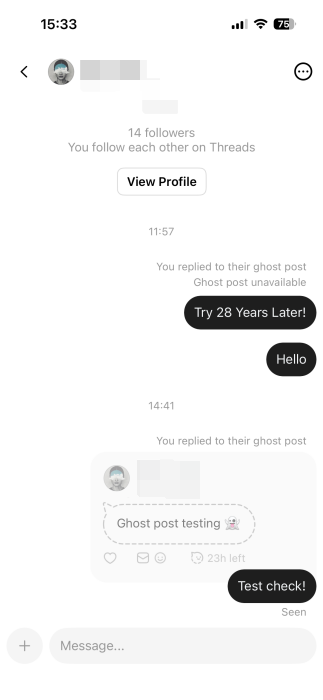
Replies end up in DMs. If you already have an ongoing conversation with the person who reacted to your Ghost post, the replies will just be posted in continuation of the same DM thread.
What Happens to Ghost Posts Once They Expire
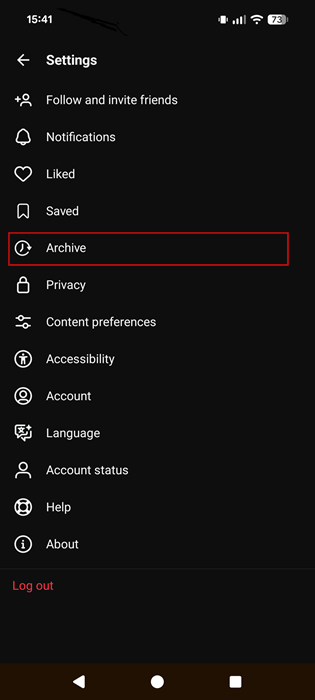
Once the 24-hour period passes, Threads will archive these Ghost posts for you, so you can revisit them at any time.
Go to Settings -> Archive to view your older ghost posts.
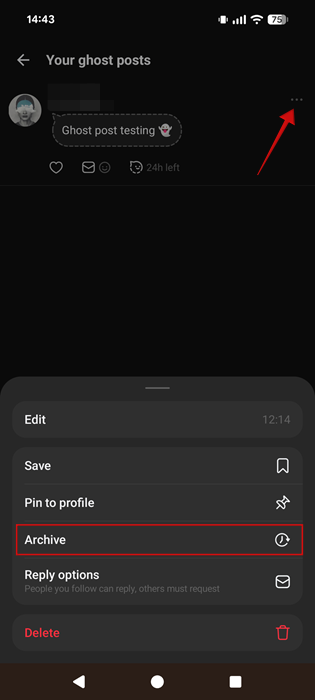
You can also manually archive a Ghost post by going to that post via your profile, tap on the three dots in the upper right corner and press Archive.
Will Threads’ Disappearing Posts Catch On
As a fresh addition to Threads, ghost posts are drawing curiosity, with users eager to test them out, but will the novelty stick?
I do think adding the feature was a smart move. While attempts to bring vanishing content to text-based platforms haven’t always succeeded (take X’s short-lived Fleets, which launched as an alternative to Stories) Threads might have found a more natural fit.
On Threads, Ghost posts appear right in the main feed. This makes them perfect for sharing quick musings on a current topic of interest or a time-sensitive question. All without cluttering your timeline. Unlike X, where users have to rely on third-party tools to bulk-delete old posts, Threads offers a built-in solution for keeping your feed clean.
In case you prefer Instagram to Threads, check out how to reset your Instagram algorithm for a fresh feed.








