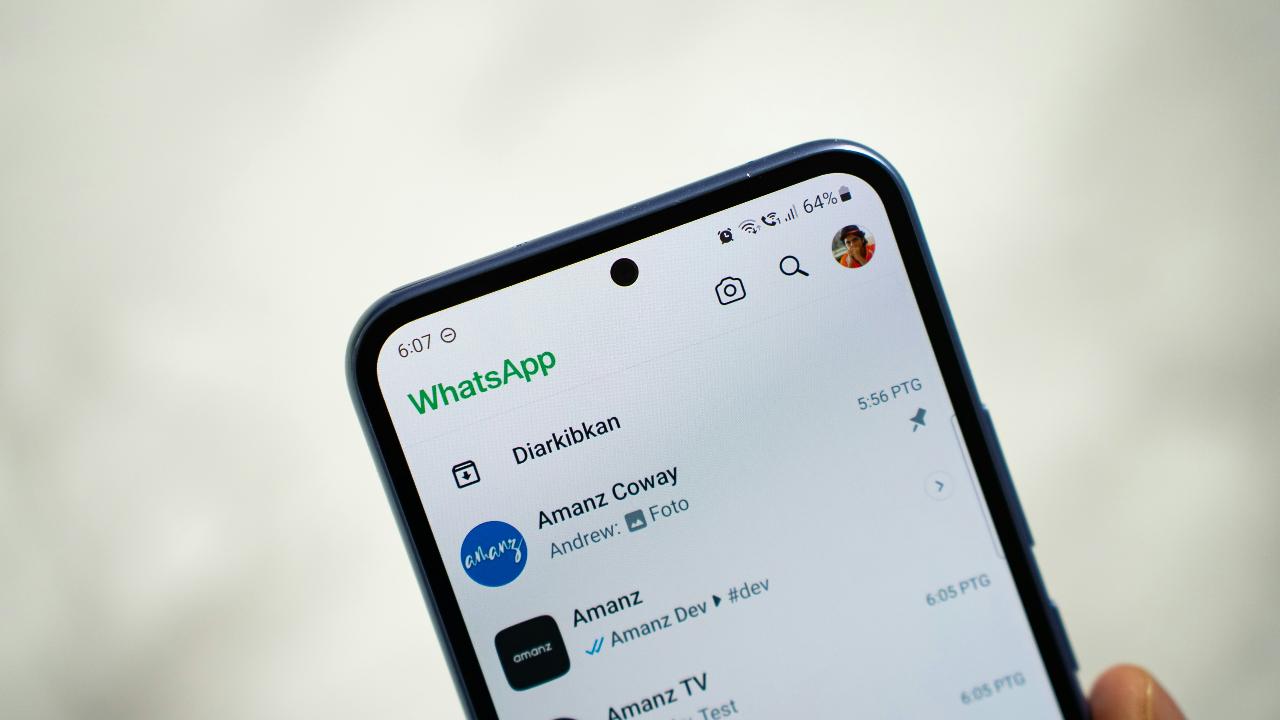
It feels like a bug, but it’s actually an intentional design. WhatsApp’s new Private Status Mentions are designed to be high-priority. Because these alerts travel through a different notification channel than regular chat messages, they intentionally bypass whatever settings you may have put in place. If you’re tired of them interrupting your day, these ways actually stop them.
Why Muting and Archiving Don’t Stop Status Mentions
Most of us use the Archive feature like a basement; we put noisy work conversations or family groups there so we never have to see them unless we go looking. You could also say the same for situations when you mute the said group. However, WhatsApp’s logic has a limitation: if you archive a chat, it silences regular messages, but it does not silence mentions or replies.
When someone tags a group in their Status, WhatsApp treats it as a private interaction between that person and every member of that group. To the app, a mention is an event that requires your attention, regardless of whether you have the group chat muted. This is why you get that annoying notification that “someone mentioned your group privately in a status.”
Tip: If you are dealing with other intrusive features, you may also want to disable Meta AI from your WhatsApp chats to clean up your interface even more.
Why Status Mentions Bypass Your Mute Settings
The main reason why muting your group does not work is that these notifications aren’t coming from the group chat itself. They are coming from the Updates tab. WhatsApp separates its notifications into different channels: one for direct messages, one for group chats, and one for Status updates.
When you mute a group chat, you are only silencing the group chat channel. Because a Status mention is technically a Status notification, it completely bypasses whatever settings you have. Now, to stop the notifications from coming in, you have to target the Status feature directly.
Mute the Person, Not the Group
The most effective way to stop these notifications is to address the source. If one particular person in your group is guilty of always mentioning your group, you can silence their Status updates. Doing this won’t affect your communication with them via texts and calls.
Simply open WhatsApp and go to the Updates tab. Then, find the Status update of the person who keeps tagging the group.
Long-press on their name and tap Hide.

Once you mute a contact’s status, it moves their updates to the Muted Updates section at the bottom of your list. You will still receive their texts, but their status mentions won’t bother you anymore.
Disable Status Notifications In-App
If you want to stop everyone in your group from tagging you and bringing that notification to your screen, you need to deal with your notification settings in WhatsApp itself.
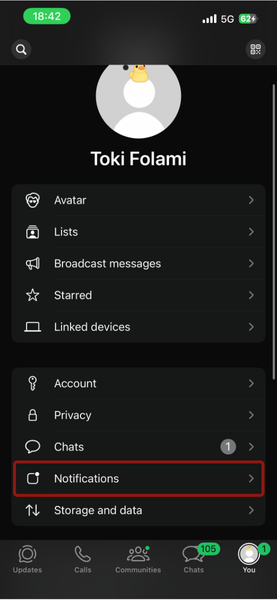
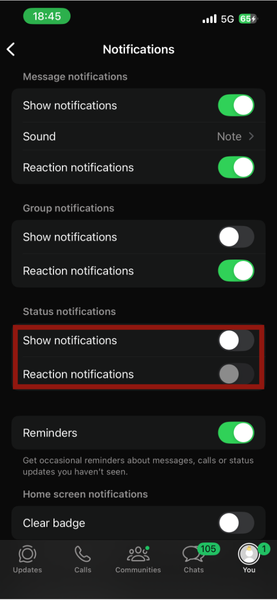
Go to You -> Notifications. Scroll down to the Status section.
Toggle off Show notifications. Also, to reduce the likelihood of seeing this notification, make sure you toggle off Reaction notifications.
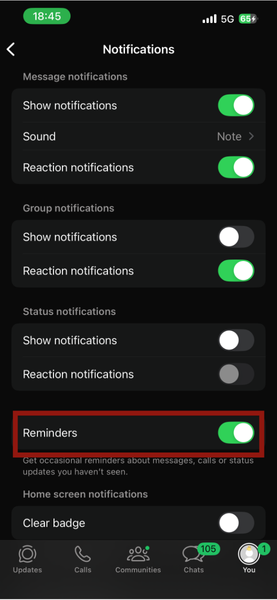
If your WhatsApp version has it, toggle off Reminders.
Because Status mentions are under these other channels, turning them off is like permanently blocking those kinds of notifications. This level of customization is as helpful as learning how to add music clips to your WhatsApp status to make your status stand out.
What You Lose for Silence
Before you disable these settings, you should be aware of the price of silence.
Turning off status notifications means you won’t know when someone tags you. If a friend tags you in a cute video or picture, you won’t get a notification. However, I observed that you get a text-like notice when you open WhatsApp. Your phone won’t alert you, but you will see that you were mentioned in-text, unless you archived the chat. If you still want to see these Status mentions, and you know the specific people who mention your group, hide their status instead of disabling Status notifications.
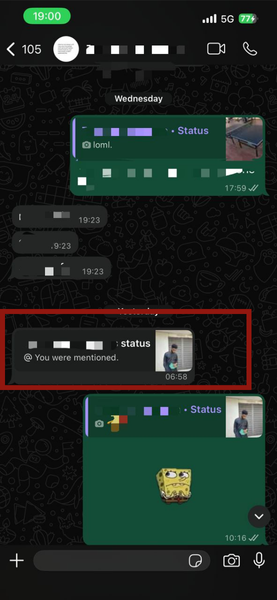
Another thing is, you lose Reaction alerts. You won’t know when someone likes or reacts to your own Status.
Finally, when someone is mentioned in a status, they have the option to Reshare that status to their own audience. If you’ve silenced mentions, you will never realize your content has been shared and viewed by people outside your contact list or circle.
Disable WhatsApp Notifications
The ultimate fix is to take control and completely disable your notifications from WhatsApp. This is the only foolproof way to stop WhatsApp from overriding your preferences.
On iOS, go to Settings -> Notifications -> WhatsApp and toggle off Allow Notifications.
On Android, long-press the WhatsApp icon -> tap the “i” (App Info) icon. Tap Notifications -> Allow Notifications. Toggle this Off.
The catch is that this is extreme. You will no longer receive notifications for anything, no calls, no messages, and no mentions. You will only see your messages when you manually open the app. However, if the mentions are constant, this is the only way to ensure total silence.
Archiving is no longer the silent feature it used to be, so taking control of your notifications is essential for a clutter-free experience. Once you’ve silenced the noise, you can focus on the more functional side of the app by learning how to use WhatsApp’s new in-app translation feature to make your texting borderless.








