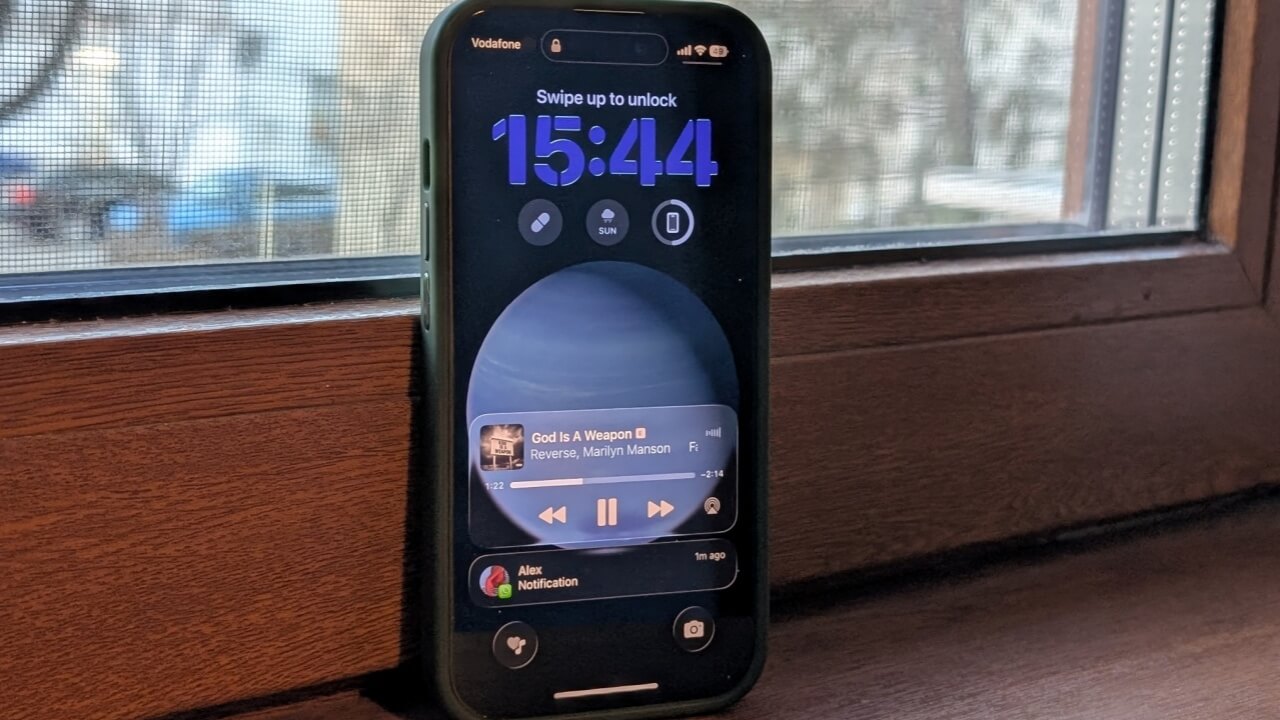
When listening to music on your iPhone, incoming notifications usually cause the volume to dip temporarily to get your attention. While this can be helpful, it can quickly become frustrating if, for instance, you’re playing music for guests at a get-together or trying to stay focused while working. Thankfully, there are a few ways to prevent your iPhone from lowering the volume when notifications arrive, and we’ll explore them in this guide.
Good to know: check this trick if you want to lower your iPhone’s brightness beyond the allowed limit.
1. Silence the Annoying Apps
While the easiest fix to this issue is enabling Silent mode, which you can do on your iPhone by using the physical Ring/Silent switch or pressing and holding the Action button (on newer models), this might not work well in all scenarios. If, for instance, you’re waiting for a call or for food to be delivered, you still might want some alerts to go through.
I find social media apps like Snapchat particularly irritating because, if left unchecked, they can easily flood you with notifications. And if you’re listening to music, they can break your mood or flow.
The solution is to turn off notifications for the apps you know usually send a lot of unnecessary alerts your way.
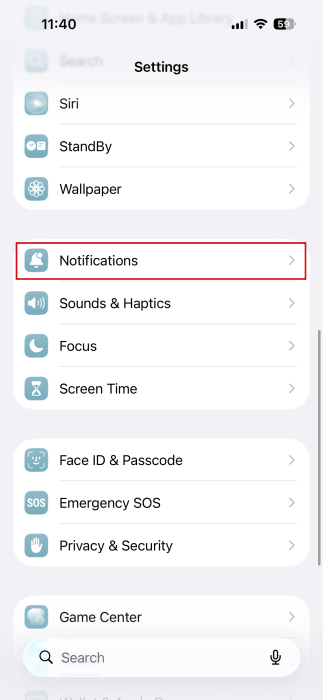
Open the Settings app on your iPhone and navigate to Notifications. Go through the apps in the list and tap on one.
Disable the Sounds toggle. Then continue to the next app and so on.
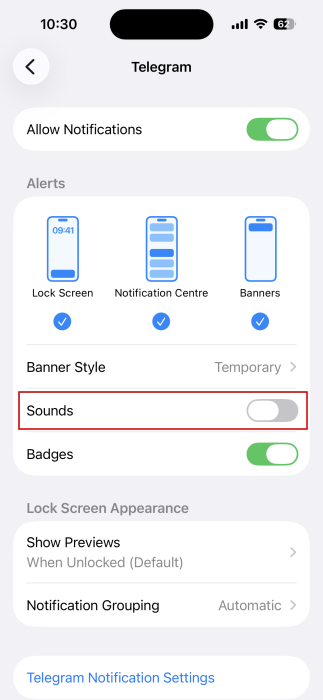
The notifications will still show up on your screen (according to your preferences), but you won’t hear them anymore.
Tip: check how to animate text and emoji in the Messages app on iPhone.
2. Keep an Active Chat Open While Playing Music
If you’re actively chatting with someone while also listening to music and don’t want it to interfere with your experience, you can keep your chat window open while the music is playing.
It can be any messaging app. Whether you use Messages or WhatsApp, with the app open, you won’t hear the alert when you receive a new message. You will, however, have to check your phone from time to time, so it’s a good idea to increase your phone display’s autolock time if you’re going to opt for this solution.
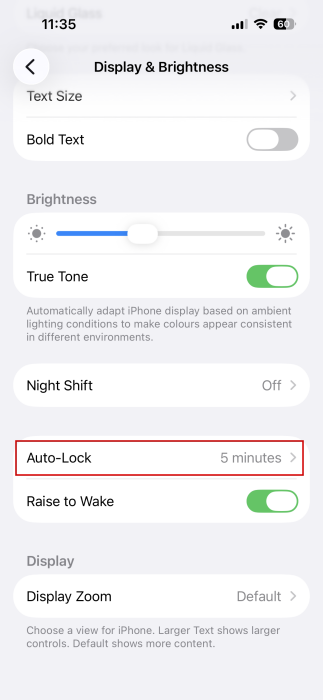
Go to Settings -> Display & Brightness.
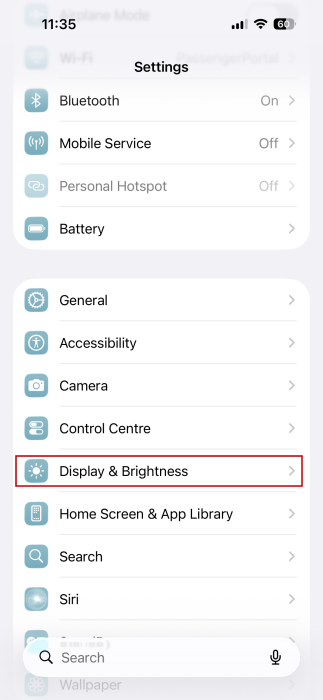
Towards the bottom, tap on Auto-Lock and increase the time to 5 or 10 minutes.
3. Switch to a Custom Focus Mode
Alternatively, you can create a custom Focus Mode, where you can opt to silence specific sounds and notifications.
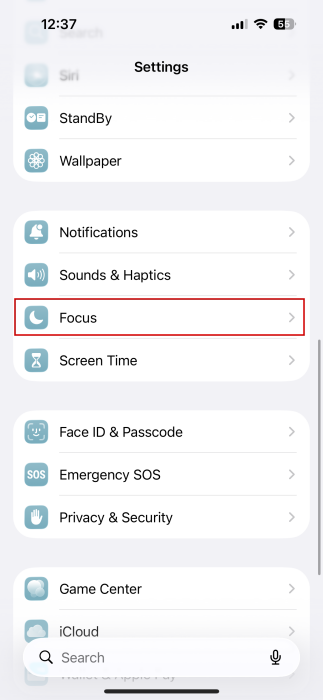
Navigate to Settings -> Focus.
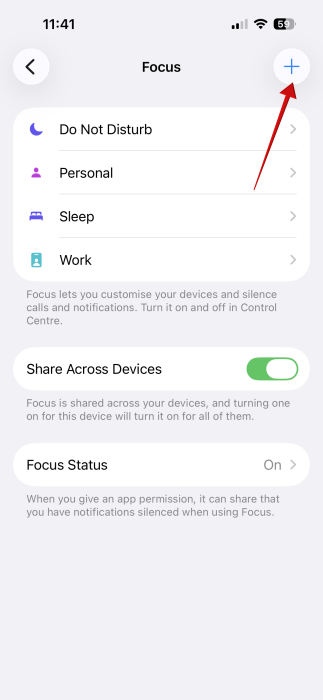
Tap on the + button in the upper-right corner.
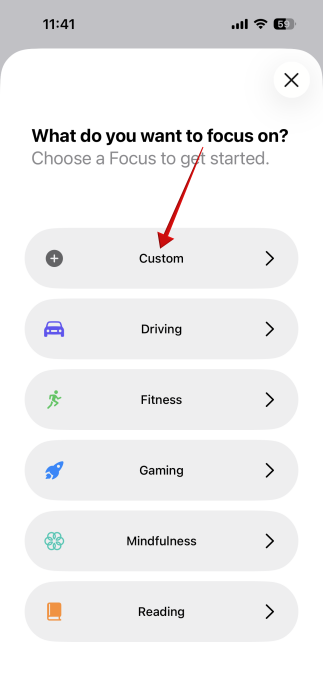
Select the Custom option.
On the next screen, name and select a color/icon for your new Focus mode. Press Next.
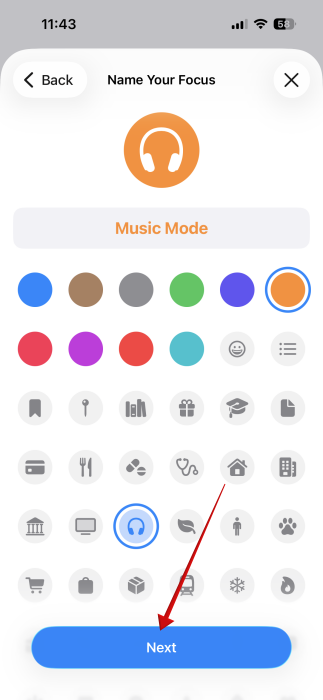
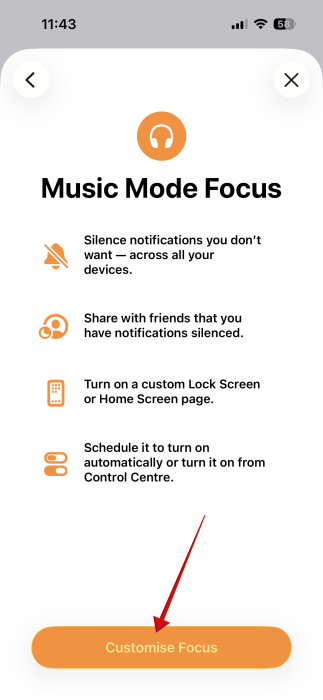
Tap Customise Focus.
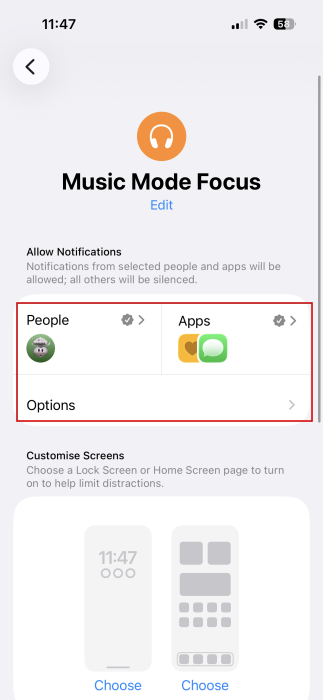
Next up, you can select which People and Apps you want to receive notifications from when the Focus mode is active.
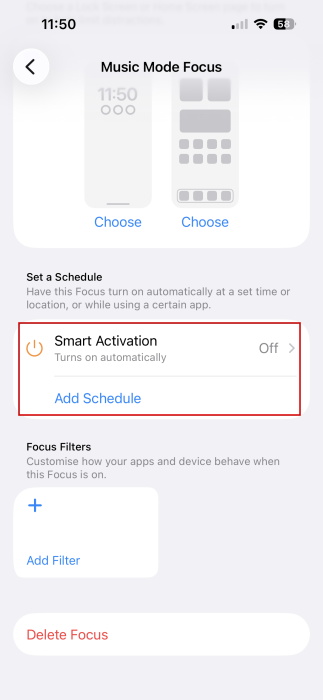
On the other hand, if you tend to listen to music while you’re working, you can also add a schedule, so that this Focus mode can automatically go into effect at exact hours. You won’t have to worry about manually turning it on.
Or, if you prefer to be in control, bring up the Control Center from the top. Tap on the Focus mode toggle.
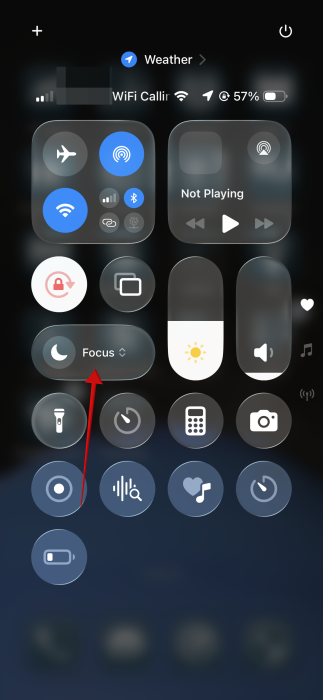
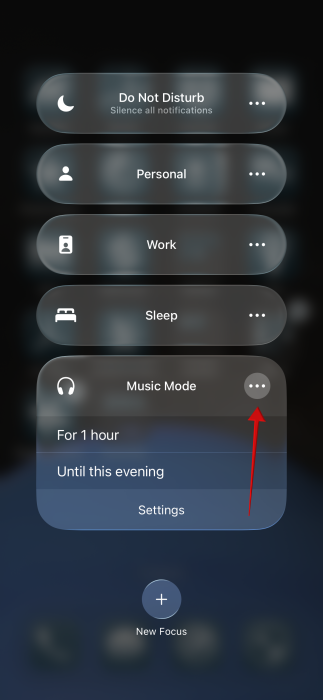
Now select the one you’ve just created. If you press on the three dots next to the Focus mode, you will be able to set it for one hour or until evening. That’s it, you can now enjoy uninterrupted music.
Tip: working on a Windows PC? Here’s how to activate Focus mode on your device.
4. Preventing Notifications from Lowering Volume in Your Car
If you’re driving and want to listen to music uninterrupted, you have a few options. For instance, you can opt out of receiving notifications from texting apps.
Go to Settings -> Notifications. Select an app such as Messages or WhatsApp.
Turn off the toggle to Show in CarPlay. Speaking of which, you should also check how to stop music from auto-playing on Apple CarPlay.
Alternatively, you can switch to Driving under Focus, and this will silence all notifications and other alerts while you’re driving, which might be the safer option.
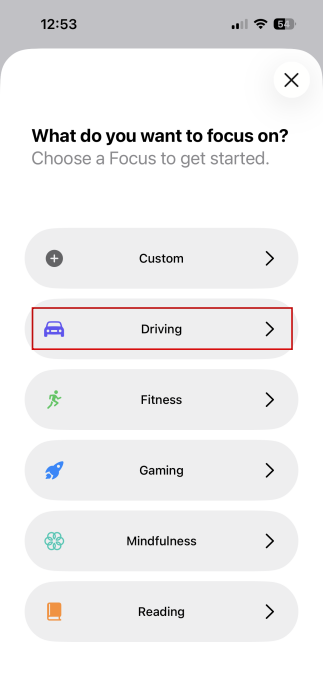
Note that you might have to add this mode manually by pressing the + button under Focus. Select Driving from the list.
Next up, learn what to do if your iPhone automatically adjusts your sound level in an attempt to protect your hearing, so you can continue listening to music the way you like it.








