A touchpad that jumps at the slightest brush or misregisters clicks and gestures is incredibly frustrating. Fortunately, this is often not a hardware issue and can be fixed with a few simple tweaks. This guide shows you several ways to stop erratic cursor movements on your laptop.
Clean the Touchpad
A dirty touchpad is often the reason the cursor is jumping around, especially when it happens in specific areas on the touchpad. Oils, dust, skin flakes, and sweat can change the pad’s conductivity and friction, which can confuse the capacitive sensors. If the touchpad has space in the corners, then lodged grit and crumbs can also cause problems.
You should clean the laptop to ensure that this isn’t the cause. There’s no need for anything fancy: just grab a microfiber or lint-free cloth and 70% to 90% isopropyl alcohol. If the touchpad has spaces in the corners, then a soft brush or compressed air can would be needed.
First, power down and remove the battery (if possible), then dry-wipe the surface, lightly moisten the cloth with isopropyl alcohol, and wipe the touchpad again. Use the brush or compressed air can to dislodge dirt in the corners. Wait a few minutes to let it dry, then turn on the laptop to confirm whether it fixes the problem.
If this fixes the problem, perform regular laptop maintenance to avoid this issue in the future.
Manage Touchpad Drivers
This issue can also be caused by faulty drivers. However, simply updating the drivers isn’t always the answer. You’ll have to try different approaches to ensure that it’s not the cause.
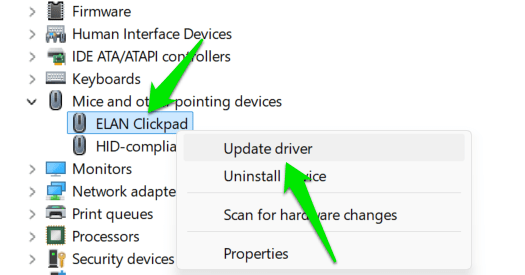
First, it’s best to switch back to basic drivers provided by Microsoft. They may lack in features, but they are stable. Open Device Manager, right-click on your touchpad drivers under the Mice and other pointing devices section, and select Update driver.
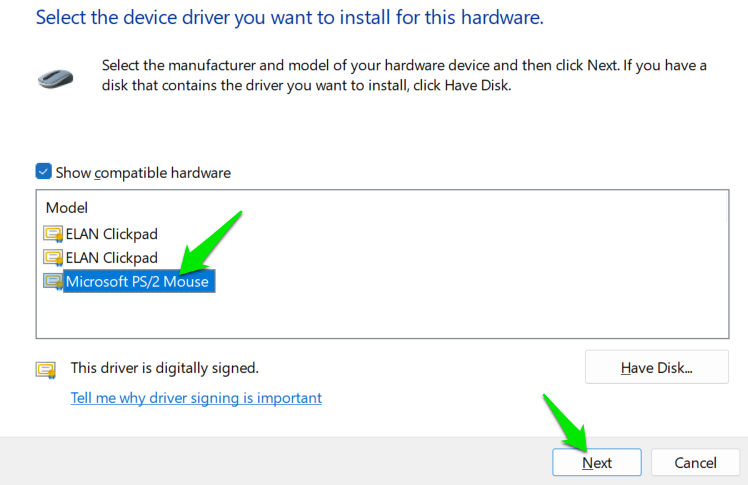
Select Browse my computer for drivers → Let me pick from a list of available drivers on my computer. Choose the driver from Microsoft, and click on Next to install it. If this fixes the problem, it’s probably due to a driver upgrade, and you should roll back to older drivers.
If your laptop is using Microsoft or any other generic drivers, it’s best to get the official OEM driver of your touchpad – like Elan or Synaptics. You can search online for your laptop model to see which company’s touchpad it uses, then download the touchpad driver from the laptop manufacturer. For example, if it’s an Elan touchpad on your HP laptop, search for “Elan drivers for HP laptop.”
Get Rid of Interferences
There is also a possibility that a program or device is interfering with the touchpad, causing the cursor to jump around. The easiest way to confirm is to disconnect all physical devices and boot into Safe Mode. Since Safe Mode boots the PC with minimal drivers and no third-party apps, it eliminates most causes of interference.
If the touchpad works fine in Safe Mode, then an app or device is probably interfering with the touchpad. Boot Windows normally, and try to close/uninstall recently added programs, especially remote-control, virtualization, and input-monitoring apps. You can also restore the PC to a state when the touchpad was working fine.
Adjust Touchpad Sensitivity
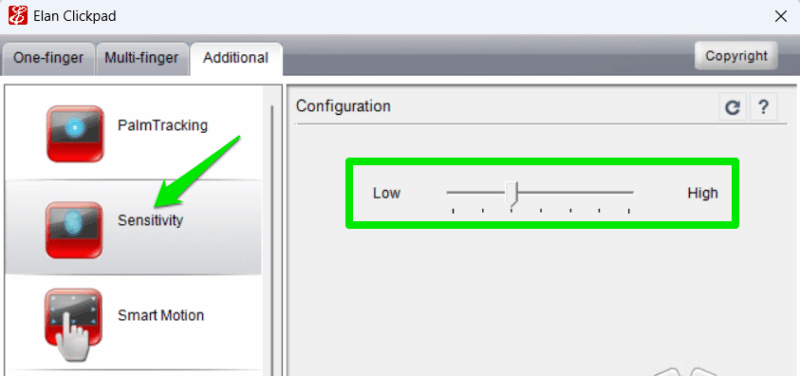
If your touchpad sensitivity is too high, it can start registering very light/brief touches that may interfere while using it. Furthermore, this feature can get worse on old laptops, where such light touches may be simulated by minor hardware issues. You can decrease touchpad sensitivity to see if it solves the problem.
The sensitivity adjustment settings are usually found inside the touchpad OEM software, so make sure you first get your laptop touchpad OEM drivers, as shown earlier. Look for the touch sensitivity option in the touchpad settings and decrease it until you stop facing the issue.
Disable Multi-Finger Gestures
While gestures are great for productivity, gesture misinterpretation can also cause unexpected actions or a jumping cursor. You can try disabling multi-finger gestures to see whether a gesture is causing the issue. Open the touchpad software again, and move to the gestures settings. You’ll see a list of gestures, and each one should have an option to enable/disable it. Disable all one by one to see whether it fixes the problem.
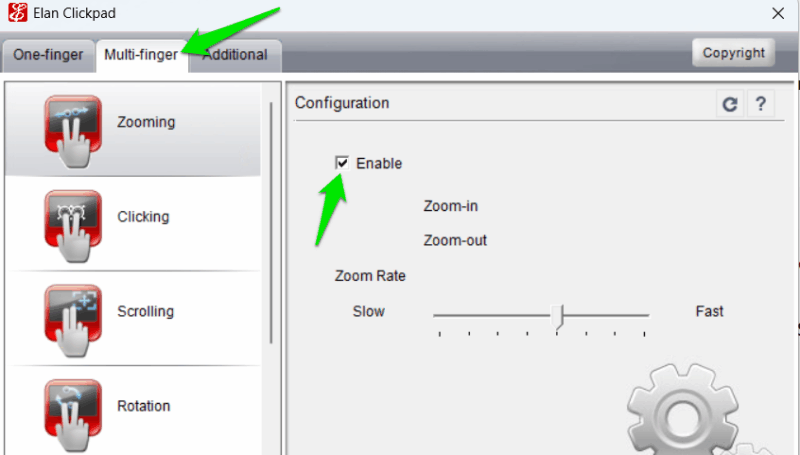
If it fixes the problem, turn back each gesture one by one to see which one is causing the issue to keep it disabled.
In case these changes don’t fix the problem, then it’s probably a hardware issue, and you’ll have to get it checked by a technician or use a mouse instead. If your touchpad has completely stopped working, try these methods to get it working again.