Having a pop-up that says “Enjoying this app? Tap to rate us!” while using an app can be distracting and annoying. Thankfully, Apple gives a system-wide way to disable these pop-ups permanently, so you’re free from sudden pop-up rating requests.
Why Apps Ask for Ratings and Reviews
App ratings and reviews are to help developers collect feedback from active end users. However, they can feel intrusive for an end user who is caught up in a task.
Aside from collecting information, they’re also a part of the App Store’s optimization. This optimization is necessary, as App Store reviews play a major role in how apps rank, how often they appear in recommendations, and whether new users decide to download them.
How to Disable Ratings and Review Prompts
Turning off in-app ratings on an iPhone is straightforward. To do that, open Settings on your iPhone, scroll down and tap Apps ->App Store, then find the In-App Ratings & Reviews option and turn the toggle OFF.
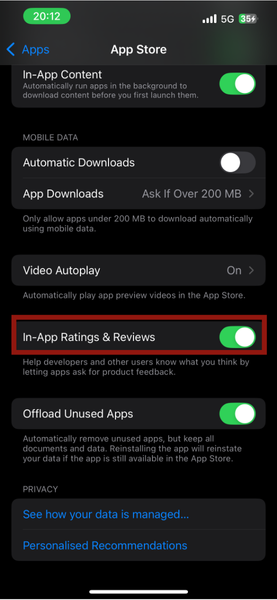
When you switch it off, iOS prevents apps from showing the default Apple rating prompt. The setting applies to all apps on your device and stays in effect until you turn it back on.
This is the only official, guaranteed method Apple provides to block rating pop-ups across the entire system. You don’t need to adjust the settings per app. Once you toggle it off, the interruptions stop.
When Apps May Still Ask for Feedback
Turning off in-app ratings using settings applies to every app that follows Apple’s official API. Unfortunately, in these few instances, an app may still show prompts:
- Apps Using Custom Feedback Screens: Developers are still allowed to build their own custom feedback screens inside the app. These custom screens don’t open the App Store directly, as they usually lead to an internal feedback form or a support email. Because of this, iOS cannot block them, as they’re part of the app’s interface, not Apple’s rating system.
- Surveys or User Experience Messages: A few apps occasionally show optional surveys for troubleshooting or user insight. These are not considered rating requests, so the system toggle doesn’t affect them.
- Older or Non-Updated Apps: Apps that haven’t been updated for a long time may use outdated review systems. These aren’t common anymore, but they might still appear, so keep that in mind.
Tip: While you can’t block these manually, they tend to be rare. If a specific app is persistent, you can limit the rate at which it sends you these prompts by sending feedback to the developer in the App Store or by disabling its notifications, as you’ll see below.
Tips to Manage App Notifications and Alerts
Turning off app ratings is to reduce distractions and interruptions, so if you’re trying to reduce interruptions overall, iOS offers several ways to keep your apps quiet.
Turn Off App Notifications
To do this, go to Settings ->Notifications. Select the app, and toggle Allow Notifications off. This removes banners, badges, and lock-screen alerts.
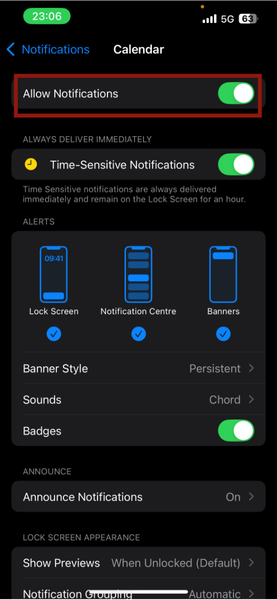
Note: When you turn off notifications for an app, you won’t receive any alerts from it. It’s best to use this for apps where missing updates aren’t a problem, like calculators, casual games, or other non-essential apps.
Use Focus Modes
Focus modes are a way to silence your apps for a time. If you want a moment of deep focus without distractions, you might find these better suited to your needs than turning off your app notifications entirely.
iPhones already come with preset focus modes like Work or Do Not Disturb, which you can quickly access from your control center.
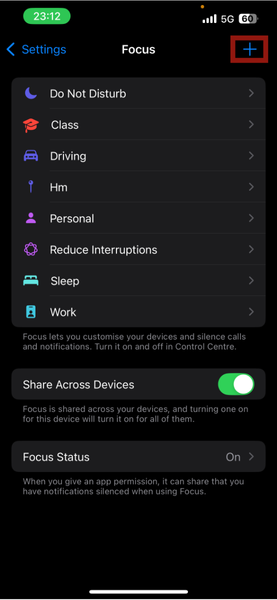
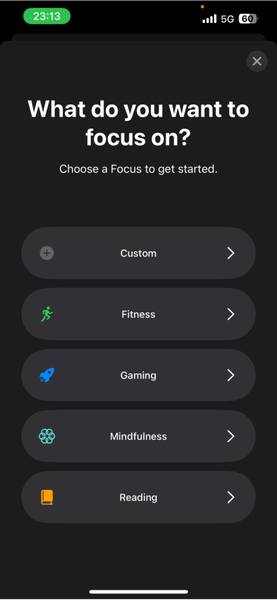
If you want to customize a focus mode based on specific needs, go to Settings -> Focus. Here, you can edit pre-existing focus modes or click on the + at the top right of the screen to customize a mode from scratch.
Should You Disable Rating Requests?
If you prefer a seamless, distraction-free iPhone experience, disabling rating pop-ups is a good idea. However, if you rely on niche or smaller apps, your reviews help developers improve their products.
Even then, you can still support your favorite apps without the pop-ups. You can contribute a rating manually by going to the App Store, finding the app, and scrolling down to the Ratings & Reviews section.
Disabling rating requests on your iPhone helps reduce distractions, but if you’d rather silence notifications, learning to do that would be beneficial. You can also learn how to change your default iPhone apps so your phone is more personalized and works the way you want.








