If you notice the Google Chrome folder has suddenly grown by several gigabytes, there is no need to panic. This storage spike is caused by the browser automatically download a large “weights.bin” file for Gemini Nano on-device AI. This guide explains how this file impacts your browser and how you can stop Chrome from downloading it.
Why Chrome is Downloading Gemini Nano
Google has introduced a bunch of on-device AI features in Chrome, like Help Me Write, AI History Search, Tab Organizer, etc. These features don’t use the regular Google Gemini API; instead, they work offline by using the lightweight on-device Gemini Nano model. This allows Chrome to keep your data offline when you use these features and ensure results are instantaneous as queries don’t need a round-trip to servers.
If you use any of these AI features, Chrome will automatically trigger the “weights.bin” file download in the background that will make Gemini Nano available for offline use. The file is anywhere between 1.5GB and 4GB in size, depending on your PC specs. You can find the file by pasting the following location in File Explorer’s address bar in Windows:
%LOCALAPPDATA%\Google\Chrome\User Data\OptGuideOnDeviceModelWhile Gemini Nano is necessary for Chrome’s AI features to work, the possible 4GB download for a browser is quite big, especially if you already have low storage in the system drive.
Delete the weights.bin File
If you don’t need Chrome’s AI features or you have already disabled AI bloat, you might be wondering if you can safely delete the weights.bin file or not. While technically you can delete the file, and it will free up space temporarily, this isn’t a permanent solution. Chrome has a Component Updater background service that is supposed to ensure internal modules are present and up to date. It will just download the file again when you restart Chrome or interact with an AI feature.
Even if you remove the file contents and make it read-only, Chrome will still restore it in the next update when the file’s data is updated. Your best bet is to prevent Chrome from downloading the weights.bin file in the first place.
To disable Gemini Nano dependency in Chrome, there are two ways: you can either disable the associated Chrome flags or apply an enterprise policy via Windows Registry to prevent the weights.bin download. Here’s how:
Stop Chrome from Downloading Gemini Nano Using Chrome Flags
The easiest method to stop the Gemini Nano download is to disable the dedicated Chrome flags. The problem with this method is that Chrome flags change and reset all the time, so there is a chance this will stop working in the future. However, to quickly stop Gemini Nano downloads for now, this method works fine.
Type chrome://flags in the Chrome address bar and press Enter. Here, search for “optimization guide on device” and select Disabled next to the Enables optimization guide on device flag.
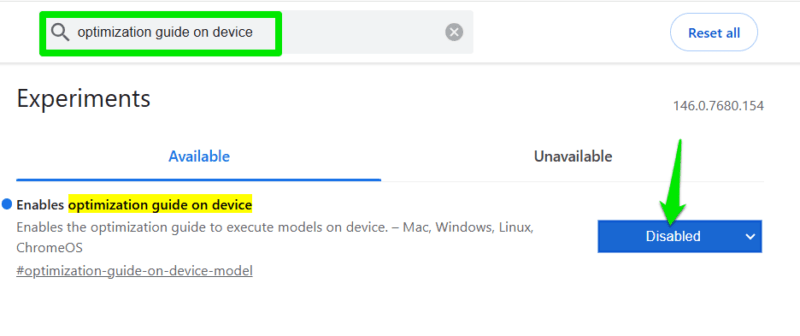
Afterward, search for “prompt API for gemini nano” and disable Prompt API for Gemini Nano as well. Relaunch Chrome for changes to take effect.
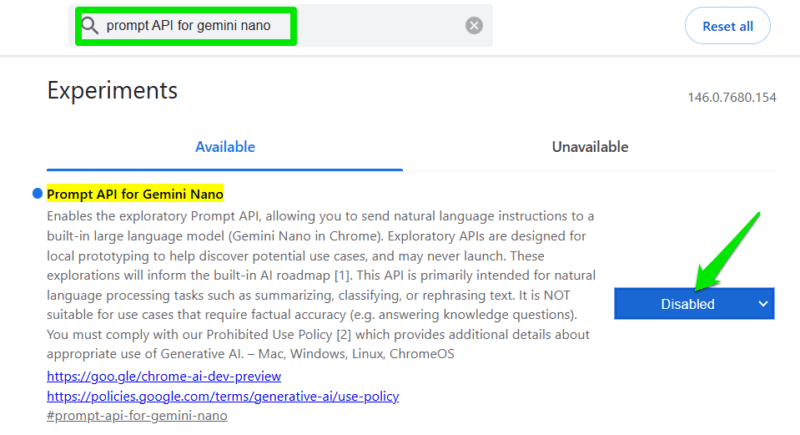
This will stop Gemini Nano downloads, but you’ll still have to delete the weights.bin file in “%LOCALAPPDATA%\Google\Chrome\User Data\OptGuideOnDeviceModel” to free up the space.
Use Windows Registry Hack to Stop Chrome from Downloading Gemini Nano
There is an enterprise-level policy that can force Chrome to never download Gemini Nano. Chrome is forced to respect enterprise policies, so it won’t use its own logic/updates to circumvent this change, making it permanent. You can enforce this policy via the Windows Registry.
Warning: make sure you back up the Registry before making the following changes, as any incorrect change in the Registry can lead to system corruption and data loss.
Open the Windows Registry and move to the following location:
HKEY_LOCAL_MACHINE\SOFTWARE\PoliciesRight-click the Policies folder and select New → Key. Name this key Google. Repeat the same steps to create another folder under the new Google folder and name it Chrome.
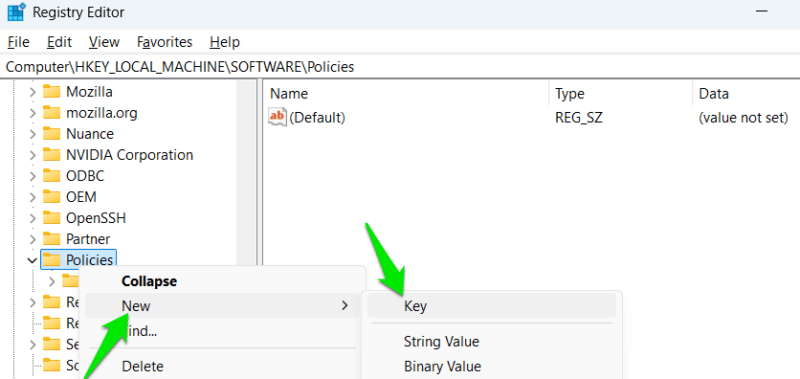
Now, while the Chrome folder is selected, right-click in the right panel and select New → DWORD (32-bit) Value and name it GenAILocalFoundationalModelSettings. Afterward, double-click on it and set its value to 1.
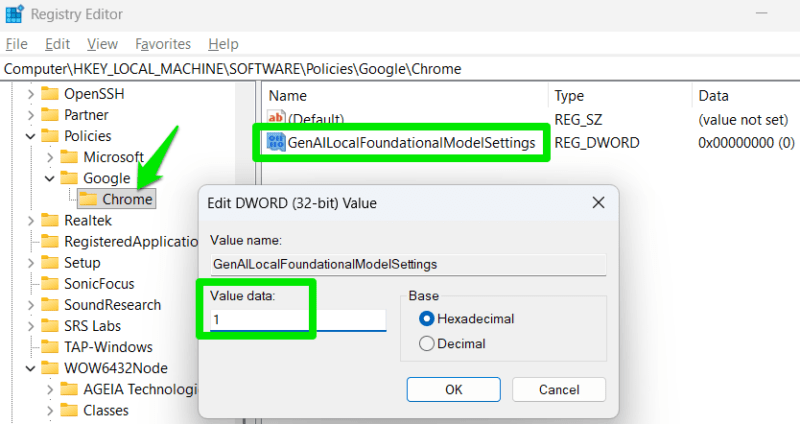
You’ll have to restart Windows for the changes to take effect, and delete the weights.bin file to reclaim the space.
After preventing Gemini Nano from downloading, only the AI features that depend on it will stop working. The features that use the cloud version will still work fine, like AI Mode or Gemini in the side panel. If you are doing this for performance, there are better ways to speed up Chrome.