The latest Steam update is bringing some much anticipated monitoring features. But, the trade-off is Steam now wants access to the Windows Kernel. Before you blindly give access, make sure you know the risks.
What Does Kernel-Level Access Mean?
If you see the word “kernel” and think popcorn instead of a core part of your operating system, you’re not alone. When many users see an app or software needs kernel-level access, they don’t think anything of it. Yet, in tech terms, a kernel is a core component of the operating system.
Usually, apps run in a more restricted mode that prevent them from making any dangerous changes to the core of your operating system.
Most often, you hear about malware and rootkits gaining kernel-level access to control every aspect about your computer. When you give an app this level of access, you’re giving it control over your system resources, including memory, CPU, hardware, and more.
This doesn’t mean every app that requests kernel-level access is evil. Many apps that give you advanced administrative capabilities or some system monitoring tools require access to the kernel to function properly.
However, if any of these apps are hacked or compromised, your kernel and entire operating system is also compromised.
Windows Defender offers a feature called Core Isolation to help protect your PC from many types of kernel-based attacks.
Why Does the Steam Update Need Kernel Access?
The latest version of the Steam client offers the option to monitor the CPU temperature. The update also includes other features, such as new controller inputs, many improvements to the user interface, and improved performance monitoring.
The only feature that the Steam update needs the Windows kernel for is CPU temperature tracking. And, it’s completely optional. Of course, the default setting has the feature turned on.
It’s important to note Steam only accesses the Windows kernel when the CPU temperature is being actively monitored. When you’re not playing or if you don’t have that overlay on, Steam doesn’t access the kernel. The update doesn’t give Steam full kernel-level access to your PC 24/7.
If you don’t trust Steam with the Windows kernel, disable the feature. Or, only enable it on specific games where you feel CPU temperature tracking is beneficial.
Steam isn’t a malicious app, but it’s worth weighing whether this one metric is worth risking the kernel.
Disable CPU Temperature in Steam
If you never display any details about your CPU in Steam, this new kernel-level setting doesn’t affect you. However, it’s turned on by default if you have CPU monitoring enabled.
Open the Steam client, click the Steam menu, and select Settings. Open In Game in the left sidebar.
Under Overlay Performance Monitor, toggle off Enable kernel driver based metrics (CPU temperature). If you don’t see this setting, ensure you have Show performance monitor turned on and have one of the CPU options selected beside Performance level detail.
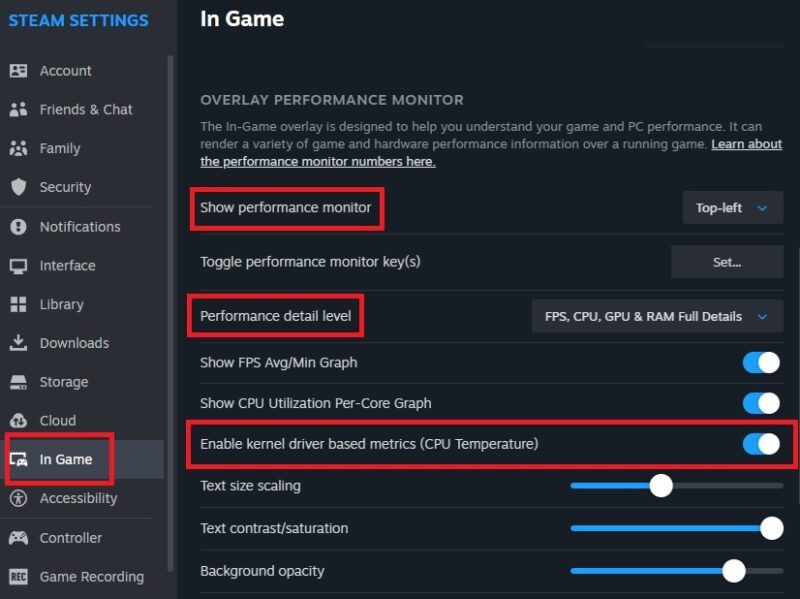
This disables the setting globally. It doesn’t affect any other performance monitoring metrics, just the CPU temperature tracking that requires the kernel-level access in Windows.
Disable CPU Temperature Tracking Per Game
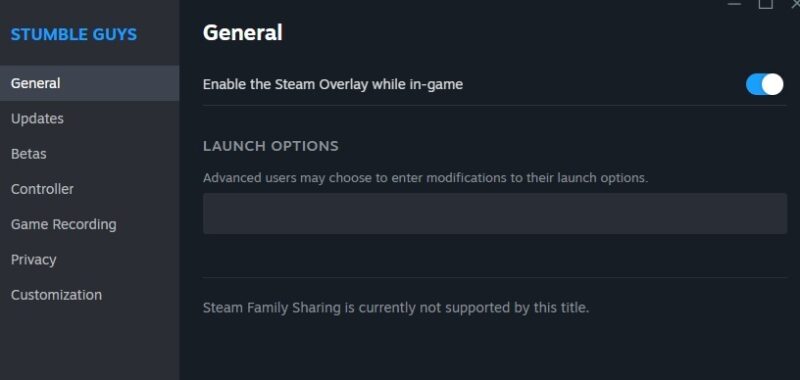
If you want to use the new Steam update feature in some games, but not others, you have to disable the Steam overlay for particular game. This overrides the global overlay settings. While playing games without the overlay, Steam won’t access the Windows kernel.
Open the Steam client and open the Library. Right-click the game you want to disable kernel-level access for and select Properties.
Under the General section, disable Enable the Steam Overlay while in-game.
Monitor CPU Temperature Without Steam Overlay
While it’s convenient to just let Steam handle everything, you just might not be comfortable giving this latest Steam update kernel-level access. If so, you do have other performance monitoring tools available.
Steam utilizes the CPUID SDK for its temperature monitoring. This is the same SDK behind CPU-Z and HWMonitor Pro, which are both popular and trusted monitoring tools. Steam isn’t using a brand new, untested option. So, if you plan to use a tool that uses the CPUID SDK, you’re likely just as well off to stick with Steam’s built-in monitoring.
The only issue is most of these tools also require kernel-level access to function properly. Your main choices include either using a third-party tool or checking your BIOS. The latter isn’t exactly convenient while you’re gaming. But, if you suspect an issue, it’s a great way to check without having to install a third-party app.
If you do notice your CPU temp slowly, or rapidly climbing, take steps to cool it off immediately.