
The Godfather malware is back, and more dangerous than ever. Its latest evolution allows it to hijack legitimate mobile banking applications on your Android phone. With this new capability unleashed, it’s now more important to be informed regarding the warning signs. Here we show you some essential safety measures you should consider implementing on your Android device to avoid contagion.
Good to know: check this list of apps that can block annoying ads on your Android device.
How Godfather Malware Hijacks Your Mobile Banking Apps
The Godfather malware isn’t new; it has been around for some time. In the past, it was known for displaying fake login screens over banking and crypto apps. Now, it has evolved further, using on-device virtualization to run virtual versions of apps in a sandbox on the target Android device.

Virtualization allows Godfather to operate mostly undetected. As users interact with what they think are real apps, the malware collects their data. Since the interface looks authentic, victims rarely notice anything is wrong.
Once Godfather is on a device, it makes use of Android’s Accessibility Services to access screen data and input events. This way, it can intercept sensitive information such as login details, one-time passcodes, SMS-based 2FA, and incoming notifications.
Although initially detected in Turkey, early indicators point to a possible spread of Godfather’s latest version beyond that region. Godfather has previously targeted users in the US, UK, Spain, Italy, Japan, Singapore and more.
What Are the Symptoms of Godfather Malware Infestation
Godfather may be harder to spot in its newest form, but there are still a few signs that can help you catch it.
- Suspicious app behavior: keep an eye on how your banking apps are working. If they start crashing or freezing unexpectedly, it could be a sign that malware is interfering.
- Disabled security apps: notice your security apps turning off by themselves? That might mean your phone is infected with malware. If certain system settings change without input, it likely means the same thing.
- Changes in device performance: even though Godfather isn’t as resource-hungry as some malware, it can still cause noticeable changes in your device’s performance, such as an increase in battery usage.
- Browser redirects to suspicious websites: if your default mobile browser is redirecting you to dubious pages, you might want to take it as a hint that something is wrong. The same goes if random ads start popping up on your screen.
You might be wondering how Godfather ends up on Android devices. According to security researchers, attackers commonly infect devices by tricking users into installing malicious apps. They can do this through phishing, sending harmful links or files via email or social media apps.
Godfather can also spread through pirated software or malicious ads, often found on illegal file-sharing sites. In some cases, fake apps disguised as legitimate ones may appear on official app stores.
Tip: here’s how to find and stop apps from draining your Android’s phone battery.
Protect Yourself Against Godfather Malware on Android
If you want to safeguard your device from Godfather (and other similar malware), the following tips should bestow the needed protection.
- Be cautious of unsolicited links and attachments: avoid clicking on unrequested links or attachments. If you receive something unexpected, verify it with the sender. If the message is from an unknown party, it’s best to leave it alone.
- Download apps from trusted sources: stick to the Google Play Store or well-known APK providers when downloading apps. Make sure Play Protect is on by going to Settings -> Security & privacy -> App security, tapping Play Protect, then the gear icon in the top right. Keep in mind, though, that some malicious apps can still get through. So, stay alert for small changes in how your apps look or act; it could be a sign that something’s wrong.
- Be careful when granting permissions: take your time when granting permissions to a new app. Godfather malware often relies on users granting permissions it can exploit, especially access to SMS and Accessibility Services. Always double-check what an app is asking for, do not grant access blindly.
- Install a mobile security solution: these can check files and apps for malware before you even download them, helping catch anything suspicious early. Our suggestions include Bitdefender, Avast, ESET, or Malwarebytes.
- Sign up for Google’s Advanced Protection Program: this will help safeguard your Google account by enabling 2FA. At the same time, it enables Chrome Safe Browsing Enhanced Protection and restricts access to your Google account by unknown third-party apps. It also prevents sideloading within the phone. You can enroll in Google’s Advanced Protection Program by following the link.
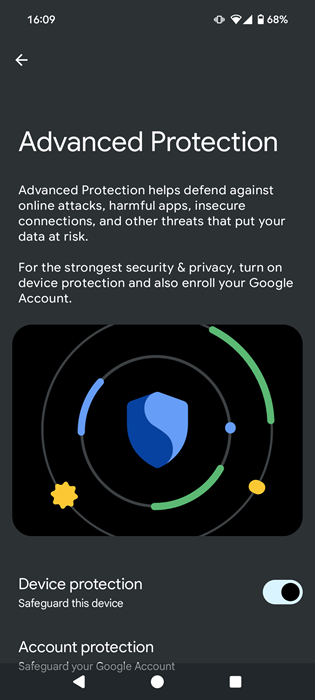
- Enable Android Advanced Device Protection: this is a new feature that was introduced in Android 16 that can help defend against online attacks, harmful apps and other threats. Enable it by going to Settings -> Security & privacy -> Advanced Protection. Enable the Device protection toggle from there.
What to do if Your Phone Is Infected?
In case you suspect your device is a victim of attack, disconnect your phone from the internet as quickly as possible to prevent the malware from communicating with its servers.
Next, access Settings -> Apps and try to uninstall any suspicious apps. Take this opportunity to check your app permissions by tapping on each and checking under the Permissions section.
Continue by performing a scan using your security app and see if it finds anything. If, after you’ve turned the internet back on, the device continues to act strangely, consider factory resetting it, to fully wipe out any remaining threats.
Malware can get into your device through multiple avenues. For instance, check this post to learn how to avoid malware while using the popular chat messaging app WhatsApp. Also, since most of us are using AI one way or another, it might be worth getting up to speed with how to protect against harmful AI scams.








