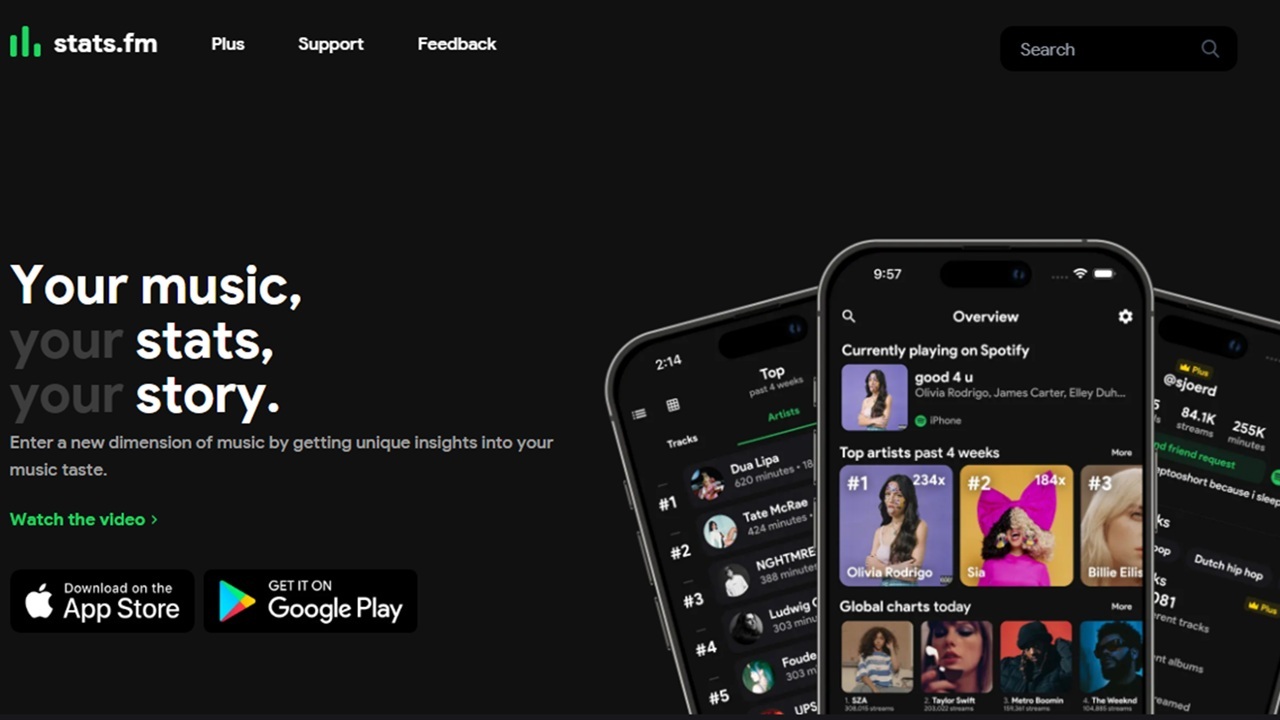
Spotify’s Wrapped is the perfect way for any music fan to end the year. It’s filled with fun stats from the past year. But what if you want even more stats or details throughout the year? Getting more advanced Spotify stats takes a third-party tool.
Stats.fm Supplements Spotify’s Built-in Stats
Originally, you had to wait for the annual Wrapped to get any real Spotify stats. Recently, Spotify introduced Listening Stats to give users a nice tease throughout the year. You can check it out by tapping your profile icon in the app and tapping Listening stats.
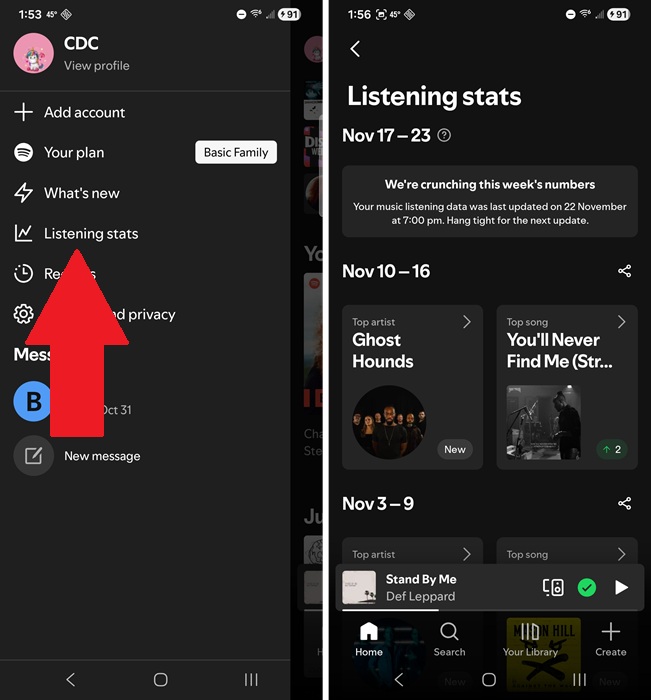
The only problem is you only get a month of data at a time. And, all it tells you is your top artist, top song, and top playlist per week. Tapping a song or artist will show you your top five for the week.
While useful, some of us crave more details. That’s where Stats.fm comes in. Getting the highlights is nice, but Stats.fm gives you your top 50 artists and songs for the past year. And that’s with the free version. Spotify doesn’t give you nearly as much info with Wrapped.
Stats.fm Lets You Import Lifetime Listening Stats
There are two versions of Stats.fm. The free version is limited to just 50 songs and artists and up to one year of history. All of this is imported directly from Spotify. You can also connect with friends and share seasonal, monthly, and even yearly Wrapped-style cards with your top songs and artists.
The Plus version unlocks even more Spotify stats, including:
- 100 top artists, songs, and albums
- Import all listening history
- View play counts
- Check out listening clocks
- Set custom time frames
- Go ad-free (Surprisingly, they’re not all that obtrusive)
But, if you love stats, the $6.50/year subscription is worth it. I’d recommend getting the lifetime option, though, for just $15. There are even specials sometimes. At the time of writing, I could get lifetime access for $9.50.
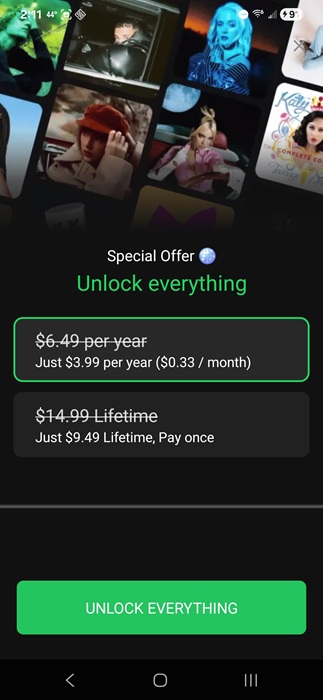
Stats.fm is available for iOS, Android, and the web, making it compatible with nearly any device.
Connecting With Spotify
As soon as you launch Stats.fm for the first time, you’re prompted to log in with either Spotify or Apple Music. Yes, this works with Apple Music too. Login with Spotify to view your Spotify stats.
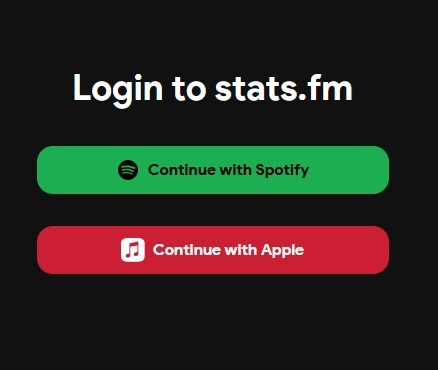
Agree to the terms. It’s a lengthy list of permissions. But, they’re necessary for Stats.fm to import your listening history. Otherwise, the app would be pretty useless.
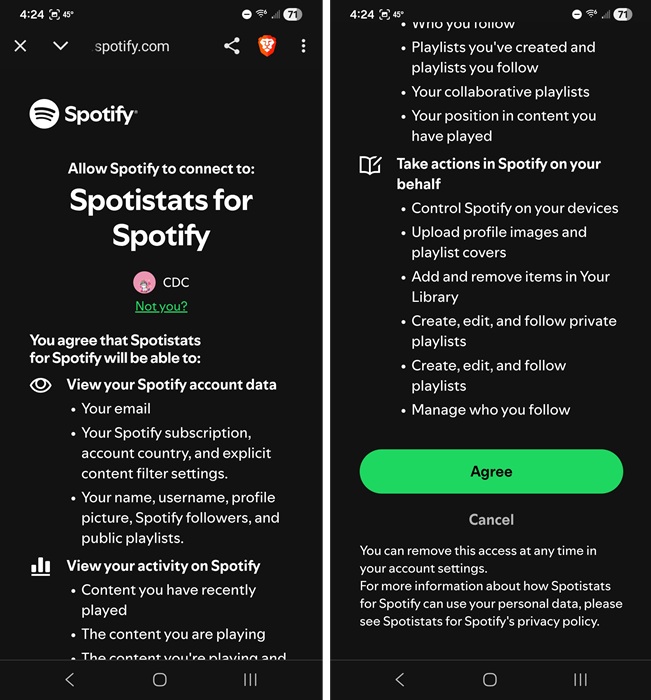
Just remember, you can revoke access at any time from within Spotify. Open your Spotify account in a web page (tap Account in the app to jump directly to the webpage). Select Manage Apps and click Remove access beside Spotistats for Spotify (Spotistats is the previous name for stats.fm).
Exploring Your Spotify Stats
If you’re a free user, you’ll see your most recently played song, two or three recap cards and cards for top artists, tracks, and genres for the last four weeks. Premium users also see a Streaming History section with more detailed stats.
Personally, I’m happy with the free version. I’ve tried the Plus, but I’m not all that interested in the listening clocks or lifetime history. Seeing monthly and yearly overviews is enough for me. But, I have to admit, the lifetime plan for Stats.fm is well worth for anyone wanting the extra details.
At the bottom of the app, tap the Top button (increasing line) to view your top tracks, artists, albums, and genres for the last four weeks, six months, or year.
Tap any track or artist to view more details. With Plus, you also get listening clocks that show how often you listen and when.
Tap the Stats button (bar chart) to really start diving more into your top genres, overall listening history (more detailed with Plus), types of tracks (such as energetic, acoustic, etc.).
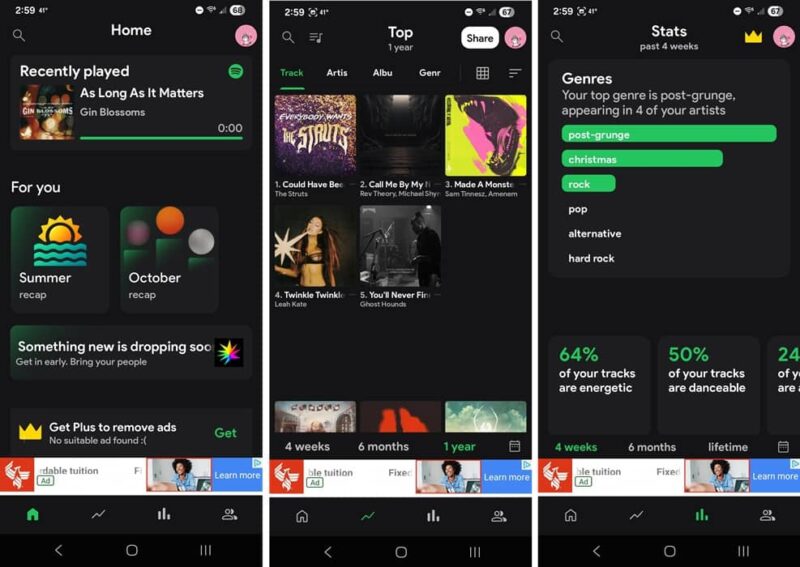
Your stats update as you use Spotify. So, check back regularly. You can even share Wrapped-style cards with friends to brag about your listening for the month or season. I love being able to customize it.
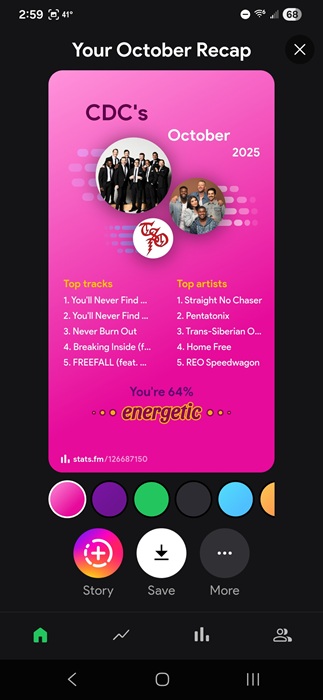
If you tap Story, Stats.fm opens the card in Instagram to create an Instagram Story. If you don’t use Stats.fm, you can still generate Spotify receipts to share your listening history.
Getting Social and Finding Soulmates
My favorite part of Stats.fm isn’t the stats actually. It’s finding new music via soulmates. No, this isn’t a dating app. I mean, musical soulmates.
Stats.fm works to pair you with other users with similar music tastes. Tap the Discovery/Friends button at the bottom right of the Stats.fm app. From here, you can invite friends, create a Compare link to share on social media, or scroll down and tap View all. It can take several minutes, but then Stats.fm shows you various friend suggestions.
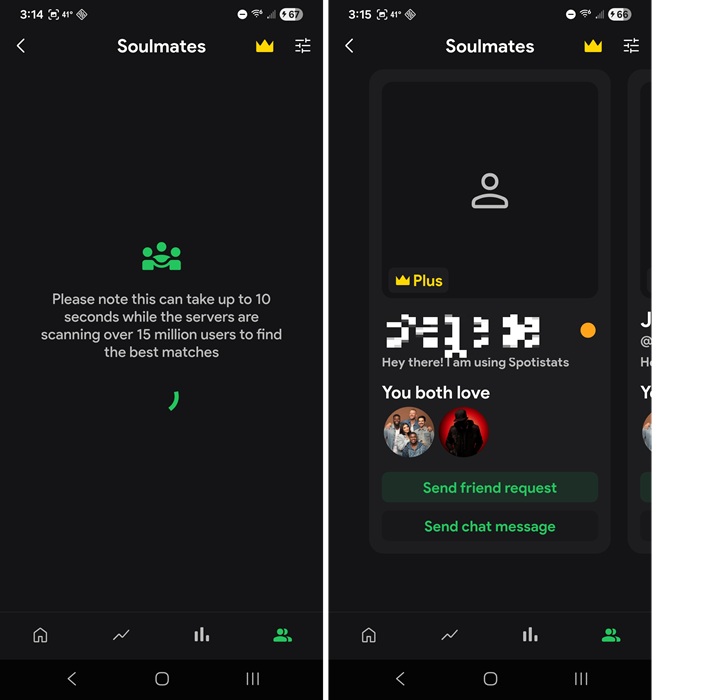
Tap any profile to view their stats. You can also send friend requests and chat if you want. Every suggested profile shows the top artists you matched on. When you’re viewing their stats, check out what they listen to. I’m constantly finding new music and artists this way.
I’d recommend checking out the Stats.fm Plus for a year if you want advanced stats. But, if you just want regularly updated basic stats that are still better than what Spotify offers, the free version works just fine.
If you find yourself getting tired of Spotify, try these alternatives or just stream for free.








