
Music is more fun when experienced with friends. Spotify knows that, so it offers features like Blend, where you can combine your music with a friend’s into one shared playlist. But what if you want to listen in a group? For that, there’s Jam, a way to bring your squad together and share your favorite songs in real time. This post covers how to create your own Jam on Spotify.
Good to know: learn how to create a Blend playlist using Spotify.
Start a Jam on Spotify
To create a Jam on Spotify, you’ll need a Premium account. However, this isn’t required to join an existing Jam. Even if you have a free account on Spotify, you can still listen to the same track at the same time.
That said, there’s a caveat here that needs discussing. If you’re on Spotify’s free tier, you will be able to control the playlist during a Jam session, but the audio will only play from the host’s device, not yours. So, unless you’re nearby and can hear their speakers, it won’t be all that useful. Of course, if you have the whole group with you, then the situation is entirely different. Jam gives each member of your gang the option to select and add tracks for playing while you enjoy spending time together.
For remote Jam listening on a guest device, you’ll need to upgrade to Premium. Of course, it’s possible to switch to listening to a track from a Jam on your own device, even with a free tier, but this will trigger automatically leaving the jam.
Once you create a Jam, you can then invite up to 32 friends to listen with you. Participants can then search tracks and add them to the Jam, but only if the host allows it.
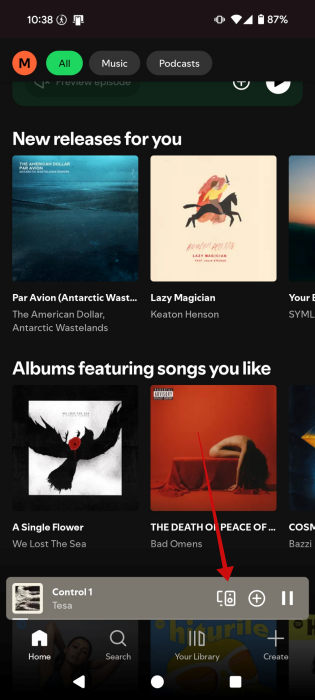
To start your first jam on Spotify, open the mobile app and start playing a track.
Tap on the device icon in the Now Playing bar at the bottom.
Select Start a Jam at the bottom.
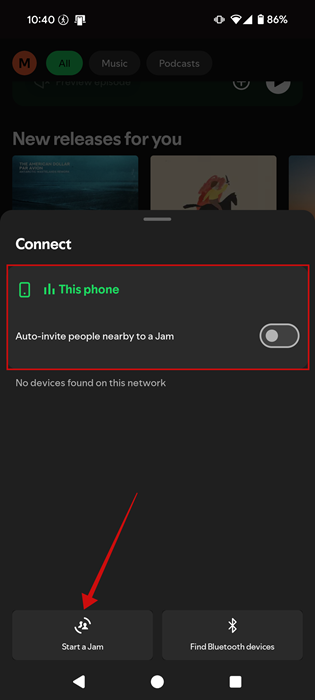
Note: if you want, you can enable the Auto-invite people nearby to Jam option at the top.
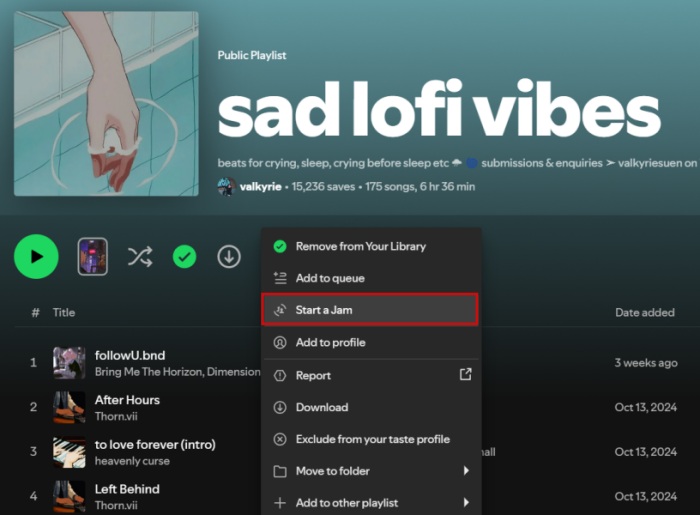
You can also start a Jam from a playlist. Access a playlist on your Spotify and then press the three dots next to the Download button.
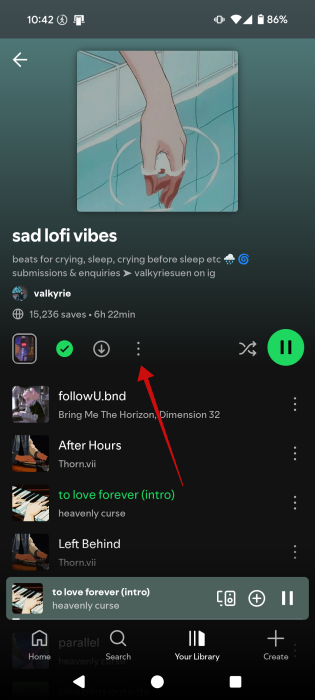
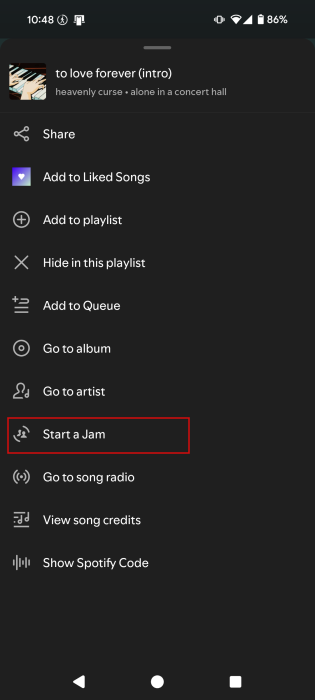
Select Start a Jam from the list of options. If you go this route, your Jam’s queue will mostly include songs from that said playlist.
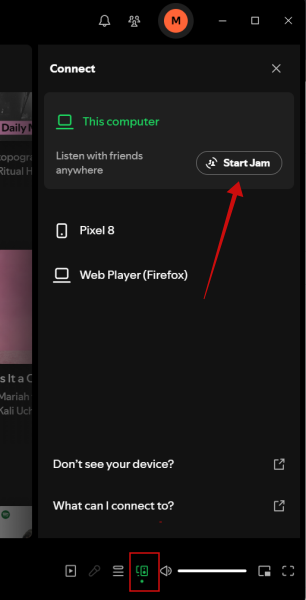
If you’re listening on your PC via the Spotify desktop app. Start playing a song and then press the device button in the Now Playing bar. Click the Start Jam option on the right.
You can also start a Jam from a playlist page, pressing the three dots, and selecting Start Jam.
Tip: learn how to interact with Spotify DJ for better music recommendations.
Invite Friends to Join Your Jam
Once you press Start a Jam, Spotify will generate options allowing you to invite others to join your jam. You have several options to do so:
Share link
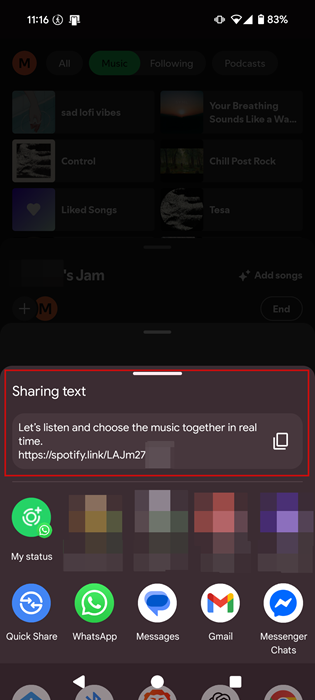
Press the Share Link button to send your Jam’s link on its way via messaging or email apps.
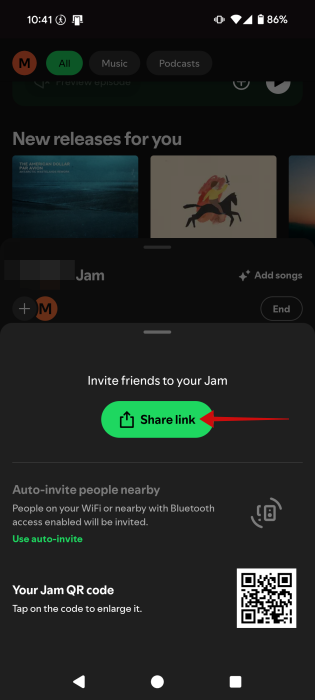
Depending on your type of mobile device, you can also use options such as Quick Share or AirDrop. Alternatively, you can copy the link and then manually share it with people you want to invite.
Auto-Invite People Nearby
This option popped up in the previous screen, but if you didn’t turn it on then, you can do so from here.
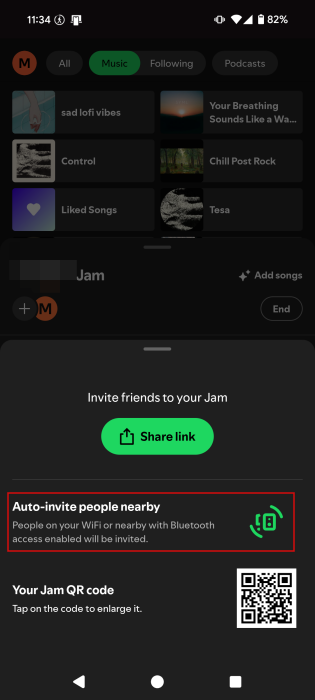
Once active, it automatically sends invites to people on your Wi-Fi or nearby devices with Bluetooth access enabled.
Share QR code
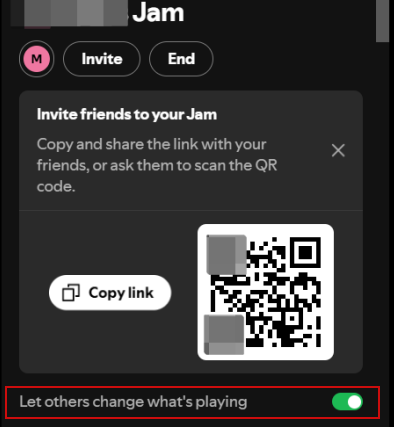
The last option is to share a QR code and have the other people scan it with their device.
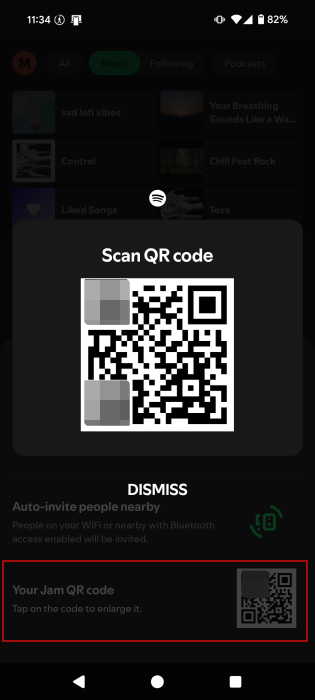
You can also take a screenshot of the code and send it to them via a messaging app, if they’re too far away.
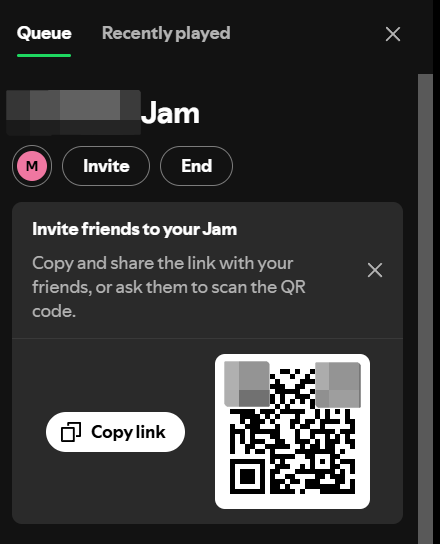
Only the QR code and Share link options are available in the Spotify desktop app.
FYI: see our tips on how to better manage Spotify downloads on your device.
Add or Remove Songs to Spotify Jam
As the host of the Jam, you can easily add new songs to the playlist by pressing the Add songs button.
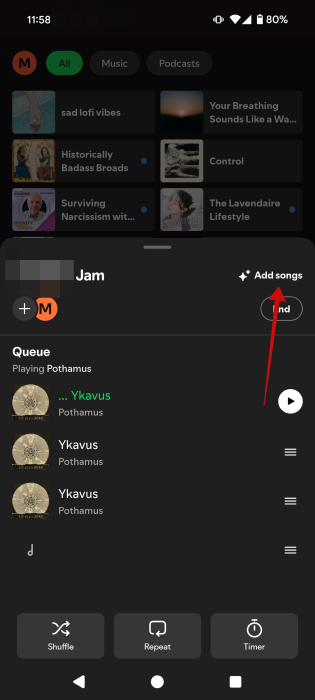
Spotify will suggest tracks to add based on your taste, but you can also search for other songs. Press the + button to add a song to your Jam.
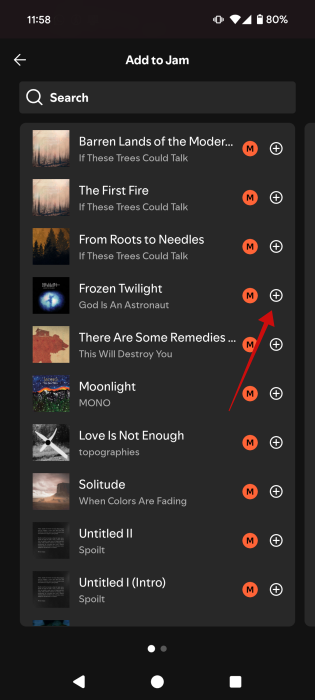
Once they are added, the host’s profile picture will appear next to the songs they’ve added.
By default, Jam guests can also change the queue order, play, pause, and skip tracks. As a host, if you want to disable this behavior, tap on your profile picture on the Jam card.
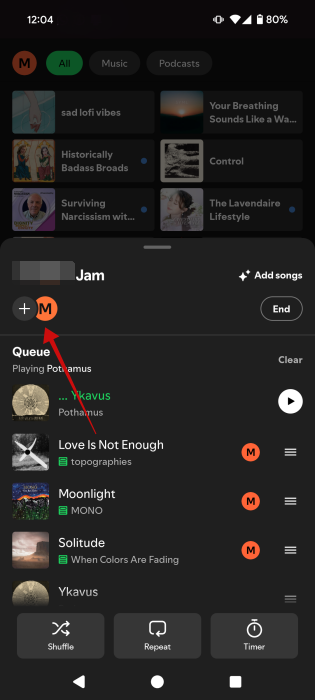
Press on Guest settings.
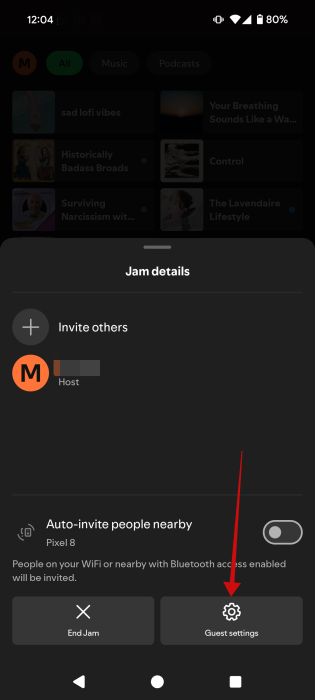
Disable the option at the bottom.
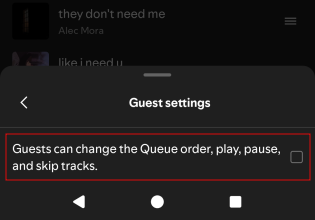
Note: on mobile, the host as well as the guests can also Shuffle, Repeat or Start a Timer.
On a desktop, it’s not possible to add more songs even as a host. What you can do is change the song that’s playing based on what Spotify generates for you. You can allow other participants to choose what’s playing by enabling the Let others change what’s playing option.
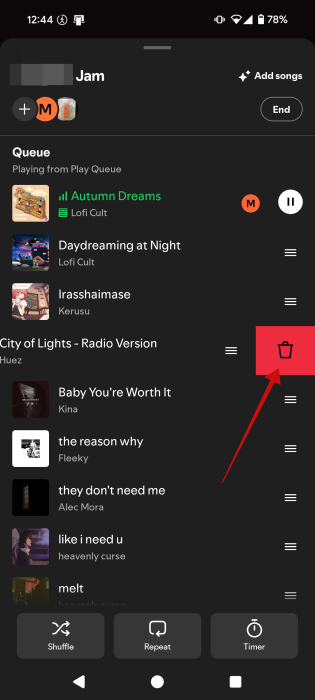
To remove a song from the Jam playlist on mobile, find the track in question and swipe your finger on it to the left.
Remove Friends from Jam Session
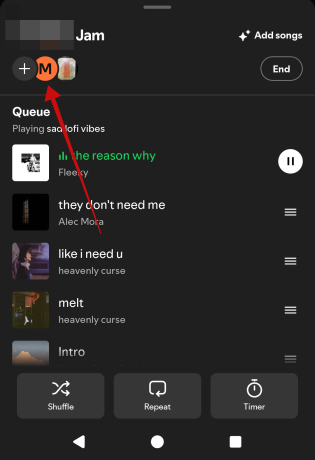
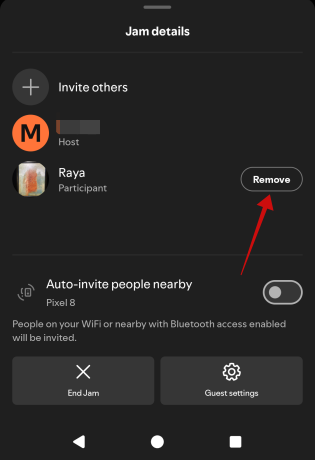
If you need to remove someone from your Jam, bring up the Jam bar. Press on the profile pictures of the participants on the left side in the mobile app or PC.
Find the person in question and press Remove.
Tip: get up to speed on how to remove duplicates from your Spotify playlist.
End/Leave a Jam Session
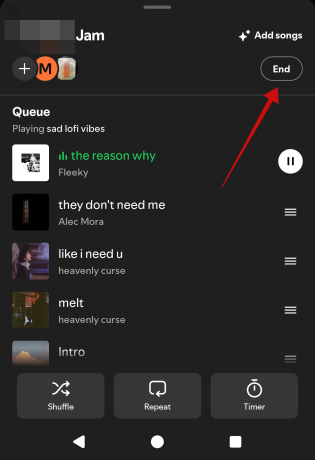
As a host, when it’s time to end a jam session, bring up the Jam card and press the End button on the right (on mobile) or underneath the Jam’s name on PC. This will close the Jam session and everyone that is currently taking part in it will be automatically removed from it.
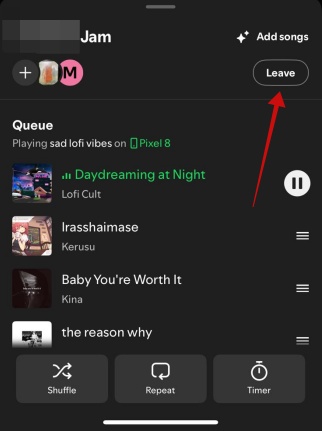
As a guest, if you want to end the music session, bring up the Jam card and press Leave. When a guest leaves, the Jam session can continue on without them, until the host decides to end it.
Spotify is not only a place to discover music, it’s also home to a large library of podcasts. That said, you might want to read up on our guide on how to find the best podcasts for you on Spotify. Alternatively, if you tend to use Spotify before bed, you might want to take advantage of these useful features to make the transition to sleep smoother depending on your preferences.








