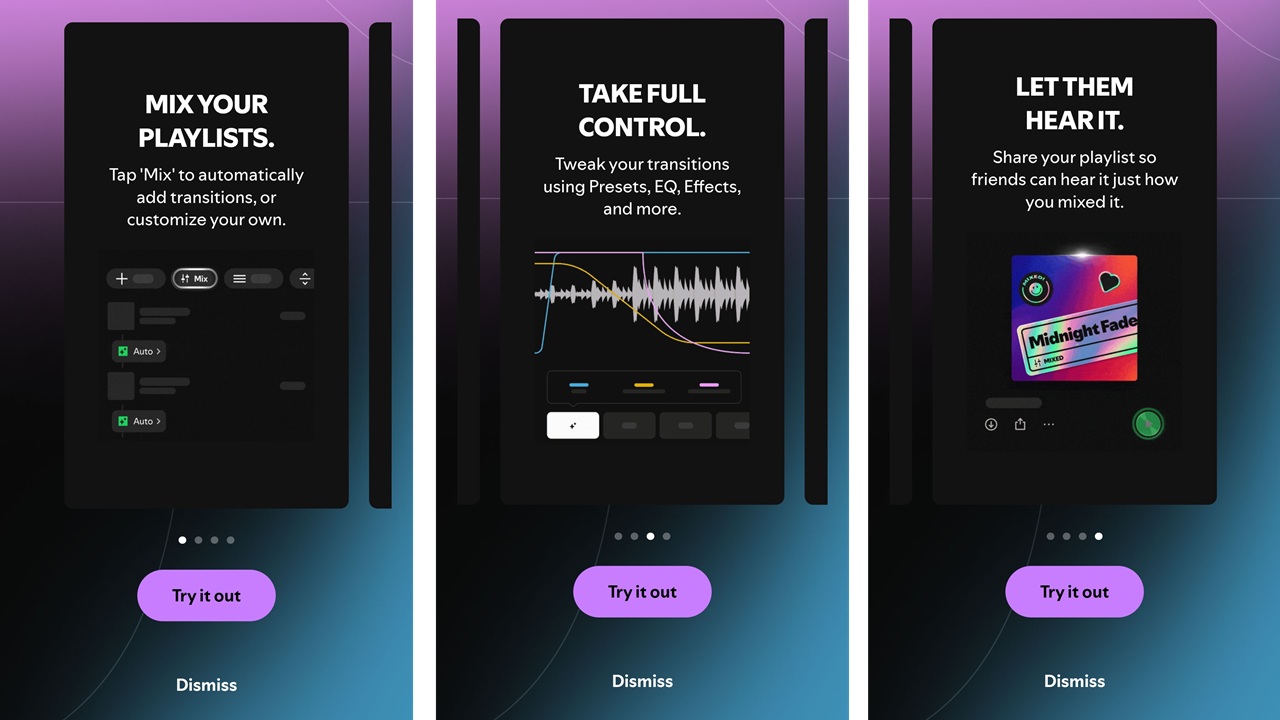
Imagine creating your own Spotify playlists with custom transitions and effects, much like a DJ. Now, the Spotify Mix feature lets you do far more than just add songs to playlists. And, you can even share your hard work with friends.
What is Spotify Mix
Mix is a new feature that started out in beta back in August. Now, it’s rolling out to all premium users on both mobile and desktop. For now, it’s not available to free users.
On any playlist you’ve created yourself, Mix gives you a variety of transitions and effects to use between songs. Stick with similar transitions or mix things up as much as you want.
You’re no longer stuck with Spotify’s basic transition between songs. Now, if you want, you can make your playlists feel a bit more like the Spotify DJ lists, without the commentary of course.
If you haven’t created a playlist yourself, take a moment to create one just to test out the Mix feature. You can also use these tips for creating and managing playlists.
Creating an Auto Mix
The simplest way to get started is to create an auto mix. Spotify applies automatic mixing settings based on the types of songs on the list, such as the genre, BPM (beats per minute), artists, etc.
While the steps work the same on desktop and mobile, I’ll be using the Android Spotify app for all examples.
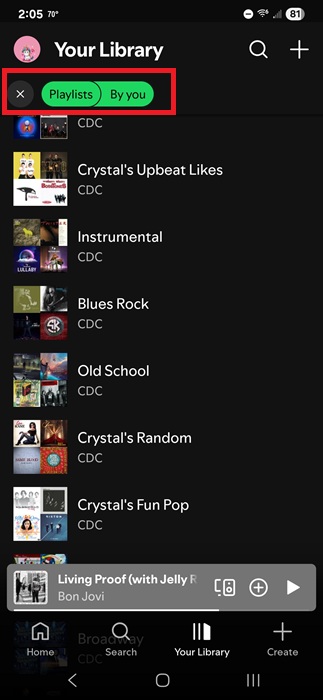
Open any playlist you’ve created yourself. Anything created by Spotify doesn’t have the Mix feature. Your Like list doesn’t work with the feature either. Go to Your Library and tap Playlists. Tap the By you filter to see only playlists created by you.
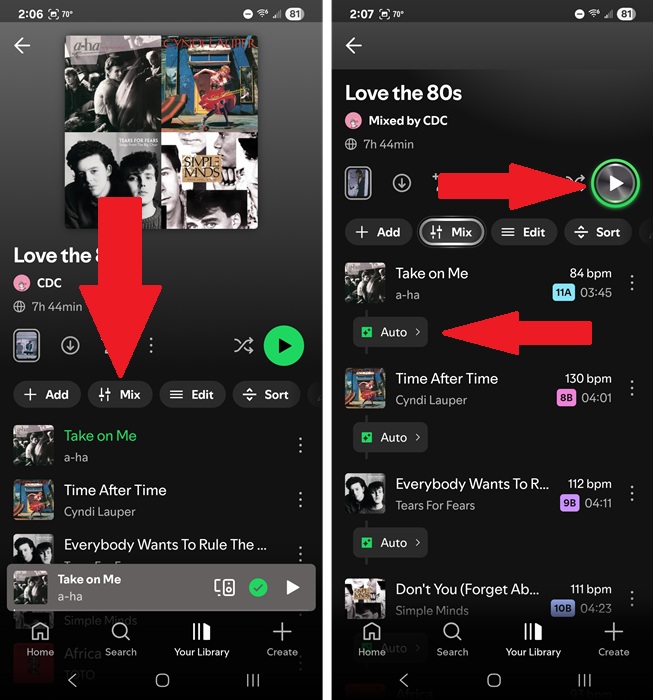
Tap Mix in the row of options under the playlist name and details. Every song now has a new button underneath it to add effects and transitions. By default, it’s Auto. If you just want Spotify to handle the mixing for you, leave everything as it is and tap the Play button.
Customizing a Spotify Mix for Every Song
Auto might be the easy method, but it’s not the most creative. If you want to feel more like a DJ, customize what happens between every song.
Currently, custom mixes are only available in the mobile app. If you try to switch from Auto to a custom mix, you’ll see a message that the feature is coming to desktop soon. But, if you create custom mixes in the mobile app, they’ll play on the desktop version.
In your playlist, tap Mix and tap the Auto button after a song you want to add a mix to. If you’re not used to mixing music, it might seem like too many options at first. Just play with the option to get the sound you want. You can always revert if you don’t like it.
In the Edit transition screen, tap Custom at the bottom. Then, drag the ending of the first song and the start of the second song into the positions you want. Spotify plays this small clip repeatedly until you press Stop.
If you don’t see Custom, drag one of the song clips or change any of the options below the songs and it should appear.
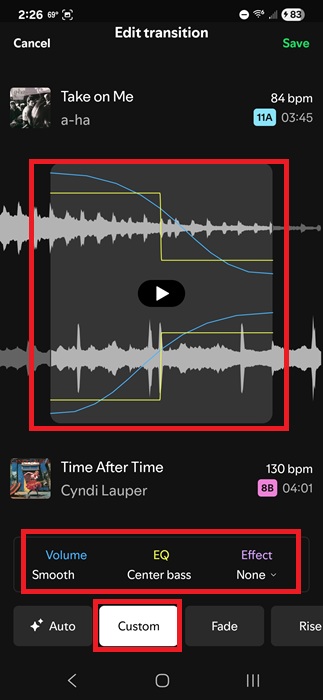
Under the songs, edit the following to mix the transition even further:
- Volume – Tap Volume to choose between Smooth crossfade, Overlap, Fade in fade out, Cut in fade out, Fade in cut out, Center cut, and Crossfade. Smooth crossfade is the smoothest transition for most songs, but you’ll find different volume settings work well for different songs, especially if you want certain songs to really grab attention.
- EQ – Center bass is the default, but you can also choose between End bass swap, 3-band fade, or None.
- Effect – Unlike the other two options, the default effect is None. Adding effect can drastically change how a transition sounds or create more impact when a new song begins. With eight effects, it’s easy to mix things to create a truly unique transition between songs.
Tap Save at the top when you’re done.
You have to repeat this process for every transition. Spotify gives the BPM for every song. Re-ordering songs by similar BPM helps create smoother transitions.
Using Pre-Set Transitions in Spotify
If you want a quicker method of mixing transitions between songs, try some of the pre-set transitions. Tap Mix in your playlist and tap Auto (or the type of transition you’ve previously set, such as Custom) between the songs you want to mix.
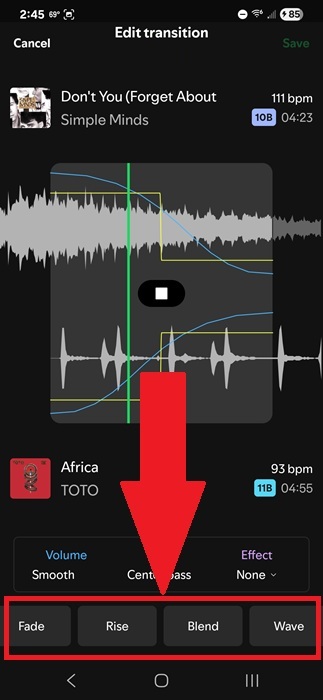
Tap one of the pre-sets at the bottom of the Edit transition window. Currently, your options include:
- Fade
- Rise
- Blend
- Wave
- Melt
- Slam
You can still drag and drop the end and start of your songs to choose where your transition goes. The only difference between this and Custom is you can’t choose your Volume, EQ, or Effect settings when using a pre-set option.
Share and Collaborate on Mixes
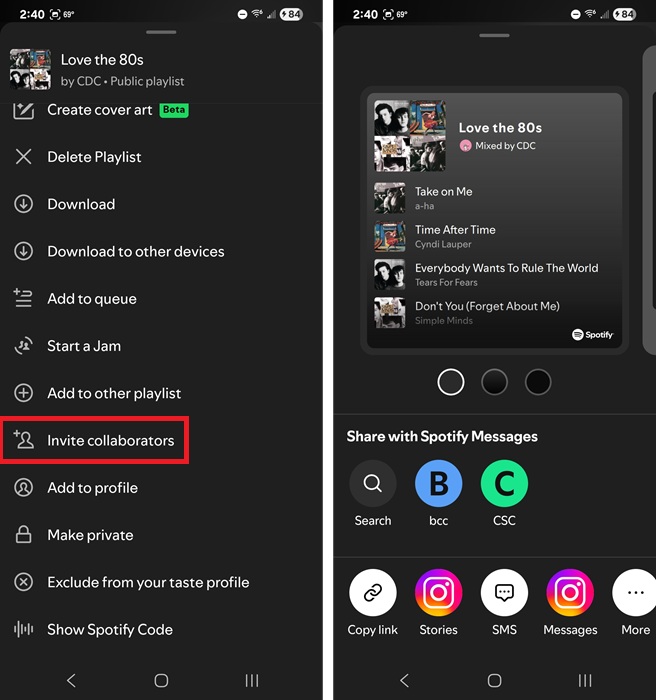
Sure, it’s fun to spend hours fully customizing your playlists, but why not share it with others? When you’re done, tap the Share icon (person with a +) above your playlist. Choose how to share and who you want to share it with.
Or, collaborate with others. While you can listen together by starting a Spotify Jam, collaborating lets two or more users add/remove songs. Now, collaborators also get to mix transitions as long as they’re premium users.
To collaborate on a mix, tap Mix and then tap the three dot menu above the playlist. Tap Invite collaborators near the bottom of the list. Choose an existing friend or send a message by text or email to invite them. Remember, they can edit your playlist so make sure you have a backup just in case.
Removing Mixes from Your Playlists
Don’t want your Spotify Mix anymore? Open the playlist you mixed and tap Mix again. This reverts your playlist to the way it was.
The good news is your settings aren’t gone. Tap Mix to turn your mix back on.
If you know you’ll be in an area without Internet, make sure you download your favorite Spotify lists so the music and party never has to stop.








