Security researchers uncovered SlopAds, a large ad-fraud campaign, and Google has removed 224 associated apps from the Play Store. The apps were downloaded about 38 million times worldwide and generated billions of fake ad requests, so many users may have been exposed. If you think you installed one, this guide explains the immediate steps to protect your device.
What is SlopAds Fraud Ad Campaign
HUMAN’s Satori Threat Intelligence and Research Team uncovered a mass ad fraud campaign affecting people worldwide. So far, 224 apps have been discovered and taken down (numbers still growing), mainly consisting of utility apps, AI tools, and some games. These apps amassed over 38 million downloads and generated over 2.3 billion ad bid requests per day.
So, how has such a huge ad fraud campaign been executed on the official Play Store? Below is a full breakdown of the clever tactics they used to avoid detection and serve ads.
- The apps have normal functions like any other app, but they have a checking system to confirm whether the user downloaded the app directly from the Play Store or opened an ad for the app to download it. Avoiding direct downloads allows it to circumvent manual reviews by the Play Store security or independent security researchers who would typically download the app directly.
- If an install is confirmed to be from one of their ad campaigns, the app will contact the C2 server to download images infected with a payload (like the FileFix attack). The images are less suspicious, so they pass most phone and Google Play Store security.
- The code in the images is then decrypted and reassembled in a malicious module (dubbed FatModule in reports). This module gathers device/browser info and creates hidden webviews that can’t be seen by users. These webviews host HTML5 sites with lots of ads to generate impressions. There is also automation code to tap on ads at specific intervals.
This allowed the SlopAds campaign to generate billions of ad impressions daily without Google or the infected users finding out until now.
How to Check If Your Phone is Infected
While the ads are invisible, there are still some ways to confirm if your phone has been infected. Below you’ll find methods and signs that can help confirm SlopAds infection:
- Check the Official List of Removed Apps: HUMAN published the list of infected apps that got taken down by Google. While it doesn’t include apps yet to be discovered, you can still confirm if one of these apps is on your phone or not.
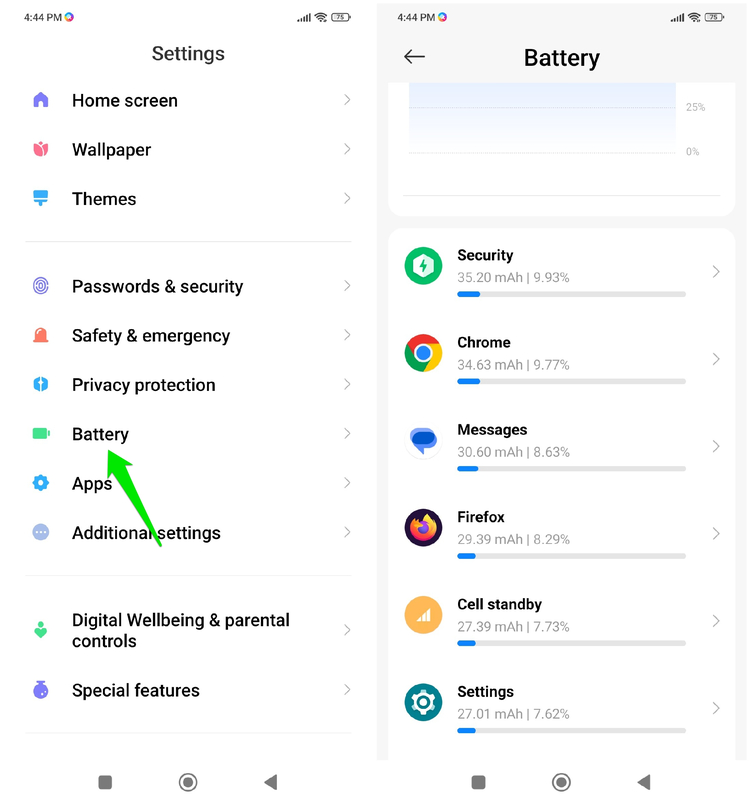
- High Battery Drain: a common sign of hidden activity is sudden high battery drain on Android. If you notice your battery is suddenly dropping too fast, go to Settings → Battery and see which apps are consuming battery. If you see an app that is consuming too much battery without foreground activity, it could be running ads.
- Unexpected Actions on Phone: while the ads run invisibly, they can still launch unexpected actions when opened. If you notice unexpected prompts to install an unknown app or webpages opening on their own, it could be the work of SlopAds.
Clean Your Phone From Infection
If you are noticing signs of infection, follow the cleaning steps below to get rid of the infected app:
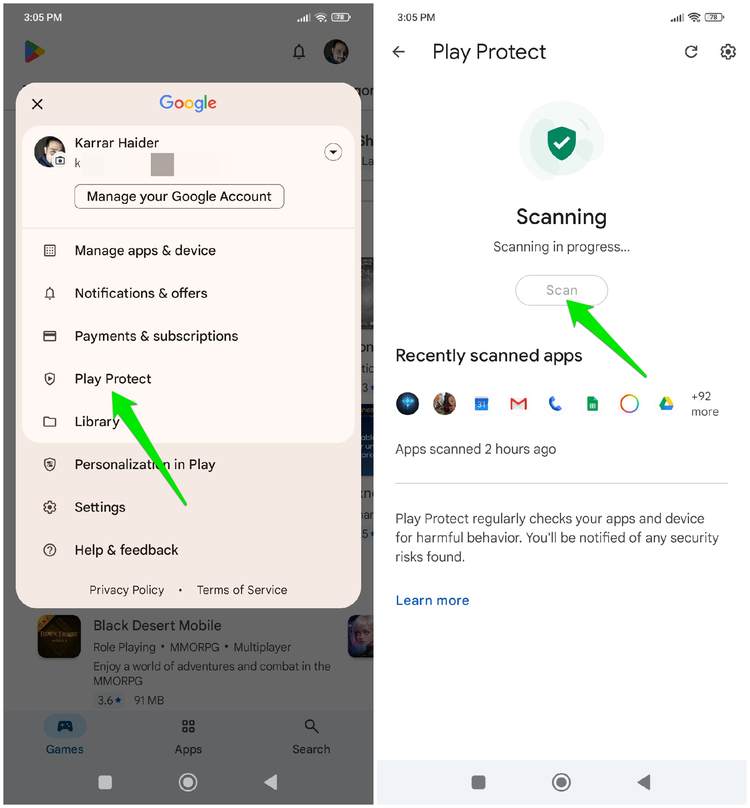
- Run Google Play Protect Scan: as Google is taking down these apps, it’s also updating Play Protect to identify such apps and notify users. If you haven’t already received a notification, open the Google Play Store, tap on your profile, and select Play Protect → Scan to scan your device. It will automatically scan and delete infected apps.
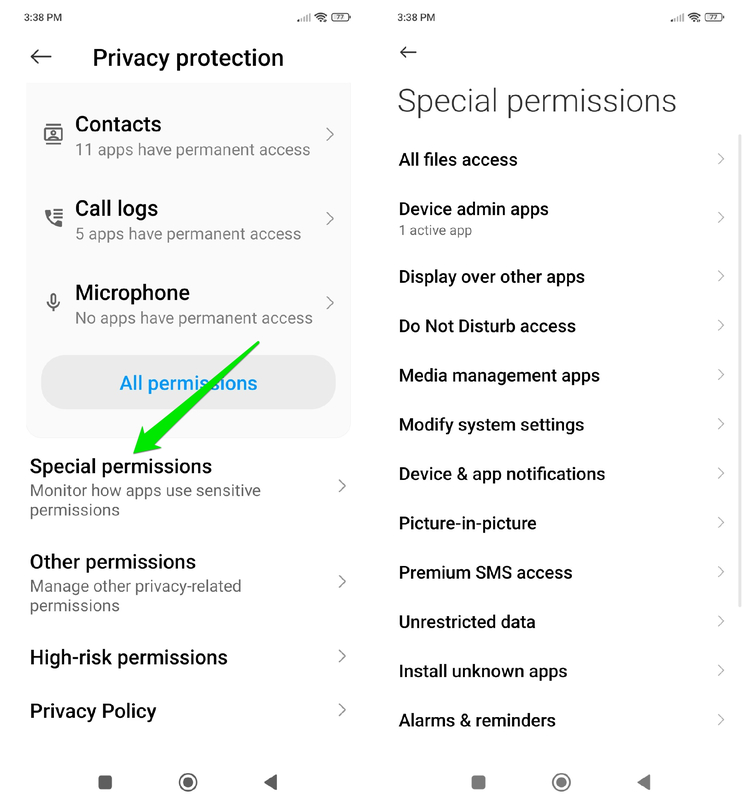
- Revoke Sensitive Permissions: such apps can also utilize sensitive permissions to take more control, like avoiding uninstallation or performing more complex actions. Go to Settings → Privacy protection → Special permissions and revoke sensitive permissions of apps you don’t trust. In Settings, you should also go to Accessibility → Installed apps to ensure untrusted apps don’t have accessibility service permission.
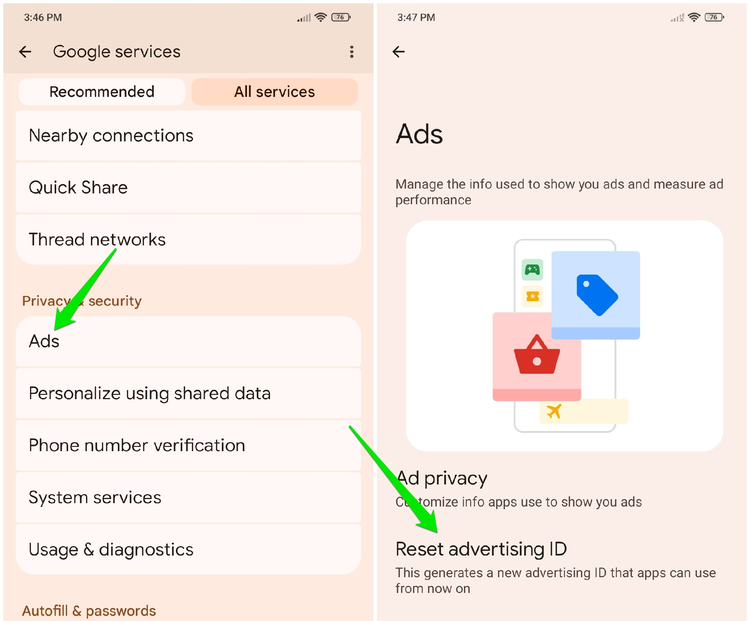
- Reset Advertising ID: opening random ads may have negatively influenced your advertising ID, leading to unrelated and possibly offensive ads across apps and websites. Reset your advertising ID so a new profile can be created. In Settings, go to Google → Ads and tap on Reset advertising ID to reset it.
Protect Your Phone From Future Infections
The reports suggest this isn’t the end of the SlopAds campaign, and it might come back as there are still many active domains associated with the attack. You can follow the tips below to resist such attacks in the future:
- Check Reviews Before Installing an App: when people uninstall an app due to malicious activity, they often leave a review letting others know. Filter reviews by Critical category. If you see multiple reviews about an increase in ads or other malicious activity, stay away from such apps.
- Carefully Provide Permissions: compare the permissions an app asks with its function. Like, why would a calculator app need microphone permissions, or an AI Chatbot app ask for Device Admin permission? If an app asks for unnecessary permissions, avoid it.
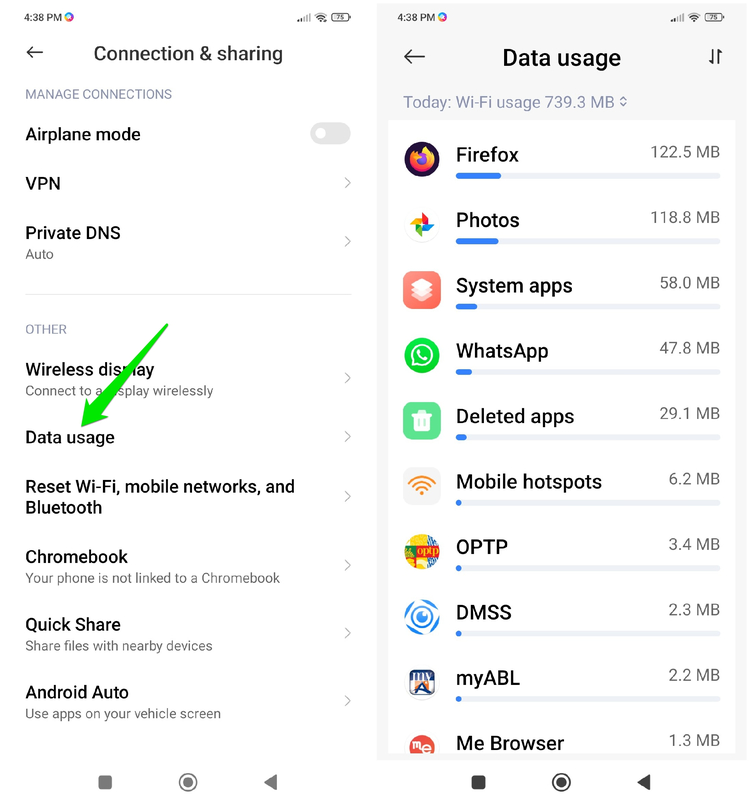
- Check App Data Usage: ads consume a lot of network resources. You should check your apps’ data usage from time to time to ensure no apps are using excessive data in the background when they shouldn’t. In Settings, go to Connection & sharing (or Connectivity) and tap on Data usage to see all apps’ data usage over time.
You should also keep a close eye on apps that you downloaded by opening ads, since those apps mainly activate this ad fraud. For even better security, make sure you enable these Android security features.








