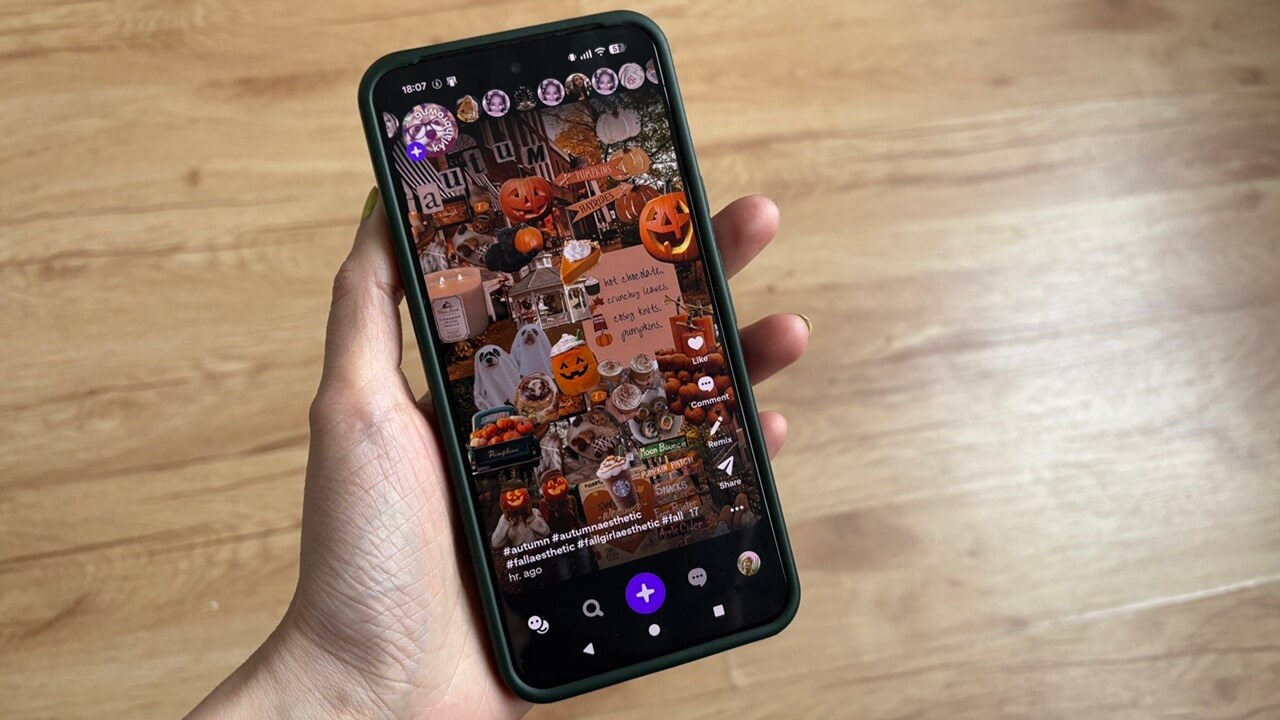
Social media has been obsessed with short-form video content for years now. Shuffles changes that formula by attempting to make collages cool again. The result is a surprisingly fresh way to create, share, and connect with others. Here’s a closer look at what Shuffles has to offer.
Good to know: check how you can make a Pinterest-like vision board using Google Slides.
What Is Shuffles?
Shuffles is a social app developed by Pinterest that draws from Instagram and TikTok, yet carves out its own distinct identity within today’s social media landscape.
Shuffles allows its users to create collages, and unlike Instagram, for example, it puts at your disposal a wider range of creative tools. Moreover, due to its connection with Pinterest, Shuffles allows you to instantly access the images you’ve saved on Pinterest to create your collages.
Shuffles lets you dive into a library of ready-made cutouts, or create your own from scratch. Then you can mix and match these pieces to bring your creative ideas to life – all without using any additional apps.
The app started as an iOS exclusive, but it has since made it to Android as well. The only thing still missing? A web version.
Creating a Collage with Shuffles
My fascination with collages began back in high school, when I first discovered the surreal works of Max Ernst and May Ray. Still, it never occurred to me that it could create my own. Shuffles has proven otherwise, opening up a playful new outlet for expressing my creativity. This activity has quickly turned into a nighttime routine for me, as I find it very relaxing.
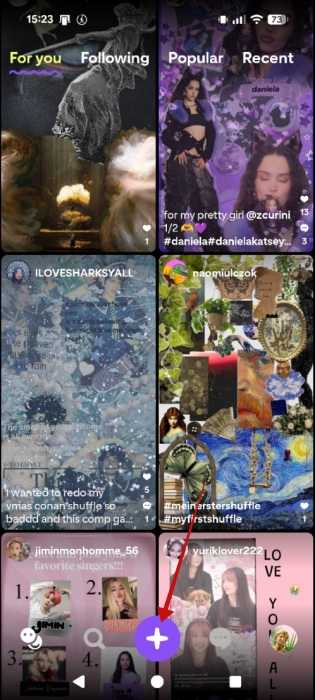
To start creating a collage, open the app on your device and tap on the big purple + button in the menu at the bottom.
Shuffles will generate a blank canvas for your new collage. Start exploring options at the bottom to start adding objects and more.
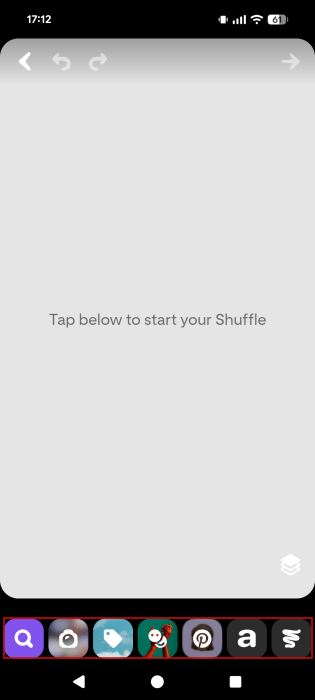
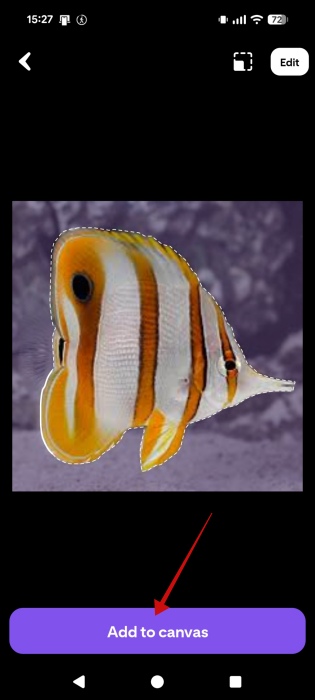
The first option is to add from your camera or gallery. Snap a photo or find a picture on your phone that features an evident subject and select it. Shuffles will immediately proceed to create a cutout of it. Press Add to canvas to upload to your canvas.
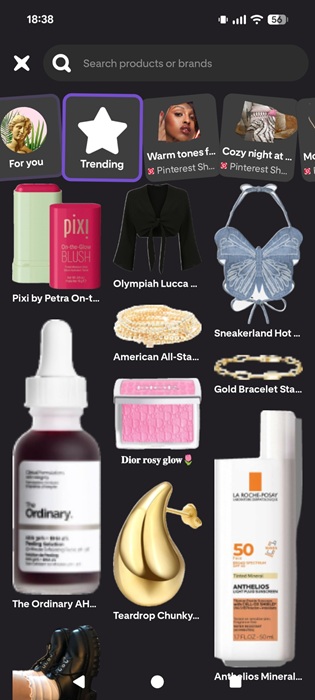
Alternatively, tap the button with a price tag to view a gallery of cutouts uploaded by other users. Browse the various categories, including the default Trending or the Popular Brands one, in case you want to add a consumer product to your creation.
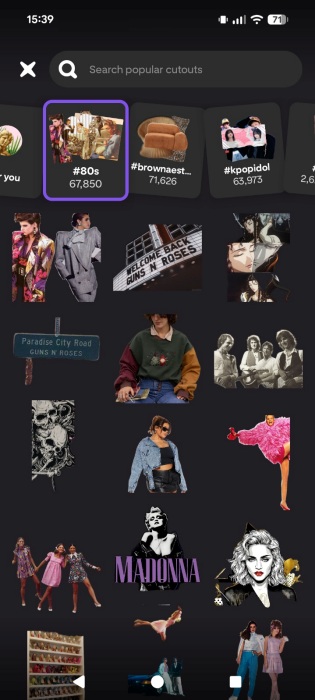
Tapping the third button featuring a smiley face will open up a cutout library organized by hashtags. For example, you can find all the cool cutouts tagged as #80s.
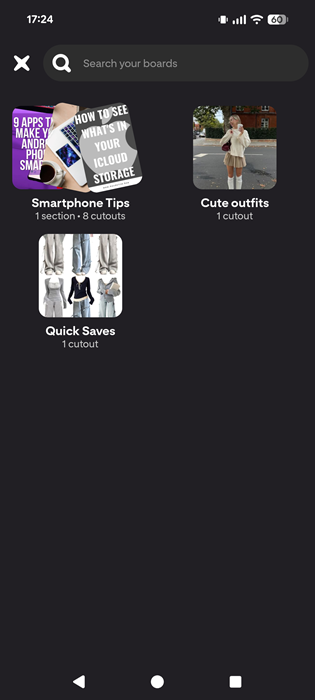
The next button in the bottom menu opens up your library of saved images from Pinterest. From here, you can easily turn them into cutouts.
Shuffles also allows you to add text and doodles to your collages for even greater customization.
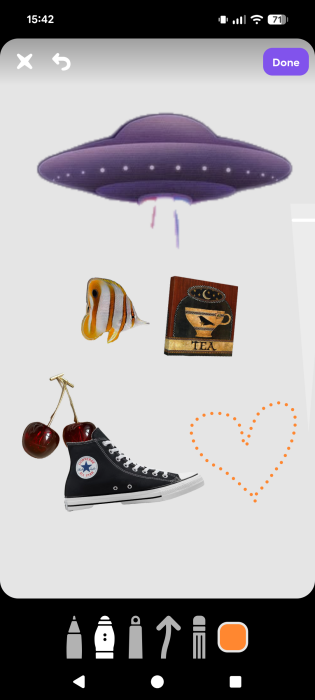
Once you add a cutout to your canvas, you can move it around by dragging it with your finger. Use the pinch-to-zoom gesture to enlarge or shrink them in size.
Editing cutouts
If you want to edit a cutout, you can do so by tapping on it.
This will open up the editing menu. Shuffles allows you to refine the clipping using the Shape tool.
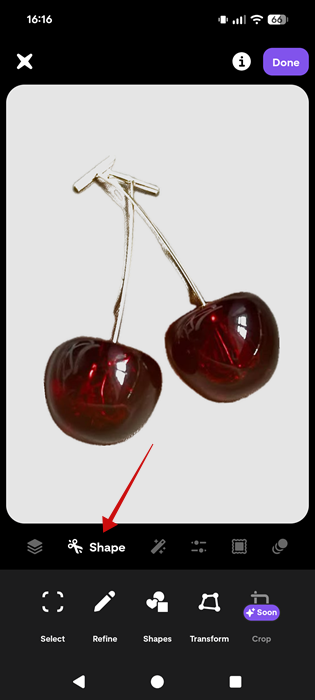
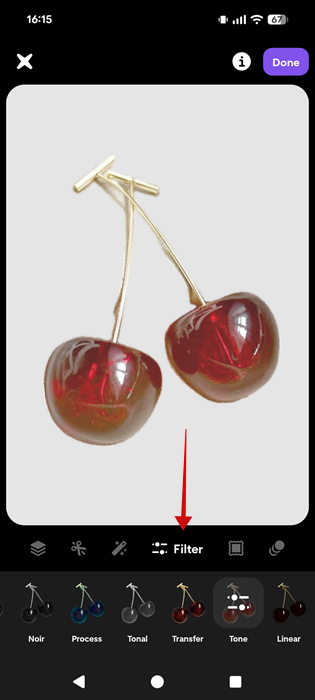
Additionally, you can play with the cutout’s opacity and other settings, add a border, or even apply filters.
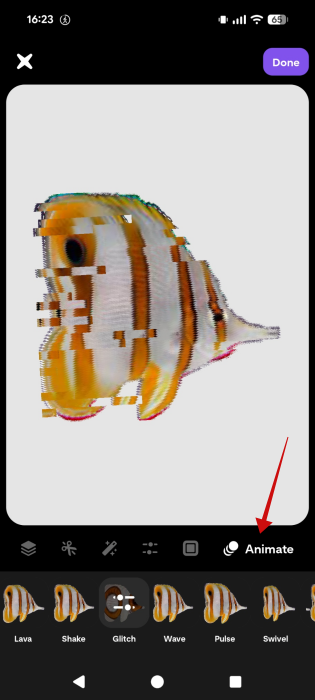
For me, the coolest feature is the ability to animate the clipping by adding various effects.
Using Layers
Each clipping you add to a collage acts as a separate layer. This lets you overlay elements and bring certain cutouts forward as needed, according to your artistic vision.
To do that, long-press on a cutout until a slider appears on the right. Drag it to the maximum (don’t remove the finger that’s long-pressing on the cutout, just swipe it upward). Remember, the cutouts need to be superimposed for this to work.
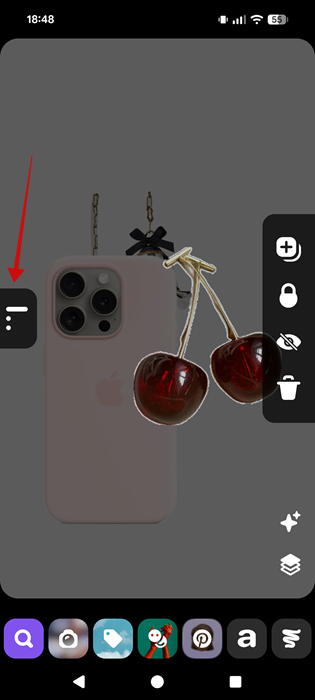
On the right, there’s a menu of options that lets you hide, delete or duplicate the layer.
Adding a background
The default canvas is white, so you might be wondering how to change the background. If you need a simple matte background, tap anywhere on the white space. A menu will appear underneath, allowing you to choose your preferred color. There’s even a pipette tool, so you can borrow colors from any of your cutouts.
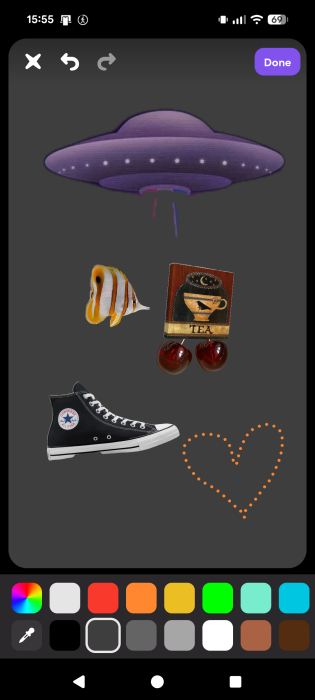
If you want to add a custom image as your background, that’s also possible. For this example, I found a background I wanted to use by browsing the section for the hashtag #halloween.
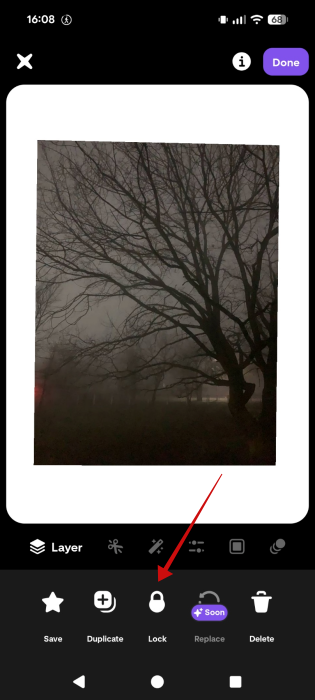
Add the background image first to the canvas. Don’t add the other clippings just yet. Stretch it out so it can cover the entire canvas. Now tap on the background to bring up the editing menu and tap Lock at the bottom to fix the background.
Now you can add your clippings and arrange them on the canvas.
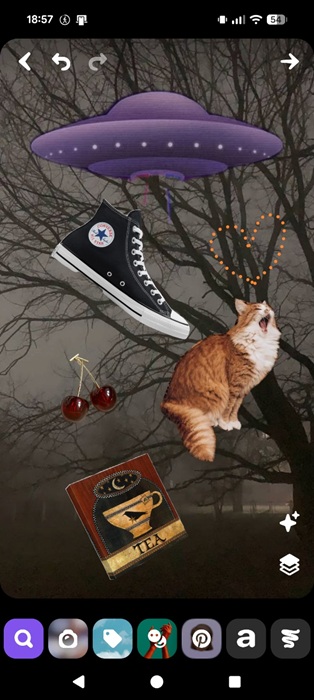
Once done, go ahead and post your collage.
Tip: learn how to quickly hide likes and comments in Instagram’s new Reels Friends tab.
Similarities with Instagram
For Instagram lovers eager to try something different, Shuffles offer a playful new space to explore. Those making the switch will settle in quickly thanks to the familiar interface.
Every collage you create is showcased on your profile, which features a layout akin to Instagram’s, featuring a profile picture, name, and handle at the top of the screen. In addition, the number of followers and following accounts is displayed below.
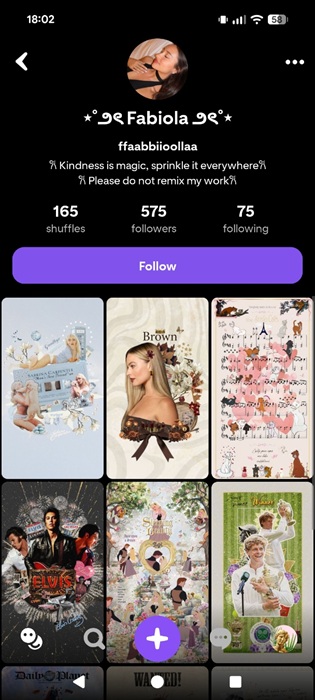
The content feed appears underneath, and you can switch between viewing your Drafts, Private, and Public posts with ease.
Now the post view screen is inspired by TikTok and the Instagram Reel feed, with the options to Like, Comment, Remix, or Share displayed on the right. You can swipe up or down to see the next or previous post.
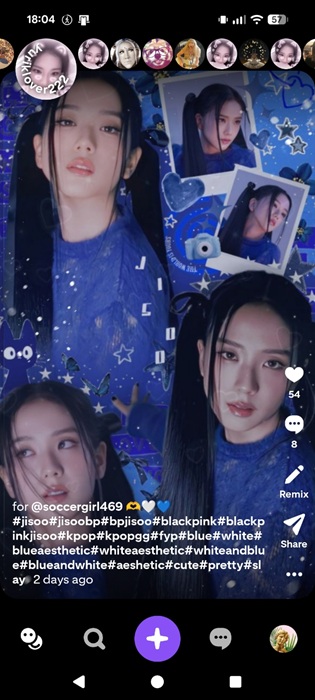
Moreover, recent collages posted to Shuffles show up in bubbles at the top of the display.
Of course, like on any social media app, Shuffles features a feed that contains posts from other people, allowing you to discover new, interesting creators. To me, this feed resembles the Discovery section in Instagram in the sense that it displays a series of thumbnails in a grid, not the usual vertical list of posts. There’s a separate feed too, for content posted by people you follow on the app.
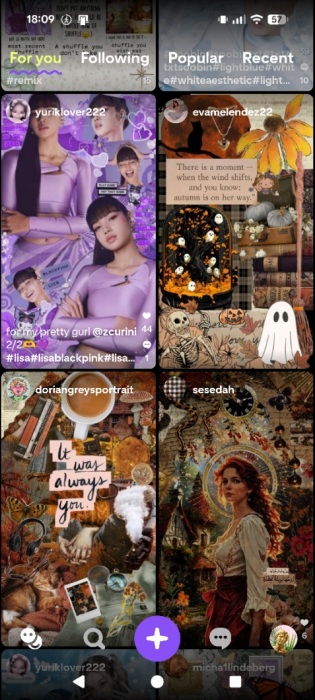
Bottom line, if you miss the days of old when Instagram wasn’t inundated with Reels, Shuffles might be the refreshing change you need.
Alternatives for Shuffles
On mobile, you can try using Instagram’s stories features to create a collage. The process is similar to Shuffles: add a background color or photo, and then you can add stickers from Instagram’s own library. You can import custom stickers as well to Instagram, but note that you can’t customize them like you can on Shuffles.
Another worthy option is the InShot app, which also has an embedded cutout function so you can turn your photos into clippings in seconds.
Collage-making is fun, but if you’re ready to take on more complex creative projects, give these powerful online photo editors a spin.








