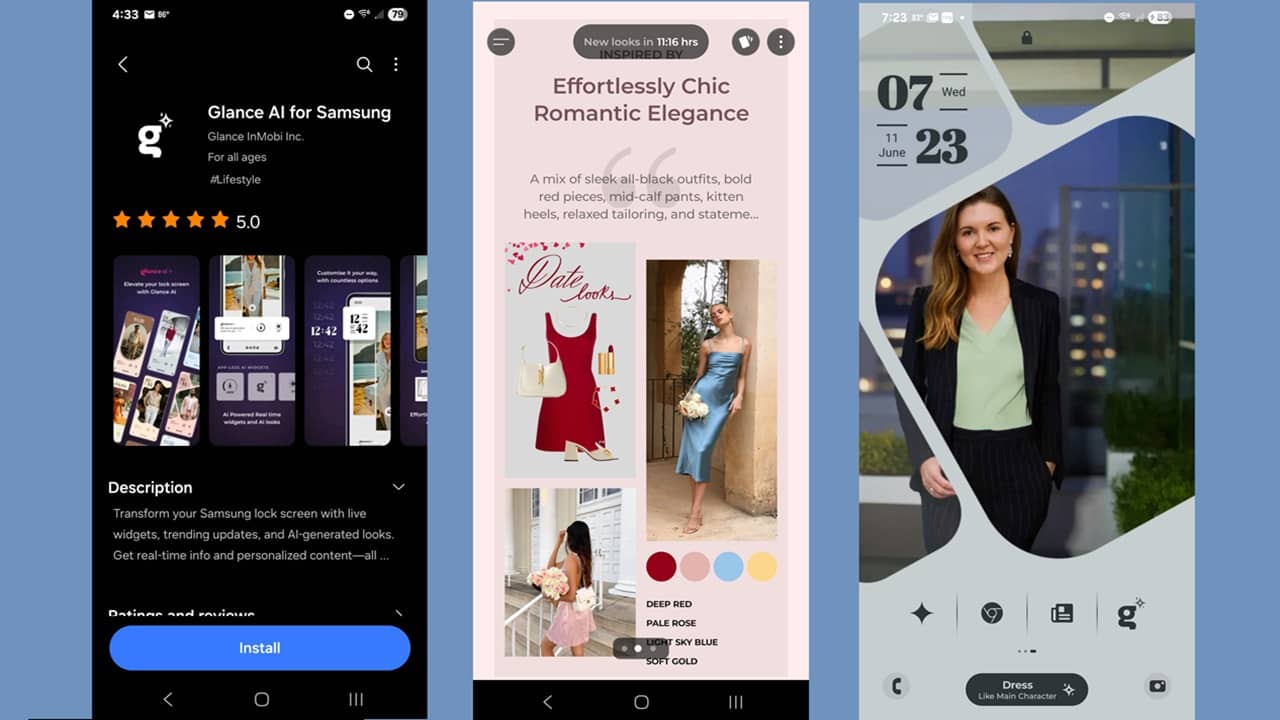
Imagine taking a simple selfie and suddenly getting to see yourself in hundreds of outfits, all from your lock screen. That’s exactly how the Glance AI app for Samsung phones works. Plus, if you see something that fits just right, buy it with a few taps.
What is Glance AI
If this app sounds familiar, it’s because it’s been around for a little while. Before adding in the AI component, it was just a customizable lock screen with personalized ads.
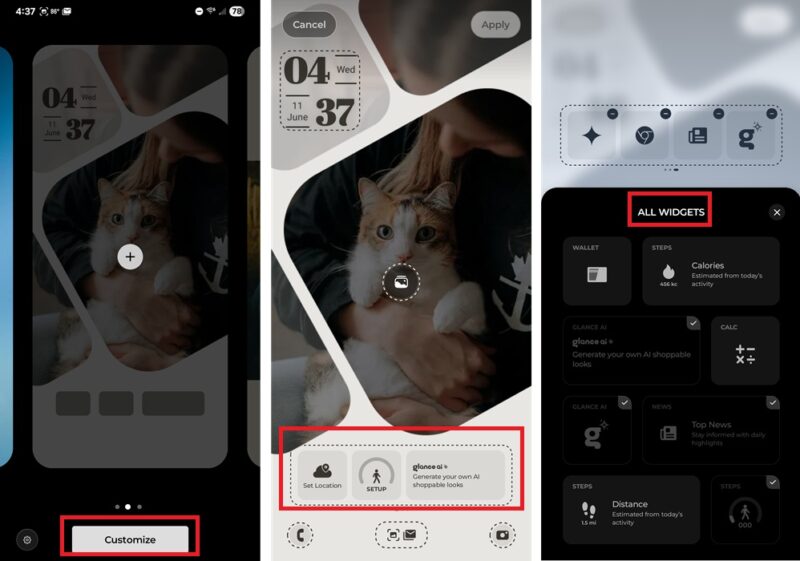
The lock screen features customizable backgrounds, weather, news, shortcuts, fitness data, and more. Long tap in any empty area in the lock screen and tap Customize. Tap any outlined area to change shortcuts and/or widgets.
Now, Samsung’s partnered with Glance AI to add an extra element to the mix – AI shopping. It’s available to Samsung Galaxy 22 and later devices in the US during the initial rollout. It’s only available through the Galaxy Store, though Samsung is pushing it out as an optional lock screen update as well.
The app is free to use. The app makes its money from commissions when you buy products suggested through the app.
If you have a Samsung device, open the Galaxy Store, search for Glance AI, and download the app. This lets you grab it before Samsung rolls out the feature update that includes it.
For now, it’s only for Samsung devices. Sorry Pixel users!
Taking Your Glance AI Selfie
If you stick with the default settings, you should see glance AI generate your own AI shoppable looks near the bottom of your lock screen. If not, swipe left a few times and look for the lowercase g with diamond over it.
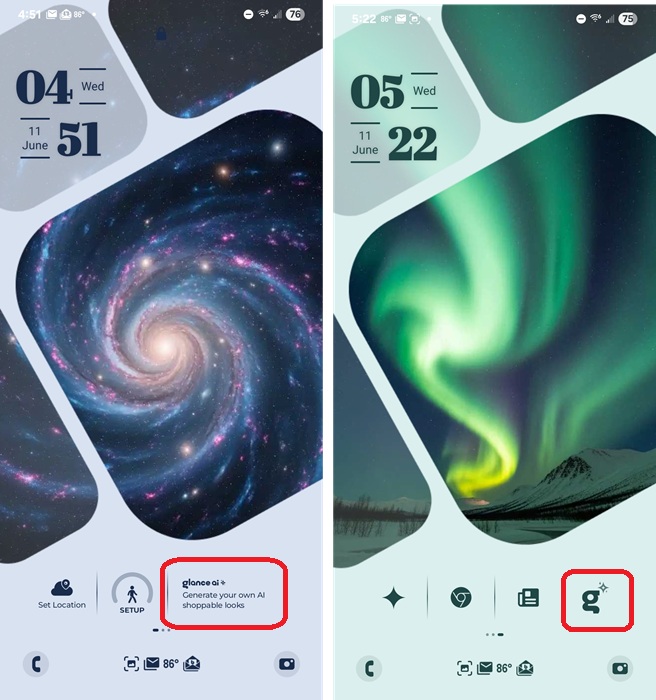
For those you’ve used this lock screen before, you may not see anything about Glance AI just yet. Update the app from the Galaxy Store, go back to your lock screen, long tap an empty area, and tap Customize. Tap any outlined widget area to bring up a list of available widgets. Look for Glance AI in the list to add it to your lock screen.
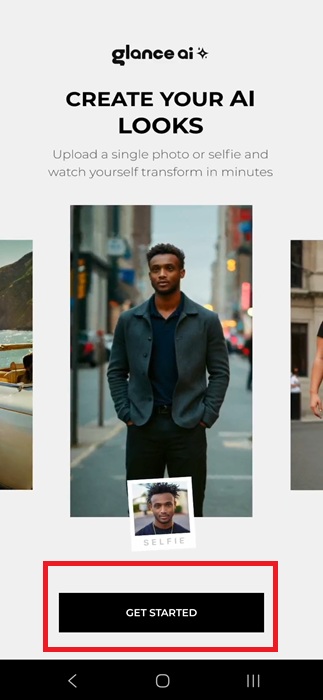
Tap Get Started once the Glance AI tool loads. You’ll need to take a selfie or upload an existing one, which the app then uses to show how you’d look in various outfits each day.
You can either use your Samsung or Google account to log in. But, you must use an account to store your image(s).
The app recommends talking a selfie in a brightly lit area. I went out in the sun, which seemed to work well. You don’t need a full body selfie.
Next, choose the gender you identify with. Currently, male and female are the only options, but the app promises more diverse options are on the way. Scroll to select your body type. Continue customizing your profile by selecting your hair length and ethnicity. Tap Continue when you’re done.
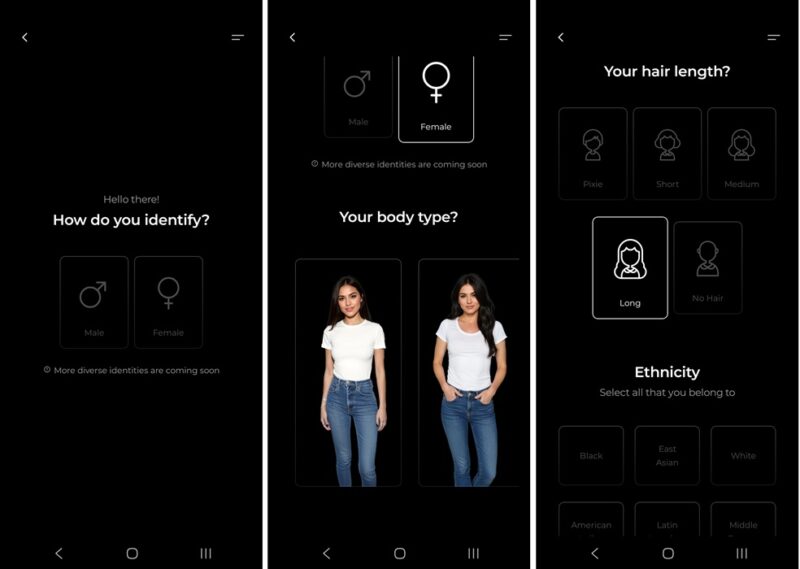
Glance AI is powered by Google’s Imagen 4 generator. No, it won’t create an exact replica of your body, but it gets fairly close.
I suggest you read the consent form carefully before continuing. You’re providing your image to this platform. Some of your data will be shared with their partners. However, the form claims that your sensitive information is never shared, and you can delete your image(s) at any time. Any images you haven’t interacted with within a year are automatically deleted.
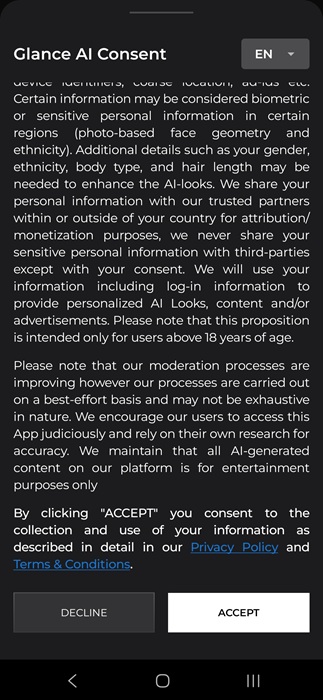
Still, if it all feels a bit too creepy to have an AI version of you being dressed up every day on your phone, you may want to tap Decline and just imagine what you’d look like in the outfits you find online.
Playing Dress Up and Buying Clothes On Samsung
It took around three minutes for Glance AI to generate my looks. While I was waiting, I had the option to personalize the overall experience. You’re free to skip and customize later if you want.
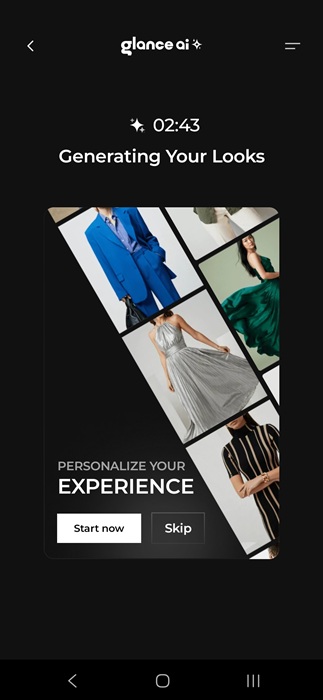
Personalizing involves choosing your favorite brands and types of styles. Brands are limited right now, but more are coming soon as the platform finalizes more partnerships.
Overall, the app did a good job at helping me see how I’d look in various styles and outfits. The first option was Date Ready, but I personally preferred the Graphic Tees Style Guide.
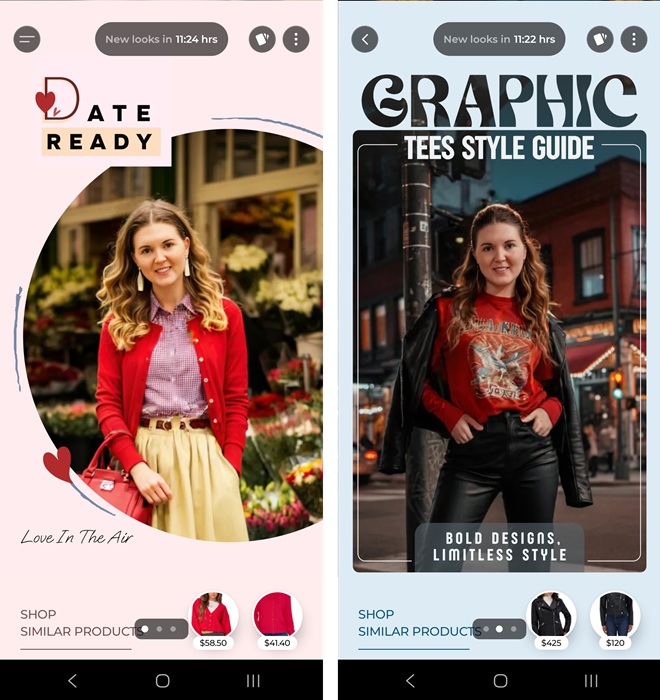
Tap the menu at the top left once you’re in the Glance AI style tool to change your settings, stop generating styles, or to take a new selfie. Tap the cards at the top right to view other styles for the day.
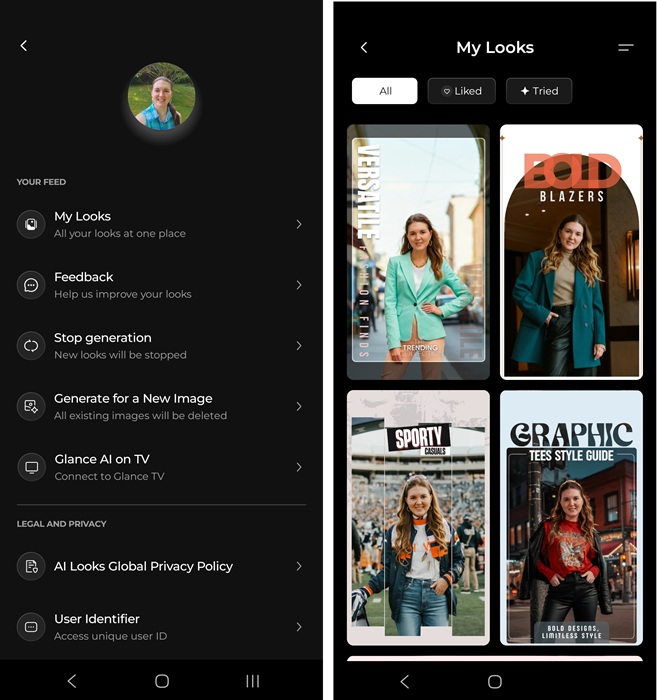
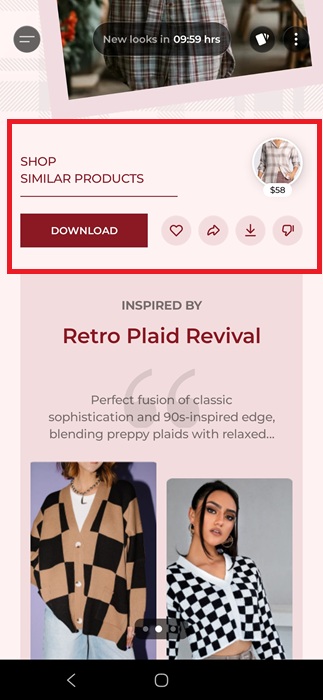
View more details by tapping an image. Scroll down once you’ve opened a style to shop the individual pieces and view even more suggestions. Just below the main image, you can download the image, like the style, share it with others, or dislike it. Tapping items with a price will take you to the brand’s store to shop.
The app doesn’t bother with helping you score deals. So, you might want to try these browser extensions to help save money. You can even use these extensions on Android.
Replace Your Lock Screen With New Styles
Don’t want to have to tap the Glance AI icon to view your styles? Replace your lock screen image with the generative AI one.
Long-tap an empty area and tap Customize. Tap the Image circle in the middle of the screen. Tap glance ai to select it as your image. You can do this on any of the lock screen templates in the app. Tap Apply at the top right to save your changes.
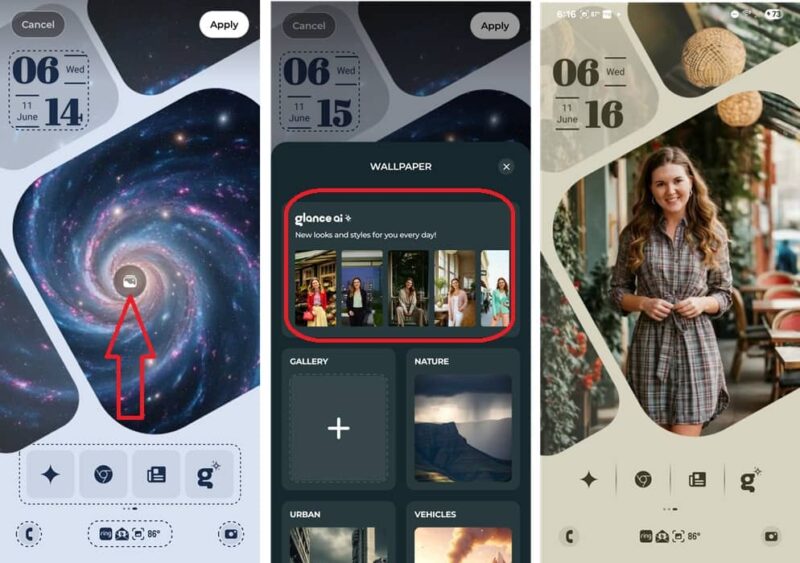
You’ll still need to go into the Glance AI tool on the lock screen to view details about the styles you see.
Delete Your Images
You have two options for deleting your images. Either upload something new (which could just be a blank image) or delete your entire Glance AI account.
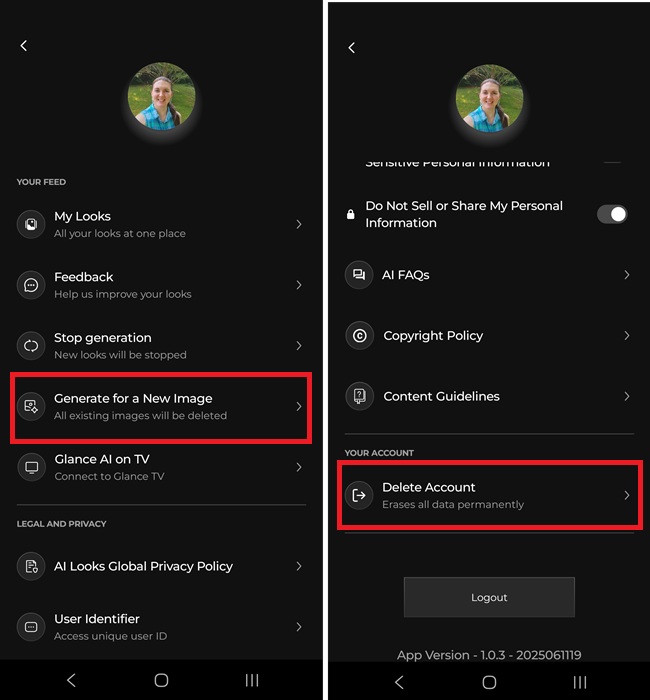
In the Glance AI style tool, tap the two line menu at the top left to view account settings. Tap Generate for a New Image. This removes all existing data. Or, scroll to the bottom of account settings page and tap Delete Account.
If you want to try more AI shopping tools, see how ChatGPT Search becomes your personal shopping assistant. Or, try on clothes using Google Search’s AI Mode.








