
Think you know all the tricks your Android phone has up its sleeve? You might be surprised. For example, did you know you can create custom text shortcuts? Type a short letter or symbol combo, and Android will automatically expand it into a longer phrase, so you can type faster. Here, we show how you can configure text shortcuts using Android’s built-in virtual keyboard solution, as well as on a third-party keyboard app.
Good to know: on iOS, you can set up text shortcuts by using the Text Replacement feature.
Create a Custom Text Shortcut in Gboard
Gboard is the default virtual keyboard solution for many Android phones these days. As such, the app comes pre-installed on your device, so it’s ready to use.
To create your first text shortcut on an Android device, open the Settings app on your phone. Navigate to System -> Keyboard.
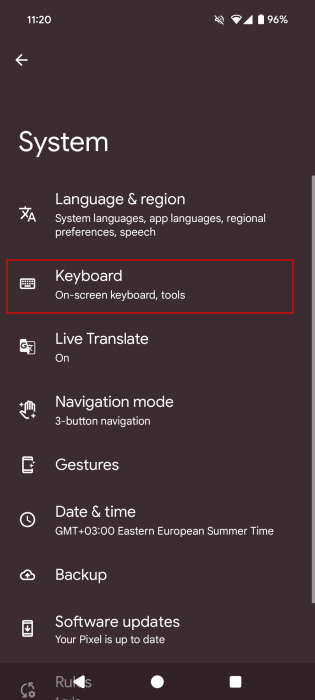
Select On-screen keyboard in the menu.
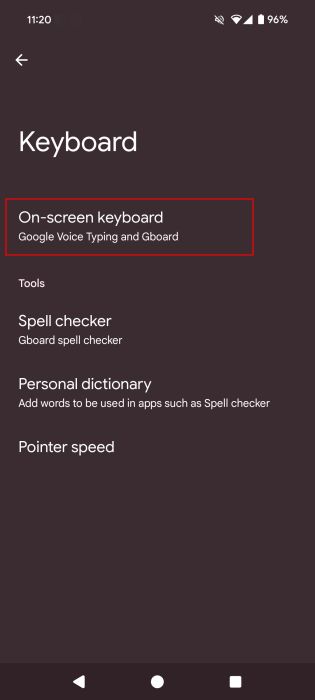
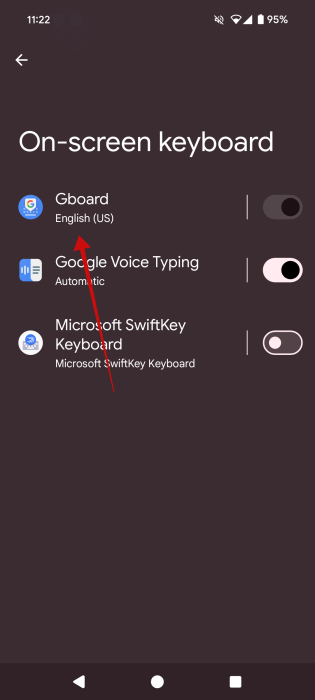
On the next screen, you should see Gboard at the top. The toggle is on by default, but you can tap the option to access its settings.
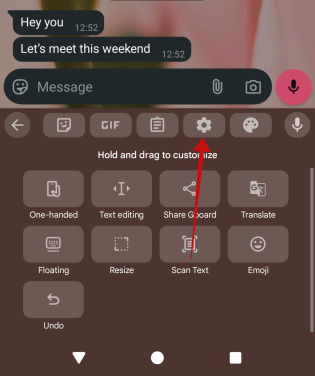
Alternatively, you can access these settings even from your messaging app after typing a text. For instance, in WhatsApp, bring up the keyboard and press on the four-square icon in the bar at the top.
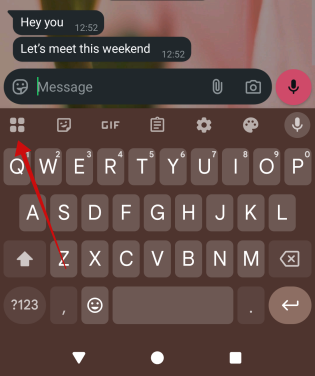
Select the gear icon in the next screen to go to Gboard’s Settings.
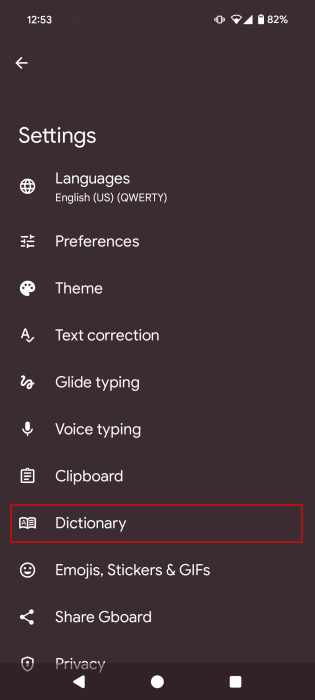
Select Dictionary in the menu.
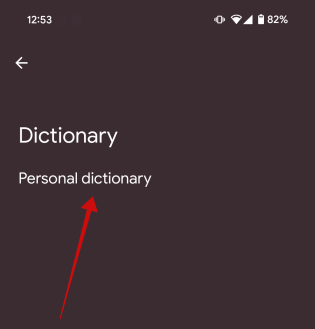
Tap on Personal dictionary.
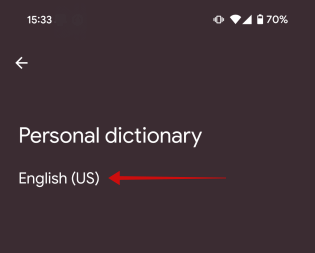
Select your language.
Here, press the + button in the upper-right corner to add a new shortcut.
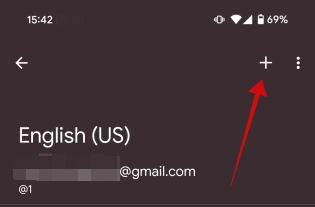
The shortcut goes at the bottom, meaning the text you will input to trigger the longer sentence or phrase. Then type the word(s) at the top. Press the back icon to save your new shortcut.
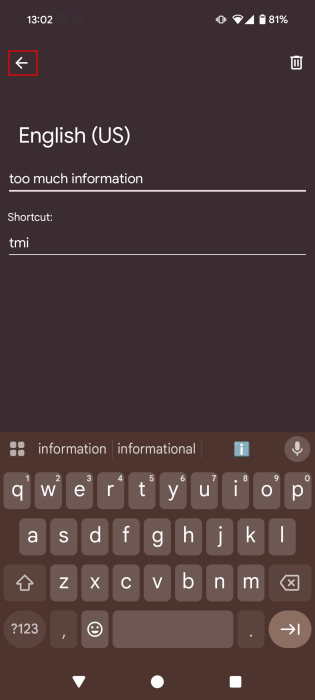
Note: make sure that the abbreviations you’re using aren’t common words, such as “ah” or “wow,” as it’ll make the phrase insert by accident.
The best way to use this feature is to create shortcuts for long(er) pieces of text that you constantly use, for instance:
- mu = miss you
- wb = welcome back
- sol = sooner or later
- otl = out to lunch
- tmi = too much information
- MTE = Make Tech Easier
Email & phone info
- @1 = your Gmail address
- @2 = your Outlook address (and so on)
- #1 = private phone number
- #2 = work phone number
Emoji
- sml= (•‿•)
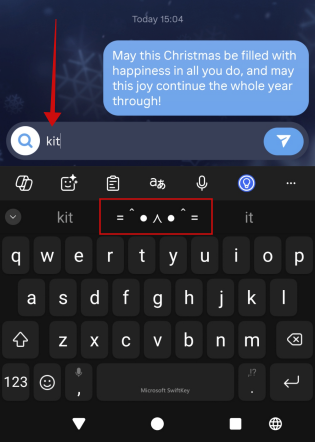
- kit= =^● ⋏ ●^=
- wnk= ( ͡~ ͜ʖ ͡° )
Websites
Special characters
- Ronan = Rónán
- cr = ©
Basic holiday/birthday wishes
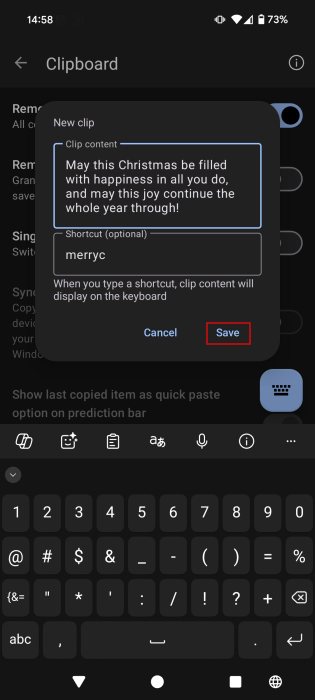
- merryc= May this Christmas be filled with happiness in all that you do, and may this joy continue the whole year through
Tip: here’s how you can extract text from an image on your Android device.
Create a Custom Text Shortcut in SwiftKey
Microsoft’s SwiftKey is one of the most popular keyboard apps for Android and a favorite among many users. If you, too, are using SwiftKey as your default keyboard app, here’s how to create a text shortcut.
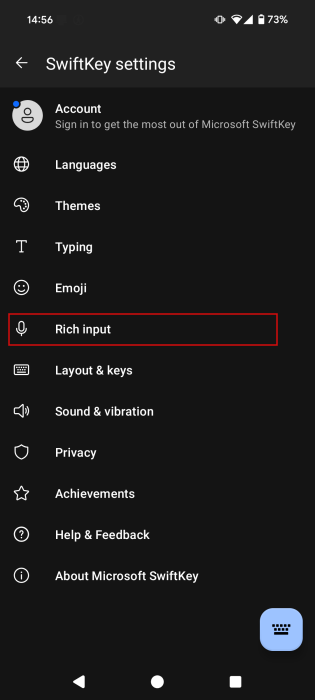
Open the SwiftKey app on your phone and select Rich input.
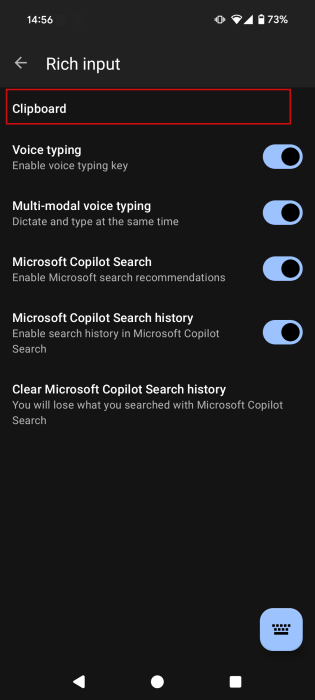
Tap on Clipboard at the top.
At the bottom, select Add a new clip.
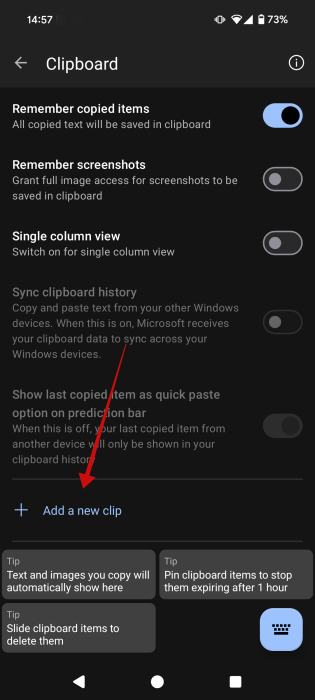
Enter the shortcut at the bottom and add the expanded text in the top field. Press Save.
Note: if you’re using any other Android third-party app keyboard, try searching their Settings page. You will probably find a similar option to create text shortcuts.
How to Use Text Shortcuts in Chats
Now that you’ve created your text shortcuts, you can go ahead and open any messaging or chat app on your Android. It even works in email apps such as Gmail.
Whether using Gboard or SwiftKey, the process is the same. Type the shortcut in the message bar, but don’t press the Send button just yet. Then select the text or symbol you’ve associated with it from the suggestion bar at the top. In this example, we’ve inserted a cat-like text emoji.
FYI: learn how to make funny emoji combos with Gboard on Android.
Remove Text Shortcuts on Android
In case you ever wish to remove the text shortcut, it’s easy to do.
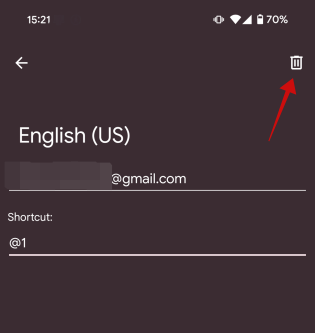
If you’re using Gboard, you can remove a shortcut without even having to leave the chat app you’re in. Go to Settings as we showed you above and then tap on Dictionary -> Personal dictionary.
Tap to open one of the shortcuts available. Press the bin icon in the upper right to delete it.
For SwiftKey users, you can also remove a shortcut without leaving the messaging app you’ve been chatting in.
Bring up SwiftKey and tap the three dots in the upper-right corner.
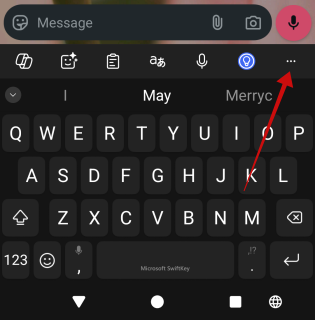
Tap Settings.
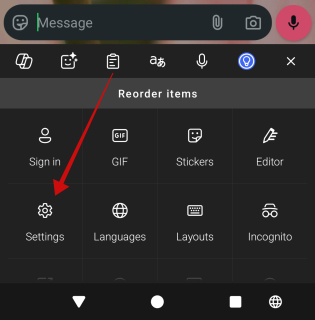
Go to Rich input -> Clipboard and find your shortcuts at the bottom.
Swipe left on the shortcut card to reveal the Delete button. Tap it to remove the shortcut.
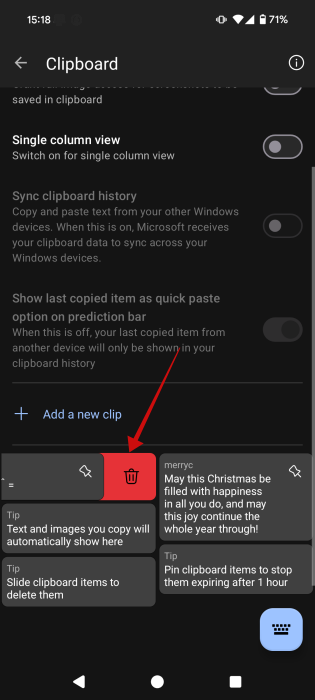
If you’ve made a mistake, you have a few seconds to tap Undo delete to restore the shortcut.
Android keyboards keep getting smarter, and apps like Google’s Gboard are leading the charge. For instance, Gboard recently added the Undo/Redo functions. You can also type in Morse code in Gboard.








